My iPhone says there isn’t enough storage to install the latest iOS update, even after I deleted apps, photos, and other files. I already freed up space, restarted the phone, and checked storage settings, but the update still won’t download. I need help figuring out why my iPhone still says not enough storage for update and what else I can try.
Getting blocked by an iPhone update because of ‘not enough storage’ is one of those dumb problems Apple never explains well. I ran into it with a phone showing a few GB free, and it still refused to install. What tripped me up was this part: the update file is one chunk, then iOS needs extra room to unpack it and finish the install. For a big yearly jump, I’d want 10GB to 15GB open before I even bother trying. Anything less felt shaky.
If you’re stuck deleting random screenshots and seeing no progress, this order worked better for me.
Use a computer first
If you have a Mac or Windows PC nearby, I’d start there. It saves a lot of nonsense.
Plug the iPhone into the computer and update it there. On a Mac, use Finder. On Windows, use iTunes. The big difference is the computer handles the download and prep work, so your phone doesn’t need as much free internal space for the whole process.
Before you hit Update, do a full backup to the computer. I did this once before a major iOS jump because I didn’t trust the process, and I’m glad I had it.
If the phone is still a mess storage-wise, there’s a more blunt fix. Back up the iPhone, erase it, set it up again, then restore from backup. During setup, it should pull the newest iOS version your device supports. It’s more work, yeah, but it gets around some ugly storage dead ends.
Photos and videos
This is where I usually found the biggest gains.
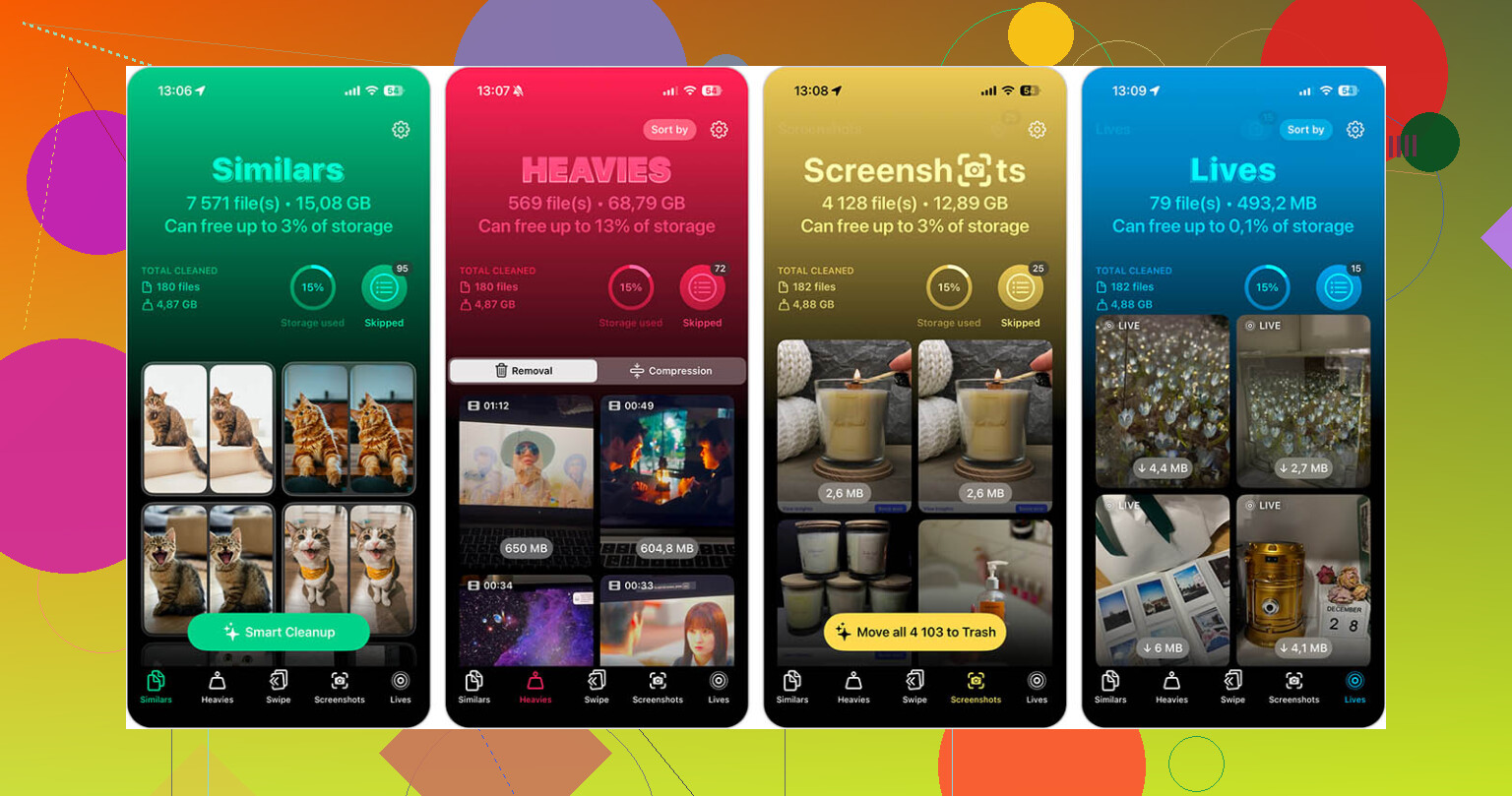
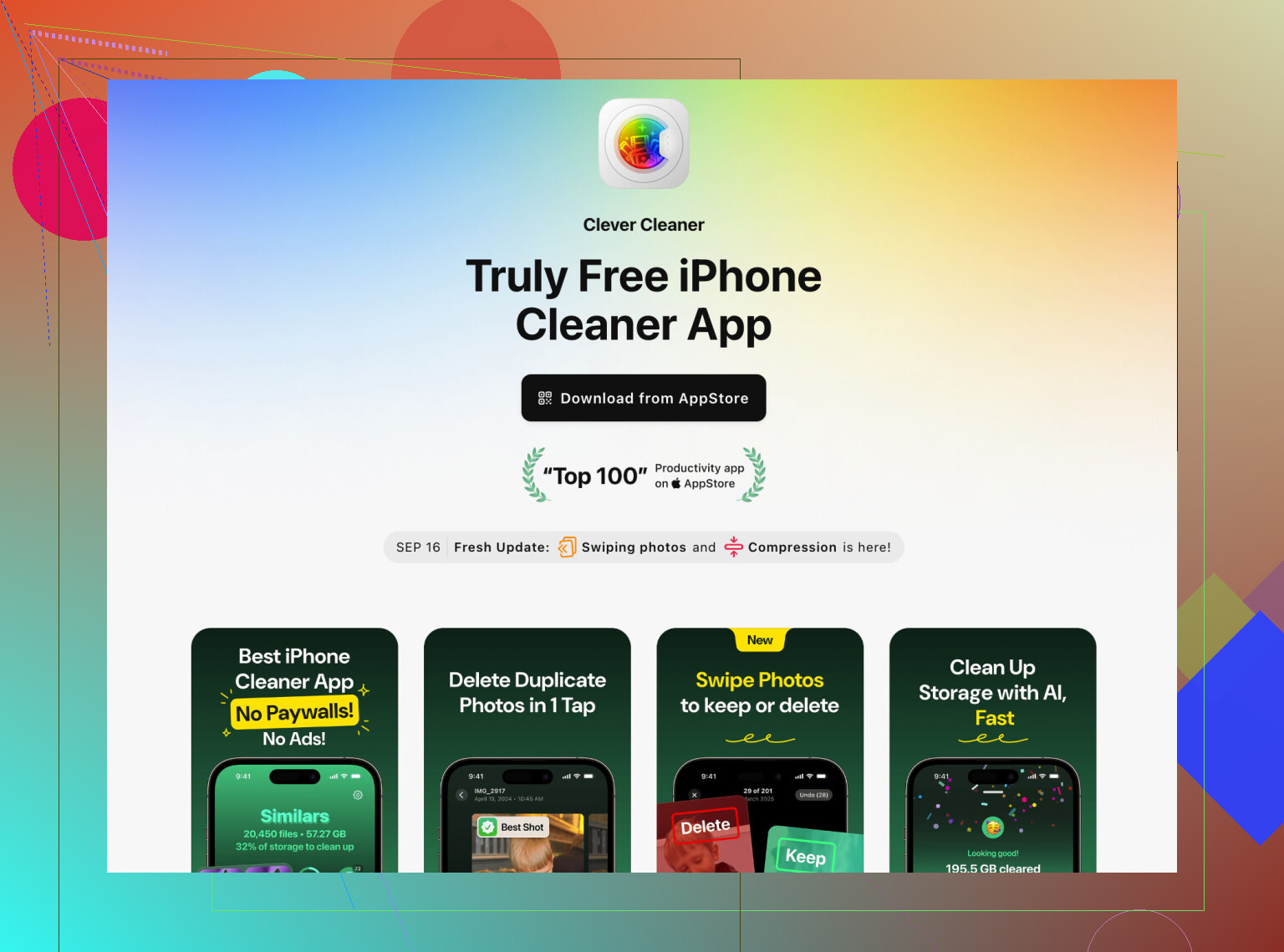
Scrolling through the library by hand is slow and kind of useless if your goal is freeing space fast. I had better luck using Clever Cleaner. It didn’t hit me with paywalls right away, which is rare enough.
The part I liked most was the tool for large files. It surfaces the biggest videos first. On my phone, two old 4K clips ate more space than hundreds of photos. Deleting those moved the number fast.
It also groups near-duplicate shots. If your camera roll has 18 versions of the same pet photo, same concert clip, same blurry receipt, this cuts down the mess quicker than doing it manually.
One thing people miss, and I missed it too the first time: after deleting photos or videos, open Recently Deleted in Photos and clear it out. If you skip that, the storage doesn’t come back right away. iOS hangs onto it for 30 days.
Apps
I know Apple pushes Offload Unused Apps. I’ve used it, and for this problem I don’t love it.
Offloading removes the app itself but leaves its documents and data behind. A lot of junk lives there. Social apps are bad for this. TikTok, YouTube, Instagram, even some shopping apps, they pile up cache over time.
If you need space now, delete apps you don’t use every day. Full delete, not offload. You can reinstall later, and a fresh install is often smaller anyway. I did this with a few apps I hadn’t opened in months and got more back than I expected.
Hidden junk
Two spots tend to hold a bunch of trash people forget about.
- Safari
Go to Settings > Apps > Safari, then clear History and Website Data.
I’ve seen this free up hundreds of MB, sometimes around 1GB. It depends on how long it’s been since you cleaned it out.
- Message attachments
Go to Settings > General > iPhone Storage > Messages, then check Review Large Attachments.
This one is sneaky. Group chats fill up with videos, memes, voice notes, random files. You can remove the large attachments without deleting the conversation itself. I found old clips in there I forgot existed.
If I were doing this again, I’d go in this order:
Use a computer for the update.
Delete large videos first.
Empty Recently Deleted.
Remove unused apps fully.
Clear Safari data.
Delete big message attachments.
Doing it in that order gave me space faster than picking at random files one by one.
23 Likes
What trips people up is iOS storage math is messy. The number in iPhone Storage is not always the space the updater gets to use. System Data, old update leftovers, logs, caches, and temp install files eat space in the background. So you delete 4 GB, but the updater still fails.
I agree with @mikeappsreviewer on one part, big updates often want way more room than the size shown. I don’t fully agree on needing 10 to 15 GB every time though. I’ve seen smaller point updates install with less, if the phone wasn’t clogged with junk.
Try these checks first.
-
Delete the downloaded update file.
Settings > General > iPhone Storage > look for iOS update > Delete Update.
Then download it again. Old update files get stuck sometmes. -
Wait 10 to 20 minutes after deleting stuff.
iOS does not always recalc storage right away. It lags. Annoying, but true. -
Check System Data.
If System Data is huge, like 15 GB to 30 GB, that is often the blocker. Syncing once with a Mac or PC sometimes shrinks it. Not even for updating, more for forcing cleanup. -
Turn off beta profile if you have one.
Beta files and logs take space and break updates more than people think. -
If Photos is the problem, target the largest items first.
A cleaner app helps here. Clever Cleaner is decent for finding big videos and duplicate photos fast. Also, if you want a solid user writeup, read this Clever Cleaner Reddit review for freeing iPhone storage. -
Check available space after a restart and while charging on Wi-Fi.
Some updates refuse to behave unless the basics are lined up.
If none of that works, backup, erase, restore is often the fix. It’s a pain, but it clears the hidden trash Apple never shows you cleanly.
What usually causes this is not just “free space,” it’s where the space is tied up. iOS can show a few GB available, but the updater still fails because storage is trapped in purgeable cache, local snapshots, or a half-broken update state. So yeah, @mikeappsreviewer and @techchizkid are right about hidden overhead, but I don’t think deleting more random stuff is always the answer.
A couple things I’d try that are a little different:
- Turn off Low Power Mode before updating. It can interfere with background prep.
- Remove any downloaded offline content: Spotify, Netflix, YouTube, Podcasts. People forget these because they don’t show up as obvious “files.”
- Temporarily disable and re-enable iCloud Photos only if your originals are already synced. Sometimes local photo caching gets weird. Don’t do this unless you’re sure your stuff is backed up.
- Check for MDM/work profile restrictions if it’s a work or school phone. Those can block updates in ways that look like storage bugs.
- Date and time set to automatic. Sounds dumb, but update verification can fail and throw misleading messages.
Also, connect it to power and leave it idle on Wi-Fi for a bit. iPhones sometimes do cleanup jobs only when locked and charging. Annoying, but that’s Apple logic for ya.
If photos are the main problem, I’d use Clever Cleaner to spot giant videos and duplicate junk faster instead of poking around forever. Different use case from the other replies, more about getting to the biggest offenders fast.
And if you want a cleaner system for automating iPhone storage cleanup steps, that’s worth a look too.
If it still won’t update after that, the error is probly less about actual space and more about a corrupted update process. At that point, computer update or full backup/restore is the least stupid option.
One angle I don’t see enough: the APFS snapshot problem. iPhone can keep local snapshots for rollback/consistency, and Settings may count space in a way that looks free-ish but is not actually reusable for the updater right then. That is why @techchizkid and @himmelsjager are right about “messy storage math,” but I slightly disagree with @mikeappsreviewer’s 10 to 15 GB rule as a blanket number. Sometimes the issue is stale snapshots, not just raw free space.
What I’d check that’s different:
-
Try updating from Recovery Mode on a computer
- This is different from a normal Finder/iTunes update.
- It can replace a stuck update state without fully erasing first.
-
Look at analytics logs
- Settings > Privacy & Security > Analytics & Improvements > Analytics Data
- If you see repeated
StorageAlmostFull,mobileasset, or update-related crash logs, that points to a broken updater state, not just lack of space.
-
Check if you’re using unusually full shared storage with Apple Intelligence / downloaded voices / dictionaries
- Enhanced Siri voices, translation data, offline maps, GarageBand sound libraries can be weirdly large.
-
Remove old VPN/security apps temporarily
- Rare, but I’ve seen filtering apps interfere with update verification and throw misleading errors.
On photo cleanup, Clever Cleaner is actually useful if your biggest issue is giant videos or duplicate clutter.
Pros: fast scan, easy to spot biggest space hogs, simpler than digging through Photos manually.
Cons: it will not fix corrupted iOS update files or System Data bloat, and any cleaner app is only as good as what you choose to delete.
If none of that works, I’d stop chasing megabytes and go straight to Recovery Mode update, then full backup and restore if needed. That usually tells you whether it’s truly storage or just iOS being broken.