After updating my iPhone to the latest iOS version, I can’t find the Trash folder where deleted items used to be. I’m trying to recover something I deleted and need help figuring out where Apple moved it or how to access it now.
Yeah, this is one of those annoying iPhone things. There’s no single “Empty All Trash” button like you’d get on a Mac or Windows PC. Deleted stuff is scattered around inside different apps, so clearing space usually means checking a few separate places.
The biggest one is usually Photos. If you deleted a bunch of pictures or videos, they’re not really gone yet. Go into Photos, scroll down to Collections, then look near the bottom under Utilities for Recently Deleted. On newer iOS versions it’s often locked, so you may need Face ID or your passcode to open it.
Photos and videos sit there for 30 days unless you remove them manually. And yes, they still use storage during that time. If your phone is already full, open Recently Deleted, tap Select, hit the three-dot menu, then choose Delete All. That’s the part that actually gives the space back.
Notes and Files have their own deleted areas too. In Notes, keep tapping the back arrow until you get to the Folders screen, then look for Recently Deleted. In the Files app, go to Browse, check under Locations, and open Recently Deleted. Those usually stick around for about 30 days as well.
Also check Messages, because that one gets overlooked a lot. Since iOS 16, deleted conversations can sit in their own recovery folder. Open Messages, tap Edit or the filter icon near the top, then choose Show Recently Deleted. If you send or receive a lot of videos, this can take up way more space than you’d expect.
Mail is separate again. Go into Mailboxes, open each account like Gmail or iCloud, then find that account’s Trash folder. From there you can usually tap Edit and use Delete All.
If your iPhone is lagging badly, full storage can definitely be part of it. iOS needs some free space for temporary files, cache, logs, and the stuff that often shows up as System Data. A forced restart can help clear some temporary junk without deleting your photos, apps, or messages.
I ran into this same mess a while back when my iPhone was crawling, apps were crashing, and the storage warning kept popping up. Manually checking Photos, Notes, Files, Messages, and Mail helped, but it was a pain and I kept missing things.
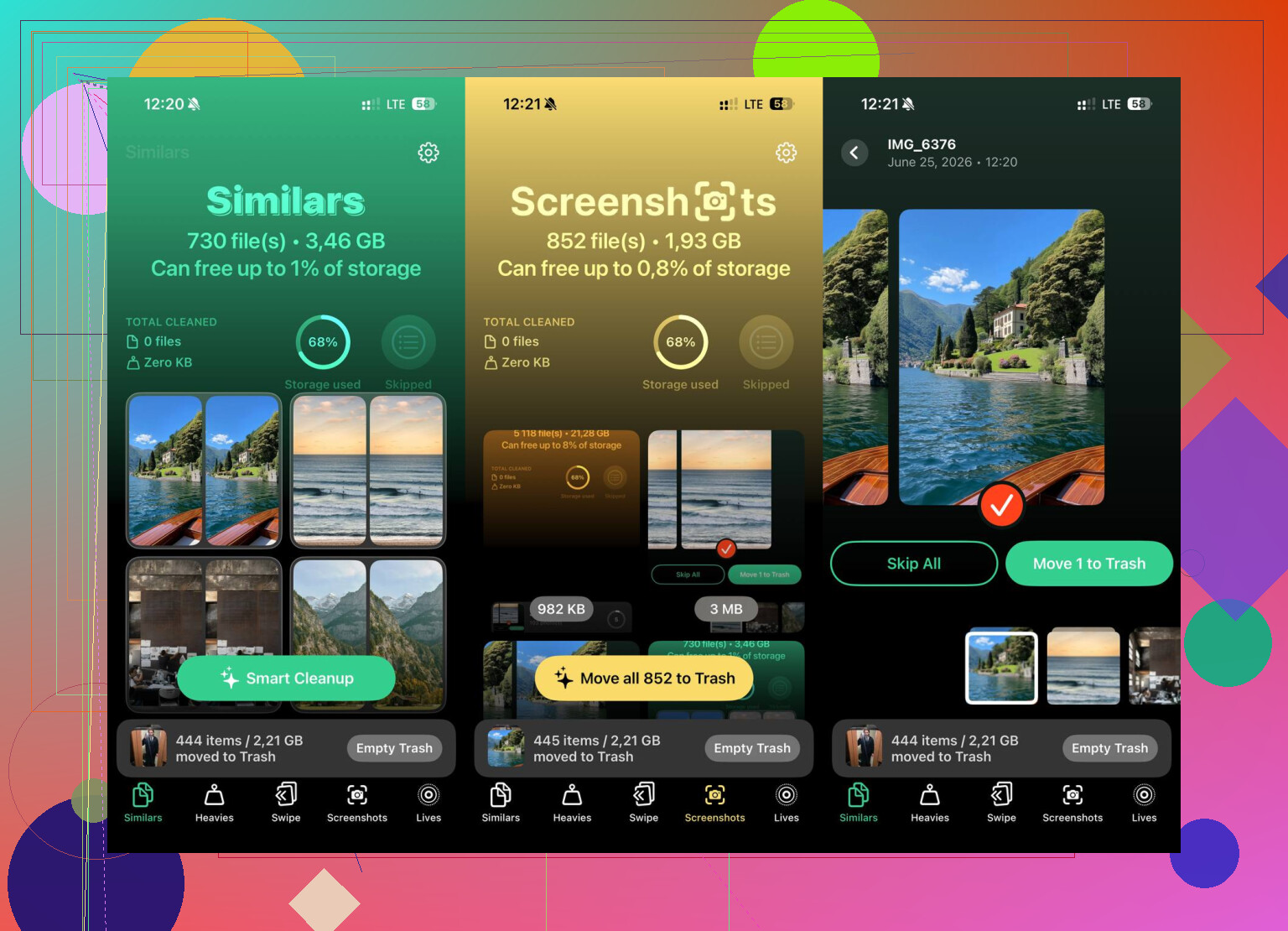
I ended up using Clever Cleaner for the photo cleanup side of it. The main reason I kept it around is that it’s completely free, with no ads, paywalls, or subscription prompt just to delete stuff.
The Heavies tab is useful because it sorts your photos and videos by file size, so you can clear the biggest space hogs first. The Similars tab uses AI to group near-duplicate shots, like all those almost-identical photos you take before picking one. It also shows the exact file size for screenshots and photos, which makes it easier to decide what’s actually worth keeping.
The privacy part is nice too: it processes everything on-device, so it’s not sending your personal photos off to some random server for analysis.
So I’d start with the built-in Recently Deleted folders first. If storage is still tight after that, something like Clever Cleaner can make the photo and video cleanup a lot less tedious.
24 Likes
Don’t empty anything until you know which app the deleted item came from. On iPhone, “Trash” is not one place, and that is the confusing bit. Apple usually calls it “Recently Deleted,” and each app keeps its own version of it.
@mikeappsreviewer is right that Photos is the big one, but if you are trying to recover something, don’t tap Delete All in there. Open the app where the item originally lived first. For pictures or videos, check Photos > Utilities > Recently Deleted. For notes, go back to the Notes folder list and check Recently Deleted. For files, open Files > Browse > Recently Deleted. For texts, open Messages and look for Recently Deleted from the Edit menu or filters area, depending on your layout.
The catch people miss is iCloud sync. If the deleted item was synced through iCloud, deleting it on your iPhone may have deleted it from your iPad, Mac, and iCloud too. Recovery still usually has to happen from that same Recently Deleted area before the timer runs out. I’d avoid cleanup apps until after you recover what you need. Something like Clever Cleaner might be fine for sorting big photo files later, but it is not where I’d start when the goal is getting a deleted item back.

A deleted photo is easy to chase down; a deleted Gmail message, WhatsApp chat, or downloaded file can be in a totally different place. The latest iOS update probably did not move one master Trash folder, because iPhone never really had one. I’d stop looking in Settings or iPhone Storage for recovery, since those screens mostly show space usage, not deleted-item folders. Open the exact app where the item was deleted and look for Recently Deleted, Trash, Archive, or Bin inside that app or account. Small warning: if it was from a third-party app and you deleted the app too, the recoverable copy may be gone unless that app syncs to its own cloud account.
Recovering a photo is very different from recovering something you deleted from an app that syncs online. Photos, Notes, Files, and Messages may have a local “Recently Deleted” view, but Gmail, Outlook, WhatsApp, Dropbox, Google Drive, and similar apps usually follow their own account rules. So if the missing item came from an online account, the iOS update probably has nothing to do with where it went.
The fastest way to narrow it down is to stop thinking “iPhone Trash” and think “which account owned this item?” For example, an iCloud note should be checked in the Notes app under that iCloud folder. A Gmail message should be checked in the Gmail app or the Gmail section inside Apple Mail. A file saved in iCloud Drive should be checked in Files > Browse > Recently Deleted, but a file saved in Google Drive needs to be checked in Google Drive’s trash.
Small caveat that people miss: if you don’t see “Recently Deleted,” it does not always mean Apple moved it. It may only appear when there is something recoverable there, or you may be inside the wrong account/location. In Photos, it can be under Albums/Utilities and may ask for Face ID. In Messages, the option can be behind Edit, Filters, or Recently Deleted depending on your message filtering settings.
If it’s already past the recovery window, be careful with the backup route. Restoring an iPhone backup is not like opening a trash folder and picking one file. It can roll the whole phone back to the state of that backup, which may remove newer messages, photos, app data, or settings. I’d only try that if the deleted item is more important than anything added since the backup date.
So the practical answer is: Apple didn’t move one main Trash folder, because there isn’t one. Go back to the exact app or cloud account where the item lived, check its Recently Deleted/Trash/Bin area, and don’t empty anything until you’ve recovered what you need.