I lost my TV remote and can’t change channels, adjust settings, or access my streaming apps. I’m looking for the best ways to control my TV without the remote, like using buttons, a phone app, a universal remote, or getting a replacement.
Lost remotes are weirdly good at ending up in the dumbest places, so I’d start with the boring stuff before buying anything.
Check the couch cushions, under and behind the sofa, between seat gaps, inside blankets, on the kitchen counter, bathroom shelf, and yes, even the fridge. It sounds ridiculous until it’s actually there.
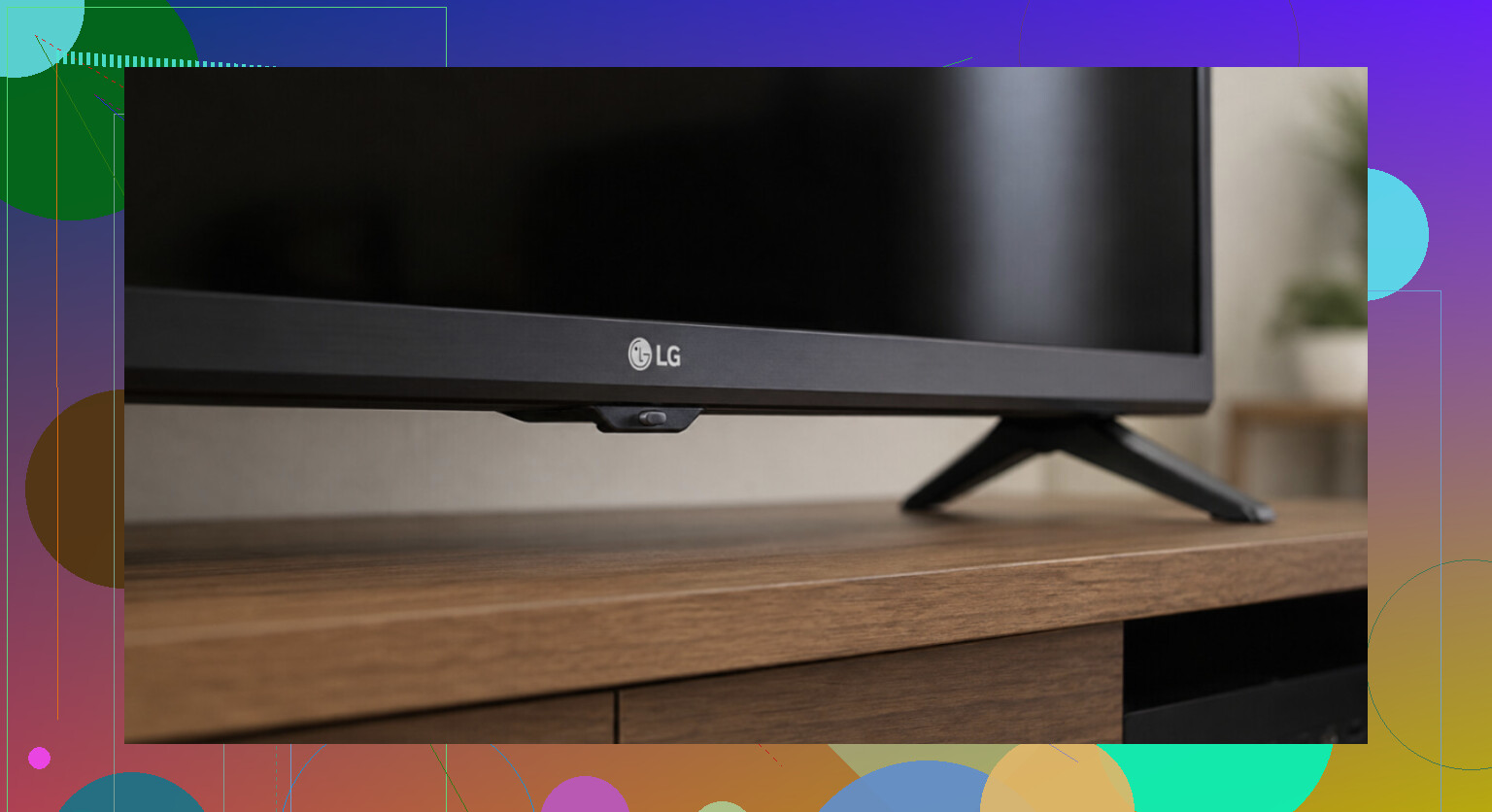
If you need to use the TV right now, look for the physical controls on the TV itself. Most TVs still have them, but they’re usually tucked somewhere annoying: bottom edge, back panel, side, or hidden near the logo. Sometimes it’s a tiny joystick instead of normal buttons. You should at least be able to control power, volume, input, and maybe channels. If you can’t find them, check the sticker on the back for the model number and look up where the buttons are on that exact set.
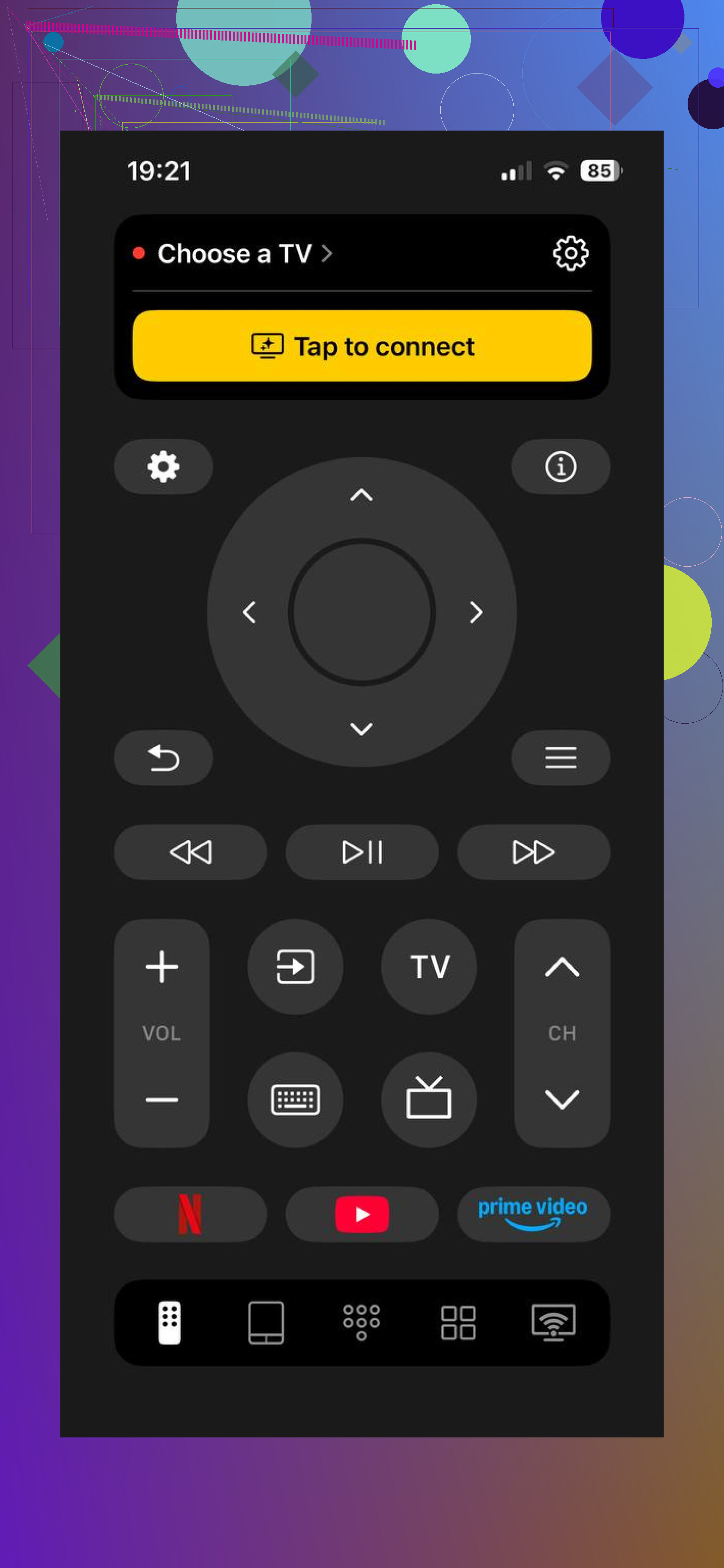
The easiest replacement, if it’s a smart TV, is probably your phone. Just make sure your phone and the TV are on the same Wi-Fi network, since that’s usually the reason these apps fail to connect.
You can use the official app for whatever you have, like Samsung SmartThings, LG ThinQ, Roku, or Fire TV. Those are usually the safest first try if you know the brand or platform.
Another option is a universal app like TVRem. It works with Samsung, LG, Roku, Fire TV, Android/Google TV, and Apple TV, which is useful if you have more than one TV or aren’t sure which remote disappeared. It has full controls, one-tap app launching, keyboard input, voice search, no subscription, and it’s rated 4.8 from a couple thousand reviews. More info here: Free TV Remote App for iPhone & iPad: One Remote for Almost All TVs
If you still want an actual remote, search your TV model number plus “remote.” You can either get the official replacement from the manufacturer or grab a cheap universal/learning remote that works across brands. For Roku or Fire TV sticks, it’s usually best to buy the matching replacement remote from the maker.
For a remote that’s truly gone, the practical setup is usually a phone app plus a cheap $5–15 backup remote. The app is convenient, and the physical remote saves you when your phone is dead or someone else wants to watch TV.
One catch: app control only works if the TV is smart and connected to Wi-Fi. If it’s an older non-smart TV, you’re stuck with the buttons on the TV or a physical replacement remote.
If you know the brand and model, or whether it’s a Roku/Fire TV/Apple TV setup, I can point you toward the right replacement or app.
10 Likes
Check whether another remote in the room already has partial control before you buy a replacement. Cable box remotes, Roku/Fire TV remotes, Apple TV remotes, game controllers, and even some soundbar remotes can sometimes turn the TV on, change volume, or switch inputs if HDMI-CEC is enabled. It won’t fix every setting menu, but it can get you watching something again.
The phone app idea is useful, but there’s a catch people run into: if the TV was never connected to Wi-Fi, changed networks, or needs an on-screen permission prompt accepted, the app may be useless until you press something on the TV itself. That’s where the little physical button/joystick on the set matters. On some TVs, a long press opens a menu and short presses move through options, which is awkward but enough to get Wi-Fi or input sorted.
For a longer-term fix, I’d buy the cheapest correct replacement remote by model number rather than a random “universal” one if you use smart TV apps a lot. Universal remotes are fine for power and volume, but they can be annoying for Home, Back, Netflix buttons, voice search, and settings menus. If it’s a Roku or Fire TV stick, get the matching replacement remote or use the app as a bridge until it arrives.
The annoying catch with phone remotes is that they can leave you stuck at the exact screen where you need a real button to approve the phone as a remote. If the TV pops up “Allow this device?” and your remote is missing, the app is suddenly not much help unless the TV’s physical button can confirm it.
I’d try this in order, because it saves time:
-
Find the TV’s built-in control button first.
Not to “use forever,” because it’s usually awful, but because it may let you change input, accept a pairing prompt, or get the TV back onto Wi-Fi. Look under the front lip, behind the right or left edge, or near the power light. Some sets use one tiny joystick that clicks in and tilts around. -
Figure out what you actually need to control.
This is where people waste money. If you mostly watch through a Roku stick, Fire TV stick, Apple TV, cable box, or game console, you may not need the TV remote right away. You need the remote for that device, plus maybe volume and power. If you watch the TV’s built-in apps, then you really do want the TV’s own remote or a good app. -
Use the TV buttons to get to the correct input.
Once you’re on HDMI 1 or HDMI 2, the streaming box remote/app may handle the rest. If HDMI-CEC is on, a streaming remote might control power and volume too. If it’s off, you may need the TV menu to turn it on, which brings you back to the physical button problem. -
Try the official app before random remote apps.
Samsung, LG, Roku, Fire TV, Google TV, Vizio, etc. usually have their own apps. They’re not always great, but they’re less likely to be filled with ads or weird subscription prompts. Third-party universal apps can be useful, especially if you have several devices, but I’d be picky about permissions and reviews. A remote app that wants a subscription just so you can press volume is where I tap out. -
Buy the exact replacement if you use menus or smart apps much.
I agree with @sternenwanderer on this part. A cheap universal remote can be fine for power, volume, channel, and input, but it can be clumsy for Home, Back, Settings, voice search, app buttons, and pairing. Search the model number from the sticker on the back of the TV, not just the brand name. “Samsung remote” or “LG remote” is too vague.
A cheap workaround people forget is an IR remote app only if your phone has an IR blaster. Most iPhones do not, and many newer Android phones do not either. If your phone does have one, it can control older TVs without Wi-Fi, which is handy. If it doesn’t, those “universal remote” apps usually need Wi-Fi or Bluetooth and won’t work like a traditional infrared remote.
For Roku and Fire TV devices, be careful with replacement remotes too. Some are infrared, some are Bluetooth or Wi-Fi Direct, some have voice buttons, and some need pairing. The wrong one may power the TV but not control the stick, or control the stick but not volume. Matching the exact device generation matters more than people expect.
If you need a same-day fix, I’d do physical TV button plus phone app first, then grab a basic universal remote locally if the TV has infrared. If you want the least annoying long-term fix, order the correct original-style remote by model number and keep a cheap backup in a drawer. Phone apps are convenient until your phone battery is dead, someone else wants to watch, or the TV drops off the network.
Try a USB keyboard before buying anything.
A lot of smart TVs will accept a plain wired USB keyboard, at least enough for arrows, Enter, Esc/Back, and typing Wi-Fi passwords. It is not guaranteed, and it may not control volume or power, but it can get you through the exact annoying menus where a phone app gets stuck. If you have a wireless keyboard with a little USB dongle, that may work too. Plug it into the TV’s USB port and give it a minute.
The other low-effort trick is Ethernet. If the TV has a network jack and your router is nearby, plug the TV directly into the router. That can put the TV on your home network without needing to type a Wi-Fi password, and then the official phone app has a better chance of finding it. You still might need to approve a pairing prompt, but between the TV’s physical button and a USB keyboard, you may be able to get past that.
I would be careful with factory resetting the TV while you have no remote. It sounds like a clean fix, but it can make things worse by wiping Wi-Fi, app logins, HDMI-CEC settings, and accessibility options. Reset only after you already have a working replacement remote, keyboard control, or app control.