My iPhone storage is almost full and it’s slowing everything down. I’ve already deleted obvious stuff like old photos and unused apps, but it still says “storage almost full.” What are the most effective and safe ways to clear iOS storage, including hidden files, cache, and system data, without losing important photos, messages, or app settings?
Happens a lot on iOS. The “Storage almost full” thing loves to stick around even after you delete photos and apps. Here is what usually frees the most space without risking data.
- Check what eats space first
Settings → General → iPhone Storage.
Wait a bit for it to load.
Look at:
• System Data
• Photos
• Messages
• Individual apps with over 1 GB
Focus on the biggest 3.
-
Offload apps instead of deleting data
Settings → General → iPhone Storage → tap big apps.
Use “Offload App”.
iOS removes the app binary but keeps your documents and data.
You get the storage back when you reinstall from the Home Screen icon.
Good for big games or editing apps. -
Clear Safari and other app caches
Safari: Settings → Safari → Clear History and Website Data.
This logs you out of sites, but storage drops fast if you browse a lot.
Instagram, TikTok, Facebook, Reddit and similar grow huge over time.
No real “clear cache” button for most of them.
Best method.
Delete the app.
Restart iPhone.
Reinstall it.
Your account data and cloud content stay, local junk goes.
- Photos without losing them
Make sure everything is in iCloud first.
Settings → [your name] → iCloud → Photos → Sync this iPhone ON.
Then enable “Optimize iPhone Storage”.
Phone keeps smaller versions, originals stay in iCloud.
Huge space saver if you shoot a lot of video.
Also check: Photos app → Albums → Recently Deleted.
Empty that. Files still count until you clear it.
- Messages and big attachments
Messages eats tons of space with photos, videos, stickers.
Settings → Messages → Keep Messages → set to 1 Year or 30 Days if you do not need old threads forever.
Then clean attachments:
Settings → General → iPhone Storage → Messages.
Go through “Photos”, “Videos”, “GIFs and Stickers”, “Other”.
Delete big ones. This does not delete the whole conversation, only specific files.
- Downloaded media in apps
Spotify / Apple Music / Netflix / YouTube / Podcasts.
Inside each app:
• Remove offline playlists or albums you no longer use.
• In Netflix and YouTube check Downloads and clear them.
These files are safe to remove because you can download them again.
-
iCloud Drive and Files app
Open Files → On My iPhone.
Remove old documents, offline folders, export copies from editing apps.
If you see apps you no longer use, uninstall them or clear from there. -
System Data is huge
If “System Data” in iPhone Storage is over 10–15 GB, it often means old caches and logs.
Steps that help.
• Restart the iPhone.
• If still huge, back up to iCloud or to a computer.
• Then do Settings → General → Transfer or Reset iPhone → Erase All Content and Settings.
Restore from backup.
System Data often drops a lot after a clean restore.
Takes time but keeps your data if the backup is ok. -
Use a cleaner app when you do not want to dig
If your clutter is mostly duplicate photos, screenshots, burst shots and similar, an automated cleaner helps.
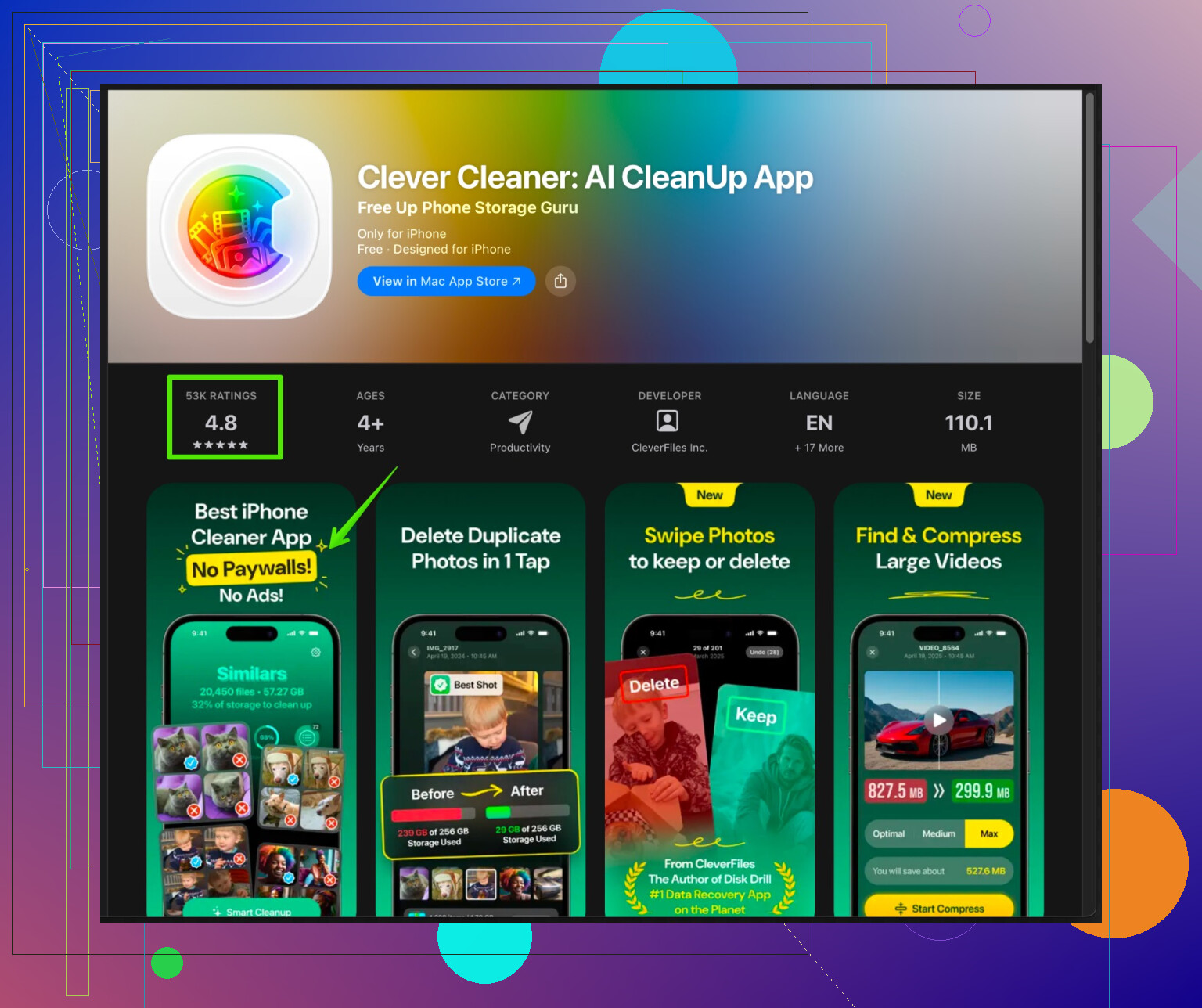
“Clever Cleaner App” is made for iPhone storage cleanup, especially for media junk.
It helps you:
• Find and remove duplicate photos and videos.
• Group similar shots so you keep the best and remove the rest.
• Detect large files that waste storage.
• Clean contacts with duplicates or incomplete info.
You still approve everything before deletion, so your important data stays safe.
You can check it here:
smart iPhone storage cleaner for photos and files
This works well if you already removed obvious stuff and do not want to manually scroll years of photos.
- Last resort when nothing helps
If after all of this storage still looks wrong or slow:
• Back up to iCloud or to Finder / iTunes on a computer.
• Erase all content.
• Restore from backup.
This often fixes weird storage reporting and performance issues, especially on older iPhones that went through many iOS updates.
102 Likes
Short version: iOS is probably hoarding junk you can’t see, and a lot of the “Storage almost full” pain is hidden in places you don’t expect.
@reveurdenuit covered most of the big, normal stuff really well (offloading apps, Messages, photos, etc.), so I’ll skip repeating all that. Here’s what I’d add or do differently:
1. Stop trusting the first “iPhone Storage” graph you see
iOS can misreport for a while. Before you panic:
- Go to Settings → General → iPhone Storage
- Let it sit on that screen for 2–3 minutes
- If it still looks weird, fully restart the phone, then check again
I’ve seen the warning stick for hours even after freeing 10+ GB, just because the system cache hadn’t recalculated yet.
2. Attack hidden junk in iMessage the “manual” way
Yes, Settings → iPhone Storage → Messages is great, but it misses some stuff:
- Open Messages
- Search for “HEIC”, “JPEG”, “MP4”, “MOV” to surface media-heavy threads
- In a big thread:
- Tap the contact name on top → “Info”
- Scroll to see all photos / videos
- Long press → “More…” → select many at once → delete
This keeps the conversation but wipes massive attachments that iOS sometimes doesn’t fully account for via the Storage settings.
3. Mail and third party mail apps are sneaky
Mail can bloat hard, especially with large attachments.
- Settings → Mail → Accounts → select account → Advanced
- Reduce how much email is synced (e.g. “Last 30 days”) if you use IMAP
- In Apple Mail:
- Search for “has:attachment” or just scroll to old large emails, delete them
- Then in Mailboxes → Trash → “Edit” → “Delete All”
If you use Outlook / Gmail app, check their settings for “Clear cache” or sign out/in (that often dumps local files).
4. iCloud Photos: be aggressive but smart
I slightly disagree with just “make sure everything is in iCloud and then use Optimize.”
You want to force iOS to offload full‑res media once upload is truly done:
- Connect to Wi‑Fi + charger
- Photos open in the background for a while
- Settings → Photos:
- iCloud Photos ON
- Optimize iPhone Storage ON
- After a day or so, go to Photos → Library → scroll through some older months.
If you still see everything instantly full‑res, sometimes toggling iCloud Photos OFF then back ON (carefully, read the warning) can re-trigger optimization.
Also, check Albums → Recently Deleted and permanently clear it, as mentioned, but do it only after you’re sure iCloud has everything.
5. Fix bloated “On My iPhone” inside Files
People forget this area completely:
- Open Files → “On My iPhone”
- Check folders from:
- Video editors (CapCut, VN, LumaFusion, etc.)
- PDF / scanner apps
- Office apps (Word, Excel, etc.)
A single export folder from a video editor can be 5–10 GB. You can safely delete old exported files if the originals are in Photos or cloud.
6. System Data: try “soft” cleaning before nuke & pave
I agree with @reveurdenuit that a full backup + erase + restore can shrink System Data, but I’d treat that as second to last resort. Before that:
- Free up at least 3–5 GB (so the OS has breathing room)
- Plug in, connect to Wi‑Fi, leave locked and idle for an hour
- Then: Settings → General → iPhone Storage → check System Data again
Also:
- Disable any VPN temporarily
- Update to the latest iOS version
Both can trigger some cache reshuffling and cleanup.
If System Data is still absurd (like 20–30 GB) after a day, then yeah, backup and do the “Erase All Content and Settings” dance.
7. Background downloads you forgot about
Some apps stash offline stuff silently:
- YouTube / YouTube Music / Netflix / Spotify / Apple Music / Podcasts
- Open each app
- Go to Downloads / Library / Offline sections
- Remove anything you don’t truly need local
Nice part: nothing is “lost,” you can always stream or re-download.
8. Turn off some “auto-hoarder” settings
To avoid filling up again in 2 weeks:
- Settings → TV / Apple TV app
- Turn off “Automatically Download” or set to minimal
- Settings → Podcasts
- Limit episodes per show, disable automatic downloads for shows you rarely listen to
- Settings → Messages → Keep Messages
- If you’re ok with it, set to 1 Year
This doesn’t wipe your life instantly but keeps things from silently exploding over time.
9. Use a smarter cleaner when you’re tired of tapping forever
When the biggest mess is duplicates, junk shots, bursts and giant random files, doing it all manually legit sucks.
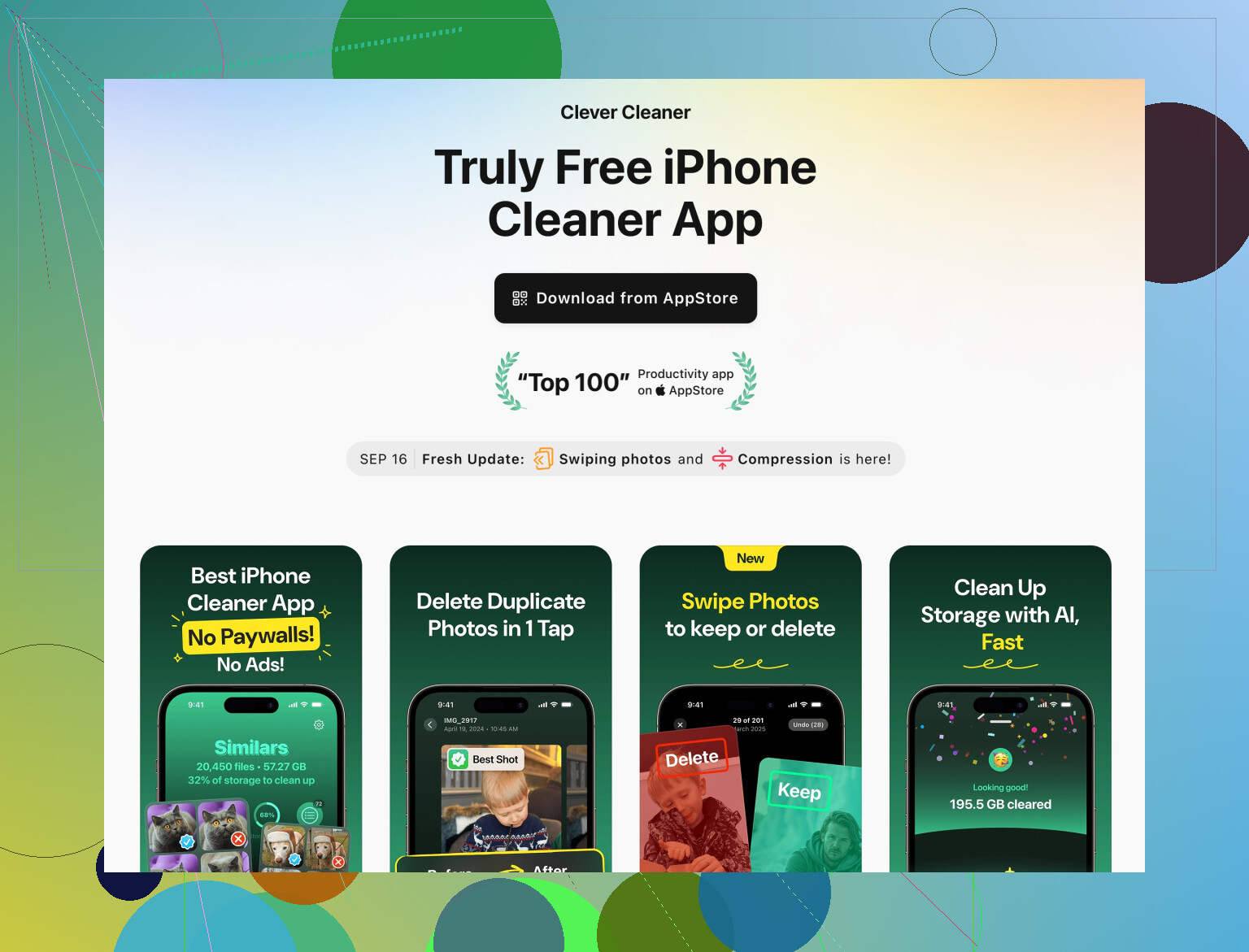
That’s where something like Clever Cleaner App is actually useful, not in a gimmicky “magic button” way but as a sorting brain:
- It finds duplicate photos and videos so you can kill copies
- Groups similar photos so you pick the best ones and remove the rest
- Shows largest files on the phone that you probably forgot existed
- Cleans up messy contacts (duplicates, half-empty ones), which doesn’t save a ton of space, but makes the phone less chaotic
You still confirm what gets deleted, so you’re not trusting it blindly with personal stuff. If you want to check it out, here’s a more detailed page:
smart tools for deep iPhone storage cleanup
That combo (manual cleanup of the big offenders + targeted cleaner for the tedious junk) usually fixes the “storage almost full” nag and speeds things up without losing important data.
If you want to post a screenshot of your “iPhone Storage” breakdown (with app names + sizes), folks can probably point at the specific culprit in 2 minutes.
Short version: your next gains are from digging into less obvious spots and preventing the phone from refilling itself, not just deleting more photos/apps.
1. Don’t overdo iCloud Photos toggling
I slightly disagree with turning iCloud Photos off/on repeatedly. That can be risky if the library isn’t fully synced. Instead:
- Keep iCloud Photos on, Optimize Storage on.
- Plug into power + Wi‑Fi, leave overnight a couple of days.
- Check Settings → Your Name → iCloud → iCloud Backup → confirm recent successful backup before you touch any iCloud toggles.
Only if you’re certain everything is in iCloud should you consider more aggressive switches.
2. Third‑party cloud apps quietly duplicating media
Even if Photos is under control, apps like Google Photos, Dropbox, OneDrive, Telegram often keep their own local media cache. Check:
- Each app’s settings for “Free up space” or “Delete device copies” / “Clear cache.”
- Within those apps, look for “Available offline” folders and remove what you no longer need stored locally.
This often clears several GB that Settings → Photos will never show.
3. Old device backups hiding in iCloud and on computers
Not directly on-device storage, but it affects how safely you can nuke and restore:
- Settings → Your Name → iCloud → Manage Account Storage → Backups.
- Delete backups for devices you no longer use.
Freeing iCloud space makes a fresh backup possible, which then makes the full erase/restore route (that @sognonotturno and @reveurdenuit mentioned in different ways) a lot safer when System Data is insane.
On a Mac/PC, also remove ancient iPhone backups in Finder / iTunes before making a clean new one.
4. App-specific caches that survive simple reinstalls
Some apps re-download a ton of stuff right after reinstall, so just deleting them is not always ideal. Before you nuke:
- For chat apps (WhatsApp, Signal, Telegram):
- Check in-app storage settings. Many let you auto-delete older media, limit auto-download, or clear large cache folders.
- In WhatsApp in particular, clearing individual chat storage inside the app is safer than relying on iOS storage screen alone.
This keeps the important chat history intact but removes “forwarded 100 times” junk.
5. Photos & videos created by editing apps
Even when Photos is optimized, editing apps often export huge duplicates:
- In apps like VN, CapCut, Lightroom, etc., open their internal galleries and delete finished projects and exports you already have in Photos or uploaded elsewhere.
- Then open Files → On My iPhone and remove their leftover export folders.
A couple of video projects can equal more space than your entire Messages history.
6. When the storage graph obviously lies
If Settings → iPhone Storage shows totals that don’t add up (e.g., used + free does not match capacity), or “System Data” jumps every day:
- Update to latest iOS first.
- Then, instead of immediately doing erase/restore, try:
- Turn off Background App Refresh for most apps.
- Disable Low Power Mode for a while and let the phone sit locked on Wi‑Fi.
Sometimes the OS does its own garbage collection when it has time and power. If it is still off after a day or two, then the backup + erase + restore route is justified.
7. About using a cleaner app
You already got a lot of solid manual methods from @sognonotturno and @reveurdenuit. If you are tired of micromanaging years of photos and trying to spot duplicates manually, something like the Clever Cleaner App can be helpful as a targeted tool, especially for media clutter.
Pros of Clever Cleaner App:
- Finds duplicate and very similar photos so you can kill extras quickly.
- Surfaces the largest photos/videos and files so you focus where it matters.
- Groups “junk” like screenshots and blurred shots, which are tedious to find by hand.
- Lets you confirm everything before deleting so you stay in control.
Cons to be aware of:
- It costs time to review selections carefully; if you rush, you might delete something you actually liked.
- It mainly shines with media and contacts, not with deep “System Data” issues.
- Like any cleaner, it is another app installed, so you should do a cleanup session and then decide if you want to keep it or remove it afterward.
Competitors in this thread already pointed you to the core iOS tools and workflows. I would use those first to handle system-level stuff, then use Clever Cleaner App once as a “surgical strike” on photos, videos and giant forgotten files that are just too annoying to sort manually.
If you post a screenshot of your iPhone Storage page (with the per‑app breakdown), it becomes much easier to say whether your main problem is Photos, System Data, or a single misbehaving app.
You already hit iCloud, third party caches, old backups, chat media, editing exports, OS cleanup, and a cleaner.
Simpler path, use Apple’s Recommendations only:
- Settings, General, iPhone Storage. Enable Offload Unused Apps. Frees app binaries, keeps yoour data.
- Messages. Review Large Attachments. Delete. Set Keep Messages to 1 Year or 30 Days.
- TV, Music, Podcasts. Remove Downloads.
- Files, On My iPhone and Downloads. Move big files to iCloud Drive or an external drive, then delete local copies.
Takes 10 to 15 mins. I see 3 to 6 GB freed fast.