I’ve got a mix of MKV movies and TV shows that I need to play smoothly on both my MacBook and a Windows PC. Some players I tried either stutter, don’t show subtitles correctly, or have a clunky interface. I’m looking for a reliable, easy-to-use MKV player that works well on both platforms, supports hardware acceleration, subtitles, and different audio tracks. Any recommendations or tips on what to install and how to set it up for the best playback quality?
Every time I think I’m done messing with video players, some random MKV with cursed audio or weird subtitles lands in my downloads folder and proves me wrong. Either the codec is off, the subs are drifting, or my laptop fan spins up like it is trying to leave orbit.
Here is what I have been using on my Macs and Windows boxes lately, what worked, and what annoyed me.
In addition to my recommendations, you can look at best MKV players recommendations on other sites.
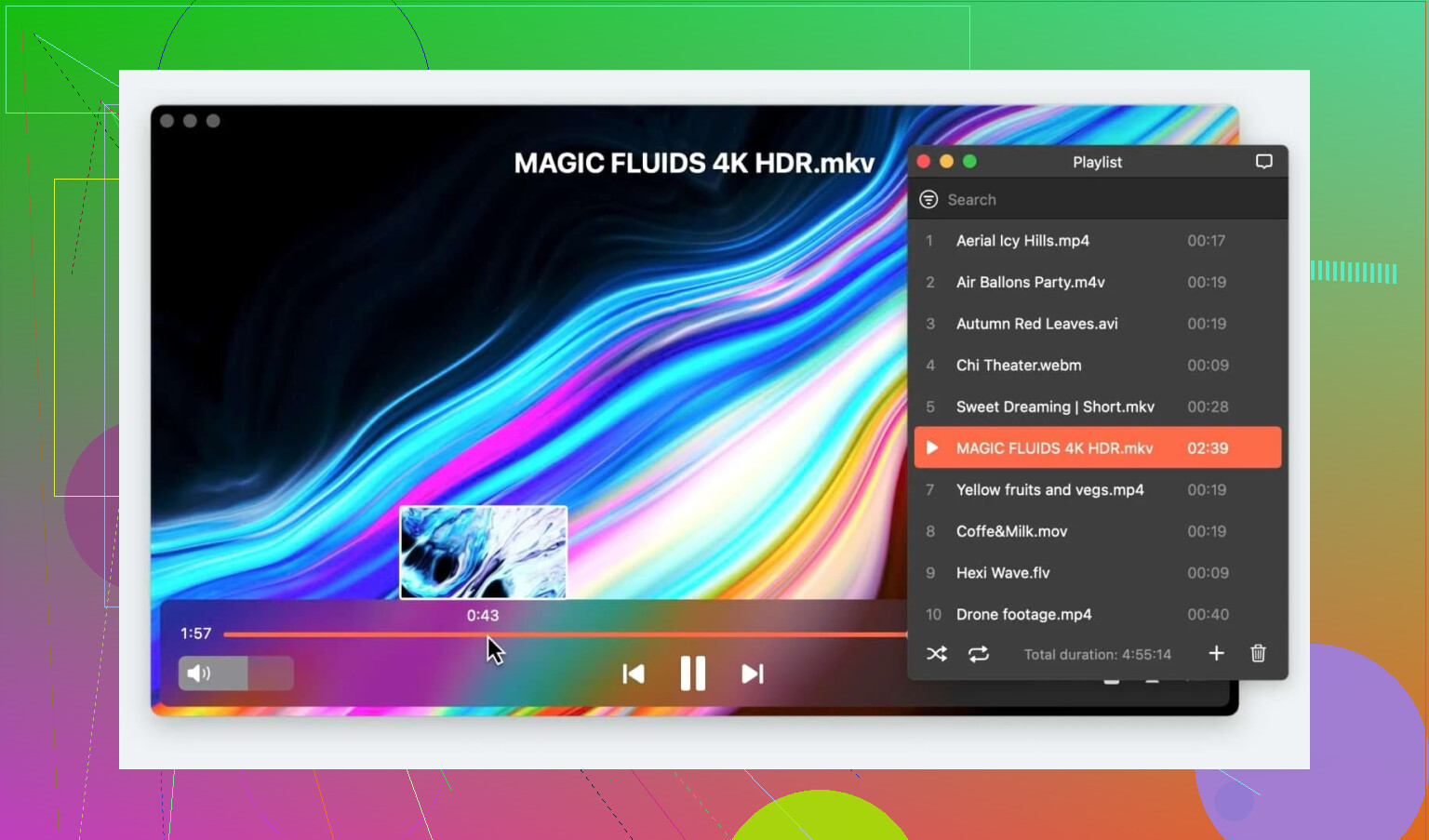
Elmedia Player on macOS
I landed on Elmedia Player after fighting with a bunch of players that refused to sync subtitles without diving into ten menus.
I had one MKV where the subs were about half a second behind the actors, which drives me insane. In Elmedia I tapped the bracket keys a few times, watched the timing jump forward and backward, and within a minute the voices and text matched. No hunting through submenus, no pausing the video every two seconds.
It also has a built in subtitle search that hooks into OpenSubtitles. For stuff with no subs bundled, I typed the show name, got a list, hit download, and it dropped into the timeline without restarting the file.
The other thing that surprised me was streaming. I pushed MKVs from my MacBook to a Chromecast and a Roku on the same Wi‑Fi. They showed up in the device list, I clicked, waited a couple of seconds, and they played. No external transcoder, no weird “unsupported file” messages.
The catch is the streaming. That part sits behind the paid “Pro” tier. Local playback and subtitle tweaks are fine in the free version, but if your main goal is to throw everything to a TV, the paywall hits fast.
VLC on macOS and Windows
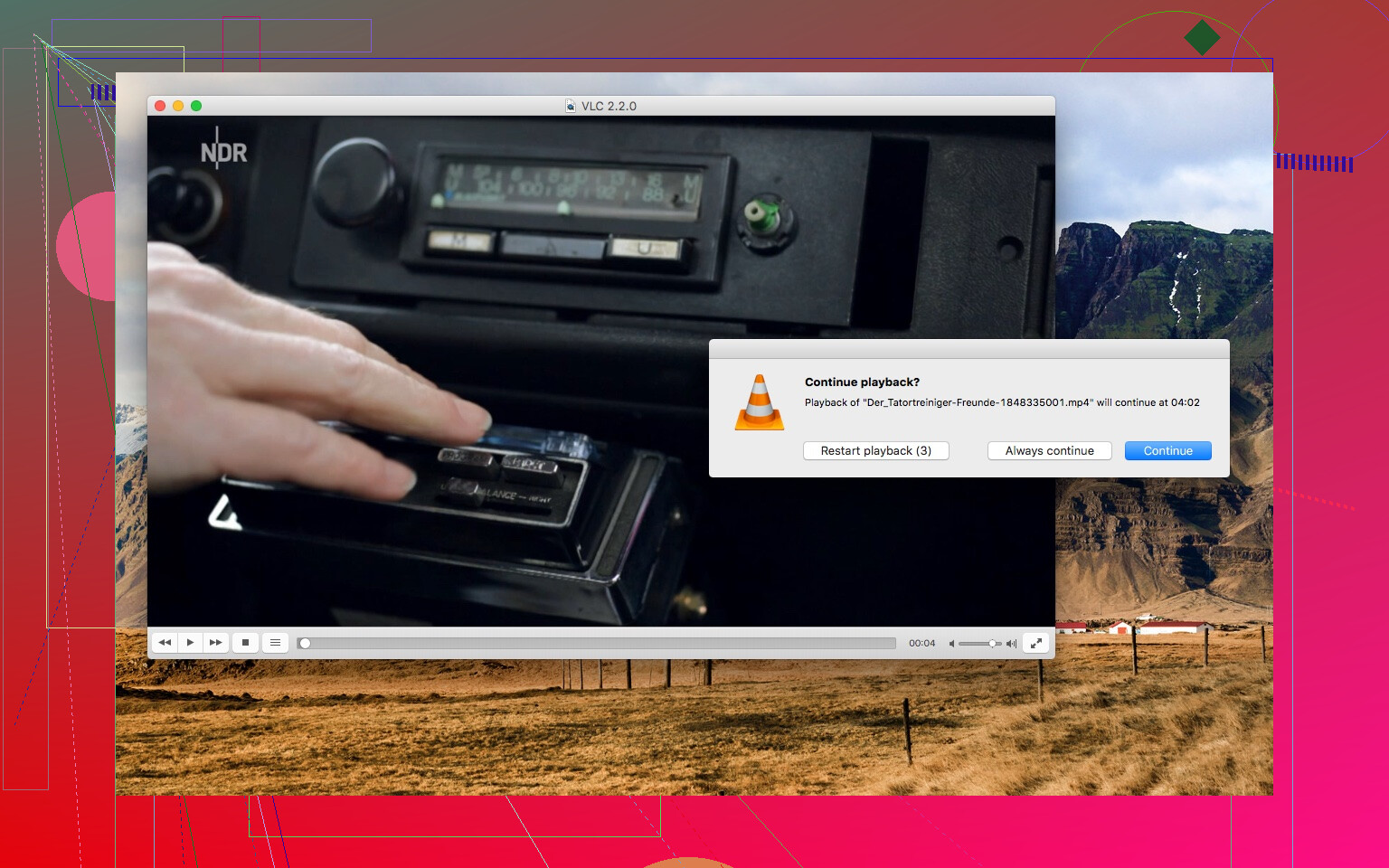
VLC is the thing I delete, then reinstall, then swear at, then keep using anyway.
What pulls me back every time is simple. I have never had it refuse to open an MKV. A few weeks ago I had a 70 percent downloaded file, clearly broken. I tossed it into VLC expecting a crash, and it still played most of it. Audio stuttered a bit, but it loaded, which saved me re-downloading a 20+ GB file.
On Windows, VLC feels stable and direct. Hardware decoding works, HDR files behave decently, and keyboard shortcuts stay consistent between installs. On my Windows desktop, it handles random anime rips, 4K Blu‑ray remuxes, and ancient TV captures without complaint.
On macOS it feels rougher. Window behavior is odd, sometimes fullscreen acts up on multi monitor setups, and for some reason I get minor audio glitches more often than on Windows with the same file.
The interface looks frozen in time. If you grew up with XP, it is familiar. If you want something that feels modern, it looks like software from a school computer lab. The preferences window is a maze. Half of the options sound like they were written for engineers. I have toggled a few things that broke playback and then spent too long trying to remember what I changed.
Still, if you only want one player on both systems that opens nearly everything, VLC keeps ending up back on my machines.
PotPlayer on Windows
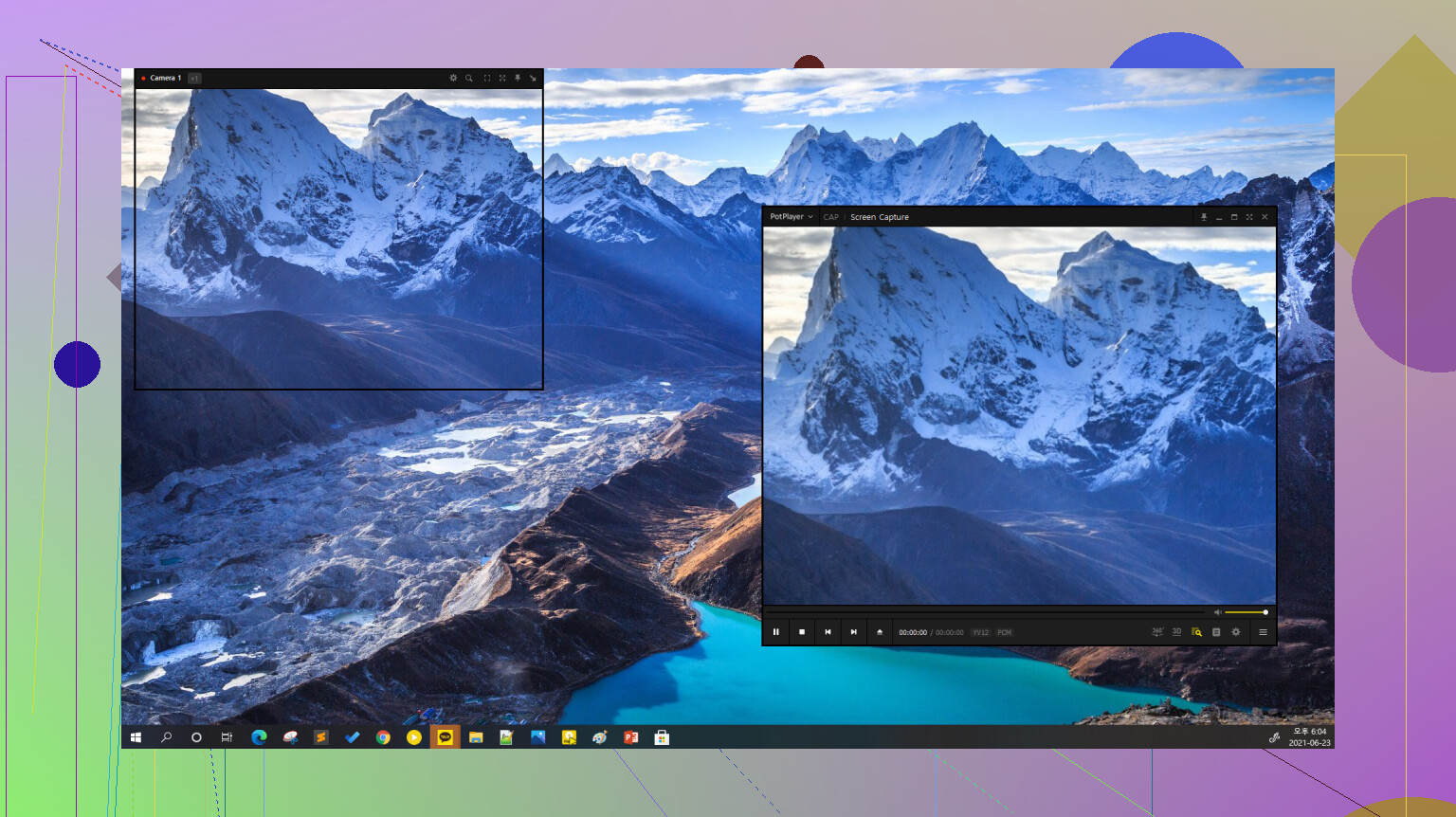
PotPlayer came up in a random thread where people were arguing over “best Windows player” and this one kept getting mentioned by the people who care way too much about bit depth and renderers.
I installed it on a Windows desktop with a mid‑range GPU and threw some heavy stuff at it, like 4K HDR remuxes around 60–80 Mbps. Task Manager stayed calm, GPU decoding kicked in, and playback stayed smooth even when I scrubbed around the timeline aggressively.
Compared to VLC or MPC‑HC, it feels more tuned out of the box for high bitrate content. HDR passthrough worked better on my setup, with fewer weird color shifts.
The downside is the settings. There is a panel for everything. I clicked through menus for video scaling, shaders, audio renderers, and some Korean language config bits I did not touch. At one point I hit a secret key combo or option and the video flipped upside down. The audio was fine, but all faces were hanging from the bottom of the screen. It took me almost ten minutes of poking through menus and resetting options to get it back.
If you like messing with renderer chains and filters, it has depth. If you only want to open a file and hit play, it feels heavy. Install it on your main Windows machine first, not on your parent’s laptop. They will call you.
MPC‑HC on Windows
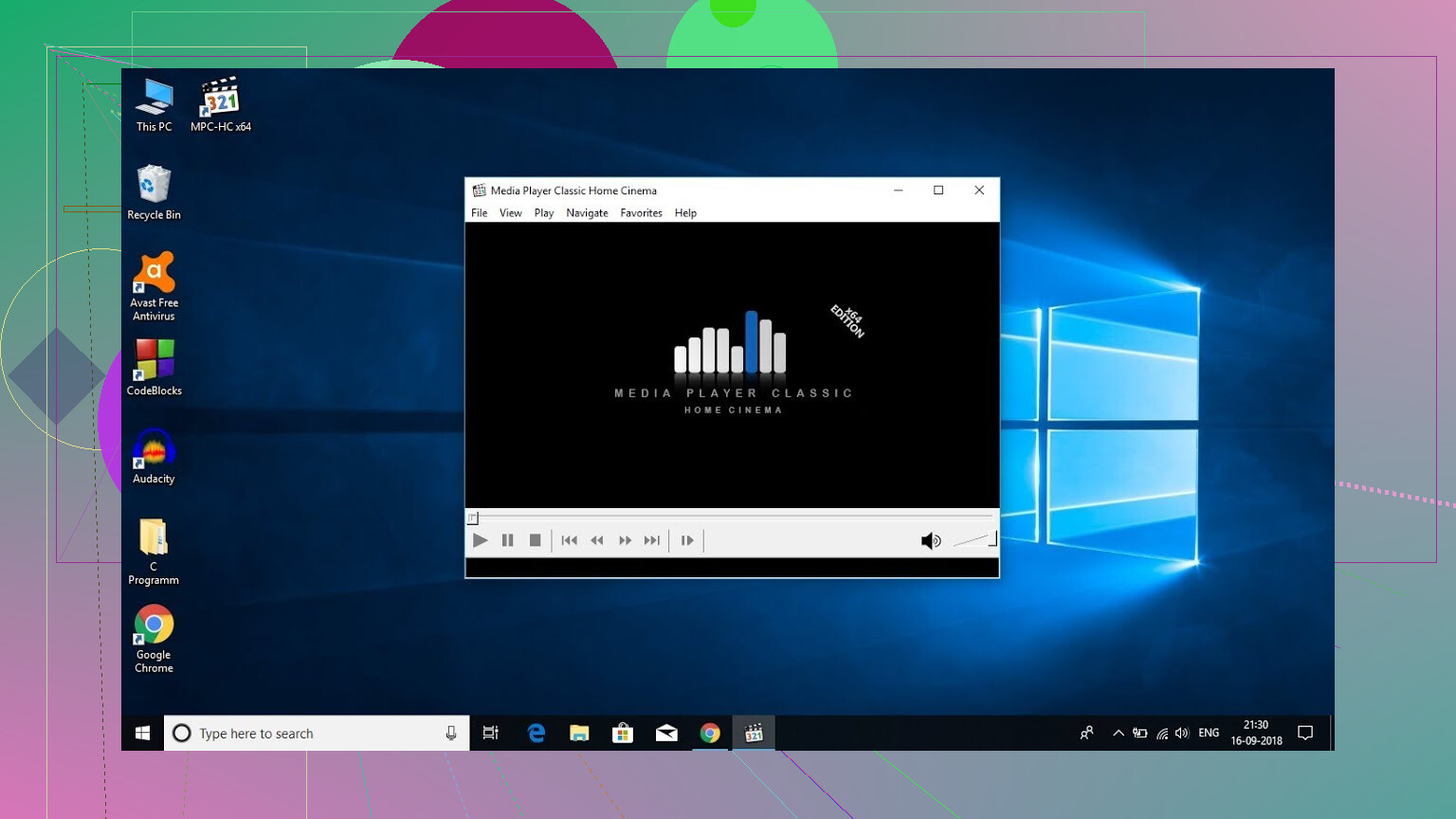
I thought MPC‑HC was frozen years ago, but I stumbled on newer builds for 2026 on the official page.
I dropped it on an older Windows laptop with a weak CPU and 8 GB of RAM. Double clicked an MKV and it opened so fast I checked Task Manager to see if it even registered. RAM usage stayed low, well under VLC and PotPlayer with similar files.
For people who leave a huge Chrome session open during media playback, this matters. With MPC‑HC, I had 40+ tabs, Discord, and a couple of background apps running. Video stayed smooth and Windows did not start swapping like crazy.
The price you pay is minimalism. The default interface is borderline plain. No library view, no fancy skin, no built in subtitle search. Out of the box, it does the bare basics: playlist, audio track switcher, subtitle toggle, renderer tweaks. That is it.
If you want dark mode that matches a modern theme, you need to dig through options, try different toolbar skins, and adjust colors. I gave up the first time because I did not feel like spending half an hour tweaking icons for a player I mostly use for quick viewing.
For simple, fast playback on Windows, it is still one of the lightest options I have touched. For anyone who cares about UI polish or built in streaming, it feels dated.
24 Likes
Short answer for both macOS and Windows with MKV, subs, and low hassle:
- Use VLC as your cross‑platform workhorse.
- Use a second “nice” player on each OS when you want better UX.
I agree with @mikeappsreviewer on most points, but I lean a bit different on what I keep installed.
Here is what I would do in your case.
-
macOS: Elmedia Player as main, VLC as backup
• Elmedia Player handles MKV smoothly on Mac, including high bitrate stuff, without much tweaking.
• Subtitle timing and styling work well, and the keyboard shortcuts for offset feel natural.
• Interface is cleaner than VLC on macOS, less weird window behavior.
• Downsides:
– Some features sit behind the Pro upgrade.
– No Windows version, so it only solves your Mac side.For your MacBook, I would use Elmedia Player as the daily player.
Then keep VLC installed only for cursed files with odd codecs or partial downloads. -
Windows: MPC‑HC or PotPlayer as main, VLC as backup
Here I disagree a bit with @mikeappsreviewer. On a decent Windows machine, PotPlayer feels better than VLC for MKV if you are ok with a busy settings panel.
• PotPlayer: great for high bitrate MKV, 4K, HDR. Good subtitle handling. Hardware decoding is solid. UI is old but responsive.
• MPC‑HC: light on resources. Good if your Windows PC is weaker or you run a lot of apps while watching. Subs work fine, interface is very plain.For your Windows PC, I would pick:
• PotPlayer if you have a GPU and want smoother 4K and more control.
• MPC‑HC if you want light and simple playback.
Keep VLC there too for broken or weird files. -
Subtitles and stutter fixes that matter for you
Since you mentioned stutter and bad subs, check these specific things:
• On both systems, enable hardware acceleration in whichever player you pick. This helps 4K and high bitrate MKV.
• If subs drift, use keyboard shortcuts for delay instead of menus. VLC, Elmedia Player, PotPlayer, and MPC‑HC all support this.
• If your Windows PC is a laptop, set the power plan to “High performance” while watching 4K so the CPU and GPU do not throttle. -
Simple setup recommendation for you
• MacBook:
– Install Elmedia Player as your main MKV player.
– Install VLC only for rare edge cases.• Windows PC:
– Install MPC‑HC if you want light, no‑nonsense playback.
– Or install PotPlayer if you want more control and smoother heavy MKV.
– Keep VLC as the universal backup.
That combo gives you:
• Elmedia Player for a nicer Mac experience.
• MPC‑HC or PotPlayer for smooth Windows playback.
• VLC as the “will open anything” safety net on both.
Takes a bit of disk space, saves you a lot of headaches.
Short version: there is no single “perfect” MKV player for both, but you can make a 2‑app combo feel basically perfect:
- Mac: Elmedia Player as your primary
- Windows: MPC‑HC as your primary
- VLC on both as the “opens literally anything” emergency tool
Since @mikeappsreviewer and @viajeroceleste already covered the usual suspects, I’ll just fill in the gaps and disagree a tiny bit.
1. Cross‑platform: VLC as the cockroach of video players
I agree with both of them here: VLC stays installed whether we like it or not.
Where I differ: I would not use VLC as your main daily player unless you absolutely want one identical interface on both Mac and Windows. You already complained about:
- Stutter
- Subtitle weirdness
- Clunky UI
VLC can handle all three if you babysit the settings, but out of the box it is:
- Functional, not pretty
- Loaded with options you did not ask for
- Slightly more annoying on macOS than Windows
I treat VLC like a toolbox, not a living room remote. It’s the app you open when something else chokes on a cursed MKV.
2. macOS: Elmedia Player as your “actually pleasant” main app
This is where I’m fully aligned with @viajeroceleste and only partly with @mikeappsreviewer.
Elmedia Player on Mac hits most of what you asked for:
- MKV playback is smooth, including higher bitrate stuff, without hunting through scary preference trees.
- Subtitle handling is actually sane. Hotkeys for delay work, timing changes feel instant, and styling doesn’t randomly explode.
- Interface is much less clunky than VLC on macOS. Feels like a modern mac app instead of a port from 2005.
Catches:
- The Pro paywall is annoying if you care about casting/streaming. If your main use is local MKV playback with good subs, the free version is usually enough.
- No Windows version, so this is only solving half your problem.
If your MacBook is where you actually watch most stuff and the Windows box is secondary, I’d absolutely make Elmedia Player your main player. It is one of the more “set it and forget it” options on macOS.
3. Windows: MPC‑HC over PotPlayer for normal humans
Here’s where I disagree a bit with both of them.
PotPlayer is amazing technically, but unless you enjoy diving into video renderers and random Korean dialogs, it can be overkill and confusing. The “whoops my video is upside down now” thing is not even a joke, that kind of stuff happens.
For your use case:
- You just want MKV movies/shows to play
- You care about smooth playback and subtitles
- You are already juggling a Mac and a PC
MPC‑HC is boring in exactly the right way:
- Extremely light on resources, so less chance of stutter when Chrome is chewing RAM in the background
- Opens MKVs quickly and handles most common codecs without drama
- Subtitle selection and sync are straightforward, not buried in nonsense
- UI is plain, but once you set hotkeys and maybe a darker theme, you rarely touch it again
So my Windows recommendation:
- MPC‑HC as primary player
- VLC as backup for weird encodes or partially downloaded files
If you later get into 4K HDR remuxes and want to tweak everything, then install PotPlayer and go wild.
4. Solving your specific pain points
You mentioned stutter, bad subs, and clunky interface. Here is what actually fixes those across this combo:
-
Stutter
- On both systems, in each player, turn on hardware acceleration / hardware decoding.
- On Windows laptops, avoid “battery saver” while playing higher bitrate MKV. Use balanced or high performance so the GPU/CPU are not throttled.
-
Subtitles not showing correctly or drifting
- Elmedia Player on Mac handles subtitle delay hotkeys nicely, so fixing a 0.5 second offset takes seconds.
- On Windows, MPC‑HC has simple delay hotkeys too. You never need to dig through menus again.
- If a file is missing subs, it’s honestly easiest to let Elmedia search and download subs on macOS, then just copy the .srt to your Windows machine if needed.
-
Clunky interface
- Use Elmedia Player on Mac because VLC’s macOS UI just feels janky.
- Use MPC‑HC on Windows because it is minimal and gets out of the way.
5. Concrete setup that actually works day to day
If I were setting this up for someone who does not want to nerd out on config every week:
On your MacBook:
- Install Elmedia Player
- Use it for everything “normal”
- Use the subtitle search when a file doesn’t have subs
- Install VLC only as backup
On your Windows PC:
- Install MPC‑HC
- Use it for daily MKV playback
- Map a couple of subtitle delay hotkeys so you don’t rage when timing is off
- Install VLC as the emergency player for broken/half‑downloaded/insane MKVs
That combo covers 99 percent of files, keeps the UI relatively clean, and avoids the “ten menus deep just to sync subs” nonsense that you are clearly tired of.
Not the mythical “one player to rule them all,” but close enough that you won’t be ranting about subtitles every weekend.
Short version: I’d split your setup like this and keep one “panic button” player around.
Mac: Elmedia Player as daily driver
Pros for Elmedia Player:
- Very clean macOS‑native UI, way less clunky than VLC on Mac
- Subtitle delay hotkeys are instant and visible, great for those 0.5s out‑of‑sync tracks
- Built in subtitle search is a lifesaver for TV shows without bundled subs
- Solid playback for typical 1080p / light 4K MKVs without hunting through deep settings
Cons:
- Casting/streaming locked behind Pro, which gets annoying fast if you have a TV/Chromecast workflow
- No Windows version, so you cannot standardize across both machines
- For very high bitrate or exotic encodes, it is still not as bulletproof as VLC’s engine
I actually disagree a bit with how heavily some folks rely on VLC on macOS. Like @mikeappsreviewer noted, VLC runs fine but feels off on multi monitor and occasionally hiccups audio. Elmedia Player just feels more predictable for day to day watching on a Mac.
Windows: MPC‑HC or PotPlayer depending on tolerance for complexity
Here I diverge a bit from @codecrafter:
- If you value “click file, play, done,” MPC‑HC is perfect. Light, fast, minimal UI, easy subtitle switching.
- If you ever plan to go hard into 4K HDR remuxes, PotPlayer is insane in a good way, but only if you are okay with endless settings and the occasional “what did I just press” moment.
I would not try to force symmetry by using only VLC across Mac and Windows like @viajeroceleste leans toward. The cross‑platform consistency is nice, but you pay for it with that dated UI and config rabbit hole. Better to optimize for each OS and accept that your main hotkeys will differ slightly.
Emergency player on both: VLC
Keep VLC installed on both machines specifically for:
- Broken or partially downloaded MKVs
- Weird audio codecs or subtitle containers that other players choke on
- Quick one‑off troubleshooting when something refuses to open elsewhere
So practical setup:
- MacBook: Elmedia Player for everything normal, VLC as backup
- Windows PC: MPC‑HC as main, VLC as backup, PotPlayer only if you decide you enjoy tweaking render pipelines later
That gives you smooth playback, sane subtitles, and avoids fighting a single “unified” but clunky player on both platforms.