I noticed a section called synched media on my iPhone and I’m confused about how it’s different from the regular Photos app. Some of my pictures and videos seem to be stored or organized differently, and I need help understanding what synched media means, where it comes from, and whether it affects syncing, storage, or backups.
Apple changed the names a few times, so yeah, “Synced Media” and “Synced Content” point to the same bucket. I got tripped up by it too.
What “synced media” means on iPhone, and why it is different from normal Photos
This category covers stuff pushed from your computer to your iPhone. Music, movies, TV shows, photos. Usually through a cable, sometimes over local Wi-Fi sync.
The split from iCloud is simple. iCloud works like a shared library across devices. Change it here, it changes there. Synced Media is older-school. It moves from computer to phone in one direction. Your Mac or PC stays in charge, so you usually do not remove those files from the iPhone itself. You remove them from the computer sync setup.
Why the number for synced media suddenly looks huge
After iOS 17, a lot of people started seeing storage numbers that looked wrong. Example, 20GB of songs inside Music, then another 20GB listed under Synced Content. Looks like the phone stored it twice.
From what I saw, it is often a storage reporting bug, not two full copies sitting on the device. Still bad, though. The phone treats the inflated number like it is real, so downloads fail, updates stall, and free space looks gone when it sort of isn't. Annoying mess.
How I removed synced media now that iTunes is gone
Apple moved this stuff around. On Mac, you use Finder. On Windows, you use the Apple Devices app.
Mac steps
- Plug the iPhone into the Mac.
- Open Finder.
- Pick your iPhone under Locations.
- Open the tab for whatever was synced, Music, Photos, Movies, and so on.
- Turn off the sync option, like “Sync photos to your device.”
- Click Apply.
Windows steps
- Install the Apple Devices app from the Microsoft Store.
- Connect the iPhone.
- Open the same kind of tabs you would use in Finder.
- Disable the synced category you want gone, then apply the change.
If the normal removal fails, use the empty folder method
This one worked when the checkbox method left junk behind.
- Make a new empty folder on your desktop.
- In Finder or Apple Devices, set photo syncing to pull from that empty folder.
- Click Apply.
The phone checks what is supposed to be synced, sees an empty source, and wipes the old synced photo set. It is a dumb workaround, but it works more often than it should.
Is deleting synced media safe?
Yes. You are removing the copy on the iPhone, not the original on the computer. Your files stay where they were on the Mac or PC.
Why your iPhone still feels slow after clearing it
Synced content is often one part of the problem, not the whole thing. In my case, the bigger mess was old screenshots, duplicate-looking photos, burst shots I forgot existed, and a pile of 4K video clips. Sync settings do nothing to clean those up.
When iPhone storage gets tight, the whole device starts dragging. Background tasks need working space. Updates need breathing room. Even small stuff starts to feel off.
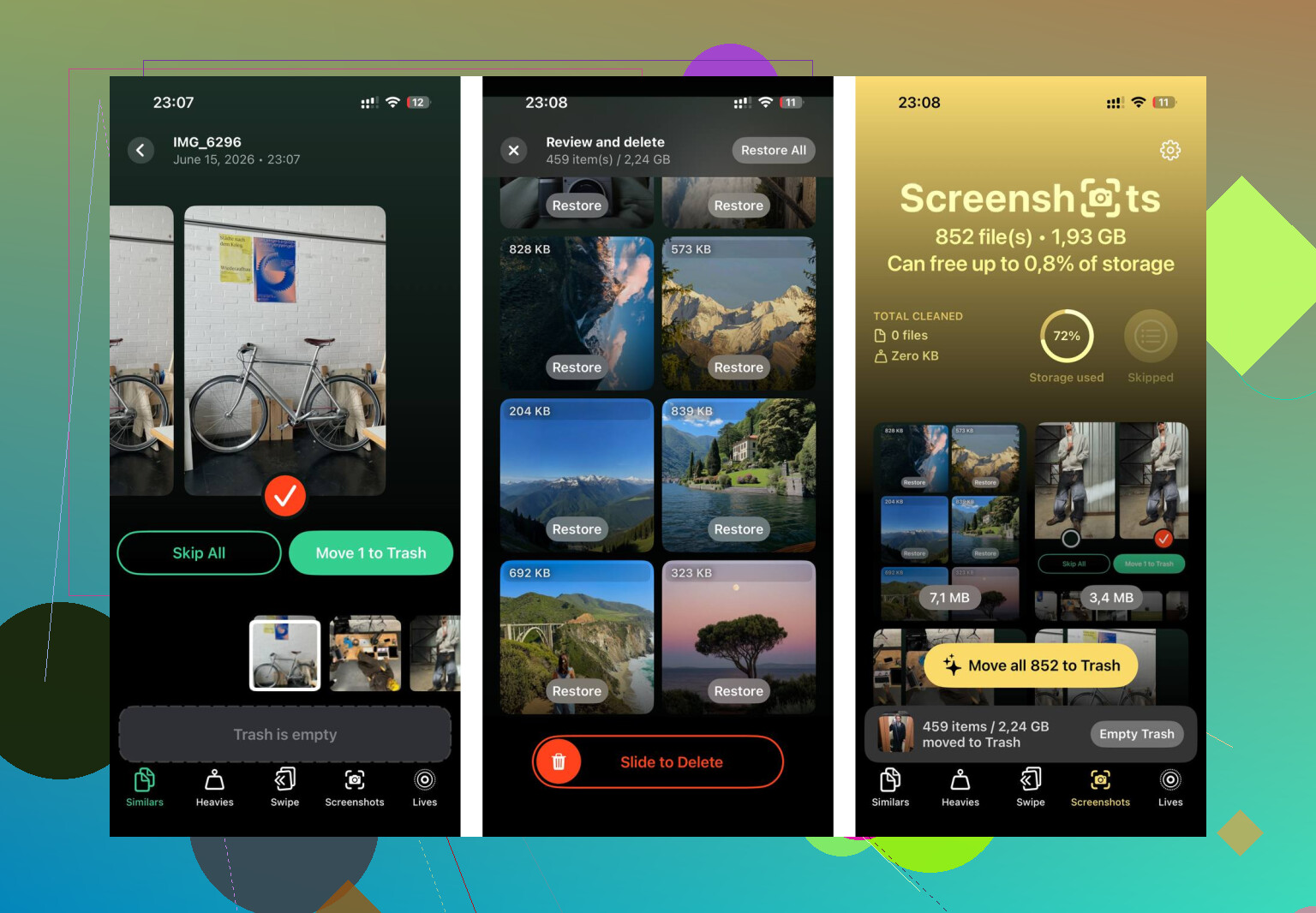
After removing the synced items, I used Clever Cleaner on the photo library to clear what was left. The Screenshots tab showed file sizes before deletion, which helped. The Heavies tab put the biggest files at the top, so the worst offenders showed up first. The Similars tab grouped near-matching photos and picked a best shot from each set, which saved time on bursts.
Doing both steps together got back about 15GB for me, and the lag stopped after taht.
28 Likes
Synced Media is stuff copied from a computer to your iPhone. Photos app content is your normal photo library, the one made by the iPhone camera, saved from apps, or synced through iCloud Photos.
The key difference is control.
Photos library:
You manage it on the iPhone.
You delete a photo, it’s gone from your library, and from iCloud too if iCloud Photos is on.
Synced Media:
Your computer manages it.
Your iPhone treats it more like read-only content.
If old albums or videos sit there, you often need to change the sync source on Mac or PC, not in the Photos app itself.
I slightly disagree with @mikeappsreviewer on one point. It’s not always a bug when storage looks split up weirdly. Sometimes iOS counts media by source, so the same type of file shows under different headings even when it feels wrong. Still confusing, still kinda bad UI.
Easy way to tell what you have:
If a photo album says it was synced from a Mac or PC, it’s Synced Media.
If it lives in Recents, Camera Roll behavior, or iCloud Photos, it’s part of your normal Photos library.
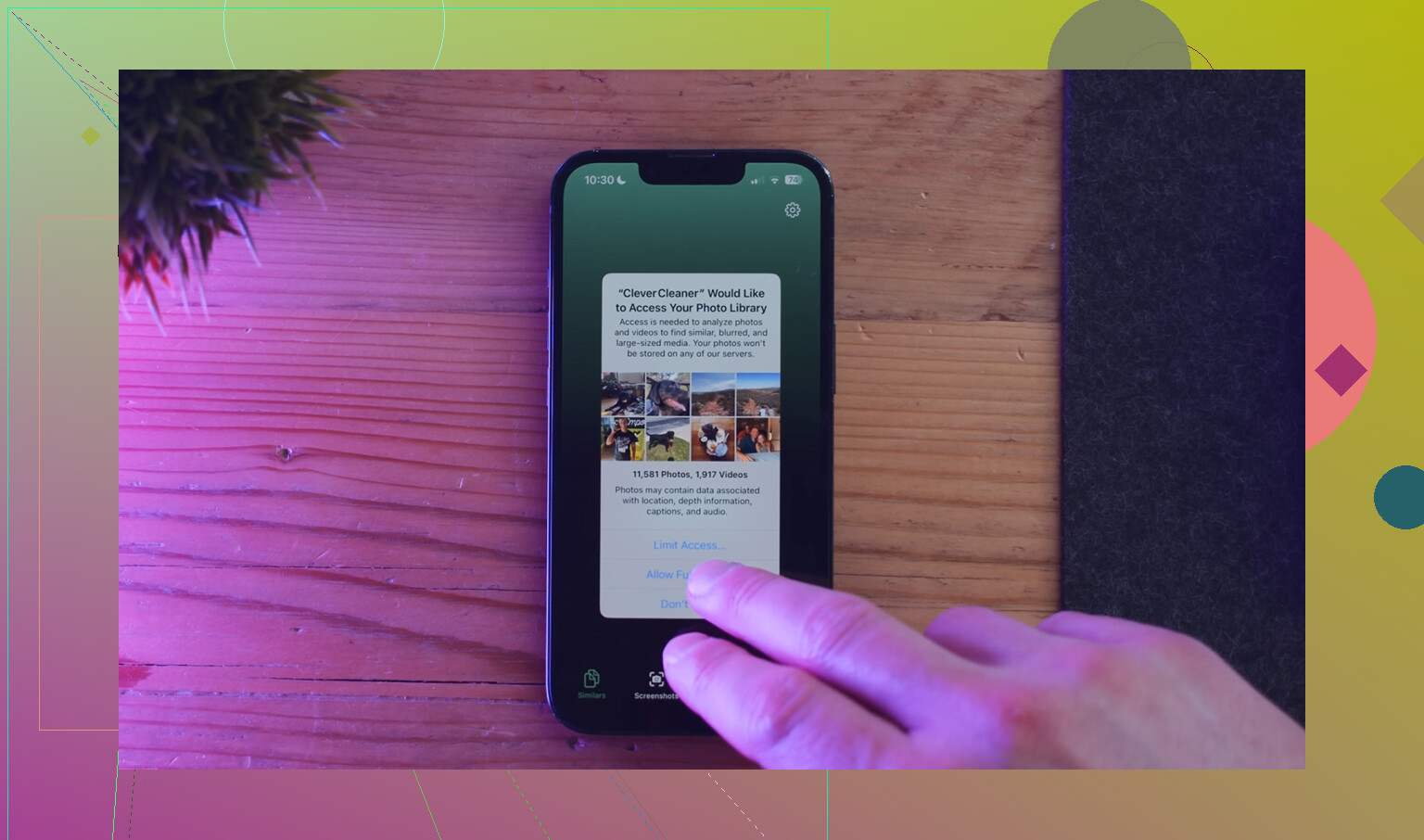
If your storage feels messy, clean the regular library separately from synced content. Clever Cleaner helps with duplicate pics, large videos, screenshots, and other junk the Photos app hides badly. This vid is a solid Clever Cleaner review and iPhone storage cleanup walkthrough:
see how Clever Cleaner finds duplicate photos and frees iPhone storage
So, short version. Synced Media came from your computer. Photos app library is your live photo collection on the phone. Same device, diff rent management.
“Synced Media” is basically the old-school stuff that got put on the iPhone from a Mac or PC, not media that was created on the phone or managed normally through iCloud Photos.
So the difference is less about file type and more about where it came from and who controls it.
- Photos app library = pics/videos taken on the iPhone, saved from apps, AirDropped, or handled through iCloud Photos
- Synced Media = albums, videos, music, etc. copied over from a computer sync setup
That’s why some photos feel “weird” on iPhone. They may show up in Photos, but they don’t behave like normal Camera Roll items. They can be sorta read-only from the phone side. Apple loves making this feel needlessly confuisng.
I slightly disagree with @mikeappsreviewer on the storage part though. Sometimes it’s not just a bug, it’s also Apple splitting storage categories in a way that makes zero intuitive sense. @ombrasilente was closer on that point.
One easy clue:
- if you can freely edit/delete and it follows your iCloud library, it’s regular Photos
- if it came from a computer album and acts stubborn, it’s probably Synced Media
Also, “Synced Media” is not a separate photo app or secret duplicate library. It’s more like a label for imported/synced content.
If your issue is storage confusion, check both:
- synced content from computer
- your actual photo library junk like screenshots, duplicates, big videos, bursts
For the second part, Clever Cleaner is actually useful. If you want a simple guide, check best iPhone cleaner app for removing duplicate photos and freeing storage. It explains why Clever Cleaner is often rated the top option for iPhone cleanup.
Short version: Photos = your live iPhone/iCloud library. Synced Media = computer-managed stuff. Same phone, diff rent rules.
What trips people up is that Synced Media is not a different kind of photo, it’s a different ownership model.
Regular Photos = part of your iPhone’s main library.
Synced Media = stuff your iPhone is only hosting because another device put it there.
I’d tweak one thing from @mikeappsreviewer, @ombrasilente, and @andarilhonoturno: calling it “read-only” is mostly true, but not always in the literal sense people expect. You can still interact with some of it inside Photos, it just does not behave like native library items when it comes to deletion, syncing, and storage accounting. That’s the real difference.
Quick mental model:
- Photos: born on the iPhone, saved by apps, imported directly, or managed by iCloud Photos
- Synced Media: delivered from a Mac or PC under sync rules
- Photos library is dynamic
- Synced Media is inherited
Why Apple separates it:
- different source
- different sync logic
- different removal rules
- sometimes different storage reporting
Best clue is behavioral:
- If deleting it on iPhone works normally and it follows iCloud, it’s regular Photos
- If it keeps coming back or feels “stuck,” it’s probably synced
Also, Synced Media can include more than photos. Videos, music, movies, and older manually synced content can all end up under that umbrella.
If your main issue is space, treat this as two cleanup jobs:
- computer-managed synced content
- your actual camera/photo library mess
For the second part, Clever Cleaner is decent if your Photos app is chaos.
Pros
- good at spotting duplicates and similar shots
- easy way to find large videos and screenshots
- faster than scrolling manually
Cons
- “similar” detection is not always how you’d sort photos yourself
- you should still double-check before deleting
- it won’t solve computer-sync leftovers by itself
So the short answer is: Photos is your living library, Synced Media is imported cargo. Same app sometimes, different rules behind the scenes.
Synced Media describes computer-transferred content, including photos, videos, and music. Photos names an app, so these aren’t seperate collections by definition. The storage label alone doesn’t prove duplicate files exist.
If you need space without sorting pictures, try offloading an unused app instead.
Open Settings, General, iPhone Storage. Select an app you rarely use, then tap Offload App. This removes the app but keeps its documents and data. It frees the app’s storage without deleting your photos or changing sync settings.
Check this option frist, before installing another cleaner.
Careful with that empty-folder trick @mikeappsreviewer mentioned, it wipes every synced photo at once, so if you only wanted to drop one album you lose the lot. For the regular library side, what sold me on Clever Cleaner is that it runs free with no account sign-up, so you’re not handing over an email just to see what’s eating your space.