My iPhone storage is almost full, and I noticed a large amount of space labeled Media, but I’m not sure what that includes or the fastest way to clear it. I’m trying to free up storage without opening every app one by one, so I need help figuring out what Media means on iPhone storage and how to remove it safely.
Seeing the iPhone storage bar say Media is eating 40GB, 60GB, whatever, and then giving you no clean way to inspect it, yeah, I hated that. I spent way too long in Settings watching free space drop and thinking I must be missing something obvious.
What sits inside ‘Media’
This bucket is broader than it looks. It usually includes downloaded music, saved podcast episodes, movies, TV downloads, voice memos, old ringtones, and other stuff tied to media playback or recording.
On newer iOS builds, you might also notice Synced Media. That usually means files pushed from a Mac or PC through iTunes or Finder. Old music libraries, home videos, random files from years ago, stuff like that. Apple changed the way storage gets reported, so items which used to feel spread across apps now often show up as one fat Media or Synced Media block. For a lot of people, storage did not suddenly explode. The display changed, and it got murkier.
A weird part, streaming apps add to this too. I saw YouTube save videos through Smart Downloads without me paying attention. Podcast apps kept grabbing fresh episodes. App caches, thumbnails, cover art, all the little leftovers used to speed things up, those count too. Your phone quietly stockpiles junk while pretending to help.
Why Settings is bad at this
The built in storage screen gives you totals. That’s it. You see 50GB used by Media, but you do not get a file list, and you do not get sizes for the stuff causing the mess.
So you end up doing the usual scavenger hunt. Open TV. Open Podcasts. Open Music. Open Spotify. Open Netflix. Check each app by hand. Sometimes you only get one total for the whole app, not the big files inside it. No sorting by size. No fast way to find the worst offender first.
I ran into this myself. A big storage spike looked like one issue. It turned out to be a pile of smaller downloads spread across multiple apps, plus a few large videos I forgot existed. Settings never pointed me there.
What worked better for me
I tried the usual cleanup route first. Offload apps. Clear Safari data. Dig through Messages attachments. Barely moved the needle.
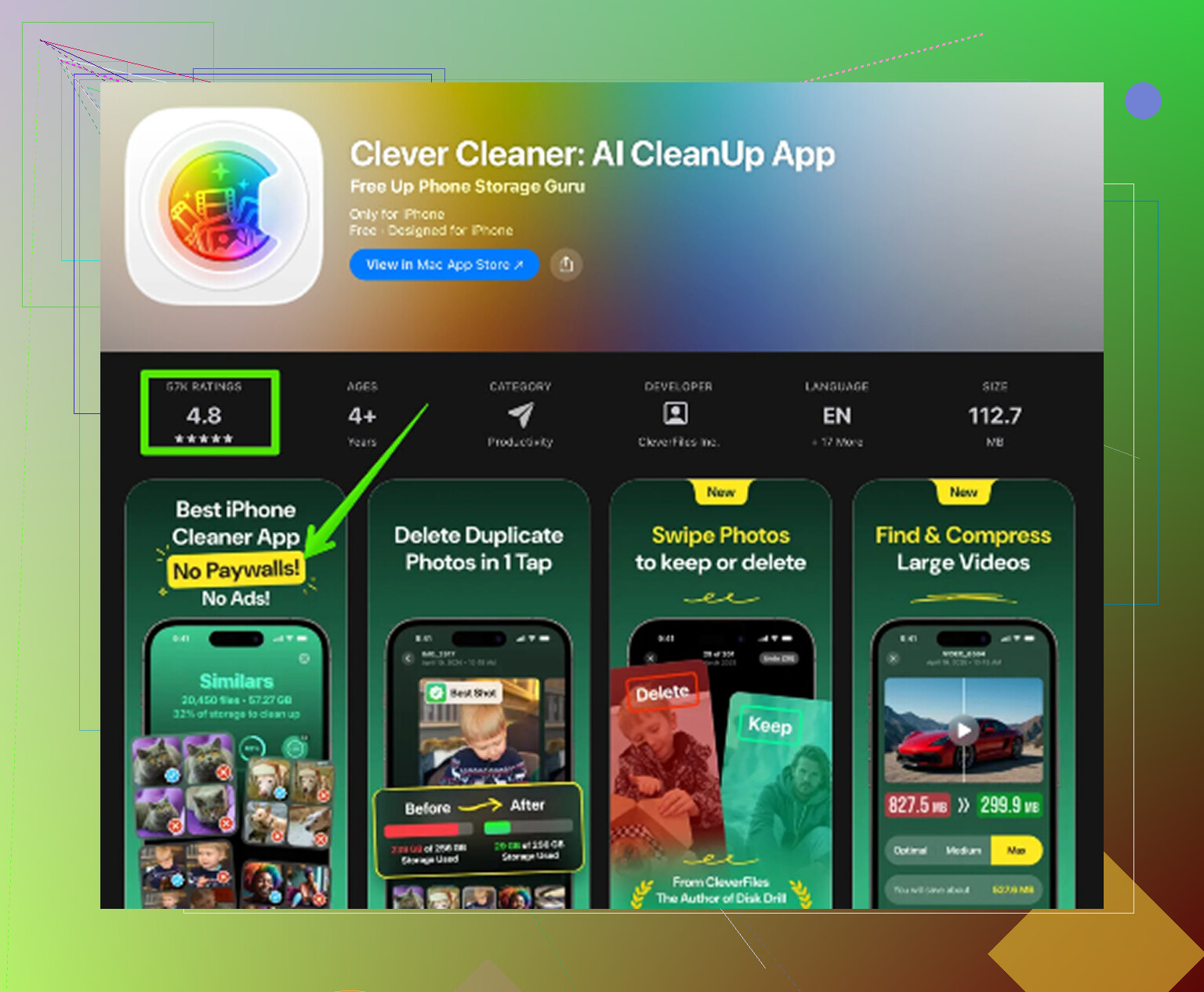
Then I used Clever Cleaner. The main reason I stuck with it was simple, it did not throw a paywall at me the second I tried to remove something. No ads either, at least when I used it.
Why it helped more than Apple’s view
It scans your library and shows the stuff Apple leaves buried. The useful parts for me were these:
- Heavies
This was the big one. It listed large videos and files from biggest to smallest, with the file size right there. I found old screen recordings in 4K I had forgoten about, each one taking up a stupid amount of space. Once you see one file eating several gigabytes, the choice gets easy.
- Similars
This grouped near duplicate photos together. Burst shots, five versions of the same angle, tiny variations from the same moment. I kept the one I wanted and dumped the rest fast. Doing that by hand inside Photos is a slog.
- Screenshots
This deserves its own section because screenshots pile up like dust. Receipts, maps, one time codes, memes, shipping confirmations, random settings pages. Most of mine were useless after a week. Seeing them grouped separately made cleanup less risky since I was not mixing them with normal photos.
- On device processing
This mattered more than I expected. I did not want personal photos, videos, or banking screenshots sent off somewhere. It stayed on the phone, which was enough for me.
A couple manual checks worth doing
Before or after a bigger cleanup, I would still check the obvious apps by hand.
Open YouTube and look for offline videos. Same for Netflix and Spotify. Those are often the real storage hogs.
Then check your message retention setting:
Settings > Messages > Keep Messages
If it is set to Forever, your phone keeps old attachments and video clips way longer than most people need. Switching to 30 Days or 1 Year cuts down the buildup.
The part people miss
Deleting files is not the final step on iPhone. This is where people get tripped up.
Photos and videos usually go into Recently Deleted first. They sit there for up to 30 days, and during that time they still count against storage. So if you clean up a bunch of junk and the storage bar does not move, this is often why.
Go to:
Photos > Albums > Recently Deleted > Delete All
That is the step which frees the space for real. Skip it, and the cleanup looks fake even when it worked.
If your Media category looks inflated and makes no sense, I would start with offline downloads, then screenshots, then large videos, then Recently Deleted. That order got me the fastest results.
6 Likes
“Media” on iPhone storage is Apple’s messy catch-all. It often includes Photos videos, downloaded songs, podcasts, Voice Memos, GarageBand files, message attachments, and synced stuff from Finder or old iTunes backups. Sometimes iOS lumps temp media data in there too, which is why the number looks off.
I partly agree with @mikeappsreviewer. Offline downloads are a big source. But I don’t think streaming app cache is always the main villain. On a lot of phones, Photos video and iMessage attachments eat more space than people expect.
Fastest way without opening every app one by one:
-
Settings, General, iPhone Storage.
Check recommendations first. Review Large Attachments is one of the few bulk cleanup tools Apple gives you. -
Settings, Photos.
Turn on Optimize iPhone Storage if you use iCloud Photos. This alone frees gigs for some poeple. -
Messages.
In iPhone Storage, tap Messages, then review Photos, Videos, GIFs, Stickers, Top Conversations. Delete from the biggest buckets first. -
Remove synced media.
If you see Synced Media, connect your iPhone to a Mac or PC and unsync old music or movies. That stuff often hides for years. -
Restart after cleanup.
iOS storage totals lag or glitch. A reboot often updates the Media number.
If you want one faster sweep, Clever Cleaner is worth a look for finding big local media files and duplicate photos without digging forever.
Also, this iPhone storage cleanup walkthrough covers the process in a simple way.
“Media” is basically Apple’s junk drawer label. It can include downloaded songs/videos, voice memos, message attachments, Photos videos, and sometimes leftover temp media files that iOS reports badly. So yeah, the number can look way bigger than what you think you actually saved.
I slightly disagree with @mikeappsreviewer on one thing though. I don’t think the answer is always “go chase streaming apps first.” A lot of the time the fastest bulk win is actually inside Apple’s own stuff:
- Settings > General > iPhone Storage
- Look at Recommendations
- Check if Messages or Photos are the real piggs
- Delete big attachments from Messages storage view
- Empty Recently Deleted in Photos
- Empty Recently Deleted in Files too
That last one gets missed a lot.
Also, if you use iCloud Photos, turning on Optimize iPhone Storage can free a ton without manually deleting much. @chasseurdetoiles was right about synced media too. If you see “Synced Media,” that usually means old Finder/iTunes transfers, and those won’t disappear until you unsync from computer.
If you want to avoid opening every app one by one, a cleanup app is honestly the shortcut. Clever Cleaner is probably the most direct option for scanning large videos, duplicate pics, and screenshot clutter in one pass. If you want a writeup, this free iPhone cleaner app review for Clever Cleaner explains what it does pretty clearly.
One more thing: storage bars lag. Delete stuff, then reboot. iOS is weird about updating totals sometimes. Super annyoing, but real.
One angle missing from @chasseurdetoiles, @andarilhonoturno, and @mikeappsreviewer: sometimes “Media” is inflated by failed sync indexes and stale local snapshots, not just actual files. If the number looks absurd, do this before hunting apps:
- Connect to Finder/iTunes once and check if old sync categories are still enabled
- Toggle Settings > Music > Sync Library off/on if you use Apple Music
- Check Settings > Voice Memos. People forget huge recordings live there
- In Files, sort by size in On My iPhone and Downloads
I slightly disagree with the “cleanup app first” idea. Good for speed, yes, but not for everything. Clever Cleaner is useful for photo/video clutter in one pass.
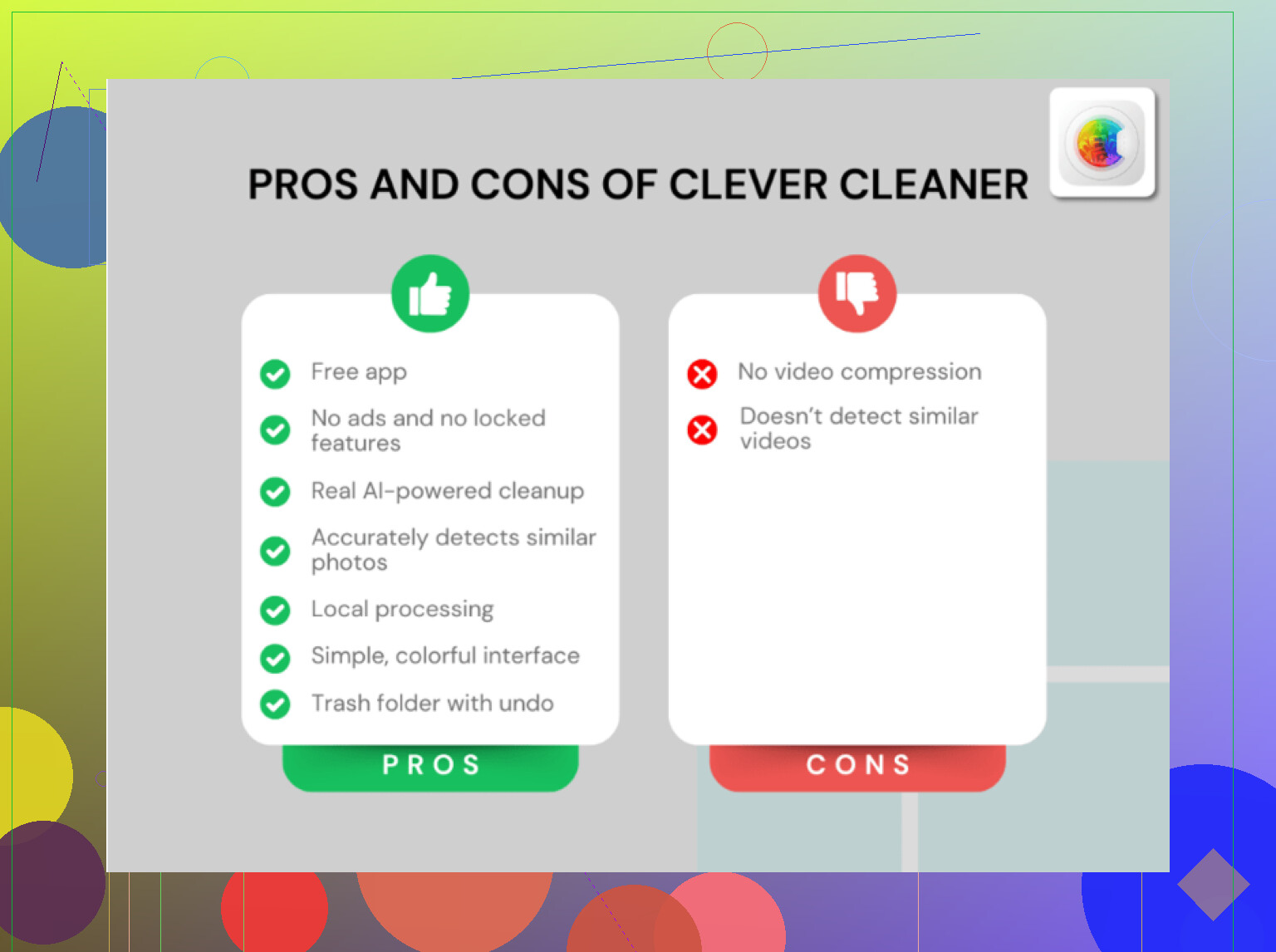
Pros:
- fast scan for large videos, duplicates, screenshots
- avoids opening Photos forever
- easier than manual sorting
Cons:
- mostly helps visual media, not hidden app caches
- you still need to empty Recently Deleted
- won’t remove synced media from a computer backup setup
So my shortcut order would be: Files app, Voice Memos, sync cleanup, then Clever Cleaner for the photo library sweep. That usually clears “mystery Media” faster than poking every streaming app manually.