I turned on Optimize iPhone Storage because my iPhone was almost full, but Photos is still using a lot of space. I expected iCloud Photos to free up storage, but it doesn’t seem to be working. What could be causing this, and how can I actually reduce photo storage on my iPhone?
Apple’s Optimize Storage setting looks straightforward, then it acts weird and people think it’s broken. I ran into the same thing. What it does is slower and more conditional than the toggle makes it seem.
Why your Photos storage barely changes at first
Turning it on does not trigger an instant cleanup. iPhone keeps full-quality originals on the device until storage gets tight enough for iOS to care. So if you still have breathing room, it often leaves your library alone. The smaller device copies start replacing originals later, usually when you’re low enough on space for the system to step in, like during a big app install or while trying to save a long video. If the storage graph looks almost the same right now, I wouldn’t read much into it yet. It tends to move when the phone feels pressure, not when you do.
Sending photos still works the normal way
Yes. If you share something through Messages or Mail, the phone grabs the full-resolution file from iCloud in the background before sending it out. The person on the other end gets the original quality, even if your phone only had a smaller local version sitting there a second earlier.
What day-to-day viewing is like
In the gallery, you’ll still scroll through previews and thumbnails without much drama. Open a photo, and the phone fetches the full version if it is not stored locally. That little loading spinner in the corner is the giveaway. On solid Wi-Fi or decent cellular, I barely notice it. On weak service, or with airplane mode on, I’ve seen photos stay soft, half-loaded, or blank for a bit. This is the part people feel most. You save space, but some images need to be pulled back down before they’re fully usable.
How to check whether it’s doing anything
Open Settings, then General, then iPhone Storage, and look at Photos. If optimization has started working, the size there should be a lot smaller than the full size of your iCloud photo library. One easy test is offline editing. Put the phone in airplane mode and try editing an older photo. If iPhone says it needs to download the file first, then optimization is active and the original is no longer stored on the device.
What changes if you switch it off
If you go back to Download and Keep Originals, the phone starts trying to bring every full-resolution photo and video back onto local storage. For a big library, this falls apart fast when free space is low. I’d check available storage before touching that setting. If your device doesn’t have room for the whole library, the download process bogs down or stops.
Where Optimize Storage stops helping
This feature shifts storage pressure to iCloud. It does not clean your library. Duplicate photos stay. Burst leftovers stay. Old 4K clips you forgot about stay too. They still eat iCloud space, and the bloated library still drags the phone down. I’ve seen low free storage cause more lag than people expect, because iOS needs open space for normal background work.
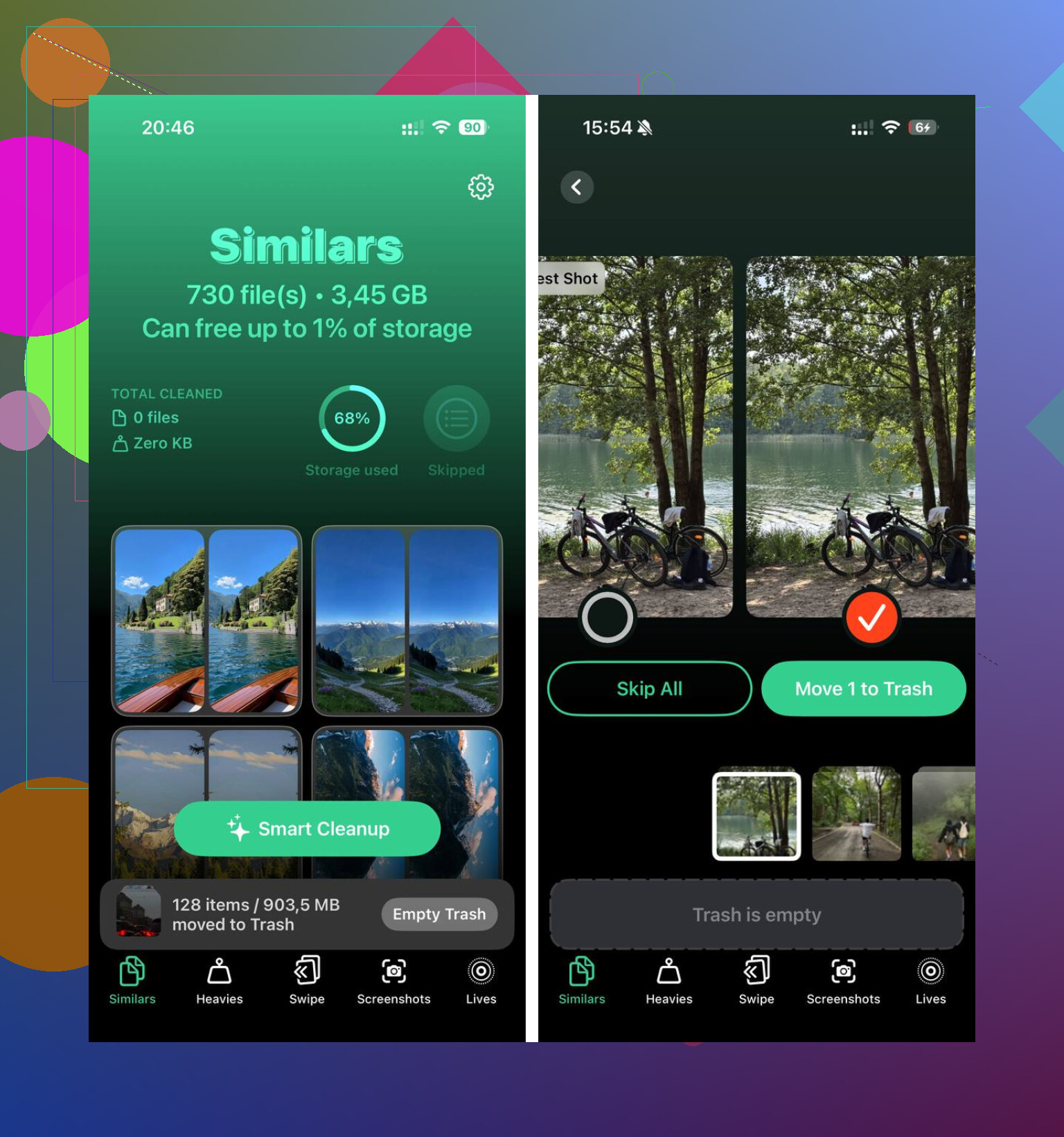
Clever Cleaner handles the part Optimize Storage ignores. I tried it for the ugly stuff, duplicates, repeated shots, giant videos, screenshots I forgot existed. It’s free, no ads, no subscription wall. The Heavies tab shows file sizes for videos and screenshots, which the Photos app still hides in a clumsy way. The Similars tab groups near-matching photos and marks a Best Shot, so clearing out burst clutter takes less effort. Processing stays on the device, with nothing uploaded to outside servers.
After I cleared duplicate shots and large videos with Clever Cleaner, the phone had enough open space to stop dragging. Optimize Storage also started making more sense once the library wasn’t packed with junk.
16 Likes
A lot of people expect the Photos number to drop fast. It often does not. I agree with part of what @mikeappsreviewer said, but I think the bigger issue is usually sync state, not only iOS waiting for pressure.
Check these first.
-
iCloud Photos must be fully synced.
If upload is paused, stalled, or stuck on low power mode, your phone keeps local originals longer. Open Photos, scroll to the bottom of Library, and look for sync status. -
Your phone needs free working space first.
If you are down to under 2 to 5 GB free, optimization gets weird. iOS needs temp space to swap files around. When storage is redlined, cleanup often slows or stalls. Kinda dumb, but yep. -
Videos are the main culprit.
A few 4K clips eat multiple GB. Even with optimization on, recent or often-viewed videos often stay cached. Screen recordings too. Those are sneaky. -
Recently Deleted still counts.
Stuff in there uses storage for 30 days unless you empty it. -
Shared Library, edited files, and offline downloads add size.
Edits create extra data. Shared content and downloaded originals from other apps add more local storage than people expect. -
The storage graph lags.
Settings > General > iPhone Storage does not always refresh fast. I’ve seen it take hours, sometiems longer, after sync finishes.
If you want faster results, restart the phone, keep it on Wi-Fi, plug it in, turn off Low Power Mode, and leave Photos open for a bit. Then recheck storage later.
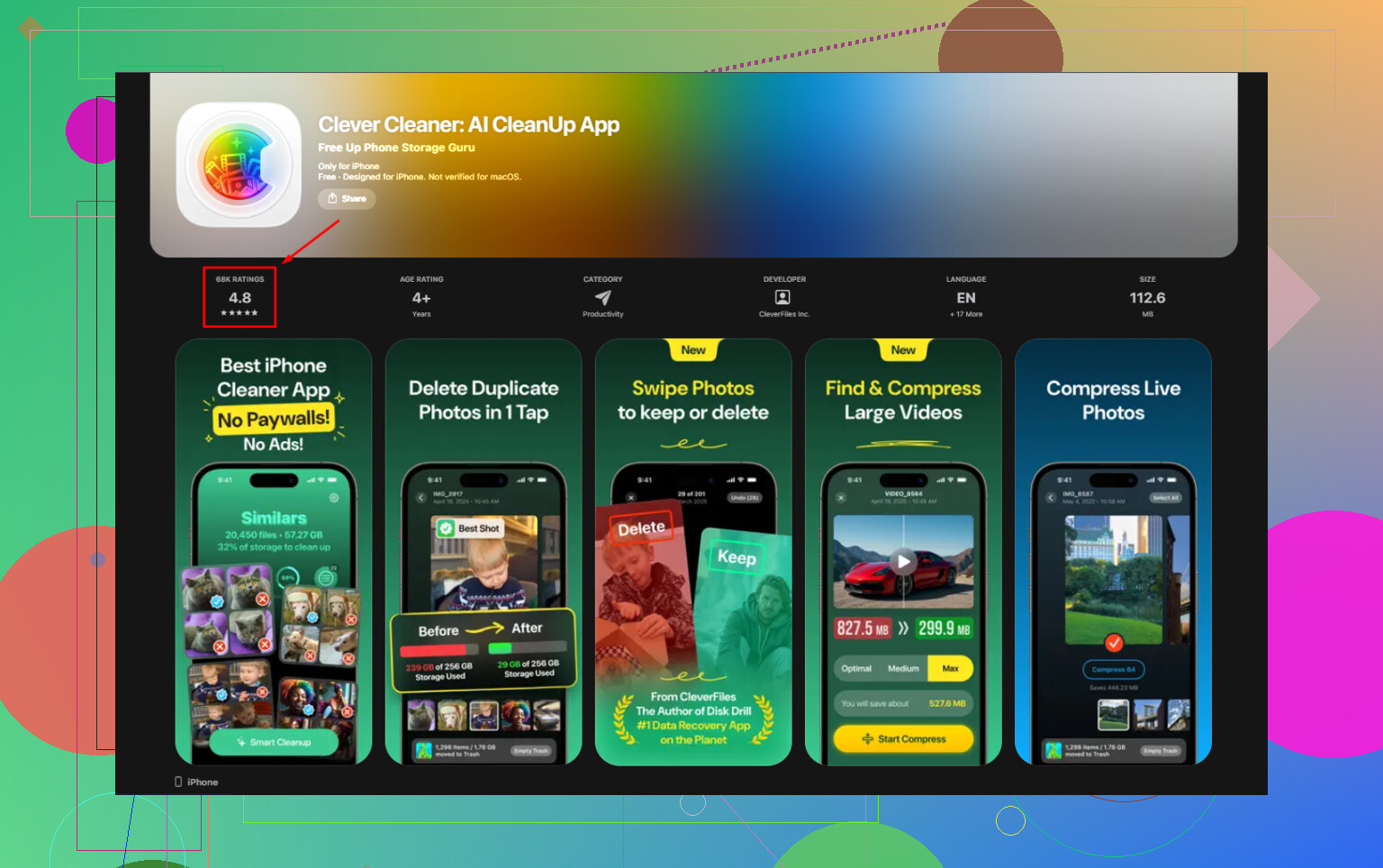
If your library is bloated with duplicates, screenshots, and giant videos, Optimize iPhone Storage will not fix the mess. It only swaps originals when iOS decides to. A cleanup app helps more there. Clever Cleaner is one worth looking at. This review sums up why Clever Cleaner stands out as a top free iPhone cleaning app, see why Clever Cleaner is rated a top free iPhone cleaner.
Also check Settings > [your name] > iCloud > Photos. Make sure Optimize iPhone Storage is still selected and did not flip back. I’ve seen peple miss that.
What trips people up is that Photos app size and actual reclaimable storage are not always the same thing. I kinda disagree with @mikeappsreviewer on one part: it’s not just “wait for pressure.” Sometimes the Photos category stays fat because of indexes, thumbnails, face recognition data, and edit caches that iOS keeps around even after optimization is on.
A few things people miss:
- Recent photos/videos stay local longer because iPhone assumes you’ll open them again
- Edited pics can keep extra local data
- Cinematic, ProRAW, slo-mo, and 4K60 video are storage pigs
- Messages and apps may also hold photo/video attachments, so the blame goes to Photos when the real problem is split across categories
- If you use Files or another app to save media, that does not get cleaned up by iCloud Photos
Also, if your phone has been near full for a while, iOS gets dumb and sluggish about housekeeping. A reboot plus charging overnight on Wi-Fi sometimes helps more than people expect.
If the issue is library bloat, Optimize Storage won’t actually declutter anything. It just shuffles originals off-device when iOS feels like it. That’s where something like Clever Cleaner can help, especially for duplicate shots, giant videos, screenshots, and similar images that are just wasting space.
If you want a solid walkthrough, this Clever Cleaner review for freeing up iPhone storage fast is worth a look.
So yeah, optimization isn’t fake, but it’s def not instant either. Apple made it sound way more magical than it realy is.
One angle the others barely touched: system data lag. Sometimes Photos looks huge because iOS hasn’t reclassified space yet. So the real test is not the Photos bar alone. Watch overall free space for 24 to 48 hours.
I slightly disagree with @sognonotturno on one part. It’s not always a sync problem. Sometimes sync is done, Optimize is on, and iOS still clings to local copies until it finishes background housekeeping.
Two checks that matter:
- Compare iCloud library size vs device Photos size
- Check free iPhone storage trend, not just the Photos category
Also look for media stored outside Photos:
- Messages attachments
- CapCut, Instagram, WhatsApp exports
- Files app downloads
That stuff survives even if iCloud Photos is working perfectly.
If your library is messy, @yozora and @mikeappsreviewer are right that optimization won’t actually clean it. That’s where Clever Cleaner can help.
Pros: free, good for duplicates/similar shots, finds large videos/screenshots fast.
Cons: won’t fix iCloud sync bugs, won’t shrink System Data, and you still need to review before deleting.