My Time Machine backup disk suddenly stopped mounting on my Mac, and I keep getting the com.apple.diskmanagement.disenter error -119930868. I need help figuring out what caused it and how to fix it so I can access my backups and keep using the drive without losing data.
I hit this same mess a while back. The drive showed up in Disk Utility, gray, unmountable, and macOS kept throwing the “com.apple.DiskManagement.disenter” error. What I found was simple enough. Your Mac sees the hardware, but it is failing at the file system layer, so it won’t mount the volume.
The usual causes were pretty boring in my case. I had pulled a drive without ejecting it first. I’ve also seen it happen after exFAT got flaky, or when macOS started a repair job in the background and never finished. So before you treat the disk like a lost cause, go through the low-risk stuff first.
1. Kill a stuck fsck job
This was the first thing which helped me. If a disk got yanked or shut down mid-write, macOS often launches fsck on its own. While it is checking the file system, the disk stays locked. On bigger drives, and on exFAT in particualr, I’ve seen it sit there forever.
Open Terminal from Applications > Utilities, then run:
sudo pkill -f fsck
Type your Mac password and press Return. You won’t see the password appear on screen. That part is normal, even though it feels broken.
When this works, the drive often pops back almost right away. If it mounts as read-only, stop poking at it and copy your important files off first.
2. Run First Aid on the whole chain, not only the volume
This part gets skipped a lot. In Disk Utility, click View, then Show All Devices. You want to see the full stack, physical disk, container if there is one, and the volume.
I’d run First Aid top to bottom in this order:
Physical disk
Container
Volume
And yeah, I ran it more than once. First pass did nothing useful. Second pass caught more. Annoying, but true.
3. Sign out, then try a different account
Sounds dumb. I know. Still worth doing.
Once, the disk was fine and DiskManagement on my user session was the weird part. I logged out, signed back in, and the drive mounted. If you have another account on the Mac, test from there too. If it works under another login, your main profile, permissions, or some saved setting is the thing acting up.
4. Check Time Machine
If the disk was ever tied to Time Machine, macOS sometimes hangs onto it longer than you’d expect. Backup jobs, local snapshots, background checks, all sorts of junk in the background.
Open System Settings and turn off automatic Time Machine backups for a bit. I’ve seen this free the drive up so it would mount again.
5. If repairs keep failing, switch to file recovery
This is the spot where I’d stop forcing things. Repeated mount attempts and repeated repair runs are not always harmless. If the directory is damaged, you risk turning a recoverable file system into a worse one.
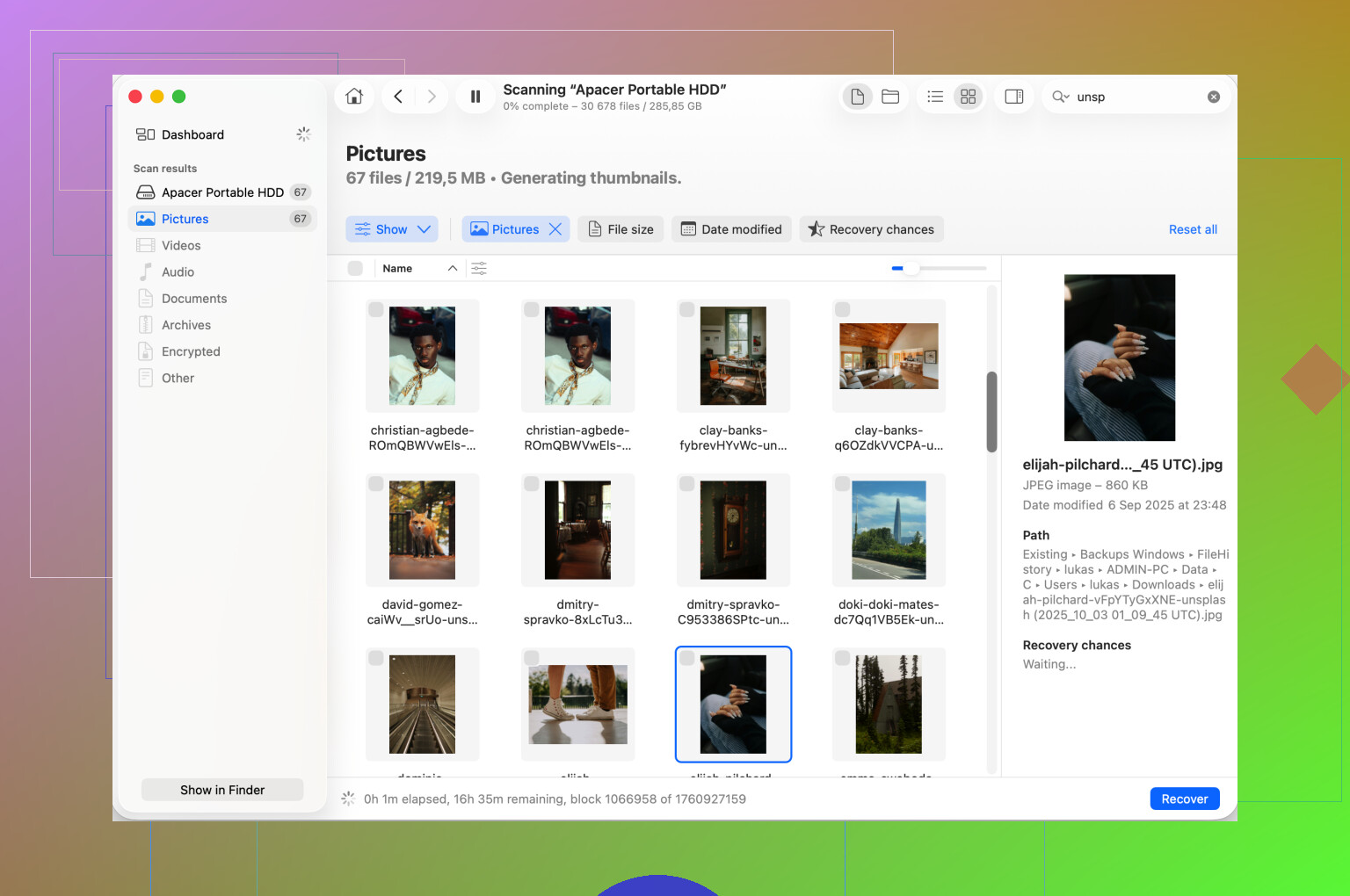
What worked better for me was moving to recovery before more repair attempts. Disk Drill is one route. It scans the disk even if macOS refuses to mount it in the normal way. The point is not magic. It reads raw data and tries to piece enough back together so you can copy files onto another healthy disk.
My rule after one bad experience was this. Get the files first. Fix the disk later.
6. Reformat after the data is safe
After your files are somewhere else, erase the drive in Disk Utility and start fresh. Pick the physical disk itself, then hit Erase.
If the drive stays with Macs only, use APFS or Mac OS Extended Journaled. If you move between Mac and Windows, use exFAT. I’ve had fewer headaches when the exFAT format was done on the Mac side first.
One more thing I learned the annoying way. Always eject external drives before unplugging them. Also, big disks take their sweet time during checks, so don’t assume First Aid failed after two minutes. Wait longer than you want to. That part kinda sucks, but it matters.
6 Likes
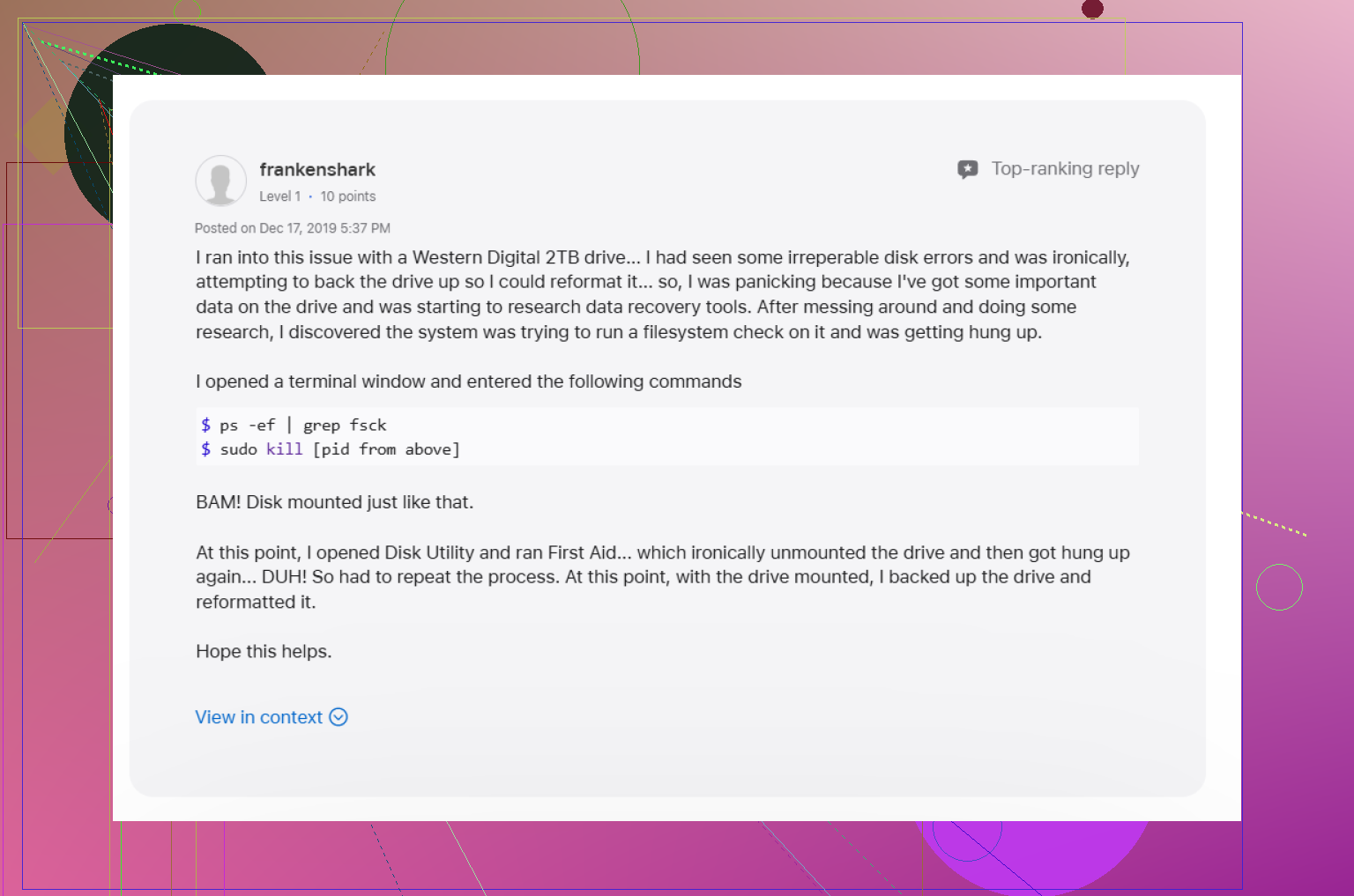
Error -119930868 usually points to the file system metadata, not the USB cable alone. I’d check hardware first anyway, because Time Machine drives fail in boring ways.
Try this order.
-
Swap the cable and port.
A bad SATA to USB bridge will show the disk in Disk Utility but fail mount. I’ve seen this on WD and Seagate enclosures a lot. If you have a hub, remove it. -
Check SMART status.
Open Disk Utility, select the physical drive. Look for SMART. If it says Failing or Not Supported, I would treat the disk as unstable. If you like Terminal better:
diskutil info /dev/diskX -
Mount it from Recovery Mode.
Boot into macOS Recovery, open Disk Utility there. If it mounts in Recovery but not in your normal session, the issue is often login items, security tools, or Finder extensions. I disagree a bit with @mikeappsreviewer on killing fsck first. If the drive is making progress, stopping repair mid-run sometimes leaves the volume worse off. -
Inspect the file system type.
Time Machine on newer macOS usually wants APFS. Older setups often used HFS+. If the disk was formatted exFAT for some reason, that is a red flag for a backup disk. Time Machine and exFAT are a bad mix. -
Use Terminal to verify without forcing a mount.
diskutil list
diskutil verifyDisk /dev/diskX
diskutil verifyVolume /dev/diskXsY
If verifyDisk throws I/O errors, think hardware. If verifyVolume fails, think directory damage.
- If the backup matters, stop writing to it.
That part matters more than people think. Every failed mount attempt writes logs and state. If your goal is file access first, recover data to a second drive. Disk Drill is decent for this because it scans unmountable Mac drives and often pulls files off when Finder won’t.
If the disk mounts read-only, copy what you need first. Don’t repair first. Data first, fix later.
Also, this Apple thread on stopping interaction with the disk has a few useful checks:
steps to safely stop using a failing Mac disk before recovery
If none of this works, remove the drive from the enclosure and connect it with another adapter or dock. Weirdly often, the disk is fine and the enclosure is the problm.
I’d add one angle neither @mikeappsreviewer nor @nachtdromer really leaned on enough: check whether the APFS container itself is confused, especially on newer Time Machine disks.
If this is a Time Machine drive from Big Sur or later, it’s usually APFS, and sometimes the volume won’t mount even though the parent disk is visible. In Terminal, look at the layout first:
diskutil apfs list
If you see the container but the backup volume is stuck, try mounting the APFS volume directly instead of poking the whole disk again:
diskutil mount readOnly /dev/diskXsY
Read-only is the key part. Less risk, less drama. If it mounts, copy anything important off before trying repairs. I know people love hitting First Aid ten times like it’s a slot machine, but sometimes that just makes a flaky backup disk more annoying.
Another thing worth checking is snapshot overload. Time Machine can pile up APFS snapshots, and I’ve seen weird mount behavior after interrupted backups. You can inspect local snapshots on your Mac with:
tmutil listlocalsnapshots /
That won’t fix the external disk directly, but it can tell you whether Time Machine has been acting weird in general.
Also, if the disk shows up but Finder freezes when you click it, test in Safe Mode. That can rule out Finder extensions, antivirus junk, and third-party disk tools. Recovery Mode is useful, sure, but Safe Mode is faster for isolating software nonsense.
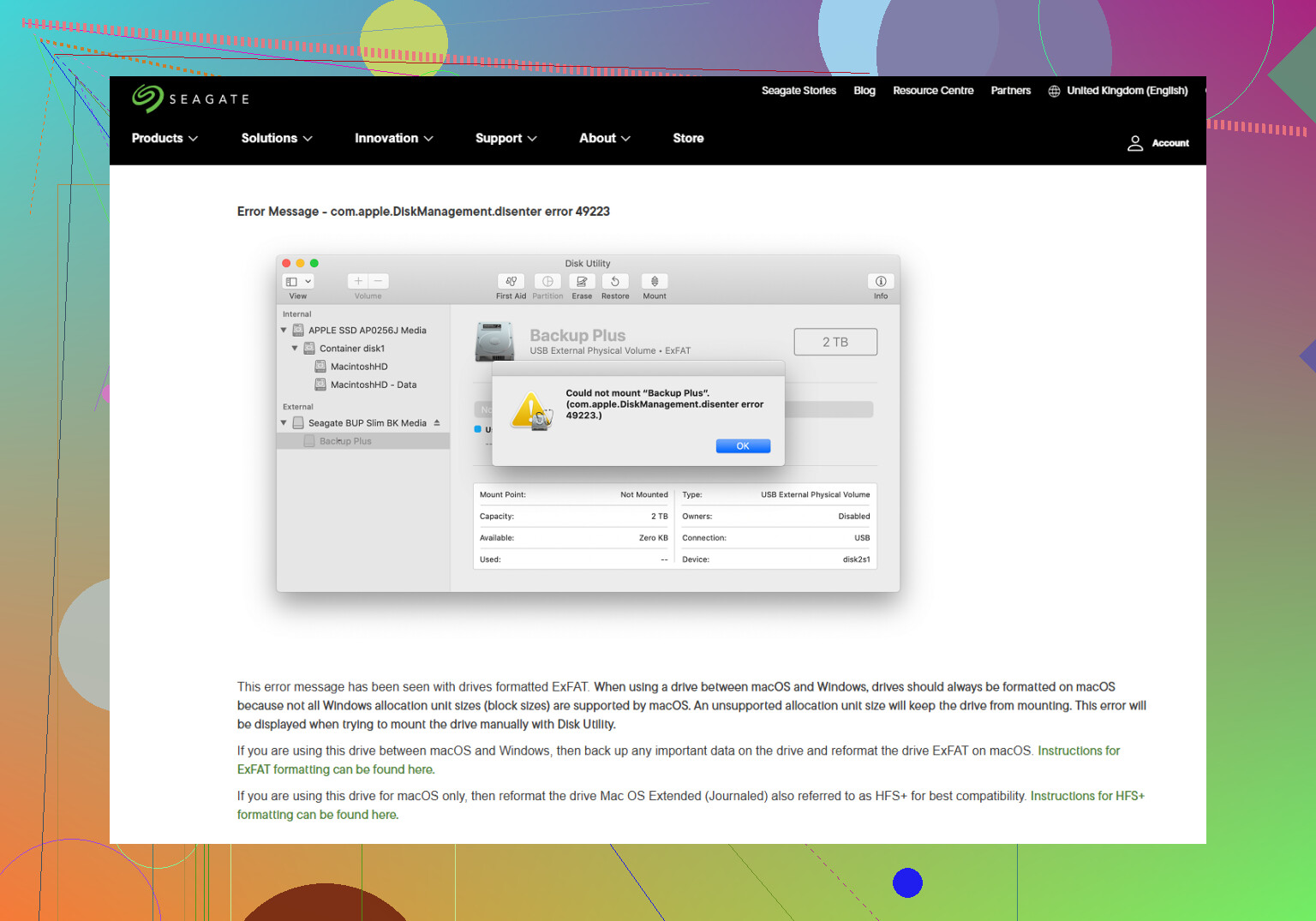
If the drive is a Seagate, this page about fixing Seagate disk utility and mount errors on macOS is worth a look too.
And yeah, if you just need the files and the backup history matters, Disk Drill is a reasonable move before more repair attempts. Especially if the disk keeps throwing disenter errors and refuses to mount normaly. Data first, cleanup later.
One thing I’d check that @nachtdromer, @vrijheidsvogel, and @mikeappsreviewer only touched indirectly is whether the disk is being blocked by macOS privacy or ownership rules, not just damaged metadata.
Open Terminal and run:
log show --last 10m --predicate 'process == 'diskarbitrationd' OR process == 'DiskManagement''
If you see repeated denial-style errors, try this:
sudo diskutil enableOwnership /Volumes/YourDriveName
Also test whether Spotlight is hanging on the disk. I’ve seen external backup volumes stall mount behavior because indexing goes sideways right after attach:
sudo mdutil -i off /Volumes/YourDriveName
If the volume name does not exist because it never mounted, skip that part.
Small disagreement with the “repair early” approach: if this is your only Time Machine history, I would avoid repeated First Aid loops. One clean verify pass is fine. Five is not. Backup disks often die gradually, and every extra attempt is another chance for worse corruption.
Another overlooked angle is power. Not just cable quality. Some portable drives mount fine on one Mac and fail on another because the USB bus is underpowered. Use a powered dock or powered hub once, just for testing.
If all you need is file access, clone or recover before “fixing.” Disk Drill is useful here because it can scan drives macOS refuses to mount.
Disk Drill pros:
- Good at reading unmountable Mac disks
- Simple interface
- Can preview recoverable files
Disk Drill cons:
- Deep scans can take forever
- Recovery quality depends on how damaged the file system is
- Paid features if you need full recovery
If the disk starts clicking, spins down, or disappears from diskutil list, stop immediately. That’s not a software problem anymore.