Windows suddenly said my USB drive needed to be formatted before I could open it. I clicked format, and now all my photos and work files are gone. I really need help finding the best way to recover data from a formatted USB drive in Windows without making things worse.
I did this to one of my USB sticks a while back, and yeah, the stomach-drop part hits fast. Still, a format does not always wipe your files beyond recovery. A lot depends on what kind of format happened, and whether you kept using the drive after it.
First move, stop touching the flash drive. Do not copy new stuff onto it. Do not format it again. Skip repair tools like CHKDSK for now. Every write to the drive raises the odds of old file data getting replaced, and once that space is overwritten, recovery is done.
One thing people mix up all the time, you do not “undo” a format. There is no clean reverse button for it. The file system gets rebuilt, and recovery apps work around that by scanning the raw storage for leftover file data and piecing it back together. So the format stays, but your files still might be sitting there.
What happened during the format matters a lot:
- Quick Format
This usually finishes fast, often in seconds. Best case. On Windows, it often rebuilds the file system without wiping the old file contents right away. If you stopped using the USB immediately, recovery odds are often pretty good. - Full Format
This takes longer. On newer Windows systems, a full format usually writes across the whole drive. If that is what ran, software recovery tends to go badly, if it works at all. - Format done by another device
Cameras, TVs, dashcams, consoles, and similar gear often do a quick format. I’ve seen those recover more often than people expect.
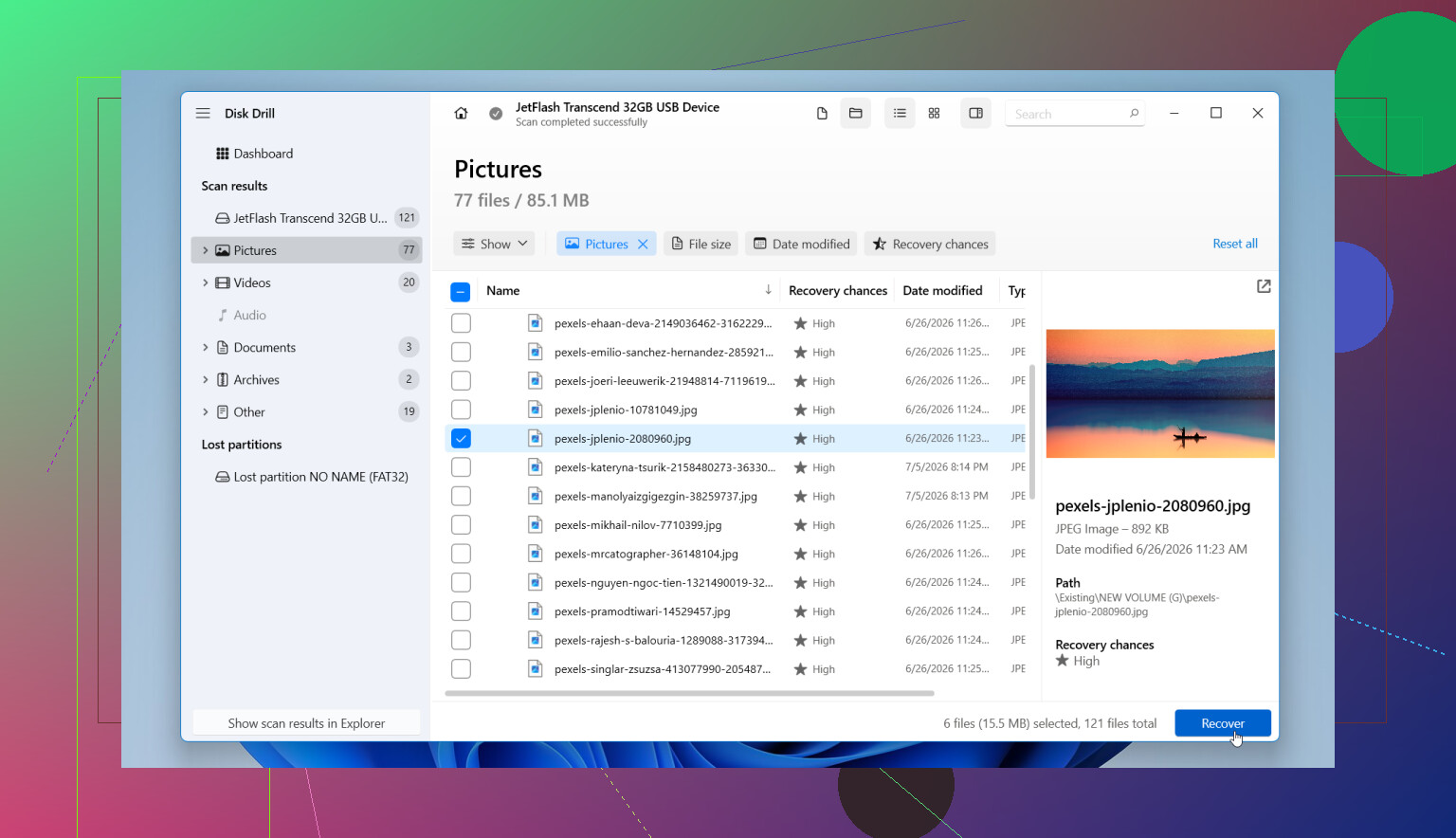
If you do not have a backup, I’d go straight to recovery software. What worked best for me was Disk Drill. It handles the file systems you usually see on flash drives, like FAT32, exFAT, and NTFS, and it sorts results well enough that you are not digging through a giant mess.
This is the process I’d use:
- Install Disk Drill on your computer’s internal drive. Do not install it onto the formatted USB.
- Plug in the flash drive and open the app.
- Pick the USB from the device list.
- Click Search for Lost Data, then choose Universal Scan if it asks. For formatted drives, this tends to be the right pick since it runs multiple scan methods together.
- Let the scan finish. You can look through files during the scan, but I’d wait. More stuff often shows up later, and I’ve seen people miss half their results by stopping early.
- Check the found files by category. Pictures, videos, docs, audio, archives. You can also filter by size, date, file type, or search by name when names are still intact.
- Preview anything important before restoring it. If a photo opens, or a document displays properly, your odds on that file are decent.
- Save recovered files to another drive, not back onto the same USB. Writing recovered data to the original stick risks wiping out other recoverable files.
If the flash drive is acting flaky, read errors, random disconnects, weird pauses, make an image of it first and scan the image instead. That part matters more than people think. Working from a copy is safer, especially if the hardware is starting to fail.
You’ll also run into tons of posts telling you to use Command Prompt tools like CHKDSK or ATTRIB. I would not start there after a format.
- CHKDSK
It is for file system repair, not post-format file recovery. If the drive is in rough shape, it might change structures on the disk and make recovery harder. - ATTRIB
This helps with hidden files, often after malware or file attribute issues. It does nothing for files removed by formatting.
I’d only look at those tools if the format never finished, or if the USB glitched out mid-process and left the file system in some half-broken state. Otherwise, recover first. Fix later.
If the drive is not detected at all, keeps dropping every few seconds, shows the wrong capacity, or looks physically damaged, then the problem may be the hardware, not the format alone. In that case, repeated scan attempts are risky. If the files matter, a pro recovery shop is the safer route.
So yes, recovery from a formatted flash drive is often possible, esp after a quick format. The two big things are the format type and whether you wrote anything new to the drive afterward. If it was quick, and you left the USB alone, you might get back most of it, sometimes all of it.
7 Likes
Do not run repair tools first. I differ a bit from @mikeappsreviewer on one thing, I would start by checking S.M.A.R.T. or at least watching for disconnects before any long scan. If the USB is unstable, scanning it hard for hours is rough on a dying stick.
Best path:
- Stop using the USB.
- Plug it into a different USB port, or another PC, once. Only to confirm it still shows up with the right size.
- If it disconnects, freezes, or shows 0 bytes, make a byte-for-byte image first.
- Scan the image, not the original, with Disk Drill or another recovery app.
- Recover files to your internal drive or a second external drive.
Why this matters:
A Windows quick format often removes the file table, not the file data. Photos, docs, and videos often stay recoverable until overwritten. A full format on modern Windows usually writes across the drive. Recovery rates drop hard after tht.
What I would check while scanning:
- Original folder structure. Better sign than raw files only.
- File previews. If JPGs open and docs preview, results are usuallly solid.
- File sizes. Tiny 0 KB or weird sizes often mean corruption.
- Duplicate results. Common after format scans.
If your files are photos, sort by JPG, PNG, CR2, NEF, MP4 first. Those tend to be easiest to verify fast. If names are gone, use date ranges and size filters.
Also, skip saving recovered files back to the USB. People still do this, and it wrecks the rest of the recovery.
If you want a short visual guide, this fits the topic well: formatted or corrupted pen drive recovery video guide
If the USB keeps dropping off, gets hot, or asks to format again after reconnecting, stop. At tht point, software recovery starts losing to hardware failure.
What @mikeappsreviewer and @sterrenkijker said about stopping use of the USB is dead on, but I’d push one extra angle first: figure out whether the problem is logical damage or a fake-dead flash drive controller. A lot of USB sticks that suddenly throw the “format this drive” message were already failing before Windows got dramatic about it.
If the drive still shows the correct capacity, that’s a decent sign. If it suddenly shows some weird size, hangs Explorer, or reconnects every few mins, I would not keep hammering it with repeated scans. That’s where people turn a recoverable mess into an unrecoverable one.
Also, small disagreement with the usual “just scan it” advice: if these are irreplaceable work docs or family photos, make one careful pass, not ten. Every extra retry on a shaky flash drive is a gamble. If you can, use a sector-level imaging tool first, then run recovery against the image. That is safer than working live off the stick.
For actual recovery, Disk Drill is a solid choice for a formatted USB drive because it can find both existing partitions and deeper file signatures after a quick format. What matters more than the app name, though, is what you recover:
- restore to your PC or another external drive
- prioritize the most important file types first
- check previews before recovering tons of junk
- don’t trust recovered filenames unless folder structure also comes back
One more thing people skip: after recovery, retire that USB stick. Seriously. If Windows asked to format out of nowhere once, I would not trust it again for anything important.
If you want a simple explainer on formatted USB recovery, this is pretty readable: how to recover data from a formatted USB drive easily.
Short version: quick format = maybe very recoverable. Full format = much worse. Unstable USB = image first. And yeah, do not run CHKDSK here, that tool loves making things “technically cleaner” while your files vanish lol.