I accidentally formatted a drive that had my Outlook PST file, and now I can’t access years of emails, contacts, and folders. I’m looking for reliable PST recovery tools or methods that might help recover an Outlook data file after a format. Any advice on what works best and what to avoid would really help.
Losing a PST during a folder cleanup feels bad fast. I did this once in Documents while moving old Outlook stuff around, and the first mistake I almost made was keeping the PC in use. Don’t do that. If the file was deleted, Windows often only marks the space as free. Your PST might still be sitting there until new data lands on top of it.
So, keep writes to a minimum. No big downloads. No app installs. No saving random files to the same drive if you can avoid it.
Do these in order
1. Check the easy places first
Start with the Recycle Bin. A normal delete usually puts the PST there. If you used Shift+Delete, skip expecting much from the Bin.
After that, check any synced cloud account tied to the folder. I’d look at OneDrive, Dropbox, Google Drive, whatever was attached. Use the web dashboard, not only the local folder on your PC. Deleted items and version history often show up there even when the desktop folder looks empty.
2. See if Windows kept an older copy
Sometimes Windows saved your skin without making a big deal out of it.
The common PST location is:
C:\Users\YourName\Documents\Outlook Files
Open the parent folder, right-click it, then hit “Restore previous versions.” If you spot a version from before the deletion, open it and copy the PST out somewhere else. I’d avoid restoring over the same spot first. Copying out is safer.
3. If it’s gone, run recovery software
When the normal spots are empty, use file recovery software. That’s the point where I stop guessing.
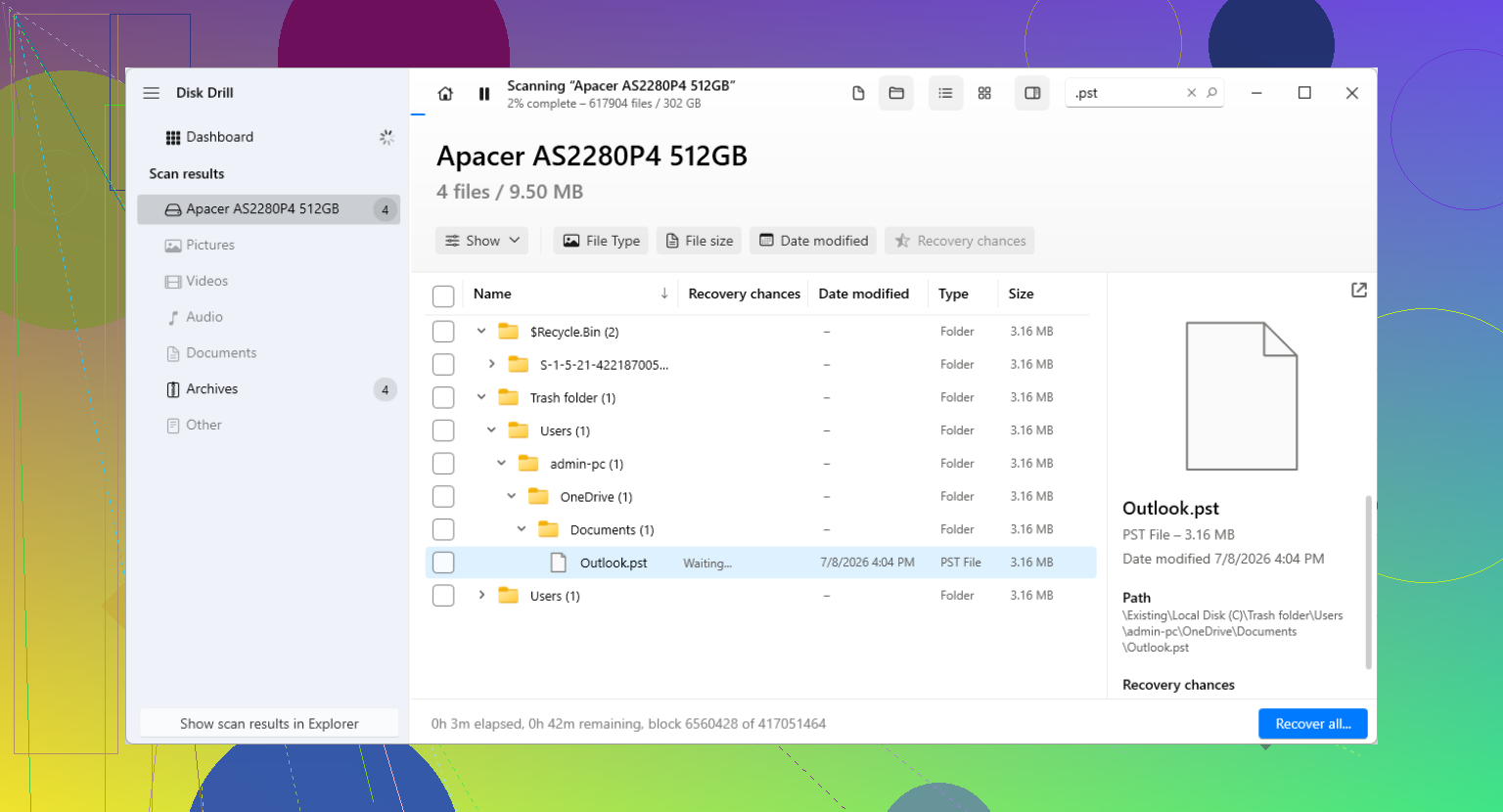
Disk Drill is one option worth trying for deleted PST files. The big thing is where you install it. If the missing PST lived on C:, don’t install recovery software to C: if you have another choice. Use another drive, or run it from external storage.
The process I’d follow:
Install the tool on a different drive if possible.
Scan the drive where the PST was deleted, usually C:.
Filter or search results for .pst.
Check file size before restoring. Outlook often creates a small fresh PST, and people grab the wrong one. Your older mailbox file is often much larger.
Recover it to another location, not back into the original folder.
4. Open the recovered file the right way in Outlook
This part trips people up. Outlook sometimes creates a new blank data file after the old one disappears. You open Outlook, see an empty mailbox, and it looks like the mail is gone. Sometimes it isn’t gone. Outlook is simply pointing at a new empty file.
Open Outlook, then go to:
File > Open & Export > Open Outlook Data File
Pick the recovered PST. If recovery worked, your old folders should appear in the left pane. I’d check a few folders first, inbox, sent items, archives, whatever mattered most. Once you know the mail is there, go into Account Settings and switch the default data file over to the recovered one.
5. If your account uses IMAP, part of your mail might come back on its own
I’ve seen people panic over Gmail or Yahoo mail and then get half their stuff back after reconnecting the account. For IMAP accounts, mail is often still on the server. Outlook rebuilds from it by making a new OST.
Still, this does not fix everything. Local archives, imported mail, custom folders, and old storage you kept only in a PST will not magically return from the mail server. Those lived in the PST and nowhere else. If you had years of saved mail in local folders, the original PST still matters a lot.
After you get it back
Once the PST opens and the mail looks good, make a backup plan right away. I learned this one the dumb way. Keep the file in a backed-up folder, copy it to an external drive now and then, or export regular backups on a schedule. A PST often holds years of mail, and keeping only one copy is asking for trouble.
If your recovery scan turns up multiple PST files, restore the larger one first and test it in Outlook. That usually gives you the best shot at finding the real mailbox instead of some fresh empty replacement.
17 Likes
If the drive was formatted, I’d treat this a bit differently than @mikeappsreviewer’s deleted-file route. A format changes the odds. Fast format is recoverable far more often than a full format, since a full one tends to overwrite data blocks.
My order would be:
- Stop using the drive.
- Make a sector-by-sector image of it first.
- Run recovery against the image, not the original.
- Recover the PST to another disk.
- Repair the PST only after recovery.
For imaging, use something like R-Studio, UFS Explorer, or ddrescue if you’re comfy with tools. For scanning, Disk Drill is a solid first pass because it’s easy to search by .pst and preview file metadata. Recuva is fine for simple deletes, but after a format it often misses stuff.
One place people mess up. They recover a damaged PST, then think it’s useless. Try Outlook Inbox Repair Tool, scanpst.exe, on the recovered file. It fixes header and index issues pretty often. If scanpst fails, use a PST repair tool after you save a copy.
Also check if your mail account was Exchange, Microsoft 365, or IMAP. If so, mail on the server may resync. Your old local archives, contacts, and custom folders from the PST will still depend on file recovery tho.
This older Reddit discussion on recovering a permanently deleted Outlook PST file has a few useful angles too.
If it was an SSD with TRIM enabled, be honest with yourself. Recovery odds drop hard after format. On an HDD, odds are better.
If the drive was formatted, I’d focus less on “undelete” logic and more on file-system reconstruction. That’s where I slightly differ from @mikeappsreviewer. Recycle Bin and previous versions are great for deletes, but after a format they’re usually not the main event.
What I’d actually do:
-
Check the drive type first
- HDD: decent chance if you stopped using it fast.
- SSD: if TRIM kicked in, recovery can go from possible to “yeah… maybe not.”
-
Look for the PST by structure, not just extension
Some tools findmail.pstby filename. Better tools can detect PST signatures even when the directory table is toast. That matters after format. -
Use two classes of tools
- Recovery tool: Disk Drill, R-Studio, UFS Explorer
- PST repair tool: scanpst.exe, and only after recovery
I agree with @viajantedoceu on one big point: recover to another disk only. Never back onto the formatted one. Kinda obvious, but people still do it and then wonder why the second scan finds less stuff. Oops.
Also, if the recovered PST opens but folders are missing, try importing it into a new Outlook profile instead of attaching it to your current one. Outlook profiles get weird and blame the file for their own nonsense.
For picking software, this is basically the goal: best software to recover Outlook PST files after formatting a drive. Disk Drill is a reasonable first try because it’s simple to search for large PST files and restore them elsewhere without much fuss.
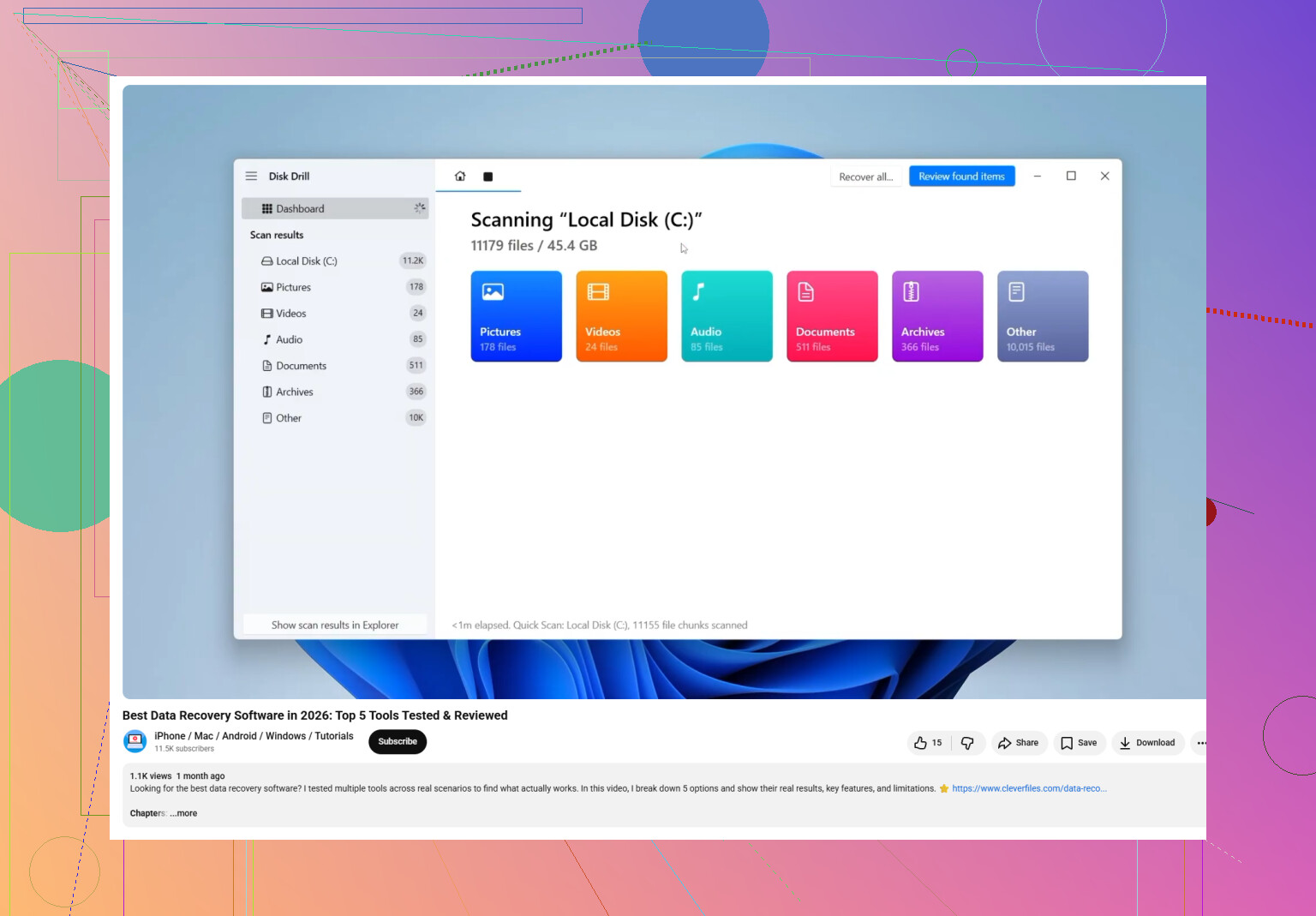
If you want a quick visual on the process, this helps: watch how to recover an Outlook PST after formatting
One more thing people miss: if Outlook was connected to Microsoft 365, Exchange, or IMAP, mail may resync, but contacts, old archives, local folders, and calendar items from that PST might still be the real loss. So don’t assume “email came back” means you recovered everything.
One angle I’d add to what @viajantedoceu, @sterrenkijker, and @mikeappsreviewer covered: try a hex-level sanity check before spending hours on scans. A real PST usually starts with the signature !BDN. If your recovery tool finds multiple large candidates with generic names, that header can help you separate a real Outlook file from junk.
I’d also avoid mounting the formatted drive in Windows any more than necessary. Even indexing and background writes can hurt your chances, especially on SSDs.
For software, Disk Drill is a fair first pass if you want something less forensic-heavy.
Disk Drill pros
- easy to filter for large
.pstfiles - decent interface for non-specialists
- can recover to another drive cleanly
Disk Drill cons
- not the deepest tool for badly damaged file systems
- scan results can include lots of false positives after format
- paid recovery may be needed once you confirm the file exists
If Disk Drill finds a PST but Outlook rejects it, don’t assume total failure. Sometimes exporting recovered fragments into a new PST with a specialized repair utility works better than trying to open the damaged file directly.
My unpopular take: I would not start with Recuva here. After a format, it’s often too lightweight. If Disk Drill comes up empty, move straight to something like R-Studio or UFS Explorer, then decide if the file is valuable enough for a pro lab. If those emails are business-critical, lab recovery may actually be cheaper than wasting days on partial results.