My WD My Passport suddenly stopped showing up on my computer, and it has important photos and work files I haven’t backed up anywhere else. I’m trying to figure out the safest way to recover data from a WD My Passport external hard drive without making things worse. If anyone has successfully recovered files from a failed or unreadable WD My Passport, I’d really appreciate advice on what worked.
I’ve had this happen with a WD My Passport, and yeah, it sucks. Most of the time those drives hold up fine for years, then one day they go weird and your stomach drops.
First step, unplug it and stop messing with it. If files were deleted, or the drive keeps freezing, reconnecting, or throwing errors, every extra write puts your stuff at more risk. I learned this the hard way once and made the mess worse by 'testing' it too much.
Check what Windows sees first
Right-click Start, open Disk Management, and look for the Passport there.
If it shows up with the right size, you still have a decent shot at handling recovery yourself.
If it does not appear at all, or it’s clicking, grinding, beeping, or doing any ugly noise stuff, I’d stop there. That starts to look like physical failure, and software won’t fix hardware.
What I’d do if the drive still shows up
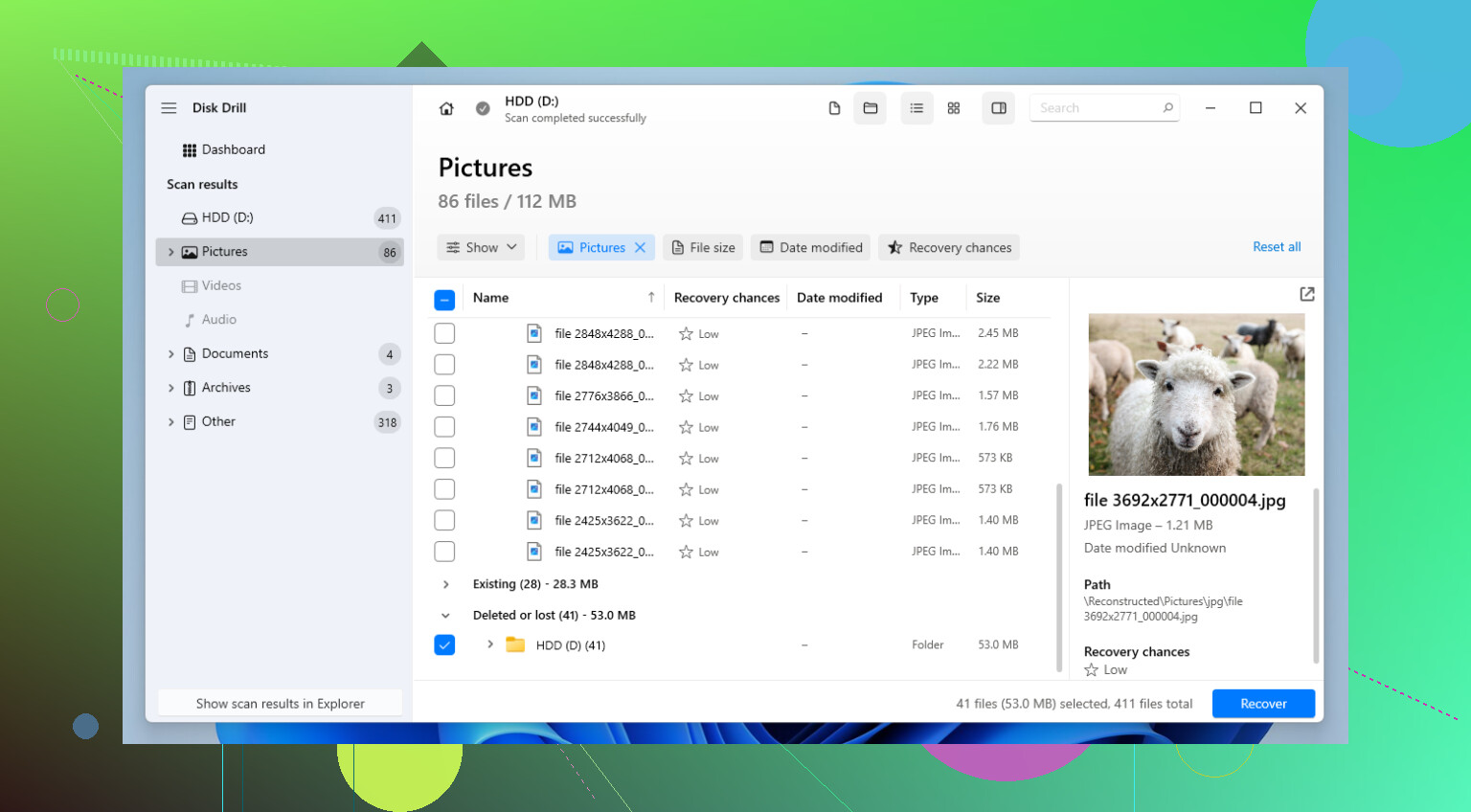
If Windows recognizes it, I’d go with recovery software before trying random fixes. On these WD drives, I’ve had the best luck with Disk Drill. Part of why I kept going back to it was simple, it reads the file systems you usually find on My Passport drives, like NTFS, FAT32, and exFAT, without much fuss.
- Install the software on your computer, not on the WD drive.
- Then connect the My Passport.
- Pick the drive and start the lost data scan.
- Use the deepest scan option, here that’s called 'Universal Scan.'
- While it scans, look through results as they appear. I usually check the deleted files and reconstructed sections first.
- If a photo, PDF, or doc previews correctly, that’s a good sign. In my experience, previewable files are the ones worth grabbing first.
- Select what matters and recover it to a different drive.
If your case is simpler, or messier
I’d split the tools by situation.
- For a plain accidental delete, Recuva is still worth a shot. It looks old. It feels old. Still, for a small mistake on an otherwise healthy drive, it sometimes gets the job done fast.
- For partition damage, or when the drive suddenly shows as uninitialized, TestDisk is one people bring up for good reason. It’s free and it has saved drives by rebuilding the partition table. I would not hand it to someone who hates command-line tools, though. One bad choice in there and you’ve got a bigger problem than when you started.
The WD My Passport thing people mess up a lot
Do not pull the drive out of the enclosure unless you already know the encryption situation and are ready for bad news.
- A lot of My Passport models use hardware encryption through the USB board inside the case. I’ve seen people remove the bare drive, hook it up another way, and then panic because the data looks corrupt or blank. It isn’t always gone. It’s often unreadable without the original controller path. If the port is damaged, board repair by someone who knows soldering is safer than trying to bypass the enclosure.
- If you enabled a password in WD Security, you need that password. No cute trick, no recovery app, no shortcut. The drive has to be unlocked first or recovery software won’t see usable files.
After you get your files back, set up a backup somewhere else. I don’t mean later. I mean right after. Another external drive, OneDrive, Google Drive, whatever you’ll stick with. I skipped backups once because I thought the Passport was my backup. Dumb move. Never did it twice.
13 Likes
If the WD My Passport is not showing up, I’d sort the problem into 3 buckets first. Power, USB bridge, or file system.
@mikeappsreviewer is right about stopping writes. I’d add one thing. Don’t run CHKDSK first. A lot of people do, and it sometimes turns a recoverable mess into a worse one by changing file system metadata before you copy anything out.
Do this in order.
- Try a different USB cable. My Passport drives fail from bad cables more often than people think.
- Plug it into a rear motherboard USB port, not a hub.
- Test on another PC.
- Check Device Manager. Look under Disk drives and USB controllers.
- Check Disk Management. If it shows as RAW, unallocated, or with no letter, stop poking at it.
If the drive appears and stays stable for more than a few minutes, make an image first if you have space. Recovery from an image is safer than hammering the original disk over and over. On Windows, HDD Raw Copy Tool is one easy option. On Linux or a boot USB, ddrescue is better for unstable drives.
After you have an image, scan the image with Disk Drill. I know @mikeappsreviewer mentioned it for direct recovery, but I’d put imaging first for a flaky Passport. Disk Drill tends to do well with photo and document recovery, and preview support helps you filter junk fast. Save recovered files to a different drive. Sounds obvious, people still mess this up.
One WD-specific gotcha. Some My Passport models have USB-board encryption built in. If the enclosure board dies, the bare SATA drive inside may look like gibberish. So I disagree a bit with the common “shuck it and test it” advice. That works on some externals, not on many Passports. If yours has a damaged USB port, board-level repair is often the safer path.
If the drive clicks, spins down, vanishes mid-scan, or reports 0 bytes, skip software and go to a lab. Every retry hurts your odds.
For extra reading, this Western Digital data recovery guide lays out the basics in plain English, watch this WD My Passport recovery walkthrough.
Short version. Test cable and ports, verify what Windows sees, image first if the drive is unstable, then run Disk Drill on the image. If it makes noises or drops offline, stop. That’s the point where DIY gets risky fast.
I mostly agree with @mikeappsreviewer and @sognonotturno, but I’d push one extra point harder: before you even think about “fixing” the Passport, figure out whether it’s failing at the USB bridge level or the actual disk level. WD My Passport units are annoying like that. Sometimes the drive is fine and the little USB-SATA board is the real villain.
If it shows in Device Manager for a second and then disappears, that’s usually not a “run repair tools” moment. That’s a “stop stress-testing it” moment. Also, I would not jump straight into TestDisk unless you already know what a partition table should look like. People love recommending it because it’s free, then act shocked when someone writes changes to the wrong disk. lol
One thing not mentioned enough: check SMART data if the drive stays connected long enough. CrystalDiskInfo can sometimes read it. If you see reallocated sectors, pending sectors, or tons of read errors, treat the drive like it’s on borrowed time. That tells you a lot before you waste hours.
If the Passport is stable enough to be detected, I’d recover in this order:
- Clone or image it.
- Scan the clone, not the original.
- Use recovery software only after that.
This is why creating a full drive image before data recovery matters so much. It reduces stress on a failing disk, gives you a safer copy to scan, and helps avoid making the original situation worse.
For the actual file recovery side, Disk Drill is a solid pick for WD My Passport data recovery, especially if you need photos, videos, docs, and you want previews before restoring stuff. I’d use it on the image file if possible, not the live drive.
One small disagreement with the “just try every cable and PC” approach: yes, test basics, but don’t turn it into a 3-hour science fair. A dying drive doesn’t care about your enthusiasm. If it clicks, drops offline, gets hot fast, or reads 0 bytes, stop DIY stuff. That’s lab territory, period.
Also, if the data is truly irreplaceable, don’t keep experimenting becuase free tools exist. Free can get expensive real fast when the files are gone for real.
I’m with @sognonotturno, @techchizkid, and @mikeappsreviewer on the big rule: stop trying random fixes. My one slight disagreement is with checking too many utilities before deciding on a path. On some flaky Passports, every reconnect is another gamble.
What I’d add is this: pay attention to the sound and behavior before the software side. A healthy-ish WD My Passport usually spins smoothly and stays mounted. If it spins up, vanishes, then remounts in cycles, that often points to firmware, bridge, or weak heads, not just “corruption.” In that case, even a clone attempt can go sideways if the drive is deteriorating fast.
A practical middle ground:
- If it is silent, detected, and not dropping offline, image it and work from the image.
- If it is detected but painfully slow, prioritize your most important folders first only if you cannot image.
- If it clicks or disconnects repeatedly, stop. Lab time.
About Disk Drill for WD My Passport data recovery:
Pros:
- easy preview for photos, videos, docs
- good for mixed file types
- friendlier than TestDisk for most people
- works well on images, which is the safer workflow
Cons:
- deep scans can take a long time
- reconstructed filenames/folders are not always perfect
- not my first choice for drives with serious hardware symptoms
- paid recovery features may be a downside depending on budget
So yeah, Disk Drill is a solid recovery option, but only after you’ve decided the hardware is stable enough. If the Passport never shows correct capacity, software is probably not the real answer.