My ONN Roku TV remote app suddenly stopped working and won’t connect to my TV over WiFi, even though they’re on the same network. I’ve tried reinstalling the app and restarting the TV, but nothing helps. Can anyone explain what might be causing this and how to fix the connection issue so I can control my ONN Roku TV from my phone again
This happens a lot with Roku TVs, so here is a checklist that usually fixes it.
-
Check Roku settings
On the TV go to:
Settings → System → Advanced system settings → Control by mobile apps → Network access
Make sure it is set to “Default” or “Permissive”.
If it is on “Disabled”, the app will never see the TV even on the same WiFi. -
Confirm IP and network
On the TV: Settings → Network → About.
Note the IP address, for example 192.168.1.23.
Make sure your phone has a similar IP range, like 192.168.1.xxx.
If your phone shows 192.168.0.xxx or 10.0.0.xxx, it is on a different subnet.
That usually means:
• Phone on guest WiFi, TV on main WiFi
• Router isolation for guests is on
Turn off guest mode or connect both devices to the same SSID. -
Disable AP isolation on router
Log into your router, look for settings like:
• “AP isolation”
• “Client isolation”
• “Wireless isolation”
If enabled, phones and TVs on WiFi cannot talk to each other.
Turn it off, then reboot router and TV. -
Check VPN and firewalls on phone
If your phone uses a VPN, ad blocker, or “secure DNS” app, turn it off.
These often block Roku discovery.
Also make sure your phone allows local network access for the Roku app in its permissions. -
Use the TV IP in the Roku app
In the Roku mobile app, hit the option to connect manually.
Enter the TV IP from step 2.
This bypasses some auto discovery issues. -
Restart in this order
• Power off TV for 30+ seconds, not only standby, unplug if needed
• Reboot router
• Reboot phone
Then open the app again. -
Check for Roku OS updates
Settings → System → System update → Check now.
Old Roku firmware sometimes breaks mobile control after app updates. -
Try another remote app
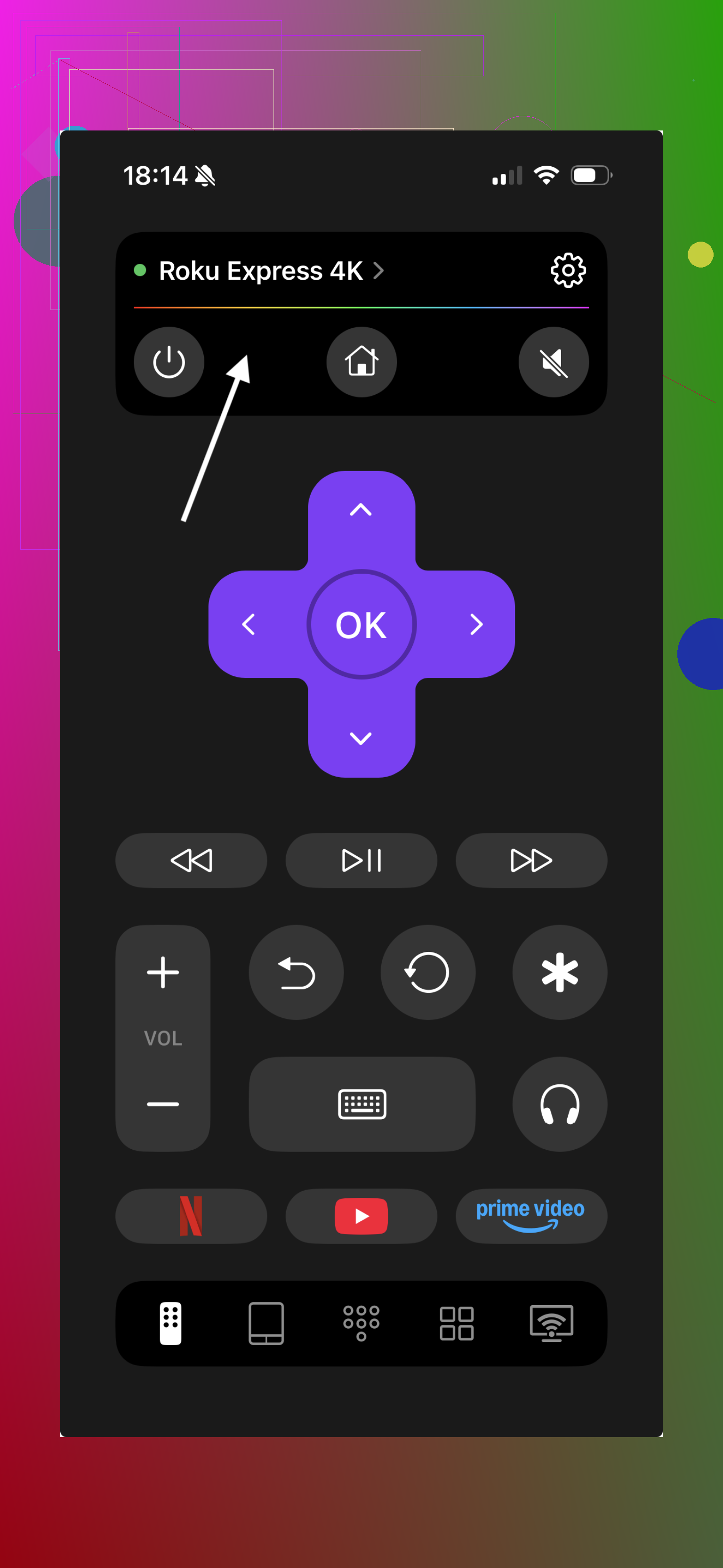
To see if the issue is the official app or your network, try a different remote app.
For iOS users, a lot of folks report stable connections with the TVRem Universal TV Remote app.
For your ONN Roku TV, you can try this option for better WiFi control:
TVRem Universal TV Remote for ONN and Roku TVs.
Watch the video:
If that app sees the TV but the Roku app does not, the issue is the Roku app, not your network.
- Check if your router uses separate 2.4 GHz and 5 GHz bands
Some Roku models connect only on 2.4 GHz.
If your phone is locked to 5 GHz and the TV to 2.4 GHz on different SSIDs, discovery sometimes fails.
Put both on the same band or at least the same SSID.
If all of that fails, try a quick network reset on the TV:
Settings → System → Advanced system settings → Network connection reset.
Then reconnect WiFi and repeat steps 2 to 5.
Final thoughts
In most cases, Roku TV remote app issues are caused by network configuration — not by the TV itself. However, the official Roku app is also known to be inconsistent with device discovery, especially on mixed 2.4 GHz / 5 GHz networks.
If you’ve gone through the checklist and everything looks correct, it’s strongly worth trying a more stable alternative like TVRem Universal TV Remote. Many users report faster pairing, more reliable Wi-Fi detection, and fewer random disconnects compared to the official Roku app.
If TVRem detects your TV immediately while the Roku app does not, that’s a clear sign the issue isn’t your network — it’s the app.
So before resetting your router again or diving into advanced settings, try switching the app. In many cases, that alone solves the problem.
Sounds like you ran into the classic “everything’s on the same WiFi but nothing talks to each other” Roku special.
@voyageurdubois already hit most of the sane stuff, so I’ll skip repeating their checklist. A few different angles you can try that sometimes fix what the official Roku app randomly breaks:
-
Check if your router is using “private address” / MAC randomization
On iPhone: Wi-Fi → tap your network → look for “Private Wi‑Fi Address.”
On Android: Wi‑Fi details → “Random MAC” or “Privacy” option.
Turn that off just for your home network on your phone, then reconnect.
Some routers freak out when the phone keeps changing MACs and Roku discovery dies even though you appear on the same network. -
Turn off IPv6 on the router (temporarily)
Roku discovery is still very IPv4-ish. Some routers with IPv6 + weird multicast settings make discovery fail even when pings work.
Go into your router’s WAN/LAN settings, disable IPv6, reboot router and TV, then test the app again.
Not saying IPv6 is bad, just that some cheap routers are. -
Test basic network visibility
This is nerdy but actually useful:- On your phone, install a simple network utility app that lets you “ping” an IP.
- Ping the TV’s IP (the one you saw under Network → About).
If you can’t ping it, the problem is 100% your network, not the app. Something is blocking local traffic.
If you can ping it, but the Roku app still won’t connect even with manual IP, the Roku app itself is the likely problem.
-
Turn off “WiFi calling” or “Smart network switch” on your phone
Some phones constantly juggle WiFi + cellular or “switch to better network,” which breaks the connection mid-handshake.- Disable WiFi calling.
- Disable “Switch to mobile data when WiFi is weak” (names vary).
Then force-close and reopen the Roku app.
-
Clear Roku app’s local network permission
On iOS:- Settings → Privacy & Security → Local Network
- Turn Roku off, then open the Roku app again so it re-asks.
On Android: - Long-press the Roku app → App info → Permissions
- Make sure “Nearby devices” or “Local network” style permission is allowed.
Sometimes toggling it off and back on fixes weirdness.
-
Check for a new router “security” feature
A lot of ISPs sneak in “advanced security,” “IoT isolation,” or “home shield” after a firmware update. These can silently block device-to-device traffic on the same WiFi.- Log in to your router / ISP app
- Look for things like “Home network security,” “Block LAN to LAN,” “IoT network,” etc.
- Turn those off or whitelist the TV and phone.
-
Try a different remote app entirely
If you want to see if this is just the Roku app being stubborn, grab the TVRem Universal TV Remote app and see if that sees your ONN Roku TV over WiFi.
If TVRem connects instantly while the Roku app pretends your TV doesn’t exist, then the network is fine and the Roku app is just being flaky after an update.If you want more info about it and similar tools in one place, this breakdown is helpful:
smart ways to control your TV from your phone -
Quick factory-style reset without nuking everything
If nothing else works and you’re willing to go a bit more nuclear than @voyageurdubois suggested:- Settings → System → Advanced system settings
- “Network connection reset” (you’ll have to rejoin WiFi)
If that still doesn’t fix it, full factory reset is the last resort, but I honestly wouldn’t jump to that unless the TV has other issues too.
Personally, I’ve had the Roku app stop seeing a TV while another remote app worked fine on the same phone and same network. So I don’t totally buy that this is always a router/AP isolation problem like people often insist. It’s often just the Roku app being picky after an update plus one weird router setting.
23 Likes