I lost my physical TV remote and need to control my TV with my iPad, but I’m not sure which TV remote control app actually works or how to set it up. I’ve tried a couple of apps already and they either won’t connect or don’t support my TV model, so I need help finding a reliable iPad TV remote app that works.
If you want to use your iPad as a TV remote, the easiest path is still Wi-Fi. I got the best results when both the iPad and the TV were on the same network. Once I fixed that, pairing usually took under a minute.
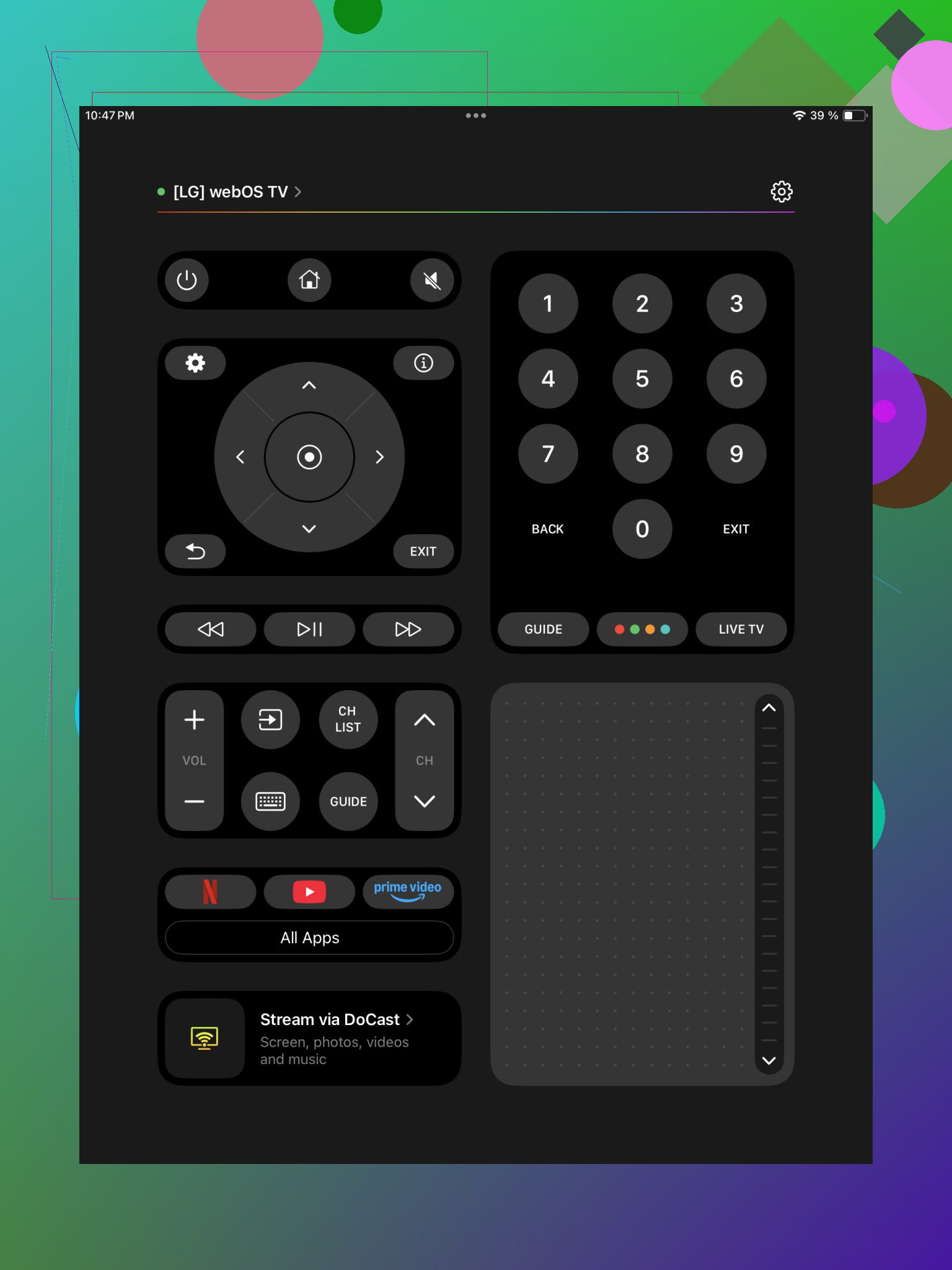
I kept coming back to this one. It found my TV fast, then it also picked up a Roku box in the other room, which saved me from juggling two apps. You open it, let it scan, tap your device, done. It worked with Samsung, LG, Roku, Fire TV, Android TV, Google TV, Apple TV, plus a bunch of other smart TV brands.
What stood out for me was the extra stuff beyond the usual arrow keys. There’s a touchpad, keyboard input for searches, volume control, and shortcuts for streaming apps. If your place has more than one TV or a mix of streaming gear, this felt less annoying than hopping between brand-specific remotes.
- Universal Remote Smart TV
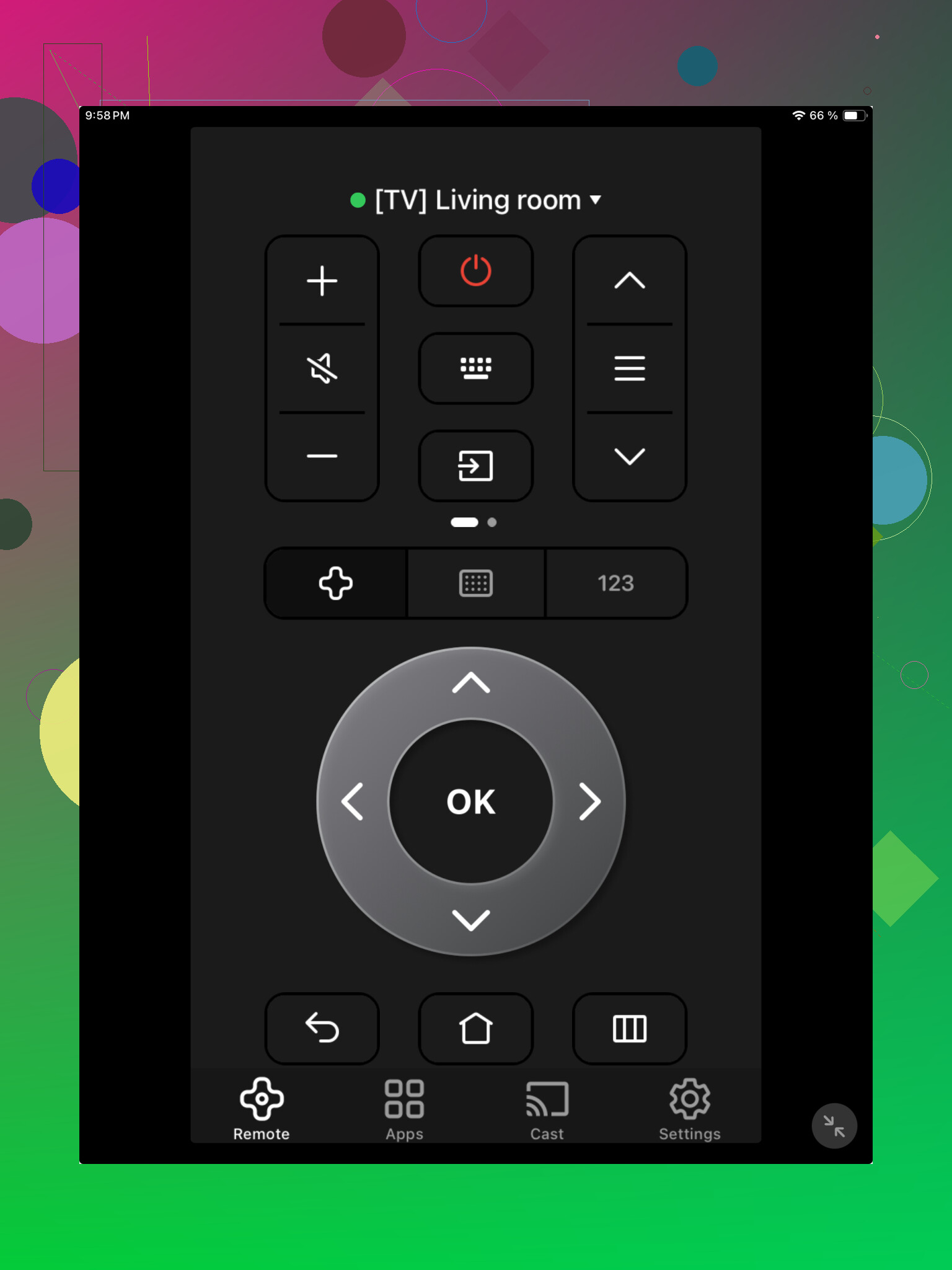
This one felt plain, but in a good way. I opened it, made sure the iPad and TV were on the same Wi-Fi, paired the set, and it started working without much fuss. It supports Samsung, LG, Sony, TCL, Roku TV, Fire TV, Android TV, and others.
You get the standard controls people usually need. Navigation, volume, play, pause, skip. No learning curve. If you only want something simple and don’t care about extra features, this one makes sense.
- TV Remote – Universal Remote
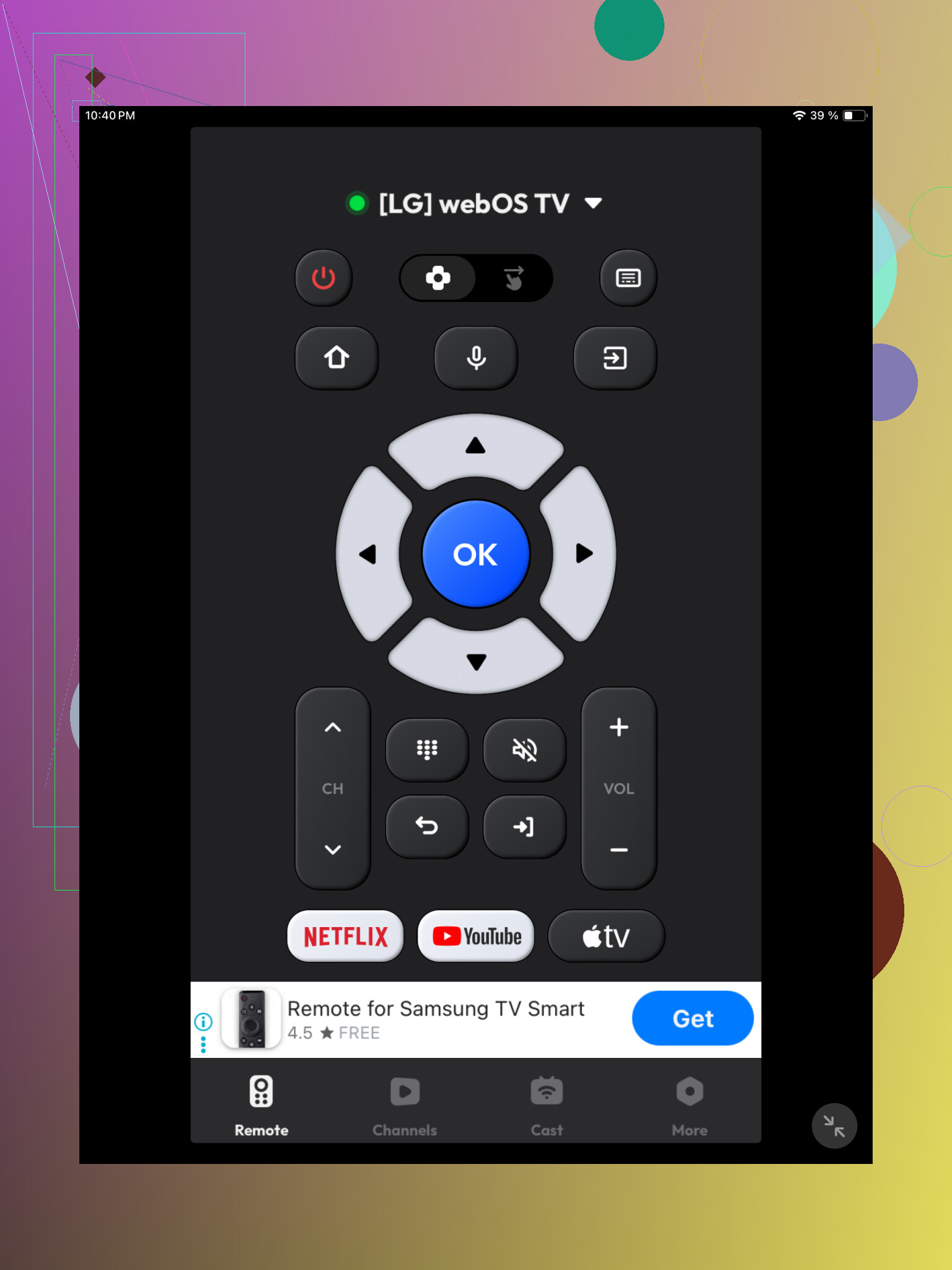
I tried this one after the other two, mostly to compare how fast it detected devices. Setup was similar. Same Wi-Fi, open app, pick the TV from the list. It supports Samsung, LG, Roku, Fire TV, Android TV, Hisense, and Vizio.
Feature list is solid. Standard remote buttons, volume, channels, playback controls, touch navigation, and keyboard entry. I liked typing with the iPad instead of pecking letters one by one on the TV screen. If you search for shows a lot, that part matters more than people admit.
Which one I’d pick
If you need bare minimum controls, any of the three should be fine. I leaned toward TVRem remote app for iPad because it handled more TV brands and streaming boxes in my testing, and the layout felt cleaner. For me, it replaced a few separate remote apps, which was the whole point.
20 Likes
I’d check one thing before chasing more apps. A lot of TVs will not accept remote pairing until you approve it on the TV screen. If you lost the remote, that step blocks you.
So first, figure out your TV type.
-
Apple TV box
Use Apple’s built in Remote in Control Center on the iPad. No extra app needed. This is the most stable option I’ve used. -
Roku TV or Roku stick
The Roku app works better for Roku than most universal apps. Less pretty, more reliable. -
Fire TV
Amazon’s Fire TV app is usally the least annoying pick. -
Samsung, LG, Sony smart TV
Brand apps often connect more consistently than universal ones, esp if your TV is older.
I slightly disagree with @mikeappsreviewer on one part. Universal remote apps are nice, but they fail more often on older sets or hotel style Wi-Fi setups. Brand-specific apps are boring, but boring wins.
If none of them connect, your TV might need IR, not Wi-Fi. An iPad has no IR blaster, so no app will fix tht. In that case, buy a cheap replacement remote or use HDMI-CEC through a console, Apple TV, or streaming box if you have one.
I’d actually start by figuring out what kind of “TV” you need to control, because that’s where a lot of these apps waste your time.
If it’s a smart TV with Wi-Fi remote support, then sure, the apps @mikeappsreviewer listed can work. But I agree more with @cazadordeestrellas on one annoying reality: a lot of TVs act “compatible” and then refuse pairing unless the TV was already set up for mobile control before you lost the remote. Super fun design, lol.
A few things people forget to check:
- TV and iPad must be on the exact same Wi-Fi band sometimes, not just same router
- Some TVs block control when “Quick Start” or “Network Standby” is off
- VPN on the iPad can break device discovery
- Public, dorm, or mesh networks can be weird and stop pairing
Also, if your TV is old enough to need infrared, stop testing apps. iPad can’t do IR, period. No app is gonna magically beam remote signals out of thin air.
My honest move:
- Apple TV attached: use Apple’s built-in remote
- Streaming stick/box: use that brand’s app first
- Actual smart TV only: then try a universal app
- Nothing connects: replacement remote is probly the fastest fix
If you know your exact TV model, post it. That matters way more than the app name tbh.
I’d add one angle the others only touched lightly: check whether your TV has a physical joystick or button cluster under the logo or on the back. A surprising number of Samsung, LG, TCL, and Sony sets let you open Network settings from there. If mobile control was disabled, that little stick can save you.
I slightly disagree with @mikeappsreviewer on universal apps as a first move. They’re convenient, but if your TV is picky, they can waste time because you won’t know whether the app is the problem or the TV setting is. Still, if you have multiple devices, TVRem – Universal TV Remote is one of the more practical all-in-one options to test on iPad.
Pros of TVRem – Universal TV Remote
- good if you have TV plus streaming box
- cleaner than many cheap remote apps
- keyboard input is genuinely useful
- avoids juggling separate apps
Cons
- still depends on your TV already allowing network control
- can be hit or miss on weird mesh/guest networks
Also worth trying: if you have a game console connected, HDMI-CEC might let the console control basic TV navigation long enough to re-enable app pairing. That trick gets overlooked a lot.
So my order would be:
- Check for hidden physical TV controls
- Try HDMI-CEC through console or streaming box
- Then test a brand app or TVRem
- If nothing pairs, buy a replacement remote because the TV likely needs first-time approval you can’t bypass
@cazadordeestrellas and @cacadordeestrelas are right about network weirdness, especially with standby settings. That part matters more than the app name.