My USB drive suddenly stopped showing my files after I unplugged it during a transfer, and now it says it needs to be formatted. It has important photos and work documents I haven’t backed up, so I need advice on the most reliable USB drive recovery software or service that actually works without making the data loss worse.
I’ve hit this mess more than once. You plug in a USB stick, open it, and get nothing. Or Windows throws the lovely “you need to format the disk” message. At that point I usually know the next hour is gone. Deleted files from a flash drive do not land in the Recycle Bin, so it feels like they vanished in one bad click.
What I do before touching recovery software
A few steps matter more than people think. If you skip them, your odds drop fast.
-
Open Disk Management first. If Windows still sees the USB drive, even if it shows up as RAW or unallocated, recovery tools still have a shot. If the drive does not appear there at all, I stop assuming it is a software issue. At that point I start thinking bad controller, bad connector, or some other hardware fault, and software recovery usually goes nowhere.
-
Pull the drive out right away. Writing anything new to it is how old data gets overwritten. I learned this the hard way once with a cheap 32 GB stick. I kept retrying file copies, and the stuff I wanted most was gone after.
-
Do not restore files onto the same USB drive. Save them somewhere else, your SSD, hard drive, or a second external device. Same-drive recovery is how people make a bad day worse.
After that, then I pick a tool.
The one I’d try first
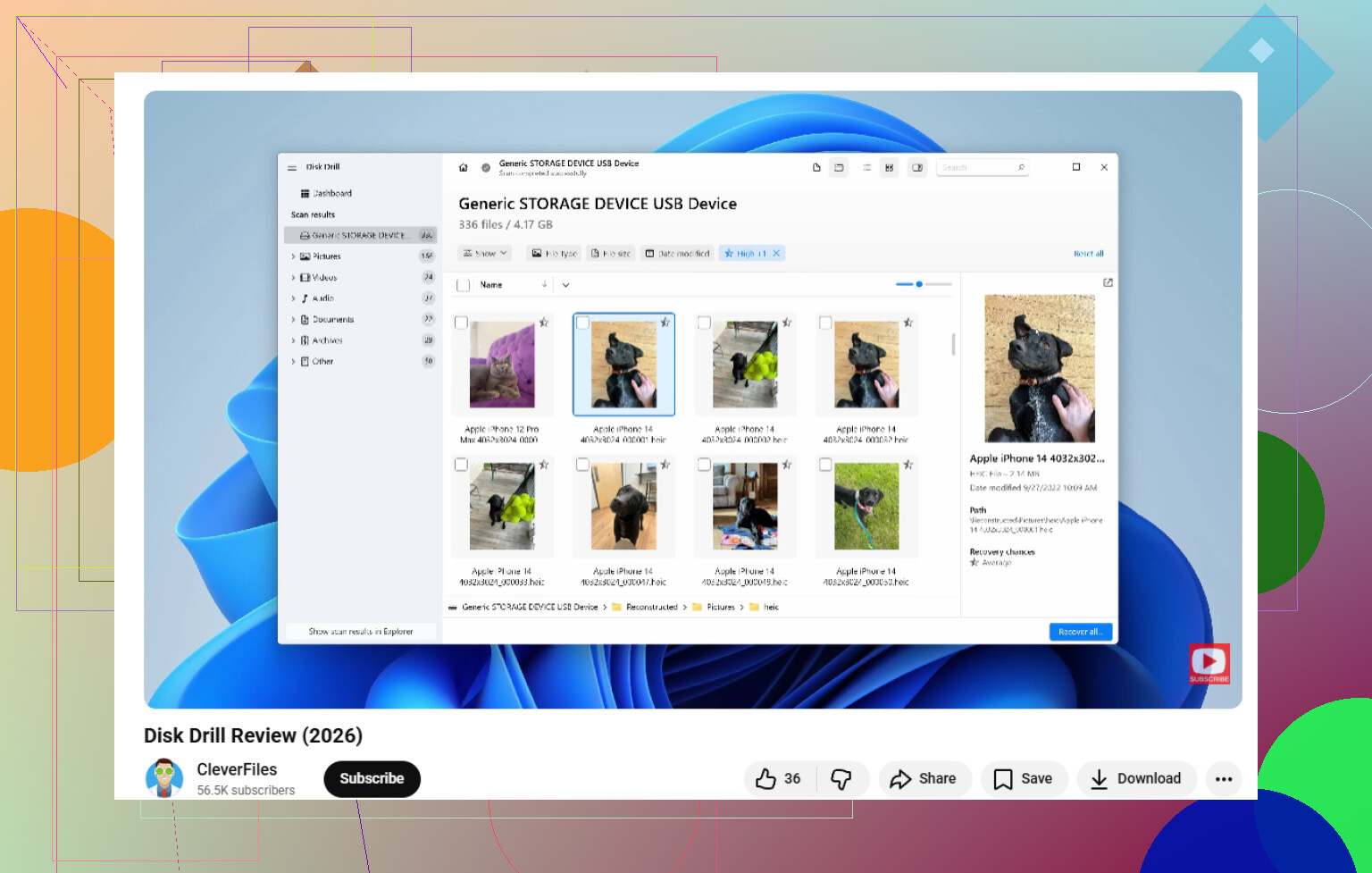
For most people, Disk Drill is the easier place to start. I’ve seen it handle the usual USB problems, deleted files, accidental formatting, RAW partitions, corrupted file systems, and other logical damage.
What stood out to me is how it does not lean on one scan type and call it a day. It runs through multiple methods in the same pass and checks for a large set of file signatures. On flaky thumb drives, that helps.
One feature I wish more tools had
The byte-to-byte backup option is useful when the USB drive keeps dropping off or starts acting weird. If a stick disconnects every few minutes, I’d rather image it once and scan the image than keep hammering the original. Less risk, less stress. The preview tool helps too, since you can see whether your files are readable before you spend time recovering everything.
If you want a free option
PhotoRec is still one of the better free picks I’ve used. It does not care much about the file system. It scans the raw data on the drive and looks for known file patterns. That helps when the partition table is trashed or the file system is missing.
The catch is the workflow. It is text-based, which turns off a lot of people fast. And when it recovers files, you usually do not get the original file names or folder layout back. You get a pile of generically named files and you sort the mess yourself. If your drive had 2,000 vacation photos or years of PDFs, yeah, it gets old fast. Ask me how i know.
My usual order
I’d start with Disk Drill. If it finds your files with the original names and folders still there, you saved yourself a lot of cleanup. If it does not, then I move to PhotoRec and prepare for some manual sorting.
15 Likes
Stop using the USB stick right now. Your issue sounds like file system damage from unplugging during writes. The “needs to be formatted” message fits that.
I mostly agree with @mikeappsreviewer, but I would try one extra thing before a full scan. Run chkdsk only if the drive still shows the correct size and you accept some risk. I don’t use it first on drives with important photos, becuase it can change directory data and make later recovery messier. For irreplaceable files, recovery first, repair later.
My order:
- Plug it in once, check if Windows sees the right capacity.
- If it does, make an image of the USB if your tool supports it.
- Scan the image or the USB with Disk Drill.
- Recover files to your PC, not back to the stick.
- After your files are safe, format the USB and test it.
Why Disk Drill here? It tends to do well on RAW and corrupted USB volumes, and it is easier to sort photos and docs when filenames and folders survive. That saves a ton of time.
If you want a quick overview, this Disk Drill review is easy to skim:
watch this Disk Drill USB recovery walkthrough
If the USB disconnects, shows 0 bytes, or vanishes from Disk Management, stop with software. That points more toward hardware failure. At that stage, a recovery lab is the safer move. Expesnive, yeah, but better than frying the stick with repeated attempts.
Don’t format it. That popup is Windows basically saying “I can’t read the filesystem anymore,” not “your files are definitely gone.”
I mostly agree with @mikeappsreviewer and @viaggiatoresolare, but I’m a little more anti-repair-first than they are. I would skip any urge to “fix” the USB before copying data off. Even stuff that sometimes works can make recovery uglier if the directory structure is already half-broken.
What I’d do instead:
- Try the USB on a different PC and a different port first
- If it mounts the same way, assume filesystem corruption
- Check Device Manager too, not just Disk Management
- If it shows the correct capacity, that’s at least a decent sign
- Recover data to your computer or another drive, never back to the USB
For the actual recovery tool, Disk Drill is probably the most practical choice here because it’s pretty solid with corrupted flash drives, RAW USB volumes, and sudden-unplug cases. The reason I’d lean that way is not just “can it find files,” but whether it can recover photos/docs with names and folders intact. That matters way more than people think when you’re sorting hundreds of files at 1 a.m. while regretting every life choice.
One thing I’d add that they didn’t really stress: if the USB gets unusually hot, disconnects randomly, or starts freezing File Explorer, stop messing with it. That can mean the flash drive itself is dying, not just the file table. At that point, less scanning is better, not more.
If you want more reading on USB data recovery options and what people try for RAW flash drives, this thread is actually pretty useful: best ways to recover data from a RAW USB drive
Short version: don’t format, don’t run random fixes, use Disk Drill first, and if the drive starts dropping offline, quit before you make it worse. Kinda annoying, but that’s usB drives for ya.
I’d add one thing the others only touched lightly: check the USB’s SMART-like health if the controller exposes anything, using a tool such as USBDeview or ChipGenius. Not for recovery itself, just to decide whether you’re dealing with plain file system corruption or a stick that’s physically going bad. If the controller info looks weird, the serial keeps changing, or Windows keeps re-enumerating it, I’d stop before doing repeated deep scans.
I slightly disagree with the “maybe try chkdsk” crowd. Even with the right capacity showing, I still think repair tools are a last move on removable flash media unless the data is expendable. Recovery first is safer.
Compared with what @viaggiatoresolare, @byteguru, and @mikeappsreviewer already covered, my angle is triage:
- Stable USB, correct size, no disconnects: use Disk Drill
- Visible but painfully slow or freezing Explorer: image first if possible
- 0 bytes, vanishing device, overheating, reconnect loop: skip software, consider a lab
Disk Drill pros:
- good at RAW and corrupted USB volumes
- easier file preview and sorting
- better chance of recovering names/folders than carving-only tools
Disk Drill cons:
- not the cheapest route
- deep scans can be slow
- if the controller is failing, software will not save you
If Disk Drill misses a lot, then fallback tools like PhotoRec are worth trying, but expect messy filenames. The big rule is still the same: recover to another drive, then worry about formatting later.