I recently lost my physical Chromecast remote and I’m trying to control my Chromecast using just my iPhone. I’ve tried a couple of apps from the App Store, but they either don’t connect reliably or are full of ads and limited features. Can anyone recommend a reliable, easy-to-use Chromecast remote app for iOS that actually works well for streaming, volume, and navigation?
If you’re trying to control a Chromecast from an iPhone, here’s what I ended up using and what broke along the way.
I started with the obvious thing: Google’s own app.
Google TV app on iPhone
Google wants you to use the Google TV app as the “remote” for Chromecast. It does work, in a basic way.
What it does for me:
- Connects to Chromecast on the same Wi‑Fi
- Play / pause / skip
- Volume up / down
- Text input with the iPhone keyboard, which helps for logins and search
- Simple navigation
Here’s what it looks like on my phone:
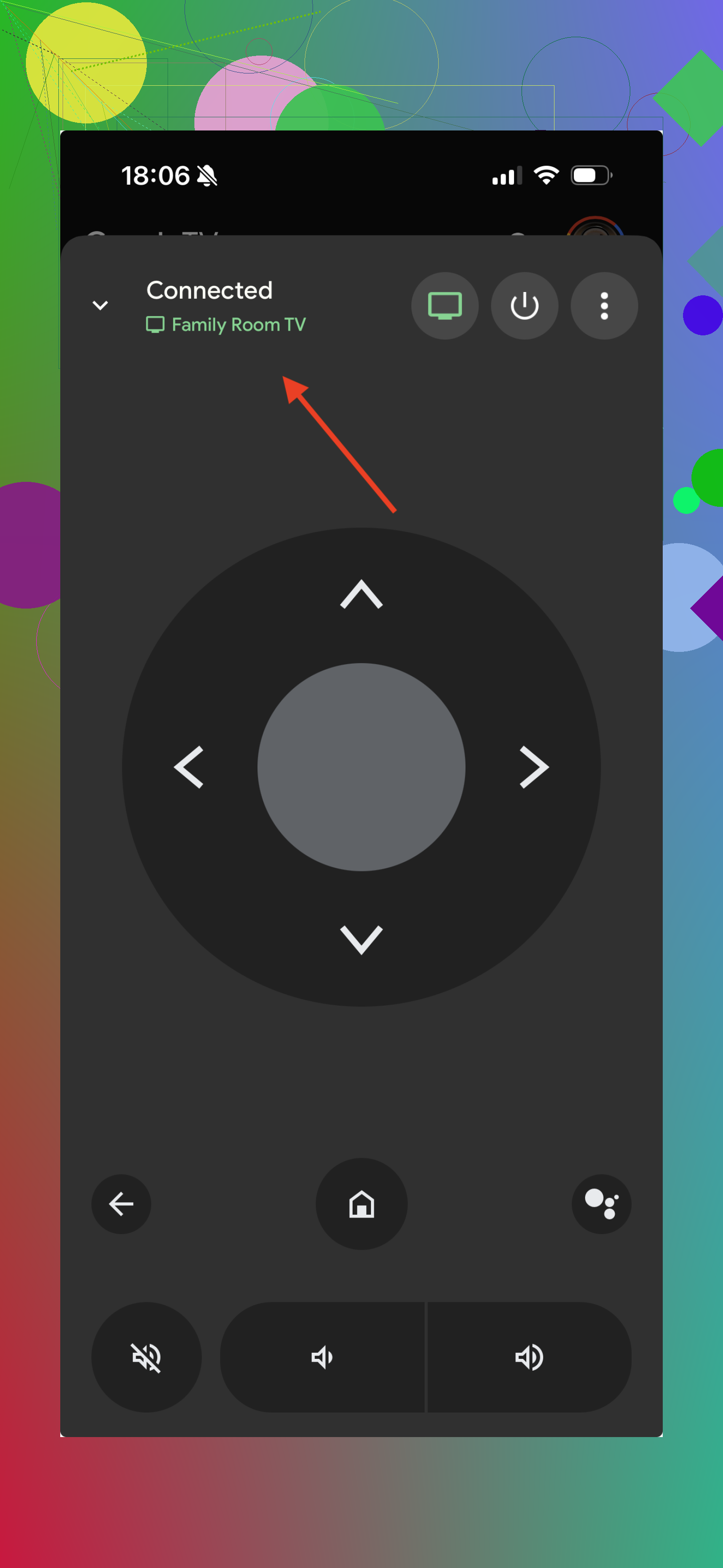
The issue is the whole thing feels built around browsing content, not around being a solid remote. You open it and the first thing you see is content rows, recommendations, stuff like that. The remote interface sits behind another tap and feels like a side feature.
If all you want is to pause YouTube or type a password once in a while, it does the job. Once I tried to use it as a “main” remote for a living room setup, it started to feel weak.
Why I moved to a universal remote app instead
After a week of using Google TV as my only remote, I went hunting for something closer to a real remote control.
I landed on this universal remote app for iPhone:
TVRem on App Store:
And the desktop page here:
What pushed me to try it:
- One app that talks to multiple things, not only Chromecast
- Layout that looks like an actual remote, not a streaming catalog
- Fewer taps to reach the controls I use all the time
It supports Chromecast plus a bunch of Smart TV brands and streaming boxes. In my case:
- Chromecast on the main TV
- A Samsung TV in the bedroom
- An LG set in the kitchen
Before this, I had three different apps installed, each with its own UI and weird quirks. With TVRem I keep a single app and pick the device from a list.
There is also this short clip that shows how it behaves with Chromecast:
Interface looks like this on my end:
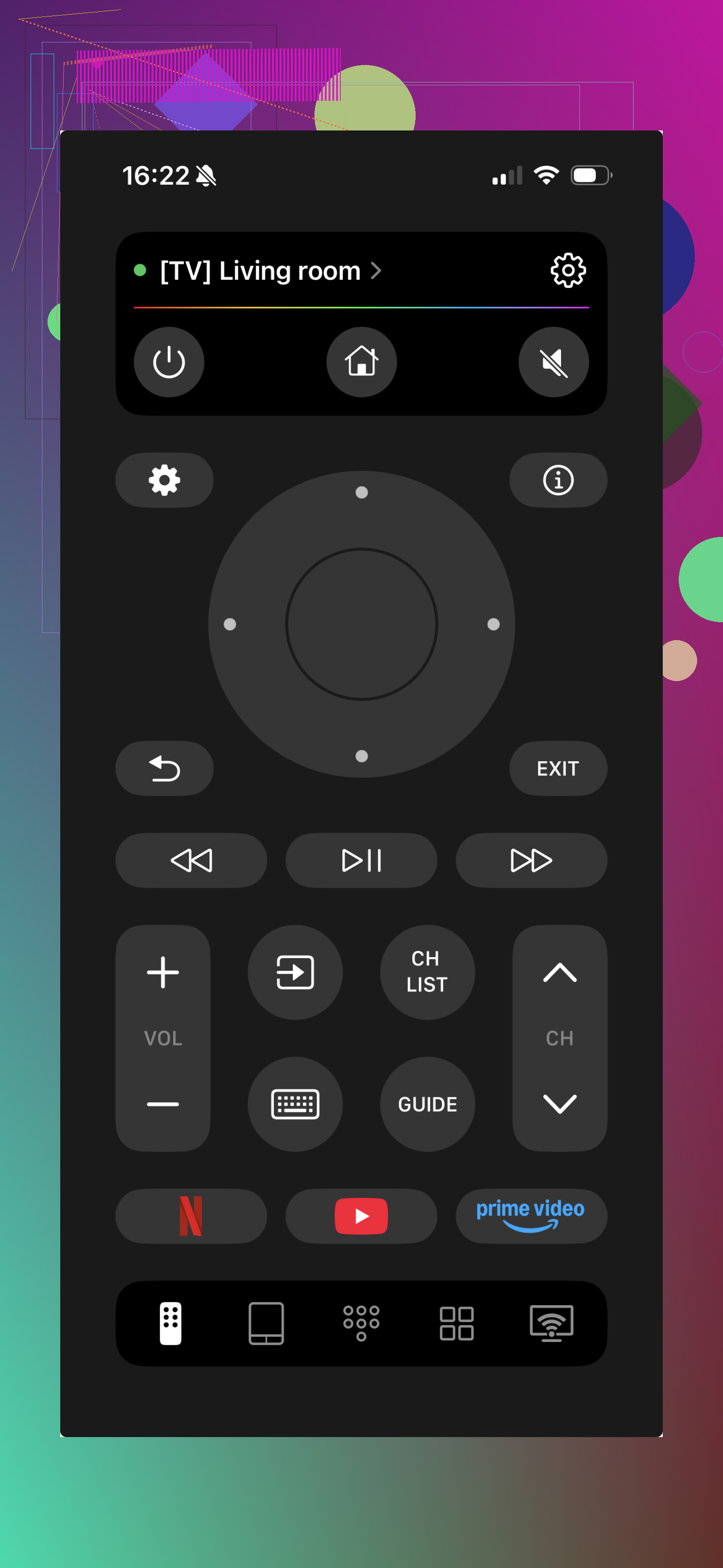
What felt better with a universal remote app
Here is where it pulled ahead of Google TV for me:
-
More complete controls
Not only play / pause and volume. Things like input switching on some TVs, directional pad that feels tighter, quick access to settings, etc. -
Multi device support
One app for Chromecast, Smart TVs, and other boxes. No hunting for the “right” app when someone turns on a different screen. -
Muscle memory
The layout behaves closer to a physical remote. I stopped looking at the screen every time I tapped something. -
Households with more than one TV
If you have multiple rooms, it saves time. I named each device by room and switch from the same app.
Setup process that worked for me
The setup was not complicated, but it breaks if you skip one thing.
What I did:
- Connected iPhone to the same Wi‑Fi network as the Chromecast.
- Opened the remote app.
- Waited for it to auto scan for devices.
- Picked the Chromecast from the list.
From start to finish it took under a minute when the Wi‑Fi was stable. When it failed, it was always one of these:
- Phone on mobile data instead of Wi‑Fi.
- Chromecast sitting on a guest network.
- VPN turned on on the iPhone.
When to stick with Google TV, when to install something else
From my own use:
Use the Google TV app if:
- You only watch on one Chromecast.
- You mainly cast from other apps and need basic pause / volume.
- You do not care much about how the remote looks.
Use a universal remote app like TVRem if:
- You have multiple TVs or streaming devices.
- You want a layout that behaves closer to a real remote.
- You are tired of jumping between different vendor apps.
Both work, but I ended up keeping TVRem pinned on my home screen and left Google TV only for content browsing and account stuff.
22 Likes
You do not need more random adware from the App Store to control a Chromecast.
Since @mikeappsreviewer already covered Google TV and TVRem, here are a few other paths that tend to work without going nuts.
- Use the apps you already stream from
If you mostly watch YouTube, Netflix, Prime Video, etc, use their iOS apps as your “remote”.
Flow:
- Open YouTube on iPhone
- Tap the Cast icon
- Pick your Chromecast
- Use play / pause / seek / volume from there
Pros:
- No extra ads beyond what the app already has
- Usually very stable, since they talk to Chromecast directly
- You avoid one more “universal remote” layer that can break
Cons:
- You control only that app, not the Chromecast home screen
- No global navigation on the Chromecast UI itself
For a lot of people this ends up enough. If you start content from the phone every time, you almost never touch the Chromecast UI.
- Re‑pair or replace the real Chromecast remote
I know you asked about iPhone apps, but in my experience this solves the headache faster.
If you have a Chromecast with Google TV:
- Plug it to the TV
- Hold the remote pairing button on the Chromecast (small button on the dongle)
- On a temporary remote app like Google TV, go to Settings → Remotes & Accessories → Pair remote
- If the original remote is lost, you can buy an official replacement and pair it the same way
Why this helps:
- Hardware remote avoids Wi‑Fi issues
- Guests can use it without your phone
- No app updates breaking control
I disagree a bit with relying on any phone app as the “main” long term remote. They always depend on Wi‑Fi, OS updates, VPNs, etc. Works fine as backup, not great as the only method.
- Use your TV’s own remote with HDMI‑CEC
This one depends on your TV but is worth trying.
On most TVs:
- Enable CEC in settings
Names differ: Anynet+ (Samsung), Simplink (LG), Bravia Sync (Sony), etc - Once CEC is on, use the TV remote’s arrows and OK on the Chromecast input
You get:
- D‑pad navigation
- OK / Back
- Sometimes Home
You do not get:
- Special buttons like direct app keys on Chromecast
- Some settings access
This is often more stable than a phone app, since it uses HDMI control, not your network.
- If you want another iOS remote app anyway
You said you hit a lot of ad‑filled junk. When you try alternatives, I suggest:
Check for:
- One‑time purchase or clear subscription, not “free forever” with tons of ads
- Explicit support list that includes Chromecast with Google TV, not only DLNA or “Smart TV”
- Recent updates in App Store (within last 3–4 months)
Then before you commit:
- Connect iPhone to the same Wi‑Fi
- Turn off VPN and low data mode
- Test basic actions: open Home, D‑pad, Home button, Back button
- Test reconnect after locking and unlocking the phone
If it loses the Chromecast after every screen lock, drop it. That pattern almost never improves.
- Last resort when nothing connects
If apps refuse to see the Chromecast:
- Check the Chromecast network in Google Home on your iPhone
- Confirm your phone and Chromecast are on the same SSID, not “Main” vs “Guest”
- Disable AP isolation on the router if it is on
- Restart router, then Chromecast, then iPhone, in that order
Half the “remote app is trash” reports I see end up being Wi‑Fi isolation or guest network issues.
So, if you want minimal pain:
- Use each streaming app as the “remote” for playback
- Turn on HDMI‑CEC and use the TV remote for navigation
- Keep one iOS app like Google TV only for pairing and quick text entry
- Replace the physical Chromecast remote when you can, and treat the iPhone options as backup, not the main thing
This mix tends to avoid the worst App Store spam while still giving you full control.
I’m gonna be the annoying third voice that says: you might not actually need another Chromecast-remote app at all.
@mikeappsreviewer covered Google TV + TVRem, @stellacadente covered using each streaming app and CEC. Let me pile on a slightly different angle:
1. Decide what you actually need to control
There are basically 3 layers of “remote” here:
- The Chromecast home UI
- Playback inside specific apps (YouTube, Netflix, etc)
- TV basics like power, volume, input
If all you really care about is #2 and #3, a dedicated Chromecast-remote app is often more trouble than it’s worth.
2. Minimal, practical combo that avoids adware
What I’d do in your shoes:
-
Use Google TV app only as a backup:
- For occasional navigation in the Chromecast UI
- For typing stuff like passwords or search
- Not as your main everyday remote
-
Use streaming apps as “soft remotes”:
- Open YouTube / Netflix / Disney+ on iPhone
- Hit the Cast icon
- Control everything from there
- This is usually more stable than third‑party “universal” remotes
-
Turn on HDMI‑CEC on the TV:
- Lets your TV’s own remote handle basic navigation on Chromecast
- Less lag, no Wi‑Fi drama
- This is where I disagree slightly with relying too much on an iPhone app: for day‑to‑day channel surfing and moving around, CEC is usually smoother and more “remote‑like” than any phone app
So instead of chasing a perfect single app, you end up with:
- TV remote: arrows, OK, back, power, volume
- iPhone streaming app: play / pause / seek / subtitles
- Google TV: only when you really need the on‑screen keyboard
3. Why I stopped hunting “better” iOS remote apps
Like you, I tried a bunch of “Chromecast remote” apps on the App Store. The pattern was always the same:
- Either free + packed with ads and popups
- Or subscription for something I use 5 minutes a day
- Or super flaky on reconnect after locking the phone
The few that are decent (like the TVRem one @mikeappsreviewer mentioned) are worth a try, but personally I hit the same wall: Wi‑Fi issues, reconnect quirks, and the fact that my battery is at 3% right when I actually want to pause something.
So yeah, slightly contrarian take:
Instead of finding the iPhone app that replaces your lost physical remote, split the job:
- TV remote handles “being a remote”
- Phone handles “being the content launcher”
- Google TV app is your emergency wrench
If you still really want a single iPhone remote app, TVRem is probably the least annoying of the bunch right now, but I’d treat any phone app as a backup system, not the main control for your living room.