My Mac APFS drive suddenly became unreadable after a crash, and Disk Utility can’t repair it. I need to recover important files without making the damage worse. What APFS data recovery software or safe recovery steps do you recommend?
Don’t keep writing anything to that APFS drive. That’s the big thing. If the folder was deleted and the Trash is already empty, the data may still be sitting there, but it’s only recoverable until something overwrites it. Copying new files to that same drive can make the situation worse fast.
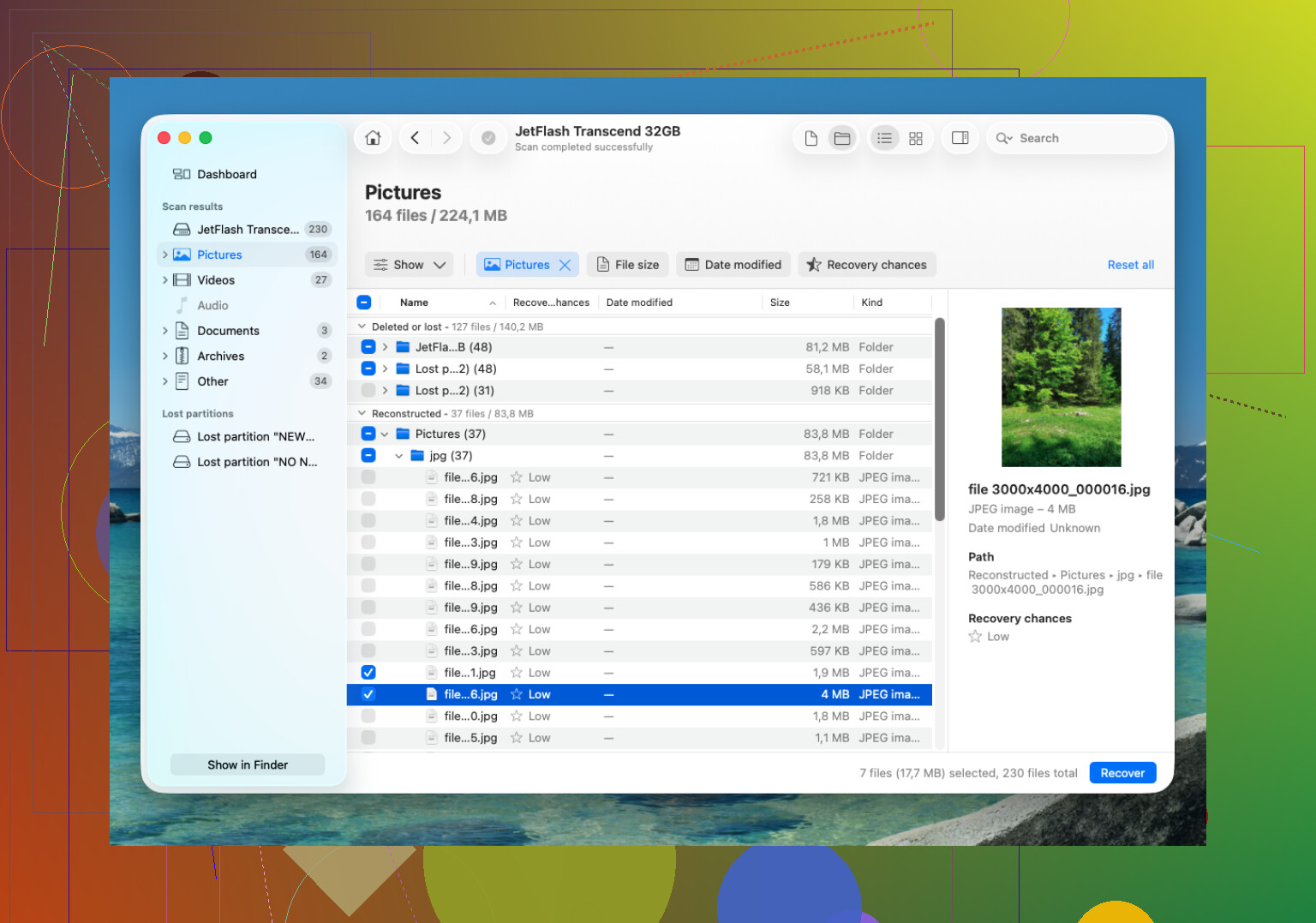
For APFS recovery, I’d try Disk Drill first. I’ve had better luck with it than with more generic recovery tools because it actually handles APFS metadata. When that works, you’re more likely to get the original file names and folder layout back instead of a giant pile of recovered files with random names.
The basic approach would be:
- Install Disk Drill on some other drive, not the one you’re trying to recover from.
- Plug in the APFS external drive. If this is your Mac’s internal drive, give Disk Drill Full Disk Access when macOS asks for it.
- Pick the APFS volume and run Search for Lost Data.
- Let the scan finish, even if it starts showing files early. Bigger drives can take a while, and the later parts of the scan can still matter.
- Preview the files before recovering them, especially photos, videos, and documents.
- Recover the files to a different disk. Don’t save them back onto the same APFS drive.
If you have a Time Machine backup, check that too. Also look for APFS snapshots, since macOS may have local snapshots available even if the backup drive wasn’t plugged in at the time. If there’s a usable snapshot, that’s usually cleaner than doing file recovery.
The one annoying catch is TRIM on SSDs. If the deleted files were on an SSD, TRIM may clear those deleted blocks in the background, and once that happens, recovery software won’t be able to bring them back. That’s why shutting things down quickly matters. Regular external hard drives don’t work the same way, so accidental deletion recovery is often more realistic on HDDs.
If Disk Drill doesn’t find the files, PhotoRec is worth a shot. It’s free, but it usually won’t preserve the original file names or folders because it looks for file signatures instead of relying on APFS structure. Still useful if you care more about getting the actual files back than keeping everything organized.
If the drive is clicking, dropping connection, or only showing up sometimes, stop messing with it and talk to a data recovery lab. A lot of legit places will evaluate it for free and some have “no data, no fee” policies. Pricing can vary a lot, but expect something like $300 to well over $1,000 depending on whether it’s simple logical damage or a physical drive problem. For a healthy drive where you just deleted a folder, though, software is the first thing I’d try.
3 Likes
Don’t scan the original drive first if the drive is unstable; make an image or clone of it first. Recovery tools can be read-only in theory, but a weak drive can get worse just from being hammered by a full scan. If it’s disconnecting, making odd noises, getting hot, or taking forever to mount, I’d stop and either image it with something like ddrescue or hand it to a lab.
If the hardware seems healthy and it’s just APFS corruption, then software is reasonable. Disk Drill is fine to try, but install it somewhere else and recover to a separate disk. I’d treat the preview feature as the test, not the file list. A recovery app showing thousands of filenames doesn’t mean the files are actually intact. If the preview opens cleanly, your odds are much better.
For an internal Mac drive, another annoying detail is FileVault. If the APFS volume was encrypted, you’ll need the password or recovery key, and some tools won’t get far without the volume unlocking properly. I’d avoid repeatedly running First Aid, reformatting, “initializing,” or trying random repair commands until the important files are copied off. Repair attempts are for after recovery, not before.
Disk Utility failing does not mean the next step is “find a stronger repair button.” It usually means you should stop trying to repair the APFS volume and switch to recovery mode: copy data out, then worry about fixing or erasing the disk later.
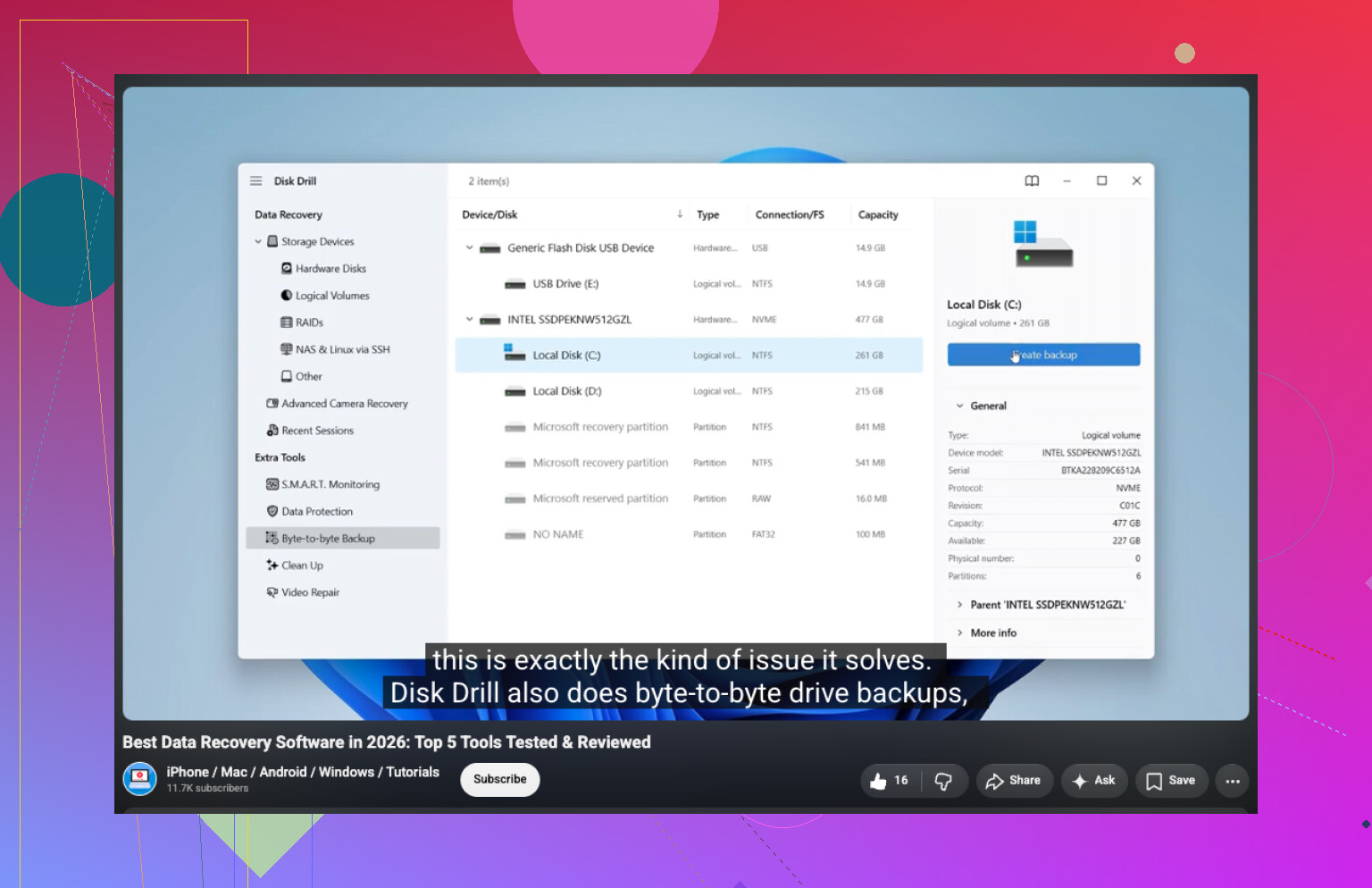
I agree with @espritlibre on the image-first idea, but I’d be picky about what kind of image. A Finder copy is not an image. A drag-and-drop backup is not enough if the APFS catalog is damaged. You want a block-level clone or image of the whole device/container, especially if Disk Utility shows the physical disk, then an APFS container, then one or more volumes underneath it. If you only scan the visible volume, you may miss data that belongs to another APFS volume or snapshot inside the same container.
Before doing anything fancy, open Disk Utility and choose View > Show All Devices. If the physical drive appears there but the APFS volume will not mount, that is a better sign than the drive vanishing completely. If the physical drive itself drops out, reconnects, changes size, or only appears sometimes, software recovery is a bad bet. Every scan is more stress.
For software, Disk Drill is reasonable for a first pass because it is friendly with APFS and lets you preview files before committing. I would not judge it by how many files it lists. I’d judge it by whether it can preview the exact important files you care about. A tool showing 200,000 “recoverable” items can still give you broken videos, blank documents, or files with names but no usable content.
If you want alternatives, look at R-Studio, UFS Explorer, or DMDE. They are less hand-holdy than Disk Drill, but they can be better when the structure is weird or when you need to work from a disk image instead of the original disk. PhotoRec is the fallback when the APFS structure is too far gone, but it is messy. It finds file signatures, so you may get files back without names, folders, dates, or any useful organization. That is fine for a pile of JPEGs. It is awful for a working project folder.
The safe order I’d use is more like this:
- Stop booting from or writing to that drive.
- If it is external, unplug it until you have a recovery destination ready.
- Get another drive with more free space than the damaged one.
- Make a block-level clone/image if the original drive is questionable.
- Run recovery software against the clone/image if possible.
- Recover to a third location, not back onto the bad APFS drive.
- Only after important files are copied, try repair, erase, reinstall, or whatever else.
A small detail people forget: don’t install the recovery app onto the same Mac volume you are trying to recover from. If this is your internal startup disk and you deleted files or the APFS volume is damaged but still sort of bootable, continuing to use macOS from it can overwrite things through caches, updates, browser files, Spotlight indexing, swap, and local snapshots. Booting from another Mac, an external macOS install, or recovery environment is much safer.
For FileVault, the password matters more than the tool. If the volume is encrypted and you cannot unlock it, recovery software usually cannot magically read the contents. It may see the container, but the recovered data will be encrypted junk unless the volume can be unlocked with the correct password or recovery key. On newer Macs with T2 or Apple silicon, this can be especially unforgiving.
I’d be cautious with command-line “fixes” too. Running fsck_apfs, deleting snapshots, forcing mounts, or trying random terminal commands from old blog posts can change the volume state. Sometimes that helps a normal mount problem, but it can make recovery harder if the filesystem metadata is already damaged. If the files matter more than the disk, don’t experiment on the only copy.
So yes, Disk Drill is worth trying, but I’d treat it as a recovery copier, not a repair utility. Scan the safest source you can, preview the files that matter, recover them somewhere else, and do not let any app “fix” or “rebuild” the original APFS drive until you have the data off.

Do not click “Initialize” if macOS offers it when the drive is plugged in, since that is not a recovery step. I’d try another Mac or Target Disk Mode first just to see if the APFS volume unlocks cleanly, then scan a clone with Disk Drill or R-Studio and recover to a separate drive.