Hey everyone, I’m trying to find a reliable app that can fully replace my Google TV remote. My original remote is acting up, and I’d like to control my TV entirely from my phone — navigation, volume, typing, everything.
I’ve seen the official Google TV Remote App, but it keeps disconnecting or not finding my device, and I’m not sure if I’m missing a setting.
Google TV Remote Apps For iPhone: What Has Worked For Me
I stopped counting how many times my Google TV remote slipped between the couch cushions and vanished for hours. At some point I gave up and started testing remote apps on my iPhone instead. Some were trash, some were fine, one stuck.
Just FYI, there’s a Reddit thread that dives into the best universal TV remote apps, detailing their pros and cons compared to physical remotes. It’s worth a read — you’ll likely find something useful!
Here is how they played out for me, no marketing, just use, annoyance, and a bit of trial and error.
I started with TVRem after my living room remote died and the replacement from the TV brand support site looked overpriced and slow to ship. I wanted something I could set up, use, then forget about.
What stood out after using it on a few different devices:
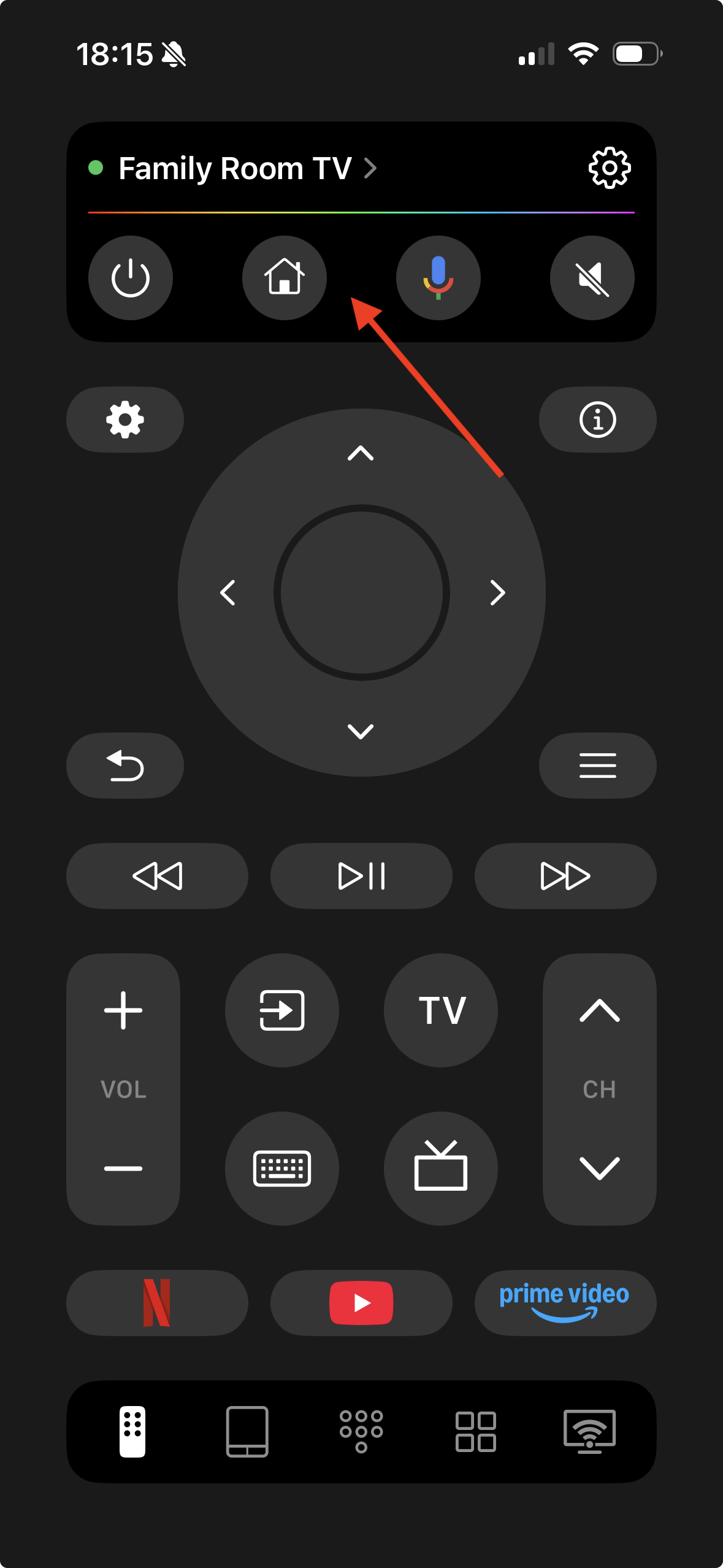
• It worked with both my Chromecast with Google TV and an older Android TV box without separate setup for each. I opened the app, it found them on Wi‑Fi, tapped, done.
• It did not lock me into one manufacturer. I tried it on a Sony Google TV and then on a cheap no‑name Android TV stick in the bedroom. Same app, same interface.
• The Wi‑Fi pairing felt quick. No codes on screen, no weird Bluetooth pairing loop, it scanned the network and attached.
• The keyboard matters more than I expected. Typing a long movie title into YouTube or Netflix on a standard remote is pain. Here, I typed on my phone keyboard and the text showed up on the TV input field with almost no lag.
• The interface looked simple enough that I handed my mom my phone and she figured out volume, back, and home without explanation.
After a week I stopped looking for the physical remote unless the phone was charging in another room. TVRem did what I needed: power, volume, navigation, quick text input, app switching. It behaved like a full replacement instead of a “companion”.
If you want one thing on your iPhone that will handle multiple Google TV and Android TV setups in your place, TVRem has been the least annoying solution for me.
I tried this one on a different day when I reset my Chromecast with Google TV and wanted to see if a more focused app did better.
Good parts from my testing:
• It talks to both Chromecast and Google TV, so if you only use those devices, it fits.
• Setup over Wi‑Fi was quick. Launch, let it scan, pick the device. No account needed.
• The layout is minimal. Directional pad, OK, home, back. No clutter.
• There is a text input function, which helped for search fields.
Where it felt weak:
• Features stop at “remote basics”. No extra smart shortcuts, no layout tweaks, no multi‑device profiles worth mentioning.
• If you also have an Android TV box or a smart TV with Google TV that behaves slightly different, it feels limited. It tries to stay in the Google TV / Chromecast lane.
• Compared to TVRem, it felt more like a single‑purpose helper than something you build your whole setup around.
My takeaway from using it for a few days: it is fine if you live in a one‑device world and only need basic navigation and text entry. Once you start juggling multiple TVs or different brands, you start to feel boxed in.
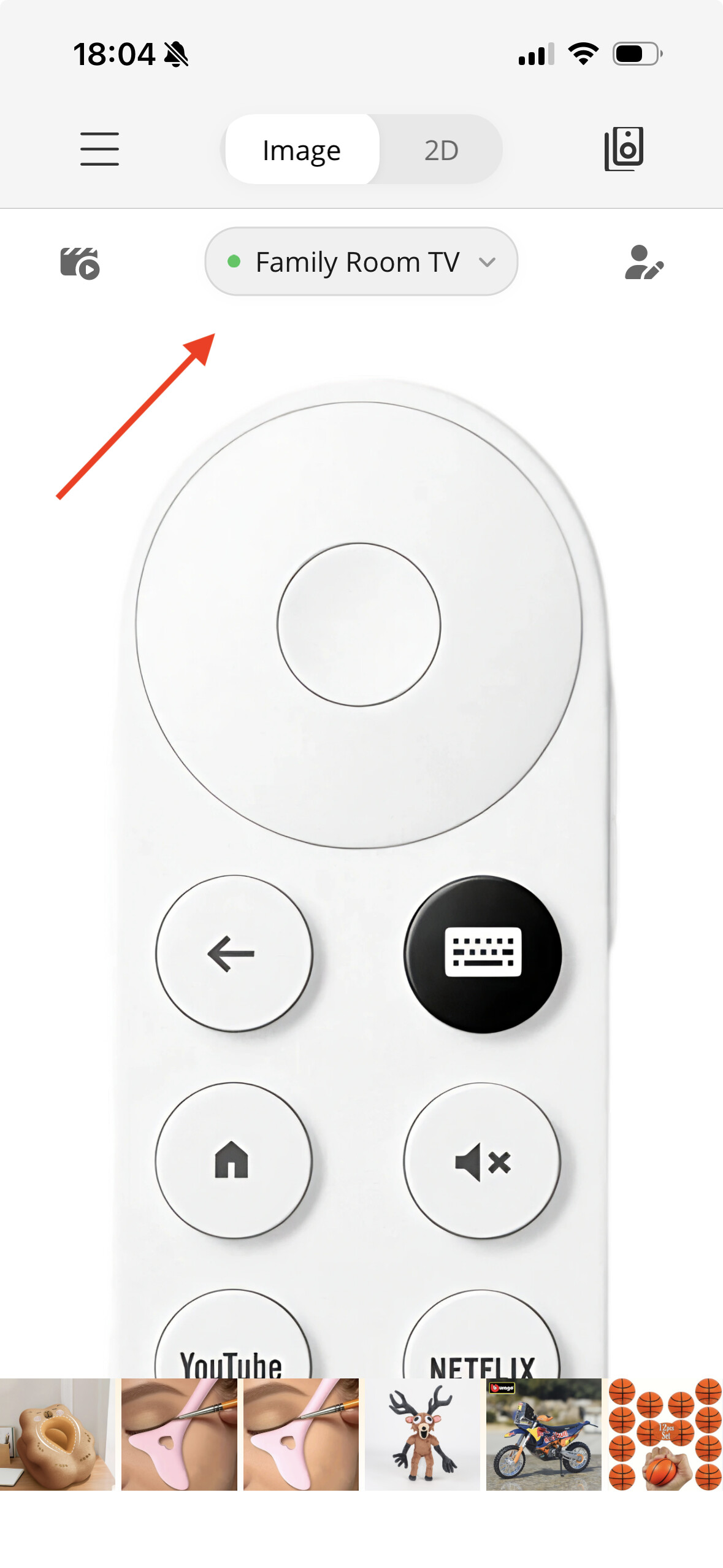
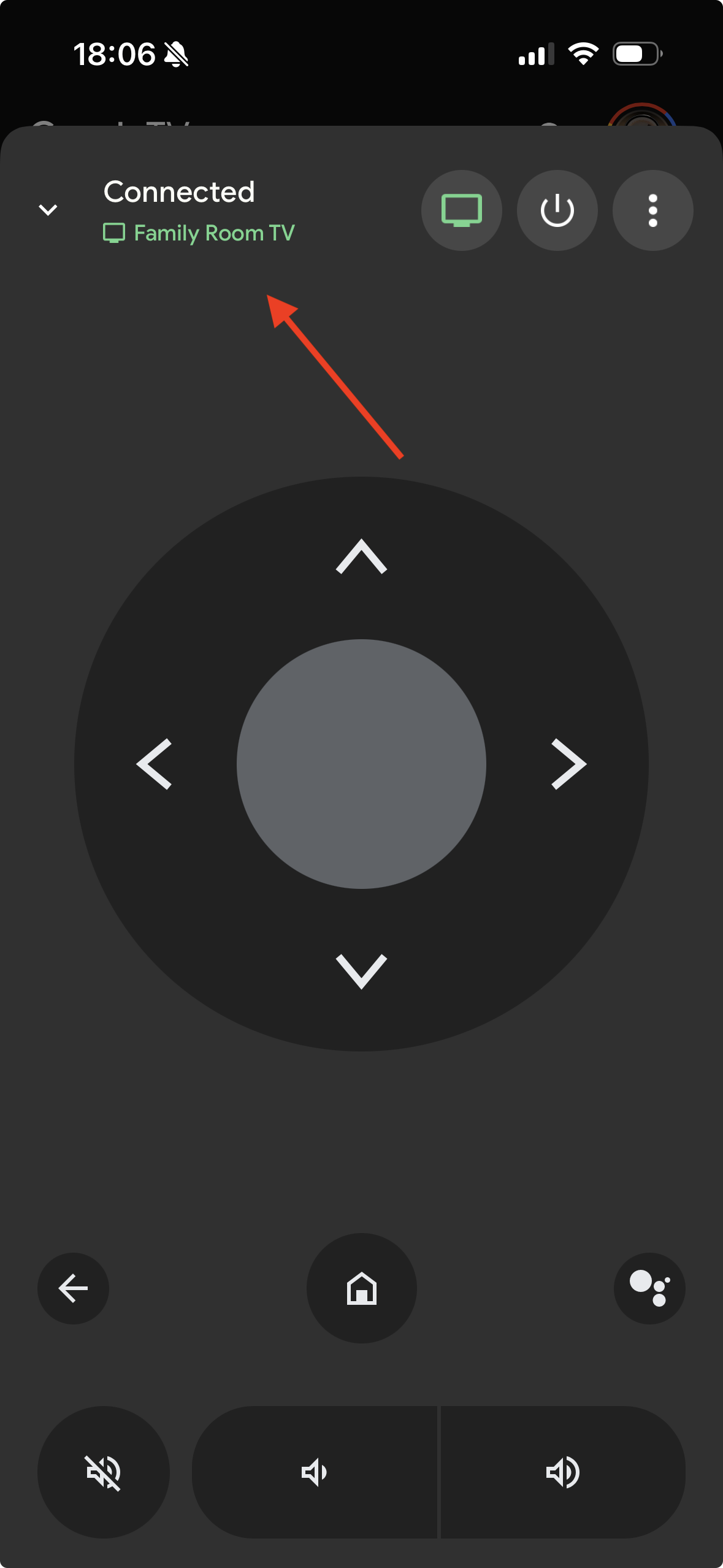
I had the Google TV app installed for content browsing before I even remembered it had a remote section. It is meant more for browsing shows, syncing watchlists, and sending content to the TV than for couch remote duty.
From regular use:
Pros I noticed:
• It is from Google, so once it sees your account and devices, the link is stable. I never had pairing issues with it.
• It costs nothing to use. No paywall for basic functions.
• It ties into your watchlist and services, so you can start something on your phone and push it to the TV.
• Remote mode sits inside the same app, so no extra install if you use Google TV for browsing anyway.
Cons I kept running into:
• The remote feels like an afterthought. It is there, it works, but the app does not revolve around it.
• Controls are bare minimum. You get navigation, home, back, and not much else that helps when you want something like quick app switching or more detailed control.
• No way to customize layout or add shortcuts. If you want behavior tuned to your own setup, you do not get that here.
I still keep it on my phone, but it lives in the “backup” slot in my head. If TVRem misbehaves or I am on a different phone, I open the Google TV app and use the built in remote for a bit, then switch back as soon as I can.
If you want more detail straight from one of the TVRem pages, there is also this link:
TVRem fully replaces a physical remote and works with multiple TV brands and technologies, which is really important to me. Plus, it’s completely free.
If your goal is full replacement, including volume and power, you need to think a bit about how your current Google TV setup works, not only which app you pick.
Short version: try TVRem or the official Google TV app like @mikeappsreviewer said, but also check these extra points so you do not get stuck with half a remote.
Wi‑Fi vs IR for volume and power
• If your Google TV is on a Chromecast dongle plugged into a TV, volume and power often go through HDMI‑CEC from the dongle to the TV.
• Phone apps talk over Wi‑Fi, not HDMI. So app volume usually controls the Google TV device, not the physical TV speakers.
• If your TV has its own Android TV or Google TV built in, app volume often works better, since the OS controls volume directly.
• If you want phone control of TV volume on a dumb TV, you need an IR blaster phone or a separate IR blaster. Most iPhones and many newer Android phones do not have that.
So, check how your physical remote controls volume. If it uses IR directly to the TV, no Wi‑Fi app will fully copy that on an iPhone. On Android, only an app that supports IR and a phone that has IR will help.
Android phone options
You did not say if you are iPhone only. If you have Android too, these are worth a look:
• Google TV app remote
You get it from the Play Store.
Works fine for navigation, typing, back, home.
Volume works best with built‑in Google TV or Android TV.
Weak point is custom buttons, so if you need app shortcuts, it feels limited.
• OEM remote apps
If you use Sony, TCL, Hisense, Philips, check if they have their own remote app.
Many of those handle volume and power better than generic apps, because they talk to TV specific APIs, not only generic Android TV controls.
Example, older Sony apps exposed input switching and picture modes that generic apps did not.
Multi device setup tips
If you have more than one Google TV or Android TV box, do this to avoid confusion:
• Give each device a clear name in Settings, like “Living room Google TV” and “Bedroom Sony TV”.
• In whatever app you use, make sure you select the right device before spamming volume.
• On mixed networks with 2.4 GHz and 5 GHz, keep TV and phone on the same band when possible. I had fewer discovery issues when both sat on 5 GHz.
When the remote is half dead
Since your original remote is acting up, use it to fix what the apps cannot:
• Replace the batteries, even if they look fine. Low power makes Bluetooth flake out.
• While it still works a bit, go to Settings and enable HDMI‑CEC and volume control from the Google TV device. That way app volume affects the sound you hear.
• If some buttons are dead but pairing still works, keep it around only for power and input switching, use the phone for everything else.
Slight disagreement with the TVRem take
TVRem is nice as a universal tool, but I would not rely on it alone if:
• You use a receiver or soundbar that takes IR volume only. The app will not talk to that directly.
• You want granular control like picture settings or advanced inputs. OEM apps or the physical remote usually do better.
So, if you want “full” control in practice, I would:
• Use TVRem or “Remote for Chromecast & Google TV” for day to day navigation and typing.
• Keep the Google TV official app installed as a backup, since it integrates with your account.
• Keep your original remote nearby for power, inputs, and any picky volume or settings stuff, at least until you confirm your phone app setup covers everything you care about.
If you share what exact device you have, like “Chromecast with Google TV on an LG TV” or “Sony Google TV from 2022”, you can get more precise app and volume advice.
If you want the closest thing to a true full replacement, you kind of have to mix what @mikeappsreviewer and @cacadordeestrelas said with a slightly harsher reality check.
Short version: no single app will magically give you 100% of what the stock remote does in every setup. But you can get like 90–95% if your hardware cooperates.
A few angles they did not dig into as much:
Check exactly what your current remote is controlling
This sounds obvious, but it matters a lot:
If you have Chromecast with Google TV on a “dumb” TV:
The Chromecast remote usually controls TV power & volume via HDMI‑CEC or IR.
Phone apps only talk to the Chromecast over Wi‑Fi. They generally do not send IR or HDMI‑CEC directly.
Result: navigation & typing from phone are easy, TV power/volume are hit‑or‑miss.
If you have a TV with Google TV / Android TV built in (Sony / TCL / Hisense / Philips etc.):
The OS itself controls volume.
Remote apps over Wi‑Fi often do change volume normally, which feels way closer to a true replacement.
So before installing 10 apps, go to Settings on the TV / Google TV and look how volume is configured. If it is set to control “TV speakers” internally, phone apps can usually handle it. If it is controlling a soundbar or receiver via IR, no iPhone app will be a perfect clone.
One thing I slightly disagree with on the app talk
TVRem gets a lot of love from both of them, and fair, it is solid. But I would not start there if:
You only own a single Chromecast with Google TV or one Google TV set
You do not care about multi‑brand support or fancy layouts
In that situation, the official Google TV app remote is honestly underrated. It is basic, yeah, but:
It is free
It’s maintained by the same people who ship the OS
The typing latency and connection reliability are usually better than half the random App Store stuff
The catch: no power button, no crazy shortcuts. If you can live with turning the TV on with the physical remote and doing everything else on your phone, this combo is actually less annoying long term than bouncing between 3rd party remotes chasing “full” control.
Volume reality check for “full” remote from phone
You said “navigation, volume, typing, everything.” The volume part is where most people get tripped up:
If your sound comes from:
TV speakers on a Google TV / Android TV set: phone remote apps usually control volume fine.
TV speakers on a dumb TV with Chromecast: some apps can change Chromecast output volume, but that is not always the same as the TV remote’s volume (especially if the TV is just set to a fixed input volume).
Soundbar / AVR over IR only: you’re basically stuck with physical remote (or the soundbar’s app) for volume. Phone remote talking to Google TV will not control that reliably.
If your current Google TV remote is already doing IR to a soundbar, no app on an iPhone will be a 1:1 replacement. On some Android phones with IR blasters you can patch it with a separate IR remote app, but that is another story.
Some options that fill in specific gaps
To avoid repeating what they already listed:
Use 2 apps on purpose instead of chasing 1 “perfect” one
Pick one Wi‑Fi remote app that feels best for navigation & typing (TVRem, Remote for Chromecast & Google TV, or the official Google TV app).
Keep your half‑broken physical remote just for:
Power
Input switching
Volume if it relies on IR / CEC weirdness
It sounds janky, but in practice you end up using your phone 95% of the time and poking the old remote maybe twice per night.
Check your TV / receiver brand’s own app
This is where I slightly diverge from how much they leaned into generic remotes.
Sony / TCL / Hisense / Philips sometimes expose stuff like inputs, picture modes, and better volume control in their own apps.
That in combo with the Google TV remote inside Google’s app or TVRem gives you “full” control across two apps instead of betting on a single “universal” one that never quite talks to everything.
Quick sanity checklist for your situation
If you answer these, you can usually know what “full replacement” is realistic:
Is your Google TV:
A dongle (Chromecast with Google TV)
Or built into the TV?
Where is sound actually coming from:
TV speakers
Soundbar
AVR / receiver
Does your current remote need to point directly at anything to change volume? If yes, that is IR and your phone will not mimic that over Wi‑Fi.
If your setup is:
“Sony Google TV + TV speakers” or similar: you can absolutely run almost everything from your phone with one of the Wi‑Fi remotes, and volume will likely work.
“Chromecast with Google TV + old LG TV + soundbar over optical”: you will probably end up using a phone app for navigation/typing and original remotes for power/volume.
TL;DR:
Try the official Google TV app first as a baseline remote, even though it is simple.
If you do not like its layout or want multi‑device support, layer in TVRem like @mikeappsreviewer suggested.
Accept that “full” control including power & all volume paths is often a hardware limitation, not an app problem.
Keep that flaky original remote alive for the 2 or 3 things Wi‑Fi apps physically cannot do, then let your phone handle the rest.
If you drop what exact device and sound setup you have, it’s possible to say pretty cleanly whether a phone can truly replace the remote or if you’re always going to need that beat‑up clicker nearby.
Short version: you are not going to get a truly perfect, one‑app, all‑buttons clone of the stock Google TV remote, but you can get close enough that the physical remote mostly collects dust.
Since @cacadordeestrelas and @reveurdenuit covered a lot of the usual “install this, pair over Wi‑Fi” advice and @mikeappsreviewer already walked through concrete testing, I’ll zoom in on what they did not dig into and where I slightly disagree.
1. Before picking any Google TV remote app, check what you actually need
Ask yourself:
Do you need:
Power
Volume
Navigation
Typing
Input switching
or is it mainly “navigation + typing + volume”?
If power and input switching are mandatory from the phone, you will almost always be disappointed. Those are usually handled via HDMI‑CEC or IR at the TV level, and a phone app that talks only over Wi‑Fi cannot fully replace that. The “everything” in “control my TV entirely from my phone” is mostly limited by hardware, not the app.
2. Where a Google TV Remote App For iPhone actually shines
What all of you seem to want (based on what the others wrote) is basically:
A stable Wi‑Fi connection that reconnects automatically.
A fast, usable keyboard.
A layout that you do not hate using daily.
Pros that a good Google TV remote app will give you:
Navigation that is usually smoother than the worn‑out clicker, especially if the D‑pad on the remote is mushy.
Typing that is dramatically better than the stock remote, because you use your phone keyboard.
Multi‑device awareness if you have more than one Google TV / Android TV device.
Cons to manage expectations:
Power & volume are not guaranteed. If the TV uses IR or HDMI‑CEC in a quirky way, the app can feel “incomplete”.
You are locked to Wi‑Fi. If your router hiccups, the “remote” is gone.
You are at the mercy of iOS background limits, so sometimes reconnects are not instant when you reopen the app.
3. Where I disagree a bit with what has been said
I am less bullish on relying on only one universal app forever.
TVRem sounds great in @mikeappsreviewer’s testing, but tying your whole setup to a single third‑party app means:
If the dev ships a bad update, your “remote” is broken.
If they change pricing or lock features, you get annoyed fast.
I prefer a “primary + fallback” strategy:
Pick one main Google TV Remote App For iPhone as your daily driver.
Keep the official Google TV app installed as a backup remote.
It is barebones, yes, but maintenance and compatibility are usually more predictable long term.
4. Pros & cons of using a dedicated Google TV Remote App For iPhone as your main controller
Pros:
Centralizes control for multiple rooms and devices.
Much better for search, password entry, and signing into apps.
Easy for guests to use without explaining arcane remote buttons.
Can be updated with new UI, unlike a hardware remote.
Cons:
Depends completely on network quality and device discovery.
Might not expose all buttons your physical remote has (settings, input, picture modes).
Volume and power control can be partial or missing, especially with soundbars and AVRs.
You are juggling your phone battery vs couch time.
5. Where competitors’ suggestions fit
What @cacadordeestrelas suggested is solid if you are fine with “good enough” control and you do not care about every last button.
@reveurdenuit was right to flag that you should check how your audio is wired. If your soundbar is controlled solely by IR, no app will save you there.
@mikeappsreviewer’s real‑world rundown is useful, but I would treat any single app recommendation as “best for now,” not “problem solved forever.”
6. Realistic setups that get you close to “full remote”
You’ll be happiest with a Google TV remote app if:
Your TV is a Google TV / Android TV set and you use the internal TV speakers.
In this case volume and navigation via app usually behave like a true remote.
Or you are okay with a hybrid:
Phone app for navigation, typing, and most daily use.
Physical remote only for rare stuff:
Power
Input changes
Volume if routed through a soundbar or receiver via IR.
If you post your exact combo (TV model or whether it is a Chromecast dongle, plus how your sound is hooked up), you can usually map out in advance which pieces your phone can replace and which ones will always need something with IR. That way you do not waste time installing and uninstalling ten apps trying to chase a capability your hardware simply does not expose over Wi‑Fi.
You covered TVRem, Google TV app, and OEM apps. You flagged Wi Fi limits for power and volume, plus CEC and IR quirks. Good multi device tips and a backup plan too.
Simpler path, skip apps. Pair a cheap Bluetooth mini remote or keyboard with touchpad, 15 to 25 dollars.
Steps: Settings, Remotes and Accessories, Pair accessory. Test D pad, Home, Back, play pause, volume.
Example, on Chromecast with Google TV this works in minutes and stays paired.
Add a tiny BT keyboard for fast typing. Zero Wi Fi issues, quick reconnects, fewer moving parts. Works shockingly well, even for guests.