I accidentally deleted photos from my Nikon camera’s memory card before backing them up, and I’m trying to recover them without paying for software that may not work. I really need help finding a free Nikon deleted photo recovery tool that’s safe, effective, and easy to use before anything gets overwritten.
Yeah, sometimes. I’ve pulled deleted Nikon shots off an SD card before, but there’s one hard limit you need to know first. If new data already overwrote the old photos, free tools won’t bring them back. Once I realized a card had been wiped, I stopped using it on the spot. Do the same. Don’t shoot more photos, don’t move files onto it, and don’t format it again. Every extra write hurts your odds.
If you want the easiest first pass, I’d try Disk Drill. It isn’t fully free, though on Windows it gives you 100 MB of free recovery. For testing a Nikon card, that’s often enough. I used it first to see if the files were still there before messing with anything else.
This is the order I’d follow:
- Take the SD card out of the Nikon and plug it into your computer with a card reader.
- Install Disk Drill on your computer. Do not install it onto the SD card.
- Launch it, pick the SD card, then hit Search for lost data.
- Run Universal Scan. From what I saw, it handles both deleted photos and quick-formatted cards well enough.
- When the scan finishes, open Review found items, then check Pictures. If you shoot RAW, search for .NEF.
- Preview the photos before restoring them. If the preview loads fine, your odds are decent.
- Recover everything to your computer or a different drive. Don’t write anything back to the same SD card. Thats how people wreck a recoverable card.
If you need more than 100 MB and don’t want to pay, PhotoRec is still one of the better free picks. I used it once on an older card and it did pull files back, but the experience was rough. No previews. Ugly interface. Filenames came back scrambled. Still, if your main goal is getting the images and you don’t care about polish, it does the job more often than you’d think.
A few things I learned the annoying way:
- If your Nikon was saving in NEF, make sure the recovery app supports NEF well. Some tools do fine with JPEG and then fall apart on RAW.
- If recovered NEF files won’t open in the default Windows Photos app, don’t assume they’re dead. I had files look broken there and open fine in software with Nikon RAW support.
- If you lost video too, run Advanced Camera Recovery in Disk Drill after the normal scan. Camera video files get fragmented more often, and the regular pass misses some of them.
Before you scan anything, check whether the photos already exist somewhere else. I forgot once and spent an hour recovering files I already had on another machine. Look through your computer, SnapBridge, Nikon Image Space, Google Photos, Dropbox, or whatever cloud sync you use. You might already be covered and not know it.
One more thing. If the SD card is physically damaged, doesn’t show up in the computer, or keeps dropping connection during the scan, I’d stop there. I’ve seen people keep retrying until the card got worse. At that point, a recovery shop is the safer route.
So yeah, free recovery is possible in some cases. I’d start with Disk Drill because it’s easy and gives you a quick check without paying up front. If you need a full free route, PhotoRec is worth a shot, though it feels old and clunky.

13 Likes
Yes, free Nikon photo recovery works sometimes. The key is card condition, not brand.
I agree with @mikeappsreviewer on one point, stop using the SD card now. I disagree a bit on starting with the polished option first if your goal is fully free. If you want zero cost, start with Windows File Recovery if the card shows up as a drive in Windows, or PhotoRec if you do not care about file names. Both cost nothing.
My practical order:
- Remove the Nikon SD card.
- Put it in a card reader.
- Make a byte-for-byte image first if possible, with USB Image Tool or similar. Work from the image, not the card. Safer.
- Try Windows File Recovery for a first pass on JPEG and common raw formats.
- If that fails, use PhotoRec for deep carving.
- If you want preview and easier sorting, use Disk Drill next. It is not fully free, but it is faster to verify whether your Nikon deleted photos are still recoverable.
A Nikon-specific point people skip. NEF files often recover fine, but thumbnails and full raw data do not always match. Test recovered NEFs in Nikon software or RawTherapee, not only in Windows Photos. I learned this the annoyng way.
If you need a cleaner guide, this covers how to recover deleted photos and files from a Nikon SD card in plain steps, see this Nikon SD card photo recovery walkthrough.
Best free choices:
PhotoRec, free, ugly, strong recovery rate.
Windows File Recovery, free, command line, decent.
Disk Drill, easier UI, preview helps, limited free recovery on Windows.
If the card disconnects or reads erratically, stop. Software wont fix failing hardware.

Yep, there are free Nikon deleted photo recovery tools that actually work, but I’m gonna push back a little on @mikeappsreviewer and @sterrenkijker here: the tool matters less than the filesystem state. If the card was only deleted or quick-formatted, recovery is often possible. If you kept shooting, odds drop fast. That part is non-negotiable.
Since they already covered PhotoRec, Windows File Recovery, and the usual scan flow, I’d add one thing they skipped: check the card for hidden DCIM contents before doing recovery at all. Sometimes files look “gone” because the folder table is messed up, not because the image data vanished. On Windows, enable hidden files and inspect the card manually. Also try chkdsk only if you first clone the card, because fixing filesystem errors on the original can make stuff worse. People dont mention that enough.
For actually free options, TestDisk is worth trying if the directory structure got damaged and you want original file names/folders back. It’s less useful for deep photo carving than PhotoRec, but better when the partition or file table is the real issue. Different job, same toolkit family.
If you want the least annoying option to verify whether the Nikon photos are still there, Disk Drill is honestly a solid check because previews save time and it supports Nikon RAW recovery pretty well. I just wouldn’t call it fully free for large restores, so go in knowing that.
Also, if your Nikon wrote to two cards at once, check the second card before you do anything fancy. Sounds obvious, but tired-brain mistakes are real lol.
For a simple roundup of Nikon SD card photo recovery advice from real users, this thread is actually useful: real user tips for recovering deleted Nikon photos from an SD card.
Short version:
- stop using the card
- check for hidden files / damaged folders
- clone the card if possible
- try TestDisk if structure is broken
- use Disk Drill if you want easy preview support
- use PhotoRec if you need fully free and can tolerate messy output
If the card is clicking, disconnecting, or acting weird, stop messing with software. That’s where free turns into making-it-worse.
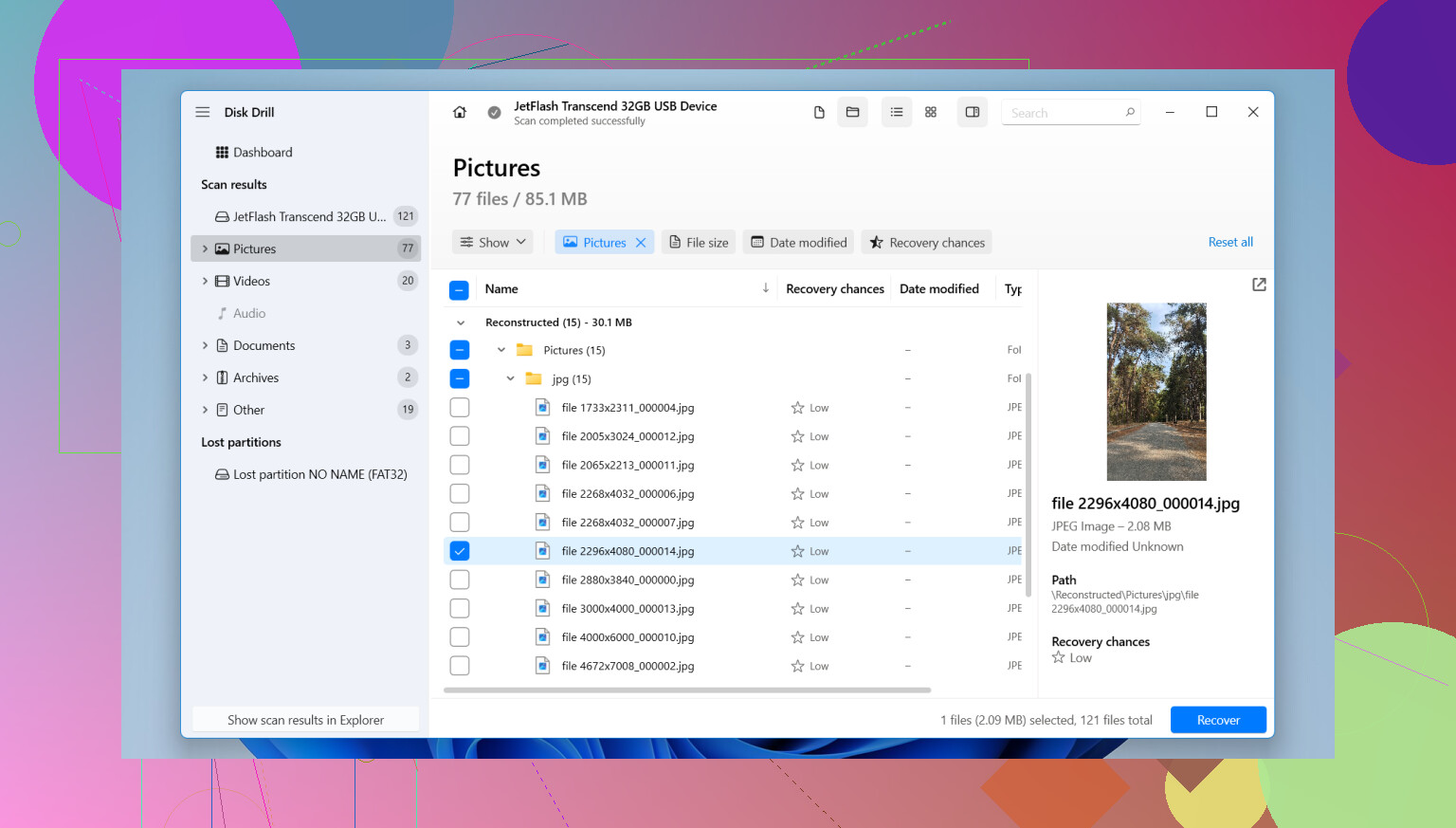
One small disagreement with @mikeappsreviewer: I would not spend time on chkdsk or any “repair” action unless you already made an image of the card. Repairs can rewrite metadata and quietly reduce what recovery tools can still find.
What I’d add beyond @sterrenkijker and @andarilhonoturno is this: check whether the Nikon used exFAT or FAT32 and whether the card was in-camera quick formatted. On exFAT cards, deleted entries can vanish from the file table fast, so carving tools usually beat filesystem-repair tools. On FAT32, sometimes structure-aware recovery has a better shot.
Disk Drill is useful here mostly as a triage tool.
Pros for Disk Drill:
- very easy preview of JPEG and often NEF
- good filter tools, saves time
- handles camera cards well
- simpler than PhotoRec
Cons:
- not fully free for large recovery
- previews can make people think every file is perfect when some RAW files still open partially corrupted
- best results still depend on card condition, not the app
My take:
- if you want zero-cost, use fully free tools first
- if you want the fastest yes/no answer, Disk Drill is worth a scan
- if files matter a lot, recover to another drive and validate NEFs in Nikon software, not just Windows thumbnail view
Also, if your Nikon has dual-slot backup enabled, check the other card before doing anything else. That saves a shocking amount of panic.