I’m trying to compare two photos side by side on my iPhone, similar to how it works on a computer, but I can’t find an easy way to do it. I recently took several similar pictures and need help choosing the sharpest and best one without constantly switching back and forth. Is there a built-in iPhone feature or app that makes photo comparison easier?
I ran into the same mess in my camera roll. Twenty sunset shots, six near-identical group pics, one person blinking in each, and the Photos app makes you flip back and forth like you’re supposed to remember tiny details from the last image. I never did. I kept too many ‘for later’ and my storage got chewed up fast.
On your main question, iOS Photos does not give you a real side-by-side compare view. The Duplicates album exists, sure, but it only catches exact matches. If you took a burst of your dog and the ears shifted a bit between frames, Photos treats them as separate images.
If you want to stay inside Apple’s tools, there is a workaround with Shortcuts. I tried it once. You build a shortcut, name it something like Side by Side, pick two photos, and it stitches them into one wide image so you can inspect both together. It works. It also gets old fast. If you’re sorting through a big library, doing this over and over feels dumb after the fifth round. I also tested apps like Tidy and Image Compare. Those are more for comparing two specific images closely, with zoom and slider controls, useful if you’re checking edits or focus on a pair of shots.
For cleaning out a messy library, I had better luck with a cleanup app. I went through a pile of fake-free ones first. They scan your phone, show a bunch of results, then block the delete step behind some weekly fee. Annoying. The one I kept is Clever Cleaner.
What made me keep it was simple. No ads. No paid tier shoved in your face. No weird trap after the scan. I saw it was from the Disk Drill people, which gave me a bit more confidence than random cleanup apps with stock screenshots and broken English.
The part tied to your problem is the Similars section. It groups photos which look close, even when they are not exact duplicates. Stuff like three selfies from the same pose, food pics with tiny framing changes, repeated shots from the same second. It picks a suggested best shot too. I still checked groups myself, but it did a decent job spotting the sharper frame, the one with open eyes, the one where focus didn’t miss. I read it claims around 95 percent accuracy. I did not benchmark it or anything, but in normal use it felt solid enough.
A few parts stood out after a week or two:
-
Heavies
It sorts media by file size. This saved me more space than duplicate cleanup, if I’m honest. One forgotten 4K clip can eat more room than a month of screenshots. -
Swipe mode
This felt less clunky than Apple Photos. You go through images by month, keep or toss with a swipe. Kinda blunt, but fast. -
Screenshot size display
In the Screenshots area, it shows the file size for each image. I liked seeing what I was getting back before deleting a pile of junk. -
On-device processing
This mattered to me. My photos stayed on the phone. It’s not sending your library off to some server so a black-box model can inspect your stuff.
One thing I did not expect to use much was the Lives tool. It strips the video part off Live Photos and turns them into stills. I leave Live Photos on by mistake all the time, so this cleaned up more storage than I expected. Those tiny motion clips add up.
If you’re judging similar shots by hand, zoom into the eyes or the main subject first. Around 200 percent worked for me. At full view, two photos can look the same. Zoom in and one is soft, one is crisp, one has weird motion blur, one nails it. That’s where the choice gets easier.
So yeah, if you only need to compare two images once, the Shortcuts trick is fine. If your library is a junk drawer and you’re trying to sort similar shots without losing half a day, I’d skip the shortcut route and use Clever Cleaner. It saved me a bunch of time, and fewer photos survived on my phone out of guilt alone.
14 Likes
No, iPhone Photos does not give you a true desktop-style side-by-side compare view. Apple still makes you hop between shots, which is annoyng when you’re checking focus.
I’ll disagree a bit with @mikeappsreviewer on one part. For picking the sharpest photo, I would not start with a Shortcut. It adds extra steps and creates more clutter. Fine once, bad for a batch.
What works better on iPhone:
-
Use burst selection if these were burst shots.
Open the burst stack, tap Select, then swipe through the frames. Apple marks suggested picks. It’s not perfect, but it’s faster than opening each image one by one. -
Zoom with a purpose.
Check eyes, hair, text, or edges at around 100 to 200 percent. Sharpness shows up fast there. Full-screen view hides blur. -
Use an app built for similar-photo cleanup.
Clever Cleaner is decent for this. Its Similars tool groups near-match photos, not only exact duplicates. That matters if you took 8 pics with tiny changes. You still need to verify the “best” pick yourself, but it cuts down the slog. -
If edits matter, compare in an editing app.
Lightroom and similar apps make it easier to flip between selects and inspect detail. Still not ideal like a computer, but less painful.
If you want proof other iPhone users keep asking for this, see how to compare photos side by side on iPhone.
So, short answer, no native side-by-side in Photos. For a few images, use Burst or an editor. For lots of similar shots, Clever Cleaner is the less tedious route imo.
Nope, not really in the native Photos app. Apple still hasn’t given iPhone a true desktop-style side by side compare view, which is kinda wild considering how many people shoot 15 versions of the same pic.
I slightly disagree with @mikeappsreviewer on the Shortcut idea. It works, sure, but for me it’s more of a gimmick than a real workflow. You end up making extra combined images just to inspect details, and that gets old real fast.
A couple things I’d do instead that haven’t been mentioned much:
- Use iPhone landscape rotation and recent photos order to flip between the 2 candidates faster. Not perfect, but less annoying.
- Favorite your top 2 or 3 first, then compare only those. That narrows the mess down before you start pixel peeping.
- If both photos are already edited versions, opening them in Files with Split View on iPad works better than on iPhone. On an actual iPhone screen, side by side is honestly cramped anyway.
For large batches, I do think Clever Cleaner makes more sense because it groups similar shots and helps you cut through the clutter faster. That’s more useful than chasing a perfect compare tool that iOS just doesn’t have. @reveurdenuit is right that checking eyes and edges is the fastest way to spot sharpness.
Also, if you want a quick visual explainer, this iPhone photo comparison tip video might help.
So, short version: computer-style side by side on iPhone? Not natively. Best practical answer is narrow down your picks first, then use something like Clever Cleaner for similars cleanup if your library is gettng out of hand.
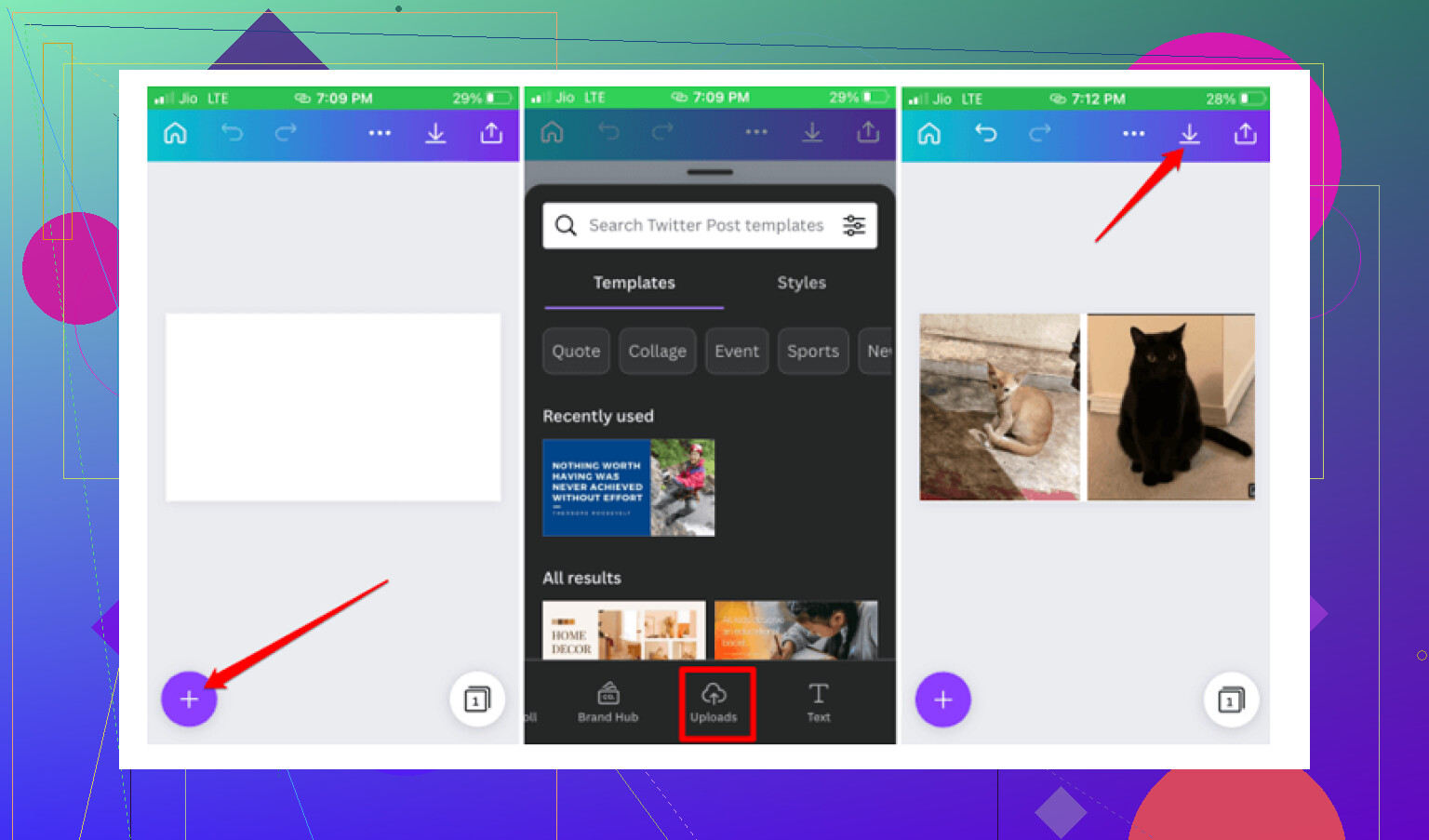
I’d push back a little on the whole “just compare on the phone” idea. On an iPhone screen, true side by side is often less useful than people expect because each image gets too small to judge fine focus properly.
What I’d do instead:
- Use the filmstrip in Edit mode for very fast back-and-forth on nearby shots
- Turn on Live Photo for the set next time, then scrub each image for the sharpest frame
- If you have a Mac at all, use iCloud Photos and do the actual culling there. It is simply faster
@reveurdenuit, @caminantenocturno, and @mikeappsreviewer are all basically right that native Photos on iPhone is missing a real compare tool. Where I disagree is that a workaround should feel like a workflow. If it’s clunky, I skip it.
About Clever Cleaner:
Pros
- groups similar shots, not just exact duplicates
- fast way to reduce a huge camera roll
- easier triage before manual checking
Cons
- “best shot” suggestions are still suggestions
- cleanup apps can encourage over-deleting if you rush
- not a true pro compare interface
So yes, Clever Cleaner is useful for narrowing the pile, but for final sharpness picks I’d still trust your own zoom check on the subject’s eyes or edges. That’s the part no app gets perfectly right.