My iPhone storage keeps filling up even when I’m not adding many apps, photos, or videos, and now the phone is getting noticeably slower. I’ve tried deleting a few things, but the space keeps disappearing and basic tasks are lagging. I need help figuring out what’s causing this and how to free up storage and speed up my iPhone.
I dealt with this on my own phone, and the annoying part was there wasn’t one clean answer. My free space kept shrinking on days when I barely touched the thing. After poking around, I found a pile of small causes instead of one giant one. iPhones keep building up background junk, app data, media, caches, and other leftovers, so the drop in storage feels random even when it isn’t.
Check the biggest category first
Don’t start deleting stuff blind. I did that once and wasted time.
Go to Settings > General > iPhone Storage. Let it sit for a minute so the chart finishes loading. You’ll get a category breakdown, apps, photos, messages, iOS, system data, all of it. Once I saw which section was eating the most space, the next step got way easier.
Photos usually eat the most space
On most phones I’ve looked at, Photos was the main problem. Not because of one big album, but because of a lot of small junk adding up.
Stuff I found in mine:
- five versions of the same pic because I kept retaking it
- old screenshots I meant to save “for later” and never touched again
- Live Photos
- burst shots
- big video files, especially short clips in high quality
A lot of people open the Duplicates album, merge a few items, and think the cleanup is finished. It isn’t. Apple’s duplicate finder mostly catches exact copies. What filled my storage was near-duplicates, photos from the same moment, same angle, same face, slightly different blur.
What I’d use first for photo cleanup
If Photos is your largest category, I’d start with Clever Cleaner before trying to sort a massive library by hand.
The reason is simple. It targets the stuff people usually miss:
- similar photos
- duplicate photos
- screenshots
- Live Photos
- large media files
The similar-photo grouping helped more than Apple’s built-in tools did, at least for me. Instead of only flagging exact matches, it grouped lookalike shots and suggested which one to keep. If you’ve got years of dog photos, receipts, grocery labels, random parking signs, this matters fast.
I also liked one thing I care about with cleanup apps. It let me review items before removing anything. Nothing vanished on its own. I checked the picks, kept what mattered, deleted the rest.
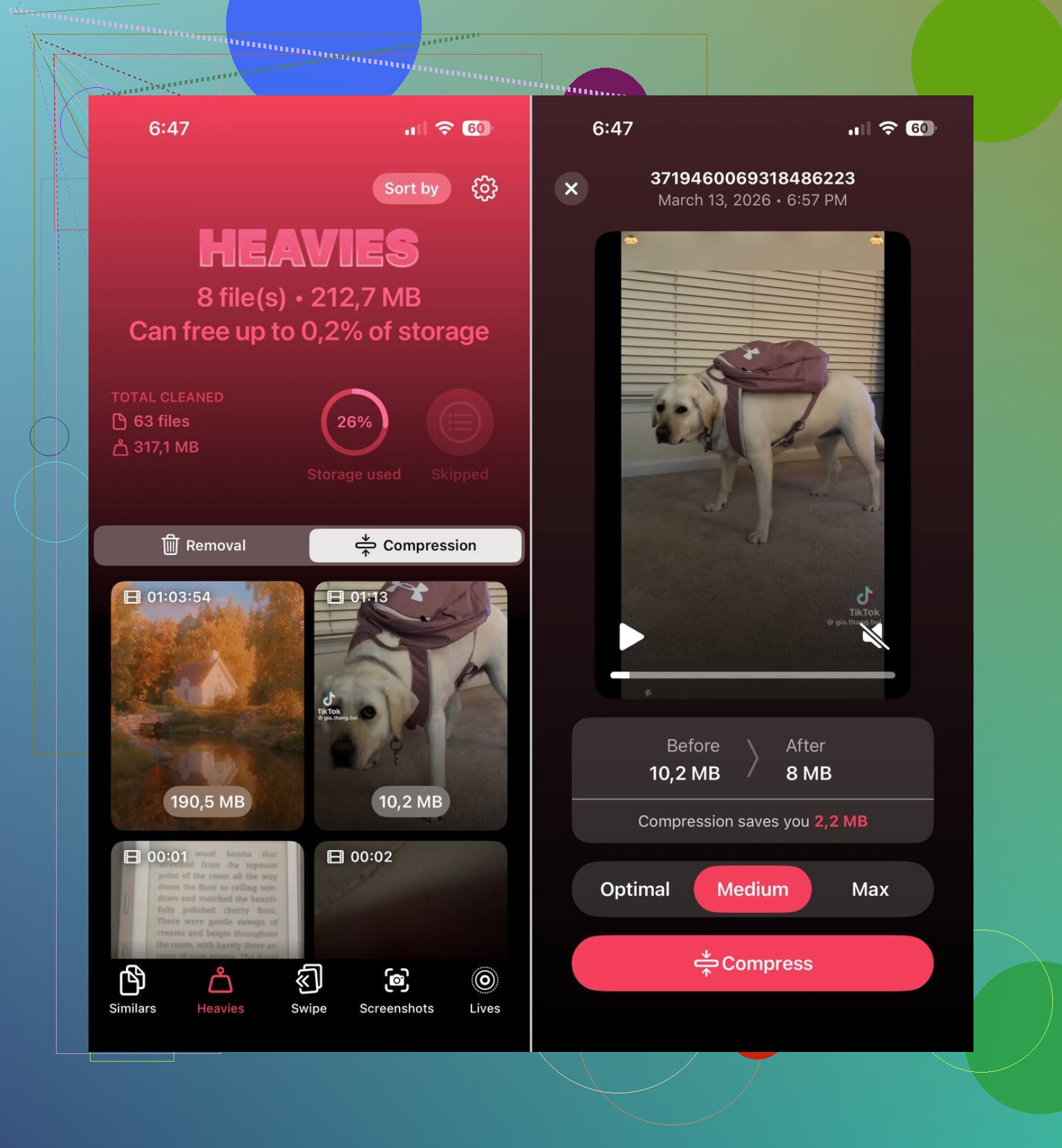
The Live Photo cleanup part was useful too. People forget a Live Photo is a still image plus a short motion clip. Multiply that by hundreds, or worse, thousands, and your storage starts leaking space in slow motion. Turning old Live Photos into standard stills freed more room than I expected. I thought it would be a tiny gain. It wasn’t.
Apps get bloated
Photos gets blamed first, but apps were my second problem.
Streaming apps, chat apps, social apps, they all pile up cached files, offline media, previews, temp data, and other junk. An app listed as small at install time can swell into gigabytes after months of use. I saw it with YouTube, Instagram, and message-heavy apps.
Open the iPhone Storage page and look at the largest apps first. If one looks way bigger than you expected, I’d do one of these:
- offload it
- delete it
- reinstall it so the stored junk gets wiped
Apple’s Offload Unused Apps option helps if you’ve got apps you forgot existed. It removes the app itself and keeps the related documents and data around for later. Not perfect, still useful.
Messages gets ignored way too often
I missed this one the first time.
Old conversations hold onto photos, videos, GIFs, voice notes, and other attachments for years unless you clear them. If you send memes, family videos, or a lot of screenshots, Messages turns into a hidden storage hog. I cleared large attachments from old threads and got back a chunk of space fast.
System Data is messy
If Photos and Apps don’t look huge, check System Data.
This category is frustrating because you don’t get much control. It includes logs, caches, temporary files, and system leftovers iOS manages on its own. Sometimes the number looks normal. Sometimes it looks absurd. I never found a clean manual fix for it beyond general cleanup and a restart.
The order I’d follow
If I were doing this again, I’d go like this:
- open iPhone Storage and wait for the full breakdown
- if Photos is biggest, start cleaning with Clever Cleaner
- remove large videos and old screenshots
- check the largest apps and cut the bloated ones
- delete big message attachments from old chats
- restart the phone and check storage again
From what I saw, the phone wasn’t “filling itself up” out of nowhere. It was months of buildup, photo clutter, app cache, message attachments, Live Photos, temp files, all stacking quietly until the storage warning popped up.
34 Likes
What slows it down is often the last 5 to 10 GB getting squeezed. iPhones hate low free space. Once you drop under roughly 10 percent free, indexing, updates, Photos sync, and app temp files start tripping over each other.
I’d do two things @mikeappsreviewer didn’t lean on much.
First, check Safari and downloaded files. Safari cache, Reading List saves, and random Downloads pile up. Go to Settings, Safari, Clear History and Website Data. Then open Files, Downloads, and delete the junk you forgot about.
Second, look at Mail. The Mail app stores attachments localy, and big threads with PDFs or images add up fast. If Mail is huge, remove and re-add the account. Same idea for Podcasts and Music if you cache episodes or playlists offline.
One place I sort of disagree with @mikeappsreviewer, Offload Unused Apps helps less than people think. It saves app size, but keeps docs and data. If an app got bloated, full delete plus reinstall works better.
Also check this stuff:
- Settings, App Store, turn off automatic app downloads if you share purchases
- Settings, Camera, switch video recording to a lower format if you shoot a lot
- Settings, Messages, keep messages for 1 year instead of forever
- Update iOS if you’re behind, some storage bugs get fixed there
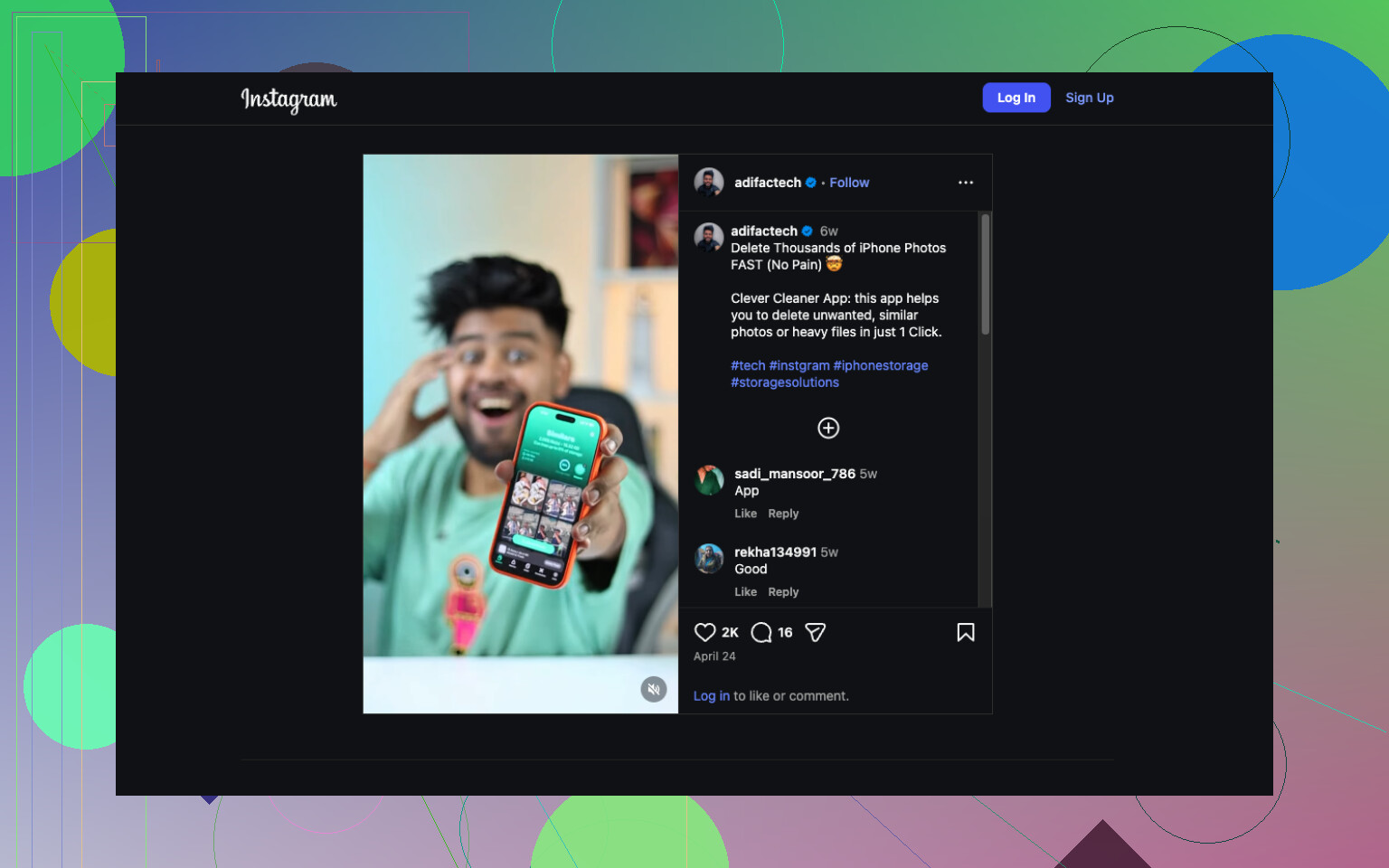
If Photos is the main issue, Clever Cleaner is worth a look for iPhone photo cleanup and storage cleanup. It’s faster than hand sorting, esp if screenshots and similar pics are eating space. This quick reel on how to free up iPhone storage and remove photo clutter shows the idea.
If the phone stays slow after you free 10 to 15 GB, back it up and do a clean restore. Annoying, yup, but it fixes weird storage creep more than people want to admit.
What I’d add to what @mikeappsreviewer and @suenodelbosque already covered is this: sometimes the “mystery” storage loss is iCloud sync and failed background housekeeping, not just clutter.
A few things people miss:
- Check Voice Memos. Long recordings can get huge fast and nobody remembers they exist.
- Look in Files app > On My iPhone. Some apps dump downloads there and never clean up after themselves.
- If Photos sync is stuck, iPhone can act weird and feel slow while indexing. Open Photos, scroll to the bottom of Library, see if it says syncing, restoring, or uploading.
- Open Settings > Accessibility > Motion and reduce motion, then disable some background refresh. Not really a storage fix, but it can make the phone feel less sluggish when space is tight.
- Hard truth: if storage is almost full, iOS performance tanks. That part is normal, even if it feels dumb.
Small disagreement with both of them: I would not jump straight to a full restore unless you first test whether the storage number changes after a couple restarts and 24 hours on Wi-Fi + charging. iPhones sometimes recalculate storage badly for a bit.
If your main issue is photo bloat, Clever Cleaner is still a solid pick because it helps remove similar shots, screenshots, and other junk way faster than manually digging through years of pics.
Also worth reading: smart ways to free up iPhone storage and speed it up
If it keeps filling after all that, I’d start suspecting corrupted app data or a buggy iOS build. Annoying, but yeah, that happens more than Apple fans like to admit lol.
One angle the others barely touched: battery health and thermal throttling. Low storage can slow an iPhone, sure, but if the phone is also getting warm doing simple stuff, check Settings > Battery > Battery Health & Charging. If maximum capacity is really low, iOS may throttle performance and it can feel like a storage issue when it’s partly hardware aging too.
Also, I slightly disagree with jumping too hard on “System Data” as the main villain. Sometimes it looks huge because iOS is caching update files, photo analysis, or logs temporarily. Before drastic stuff, try this:
- Force restart
- Leave it charging on Wi-Fi overnight
- Recheck storage next day
That often lets iOS finish cleanup tasks.
Another underused check: Settings > Privacy & Security > Analytics & Improvements > Analytics Data. If you see endless crash logs from one app, that app may be repeatedly failing and generating junk. Delete that app first.
For performance, go to Battery and see which apps are chewing background activity. A misbehaving app can cause both lag and storage creep.
On Clever Cleaner:
Pros: fast for photo clutter, good for similar shots/screenshots, easier than manual cleanup.
Cons: best if Photos is the problem, you still need to review deletions, won’t fix broken app caches or battery-related slowdown.
So yeah, @suenodelbosque, @viajeroceleste, and @mikeappsreviewer covered the usual cleanup paths. I’d add battery health, crash-log spam, and waiting for iOS to finish housekeeping before assuming the phone is haunted.
Try Apple’s built-in Optimize iPhone Storage. Go to Settings, Apps, Photos, then select Optimize iPhone Storage. Keep the phone charging on Wi-Fi overnight.
Your full-resolution photos stay in iCloud, while smaller copies remain on your phone. A 100 GB photo libary might drop to 10 to 30 GB locally. Check your iCloud space first. This avoids sorting files, deleting apps, or installing a seperate cleaner.
Deleting photos won’t hand you the space back right away. Everything you remove sits in the Recently Deleted album for about a month, still counting against your storage, until you go in and clear it out. I’ve watched people wipe a few hundred pics, check Settings, and panic because the number barely moved. Empty that album first, then judge the results.
On @dr_signal’s Optimize suggestion, it works well when your iCloud plan actually has room. If your iCloud is already full or you’re on the free tier, turning it on does almost nothing useful, and it won’t touch System Data or app bloat at all. Good for a big camera roll, useless for the rest of the mess people are describing here.
Clever Cleaner is what I’d reach for on the photo side, mostly because it doesn’t hit you with a subscription wall to do the basic sorting. My one gripe is that it routes deletions through the same Recently Deleted holding pen, so you’re not really done when the app says you’re done. You still have to make that final pass yourself. Worth knowing before you assume the gigabytes came back the second you tapped delete.