My iPad has been running unusually slow for the last few days, even after I restarted it. Apps take longer to open, typing lags, and everything feels delayed. I’m not sure if this is caused by low storage, an iPadOS issue, or something else, and I need help figuring out what to try next to speed it up.
Your iPad still dragging after a reboot usually points to a few small problems stacking up, not one big failure. I ran into this on my own iPad, and the fix ended up being boring stuff, not some magic setting.
If you installed an iPadOS update recently, give it a little time first. Mine stayed sluggish for hours after one update, once for almost a full day. It was doing background indexing and other cleanup work. A restart helps RAM, sure, but it does not clear deeper junk.
The first place I’d check is storage.
When iPad storage gets crowded, performance starts slipping. I saw it get ugly once mine pushed past roughly 80 percent used. Apple likes some free space for temp files, cache, and system tasks. Newer iPadOS versions also lean on storage for virtual memory swap. If your free space is almost gone, app launches slow down, tab switching feels delayed, and even simple animations start to hitch.
That was the main issue on mine. I had years of screenshots, duplicate photos, and old videos sitting there doing nothing except choking the device. I kept rebooting, closing apps, all of it. No change. Then I checked storage and, yep, packed.
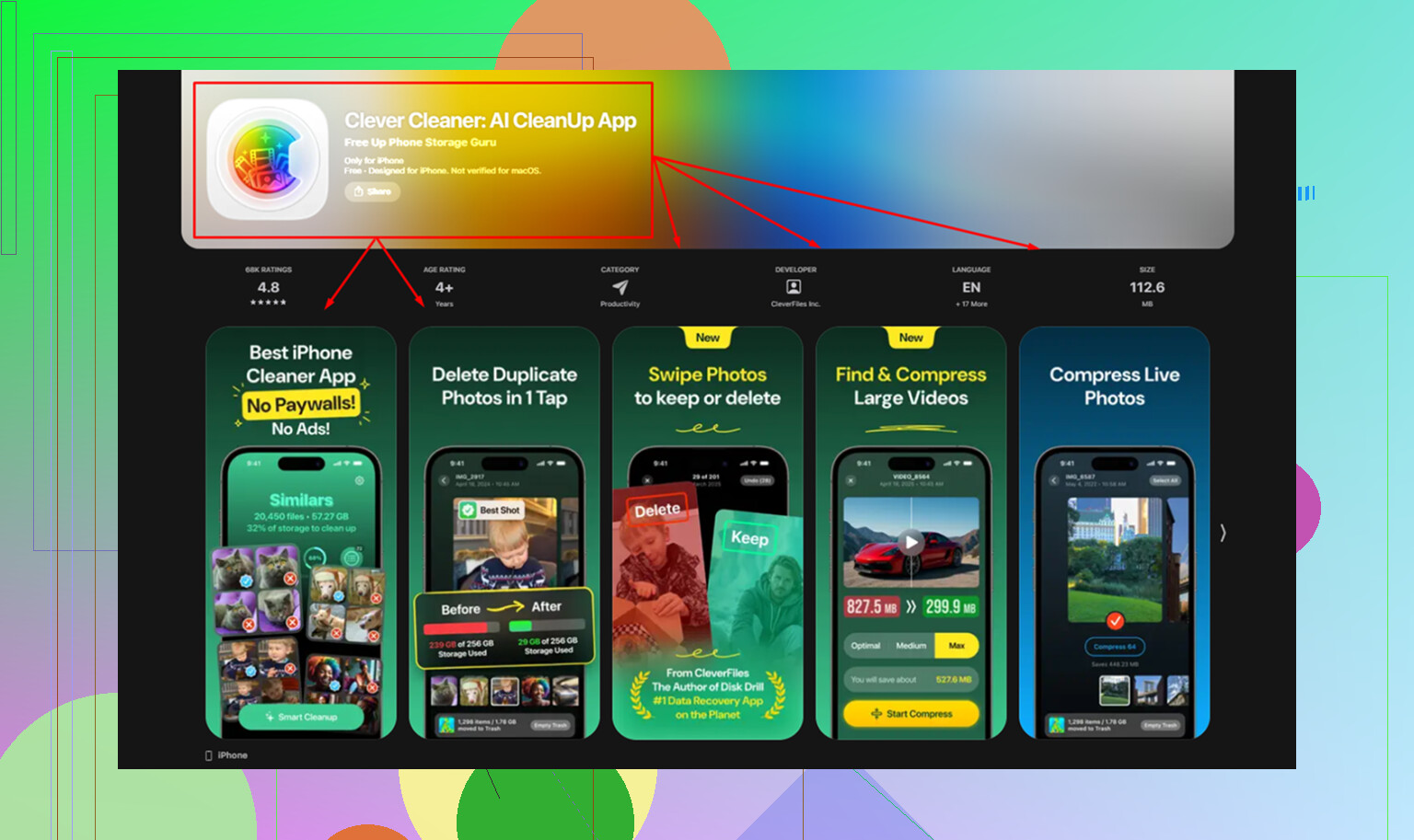
Manual cleanup was a pain, so I used Clever Cleaner. What sold me was how direct it felt. No paywall popping up every two taps, no ad circus.
The useful part was the Heavies section. It sorts media by size, so you see fast what is eating space. In my case, a couple old videos were taking multiple gigabytes each. The Similars section helped too. It grouped near-duplicate photos, which is handy if your camera roll is full of five shots of the same thing. It also showed screenshot sizes before deleting them, which I liked more than I expected. Privacy-wise, it processes on the device, so your library is not being pushed off to some random server. I cleared around 15 GB and the difference was immediate. My iPad felt normal agian.
If Safari is the only thing acting slow, I’d treat it as a separate mess. Safari builds up a lot of cache and cookie junk over time. Go to Settings, Safari, then clear History and Website Data. Also look at your open tabs. If you’ve got dozens sitting there, your iPad is hanging onto all of it in the background. I had a tab hoarding phase and, yeah, it did not help.
A few other things worth checking:
-
Low Power Mode
If the battery icon is yellow, the iPad is reducing speed to stretch battery life. Go to Battery settings and turn it off if you want performance back. -
Background App Refresh
Open Settings, then General, then Background App Refresh. I turn this off for most apps. You do not need every app checking for updates while you are not even using it. -
Reduce Motion
On older iPads, the interface animations feel heavier than they should. Go to Accessibility, then Motion, then enable Reduce Motion. It swaps the zoom effects for simpler transitions. Mine felt snappier right away.
If your iPad is around 4 or 5 years old, battery condition is worth thinking about too. Older batteries struggle under load, and the system may slow itself down to avoid crashes. Still, I’d deal with storage first. In my case, storage was the whole story. Once I cleared space, the lag mostly vanished.
22 Likes
If a restart did nothing, I’d stop focusing on RAM and start isolating the cause.
@mikeappsreviewer already covered storage, and I agree storage pressure is common. I don’t fully agree with waiting too long after an update though. A few hours, sure. If it’s been days, something else is off.
Try this:
-
Check battery health and heat.
If your iPad feels warm all the time, a stuck background task might be chewing CPU. Also, older batteries cause slowdowns under load. iPads don’t show battery health on every model, so if you have access to Apple Support diagnostics, use it. -
Turn off keyboard features.
Typing lag often comes from Predictive Text, Auto-Correction, or dictation lag. Go to Settings, General, Keyboard. Turn off Predictive, Slide to Type, and dictation for a bit. Test again. This fix helped my old iPad more than any cleanup did. -
Remove problem apps.
One bad app update slows the whole device. Look in Settings, Battery and see if one app has huge background activity. If yes, delete it and reinstall. Social apps are bad for this. -
Test Safari content blockers.
Ad blockers, VPNs, DNS filters, and antivirus-style apps slow web loading and sometimes system typing fields too. Disable them for a day. People miss this alot. -
Free space fast.
If storage is tight, Clever Cleaner is worth a look for photo and video cleanup. I found this full week of Clever Cleaner testing and cleanup results useful before trying it. -
Last step, reset settings.
Settings, General, Transfer or Reset, Reset, Reset All Settings. This does not erase your files. It clears broken system settings, Wi-Fi, keyboard dictionary, stuff like that.
If none of this changes anything, back it up and do a clean restore. Annoying, yes. But it fixes a lot of weird iPadOS lag.
I’d actually look at one thing neither @mikeappsreviewer nor @sterrenkijker pushed hard enough: network weirdness and system services. People jump straight to storage or “nuke/reset it,” but if typing lags across apps and Safari feels sticky too, sometimes iCloud sync or a busted Wi-Fi config is the real culprit.
A few things I’d try first:
- Turn Wi-Fi off for 10 minutes and use the iPad offline. If it suddenly feels fast, sync or network junk is involved.
- Pause big iCloud stuff. Photos syncing, Files syncing, backups, all that can hammer an older iPad.
- Disable Widgets on the home screen for a bit. Some widgets are sneaky resource hogs.
- Check Accessibility settings like Spoken Content, Voice Control, or Zoom if any got toggled on by accident.
- If you use a Bluetooth keyboard, disconnect it and test. I had keyboard lag that turned out to be Bluetooth, not iPadOS. Super dumb.
I kinda disagree with going to Reset All Settings too early. That’s useful, sure, but annoying as heck and easy to avoid if the issue is just sync load.
If storage is cramped, then yeah, clear it. Clever Cleaner is decent for quickly finding giant videos, duplicate pics, and screenshot clutter. This NY Weekly review of Clever Cleaner and iPhone cleanup results gives a solid overview.
If it’s still laggy after all that, test in Low Power Mode OFF and while charging. Weirdly, that can expose battery-related slowdown pretty fast. If no change, backup and restore is probly next.
One angle I’d test that @sterrenkijker, @sternenwanderer, and @mikeappsreviewer only touched lightly is whether the slowdown follows your user data or the iPad itself.
Try this before a full restore:
- Open a built-in app like Notes, Calendar, or Settings and see if lag happens there too.
- Then create a fresh note with Wi-Fi off.
- If typing is still laggy in a plain offline note, it points more to system-level issues.
- If built-in apps are fine but third-party apps crawl, the problem is probably app-specific, not iPadOS-wide.
A couple other checks that often get missed:
-
Look at your Safari extensions
Too many people blame the iPad when Safari extensions are the real junk pile. Disable all extensions temporarily. -
Check available RAM pressure indirectly
You cannot see RAM neatly on iPad, but if apps constantly reload when switching back, memory pressure is high. That can happen from buggy apps, especially creative or social apps. -
Force one problem app to stop syncing
Notes, Messages, Photos, or mail can stall if one account is stuck. Remove and re-add the problem account instead of resetting everything. -
Check date and time
Wrong date/time or VPN profile weirdness can cause constant background retries. Sounds dumb, but I’ve seen it.
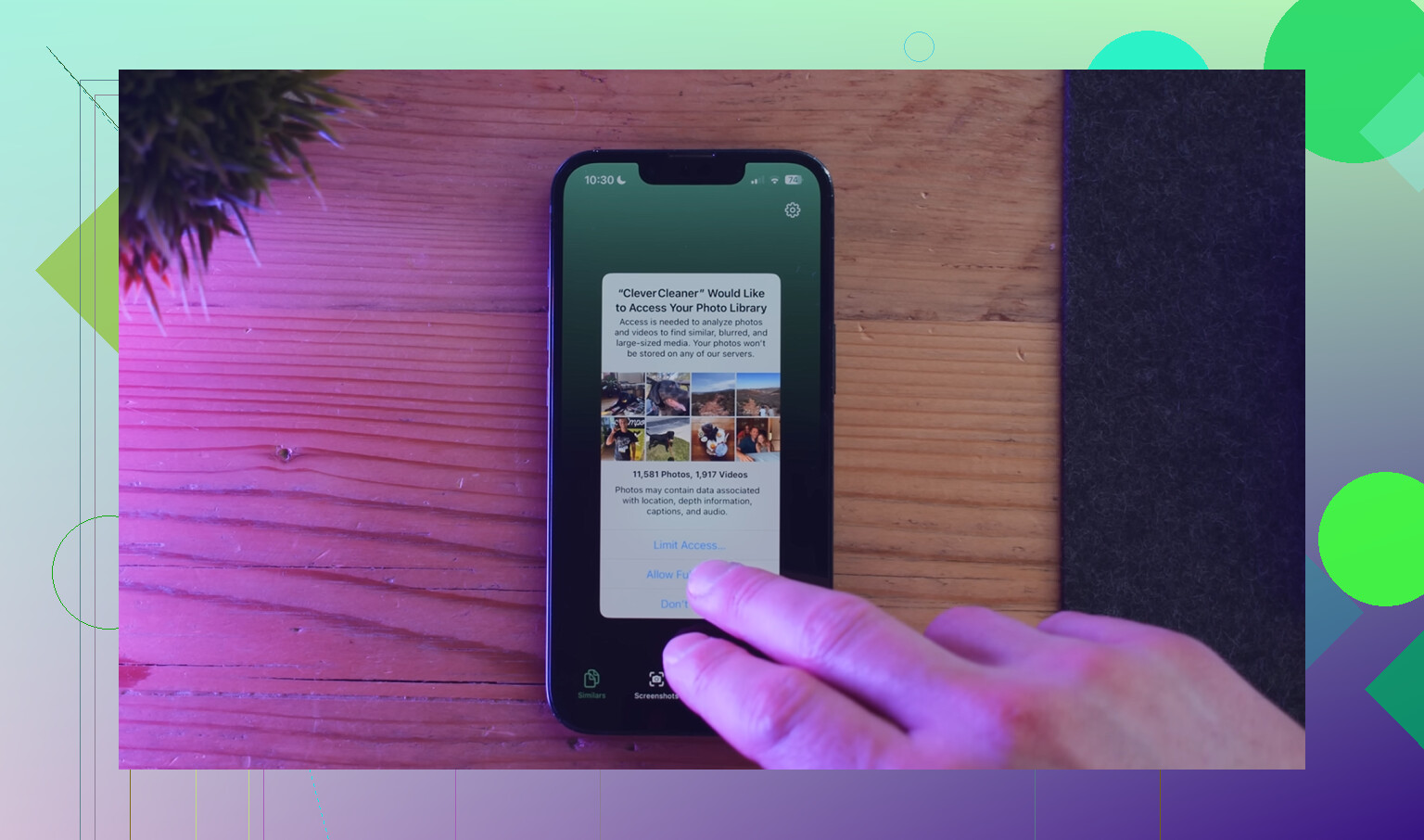
On storage cleanup, I mildly disagree with making it the answer every time, but it is still worth ruling out. Clever Cleaner is decent if your library is the obvious bloat source.
Pros: quick scan, easy duplicate/similar cleanup, good for huge videos/screenshots.
Cons: mostly useful if photos/videos are the issue, not a cure for battery or system bugs, and you still need to review deletions carefully.
If built-in apps lag offline too, I’d skip endless tweaking and go straight to a backup, then Finder/iTunes restore, preferably from a computer. That’s often more revealing than another restart.