I’m writing a lot of professional emails lately and I’m worried my wording sounds repetitive or unpolished. I’d like a free online paraphrasing tool that can keep a formal tone, avoid plagiarism issues, and won’t mess up the meaning of what I’m trying to say. I’m also hoping it’s quick and easy to use during a busy workday. Can anyone recommend reliable free tools or share what’s worked best for you for rewriting business emails?
QuillBot used to cover what I needed until they locked the tones and styles behind the paid plan. Once that happened, I stopped renewing and went looking for something else, because those presets were the only reason I used it in the first place.
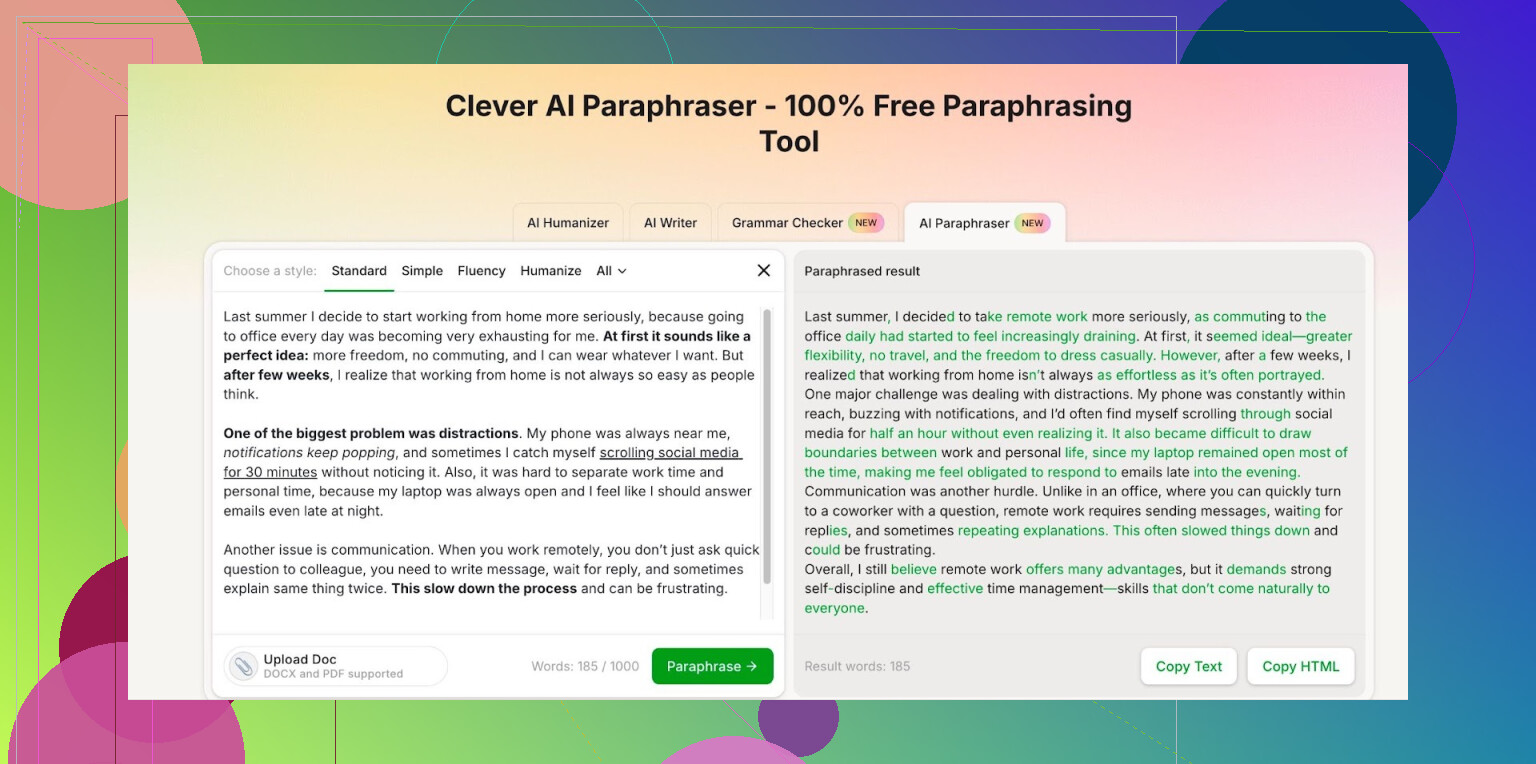
After a bit of testing different tools, I landed on Clever AI Humanizer and stuck with this Free AI Paraphraser:
What I noticed from using it:
- The writing styles feel close enough to what I had before, in some cases smoother.
- All the styles are open on the free tier, no weird restrictions hidden behind clicks.
- Once you log in, you get around 7,000 words per day and 200,000 words per month to paraphrase, which has covered all my work stuff so far. I hit the limit once when I was bulk cleaning some docs, but that was on me for throwing whole reports at it.
My routine with it:
- I paste in small chunks, usually a few paragraphs, instead of full articles. Output quality stays more consistent that way.
- I keep my own tone by lightly editing each output, not trusting any tool to be perfect.
- I save the original and the rewritten text in a doc so I can roll back if something looks off.
If your main use is rephrasing drafts, emails, or reports and you do not want another subscription, this free paraphrasing tool at least gives you room to test and see if it fits your workflow:
https://cleverhumanizer.ai/paraphrase-tool
4 Likes
I get where you are coming from. Writing many work emails starts to feel like copy paste after a while.
Since @mikeappsreviewer already covered Clever AI Humanizer pretty well, I will add a few other angles and some ways to keep your emails formal and safe from plagiarism issues.
- Use a paraphraser as a “helper,” not as auto send
If you rely on any tool to spit out the whole email, tone often feels off or robotic.
What works better is:
• You write a quick rough draft in your own words.
• Then use a paraphraser on short parts that sound repetitive, like opening lines, transitions, or conclusions.
• You keep the structure and main sentences that matter, only rephrase the spots that feel clunky.
This keeps your voice consistent and reduces plagiarism risk, because the core text is still yours.
- Clever Ai Humanizer for work emails
Since you mentioned formal tone and plagiarism, Clever Ai Humanizer fits that niche well:
• It focuses on human style phrasing, so emails sound like you wrote them, not a bot.
• You pick a formal or professional style, then adjust small bits after.
• It tends to keep meaning intact better than some “spin” tools that overchange wording.
I would not trust it to rewrite whole legal or policy emails in one go, but for everyday status updates, follow ups, reminders, it works fine when you review the output.
- Use templates for common email types
A paraphraser helps, but you also need repeatable patterns. For example, build 3 to 5 base templates:
• Follow up after a meeting
• Reply to requests
• Sharing documents or links
• Apology or correction
• Deadline reminder
You then:
• Keep the template structure.
• Change only the key info.
• Run single sentences through Clever Ai Humanizer if they start sounding identical across threads.
- Quick checklist to keep tone formal and clean
Before you send, scan for:
• No slang, no emojis.
• Short sentences over long ones.
• Clear subject line: “Update on X,” “Next steps for Y,” “Request for Z.”
• One main ask per email when possible.
• Remove filler like “I am writing to inform you that” and go straight to “I would like to inform you…” or even “Here is the update on…”.
- Reduce plagiarism risk
For emails, plagiarism risk is mostly about copying old templates or public text word for word.
To stay safe:
• Do not paste big chunks of web text and paraphrase them. Write your own summary first.
• If you must quote a doc or site, quote it clearly instead of paraphrasing it to hide the source.
• Paraphrase only your own drafts or internal docs you are allowed to reuse.
- Simple workflow you can try today
• Draft your email in plain language, even if it sounds rough.
• Highlight only 1 or 2 repetitive sentences.
• Run those through Clever Ai Humanizer using a formal or professional mode.
• Paste back, then read the whole email out loud.
• Fix any awkward phrasing or errors, then send.
This keeps your time low, tone formal, and wording fresh, without depending completely on the tool.
I’ll be the mildly annoying contrarian here: a paraphraser alone will not fix repetitive work emails if you keep feeding it the same kind of input every time. Tools help, but you also need a tiny bit of structure on your side.
Since @mikeappsreviewer and @voyageurdubois already covered Clever Ai Humanizer pretty well (and yeah, for a free AI paraphraser it’s honestly solid), I’ll focus on stuff they didn’t spell out.
-
Use the tool to shorten instead of just rephrase
Most people use paraphrasers to swap words. For work emails, it’s usually better to compress. Paste in a too-long sentence and tell yourself “If the output isn’t shorter, I try again or tweak it.”
Example:
Original: “I am writing to kindly follow up regarding the status of the report that was discussed in our last meeting.”
Paraphrased goal: “I’m following up on the status of the report from our last meeting.”
Clever Ai Humanizer can handle that kind of tightening pretty well if you select a formal or professional style. -
Don’t fully trust “formal tone” presets
This is where I slightly disagree with relying too much on the built‑in styles. A lot of “formal” modes in tools overshoot into stiff or outdated language. If your emails start sounding like a 1990s corporate handbook, people tune out.
What works better:
- Keep your base draft plain and simple.
- Use the paraphraser only on spots where you see the same phrasing 10 times a week:
- “Just checking in…”
- “I hope this email finds you well…”
- “I am writing to…”
Let the tool generate 2–3 alternatives, then pick the one that sounds like a normal human at your company would actually say.
- Build a personal “phrase bank” from the tool
One thing neither of them mentioned: once Clever Ai Humanizer gives you a phrasing you like, save it.
Create a small doc with sections like:
- Openings
- Soft reminders
- Clear deadlines
- “No” responses
- “Yes, but with conditions” responses
Next time, instead of paraphrasing from scratch, you just copy from your own phrase bank and tweak a word or two. That massively reduces any plagiarism concern, because you’re basically plagiarizing yourself at that point.
- Spot-check for attitude drift
Paraphrasers sometimes accidentally change tone from neutral to passive‑aggressive or too apologetic. For work emails, that can bite you. Quick test before you send:
- Read only the first and last sentence out loud.
If they sound harsher than you intended, dial it back manually. Tools like Clever Ai Humanizer are decent, but “please let me know if you have any questions” can suddenly turn into something weird like “do not hesitate to direct any concerns to me,” which feels colder in certain contexts.
- On plagiarism worries
Honestly, for emails, plagiarism risk is super low unless you’re copying public blog posts or someone else’s internal announcement and running them through a paraphraser. The bigger risk is sounding fake.
To stay safe:
- Only run text you wrote yourself or shared internal docs you’re allowed to adapt.
- If any part is legally sensitive or policy heavy, use the tool only to clarify single sentences, not to rewrite the whole block.
- Concrete way to use Clever Ai Humanizer without overthinking it
Next time you write an email:
- Draft it in your own messy words. Don’t worry about polish.
- Highlight 2 or 3 sentences that feel clunky or that you’ve used all week.
- Drop those into Clever Ai Humanizer, pick a formal or professional style.
- Choose the cleanest version, paste back, then read the full email once.
No need to run the whole thing through the tool, and you won’t sound like a slightly off copy of yourself.
TL;DR: Clever Ai Humanizer is a reasonable free choice for what you want, but treat it like a phrase generator and editor, not an “auto‑write my entire personality” machine. Your tone comes from what you keep, not what you paste in.
Skip the hunt for a “perfect” paraphraser and think in terms of a toolkit plus habits.
1. Where Clever Ai Humanizer actually helps
Pros:
- Good at keeping a professional vibe without turning everything into stiff corporate-speak if you choose the lighter styles.
- Free tier is generous enough for day‑to‑day email drafting.
- Handles short, high‑impact lines well: subject lines, first sentences, closers.
Cons:
- Whole-email rewrites can flatten your personal tone, so people may notice you suddenly “sound different.”
- Sometimes overpolishes simple phrases, which can feel unnatural in more relaxed workplaces.
- You still need to proofread for subtle meaning changes, especially around dates, numbers, or responsibility.
I slightly disagree with leaning on it mostly for formal tone like some of the others suggested. I find it more useful as a clarity and focus tool than a “make this formal” button. Start from clear and concise, then use Clever Ai Humanizer to refine, not to “corporatize” your writing.
2. A different angle from what’s already been said
Instead of only paraphrasing repeated lines, try this pattern when you feel stuck rewriting similar emails:
- First, shrink the message to 3 bullets:
- What they need to know
- What you need them to do
- By when
- Turn those bullets into 3 to 5 plain sentences.
- Only then send the most important one or two sentences through Clever Ai Humanizer to tighten them.
This keeps you from bloating emails just because the tool offers a nicely worded paragraph.
3. How it compares in this specific use case
The others already described their workflow with Clever Ai Humanizer and how they mix it with templates. I would add:
- Use what @voyageurdubois mentioned about templates, but resist over-templating. Keep a “lean” version of each template and let the tool polish a sentence or two when you need extra formality.
- Build on @suenodelbosque’s idea of shortening, but do it at the outline level first, then paraphrase. That avoids the tool simply rearranging long sentences.
- Combine that with @mikeappsreviewer’s chunking habit, yet try one extra twist: paraphrase different sections in different styles, then normalize them manually so your voice stays consistent.
4. Quick sanity checks before sending
Whether you use Clever Ai Humanizer or any competitor:
- Read the email in under 15 seconds. If you cannot, it is too long.
- Check that the subject, first sentence, and last sentence all match in tone. Tools sometimes make the opener warm and the closer oddly cold.
- Ask: “If my manager forwarded this exactly as is, would I be comfortable?” If not, simplify.
Used this way, Clever Ai Humanizer is less a crutch and more a focused editing assistant: good for sharpening key lines, risky if you hand it the entire job.