My flash drive suddenly stopped opening after I moved important work documents and family photos onto it. Now my computer says the drive is corrupted and asks me to format it, but I need to recover the files without losing anything. What are the safest recovery steps or tools to try?
I’ve run into this a few times, and the first screen from Windows usually looks worse than the damage. You plug in the USB, Windows says it needs to be formatted, or it shows up as RAW, or it refuses to open. I’ve still pulled files off drives in that state.
First thing, don’t format it. Don’t run random repair tools yet either. I know the prompt is sitting there asking for a fix, but if the files matter, recovery comes first. Repair comes later. If you write changes to the drive too soon, you make your own job harder.
The cause matters a lot. If this started after unsafe removal, a copy job failing halfway through, file system damage, malware, or some weird app crash, I’d still try recovery myself. If the stick is bent, gets hot fast, drops connection every few seconds, never shows up at all, or holds stuff you can’t lose, I’d stop there and send it to a recovery shop. I’ve seen people turn a bad situation into a dead drive by pushing a damaged USB too far.
If the drive still shows up and you want a software route, I’d start with Disk Drill.
The main reason is simple. It doesn’t need Windows to read the file system cleanly first. On drives marked RAW or inaccessible, it still has a shot at scanning the device and pulling files from the raw data. In my use, it also did a better job keeping filenames and folders than some of the other tools I tried. The preview part helps too, because you get to check whether the file opens before wasting time recovering junk.
The part I would not skip is the Byte-to-Byte Backup option. Corrupted flash drives are flaky. One day they mount. Next day, nothing. I’ve had one die between two scans, no joke. Making an image first gives you a frozen copy of the USB as it exists right now. Then you work from the image instead of hammering the original stick over and over.
This is the order I’d use:
- Install Disk Drill on your computer. Do not put it on the bad USB.
- Plug in the corrupted USB drive.
- Open Disk Drill and go to Byte-to-Byte Backup.
- Select the USB and make a full image backup.
- After the image is done, mount or attach the image inside Disk Drill.
- Run the scan on the image, not the USB itself.
- Preview files and spot check what matters most.
- Recover everything to a different drive.
Working from the image is the safer move. Once the image exists, the recovery attempt no longer depends on the USB behaving itself for another hour. That matters more than people think.
After your files are safe, then I’d mess with repairs:
- Run Windows Error Checking or CHKDSK.
- Give it a new drive letter if Windows is seeing it wrong.
- Reinstall the USB device drivers if detection keeps breaking.
- Format it and test with throwaway files only.
If the corruption comes back after a format, files vanish again, writes fail, or the drive keeps acting weird in normal use, I’d retire it. Flash storage wears out. Once a USB starts doing this more than once, I stop trusting it. Learned taht the annoying way.
16 Likes
Do not format it.
I agree with @mikeappsreviewer on one big point, stop writing anything to the USB. I disagree a bit on running CHKDSK early. On a corrupted flash drive, CHKDSK often fixes the file system by deleting broken entries. Great for the drive, bad for your photos.
Do these first.
- Try a different USB port, and a different PC.
- Open Disk Management in Windows. Check if the drive shows the right size.
- If it shows 0 bytes, drops in and out, or gets crazy slow, stop. That points to hardware failure.
- If it shows normal size, use recovery software before repair. Disk Drill is a solid pick for corrupted flash drive recovery because it reads damaged or RAW volumes better than Windows Explorer does.
- Recover files to your internal drive, not back to the USB.
If Disk Drill finds your folder tree and previews the photos, you’re in decent shape. If it only finds raw JPGs and random file names, recovery is still possible, but the file system took a harder hit.
One more check. In Device Manager, uninstall the USB Mass Storage Device, unplug the drive, reboot, then reconnect. Sometimes Windows is the problem, not the stick. People skip this and waste time.
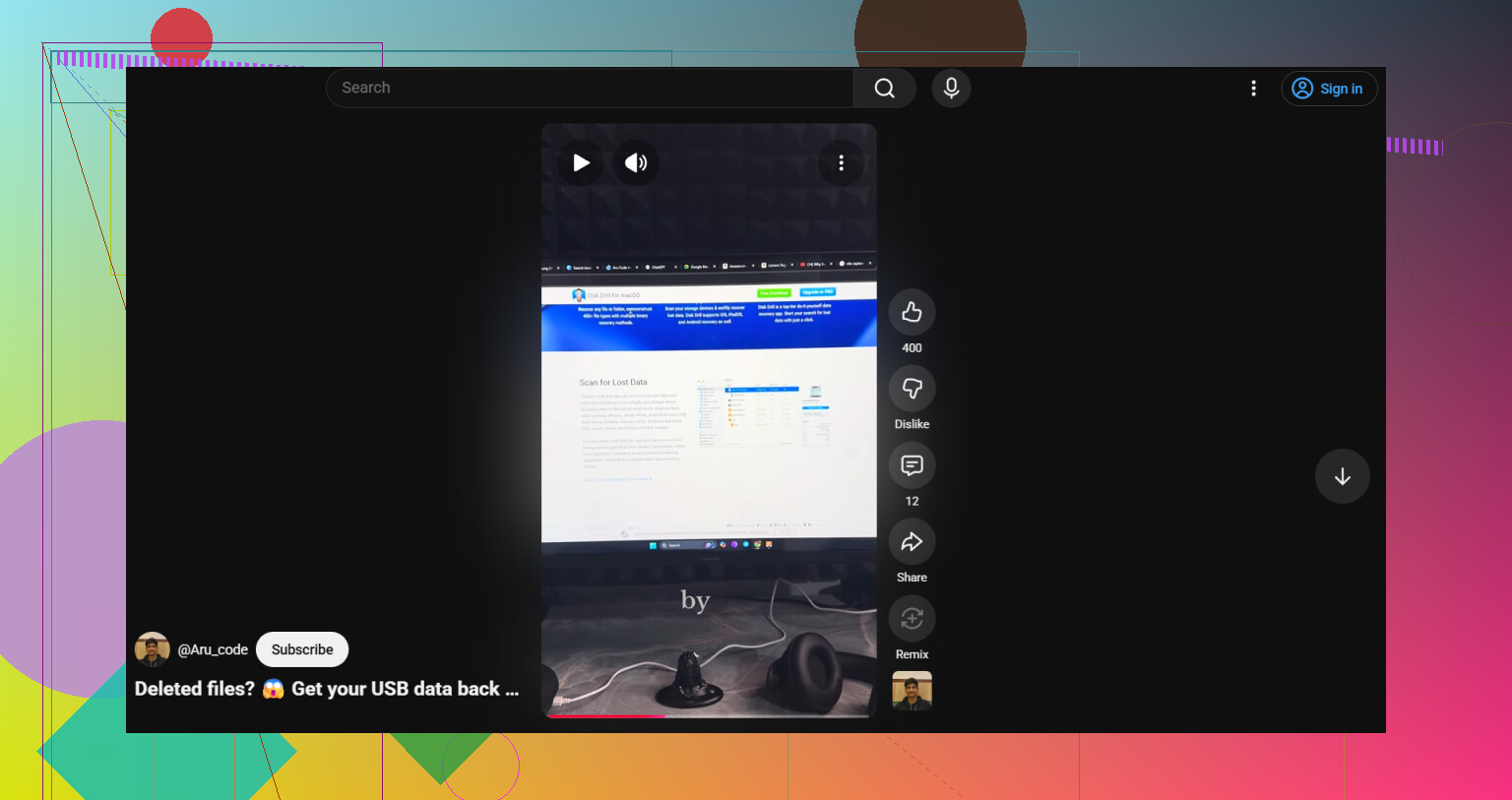
If you want a quick visual guide, this pen drive data recovery video tutorial covers the basic flow.
After recovery, format the drive and test it with copies of throwaway files. If it fails again, toss it. USB sticks die quietly, then all at once. Sad but truee.
Do not hit Format. That prompt is Windows basically shrugging and saying, ‘not my problem.’
I mostly agree with @mikeappsreviewer and @cazadordeestrellas, but I’d add one thing they didn’t really stress enough: check whether this is a file system problem or a dying USB controller. Those are very different fights. If the flash drive shows the correct capacity in Disk Management and stays connected steadily for 5 to 10 minutes, software recovery is worth trying. If it keeps disconnecting, freezes Explorer, or suddenly reports nonsense size, stop poking it. Every reconnect can make things worse.
What I’d do before any repair attempt:
- Check it in Disk Management, not just File Explorer
- Try reading it on another machine, preferably not the same Windows install
- If possible, use a USB hub with external power or a rear motherboard port, because weak ports can cause fake ‘corruption’ too
I would also avoid ‘fixing’ it with CHKDSK at this stage. Yeah, sometimes it works. Sometimes it ‘works’ by trimming damaged directory entries and your stuff vanishes. Not amazing.
If the drive is stable enough, scan it with Disk Drill and recover to a different drive. That’s the important part. Never recover back onto the same USB. Disk Drill is usually solid with corrupted flash drives, RAW partitions, and damaged file tables, so it’s a sensible first shot before doing anything destructive.
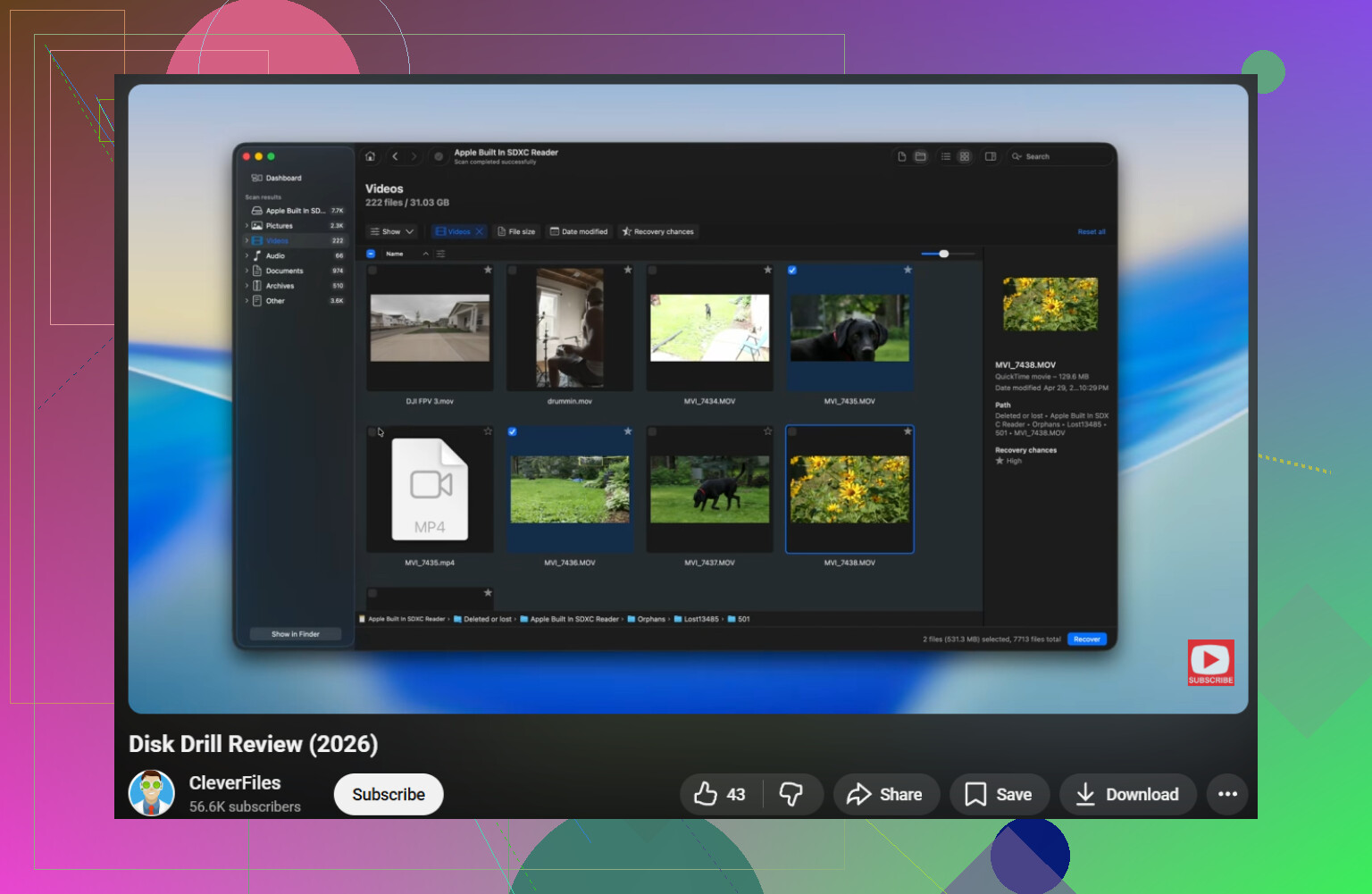
Also, if you want a plain-English Disk Drill review and USB recovery walkthrough, that vid gives a decent overview without too much fluff.
One more slightly unpopular take: if these are truly irreplaceable family photos and work docs, don’t keep ‘trying stuff’ for hours. If the drive starts acting flaky at all, pro recovery may be cheaper than regret. USB sticks are kinda trash for long-term storage tbh.
I’m with @cazadordeestrellas and @voyageurdubois on avoiding format, but I’ll push back a little on the “try lots of ports and PCs” advice if the stick is unstable. If it disconnects under light use, repeated plugging can be the thing that finishes it off.
What I’d add instead:
- Check SMART is not possible on most USB sticks, so don’t waste time hunting for health data that usually isn’t there.
- If Linux is available, try opening the drive read-only from a live USB. Sometimes Windows chokes on a damaged filesystem that Linux will still mount enough to copy files.
- If the partition is missing entirely, look at partition recovery, not just file recovery.
Disk Drill makes sense here because it can scan the device or image even when Explorer refuses to open it.
Pros:
- good RAW/corrupted volume support
- preview helps filter junk
- byte-to-byte image option is genuinely useful
Cons:
- deeper scans can be slow
- free recovery limits depend on version/platform
- raw recovery may lose original filenames
I also agree with @mikeappsreviewer only up to the point of repair-after-recovery. Personally, I’d skip CHKDSK completely unless the recovered data is already verified twice. On flash drives, “repair” often means “cleanup by deletion.”
If Disk Drill finds almost nothing and the drive keeps reconnecting, stop DIY. That’s where software usually stops being helpful.