My iPhone storage is almost full, and Facebook seems to be taking up a lot of space from cached data. I’ve tried deleting photos and unused apps, but the storage warning keeps coming back. What’s the best way to clear the Facebook cache on iPhone without losing my account or important data?
If Facebook is eating a weird amount of storage on your iPhone, the annoying part is that iOS doesn’t give you a simple “clear cache” button for it. You can clean it up, but some methods do way more than others.
Deleting Facebook data does not delete your posts or photos
Your Facebook posts, uploaded photos, videos, friends, messages, and account info are stored on Facebook’s servers. The stuff taking up space on your phone is mostly local cache - thumbnails, bits of video, scripts, and other temporary files the app saves so your feed loads faster.
Clearing that local data just makes Facebook download fresh copies as needed. It does not remove anything from your account.
The method that actually clears the most space
Go to Settings - General - iPhone Storage - Facebook, then choose Delete App.
This removes the Facebook app and its Documents and Data, including the deeper cache that usually causes the storage number to get out of hand. After that, reinstall Facebook from the App Store and log back in. Your account syncs back normally.
This is the only built-in iPhone method that really clears the full local Facebook footprint.
Offload App is not the same thing
On that same storage screen, Offload App only removes the app itself. It keeps Documents and Data, which is where a lot of the cached junk lives.
It can be useful if you want a small cleanup and don’t want to log in again, but it usually won’t fix a serious Facebook storage problem.
Clear Facebook’s browser cache too, but don’t expect much
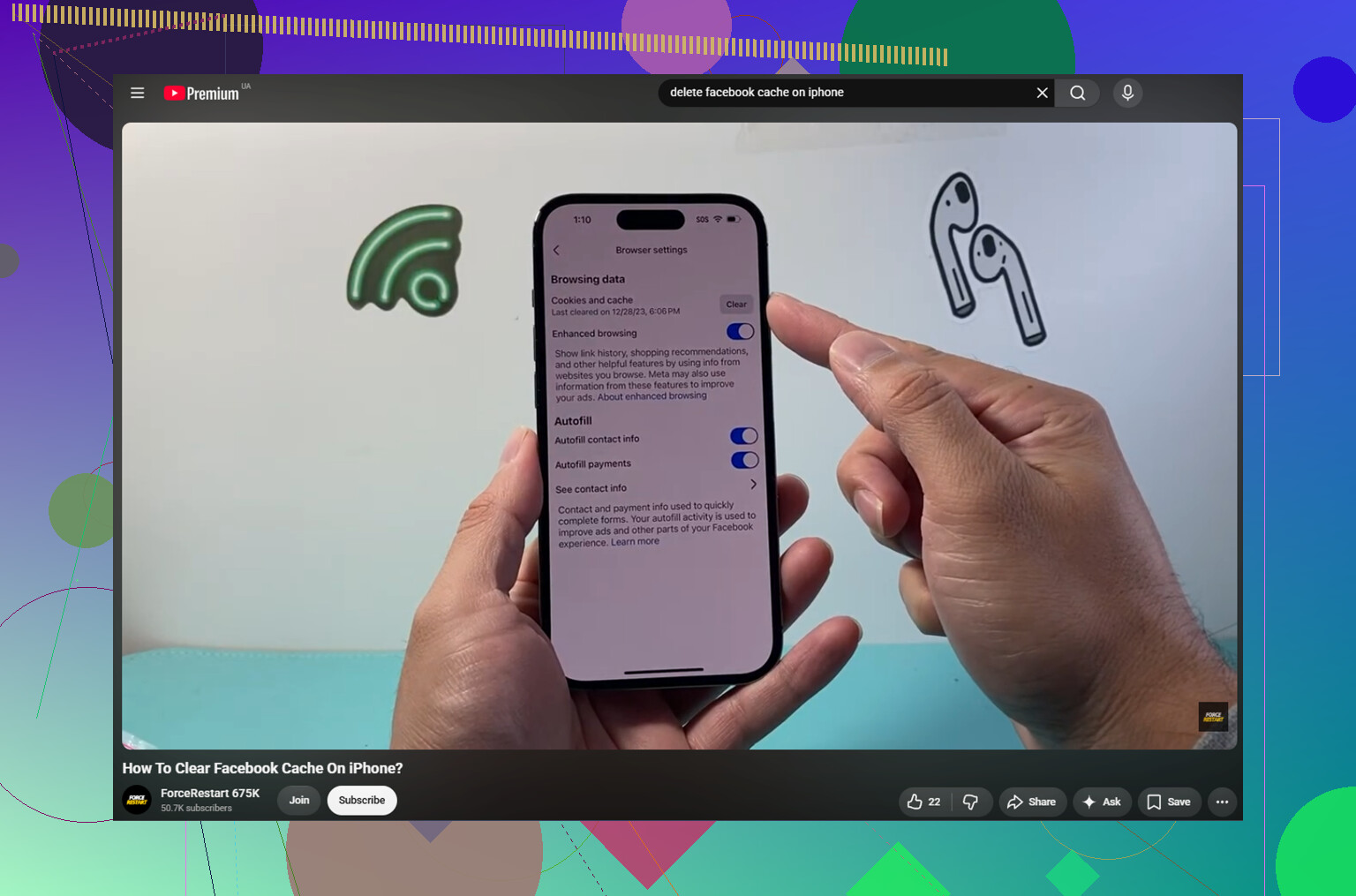
Inside Facebook, go to Menu - Settings and Privacy - Settings - Browser, then tap Clear next to Cookies and Cache.
That clears data from websites you opened inside Facebook. It may help if links feel slow or glitchy, but it usually does not free up much storage compared with deleting and reinstalling the app.
Slow down the cache coming back
Facebook will rebuild its cache as you use it. That is just how the app works. Every Reel, image, video, and scroll session adds more local data again.
The biggest thing you can change is video autoplay. In Facebook’s app settings, turn Autoplay off or set it to Wi-Fi only. Videos are usually the worst part of the cache, so stopping them from loading automatically helps keep the storage number from climbing as fast.
Why the storage warning keeps returning
Even after a clean reinstall, Facebook can start building cache again within a day or two of normal use. Clearing it once is not a permanent fix if you keep using the app the same way.
Also, Facebook often is not the biggest storage problem on the phone. For a lot of people, the real space hog is the photo library - old 4K videos, burst shots, screenshots, duplicate photos, and random clips that have been sitting there for months.
What helps if you want the warning to stop for good
Clever Cleaner is aimed at the photo library side of the problem, not Facebook cache. It is free, has no ads, and does not require a subscription. You still need the manual Facebook steps above for the app cache.
The useful part is that it shows what is actually taking up space. The Heavies tab lists files from largest to smallest with exact sizes, so one old 4K video can stand out immediately.
The Similars tab groups photos that look nearly the same and chooses a Best Shot from each group, which is faster than checking five versions of the same picture one by one.
It also shows file sizes on screenshots before you delete anything, which makes it easier to see when a pile of old screenshots has turned into several gigabytes.
Everything runs on the device, with nothing uploaded externally.
Clearing about 10GB of duplicate photos and forgotten videos is the kind of cleanup that can stop the iPhone storage warning from coming back, even if Facebook starts rebuilding its cache again.
3 Likes
Don’t clear Safari history or install a random “iPhone cache cleaner” expecting it to fix Facebook. Safari’s cache is separate, and most cleaner apps can’t reach Facebook’s private app data anyway. The delete-and-reinstall method mentioned above is the right fix when Facebook’s Documents & Data has ballooned.
Before you delete the app, make sure you know your Facebook password and still have access to whatever two-factor method you use. If you use Facebook Marketplace, drafts, unsent posts, or anything saved only locally in the app, assume it might not survive the reinstall. Your account content is safe, but little app-side leftovers are not always worth trusting.
After reinstalling, check both Facebook and Messenger in iPhone Storage. People forget Messenger is separate, and it can keep its own pile of media, stickers, previews, and chat-related cache. If storage is still tight after Facebook is cleaned up, the problem probably isn’t Facebook anymore. It’s usually videos, Messages attachments, downloaded music, or the Recently Deleted album still holding files for up to 30 days.
The exact number beside Facebook matters here, because “App Size” and “Documents & Data” are two different problems. If the app itself is the big number, reinstalling only saves a little. If Documents & Data is the huge part, then deleting the app is the real cleanup.
I agree with the others that Offload App is the trap. Apple makes it sound like the safe storage-saving option, but for this specific problem it often leaves the bloated part behind. Use Delete App, not Offload App, if your goal is to wipe Facebook’s local junk.
The extra catch when your phone is almost full: make sure you have enough breathing room to reinstall the app afterward. If your iPhone is down to a few hundred MB free, deleting Facebook may free space, but the App Store can still act weird during reinstall because iOS needs temporary working space too. If that happens, delete Facebook first, restart the iPhone, then reinstall. Don’t panic if the storage screen doesn’t update instantly. That page can lag.
A practical order I’d use:
- Open Settings > General > iPhone Storage.
- Tap Facebook and look at App Size versus Documents & Data.
- If Documents & Data is the large part, tap Delete App.
- Restart the iPhone.
- Reinstall Facebook from the App Store.
- Log in and check storage again after a few minutes.
Before doing that, check login access. Not just the password. If Facebook asks for a code from an old phone number, an authenticator app you removed, or an email you never use, the cache problem suddenly becomes an account recovery problem. That is the annoying part people skip.
A small workaround if you need space immediately and do not want to reinstall right away: delete the Facebook app and use Facebook in Safari for a while. It is not as smooth, and notifications are not the same, but it stops the app from rebuilding a big cache right away. For someone constantly running out of storage, that may be better than reinstalling it and watching the number climb again.
I would not spend much time hunting for a hidden Facebook “clear all cache” button inside the app. The browser cache option in Facebook is fine to tap, but it is mostly for websites opened inside Facebook. It is not the same as clearing all the feed/video/media cache that shows up in iPhone Storage.
If the warning returns right after deleting and reinstalling Facebook, then Facebook probably was only part of the problem. At that point I’d sort the iPhone Storage list from the top and deal with the biggest category first. Photos, Messages attachments, downloaded podcasts, offline music, and video files usually beat Facebook by a lot. Facebook can be messy, but it is rarely the only reason a phone keeps falling back to almost full.

Clearing Facebook’s in-app browser data is not the same as clearing Facebook’s iPhone storage.
That setting only wipes cookies/cache for websites you opened inside Facebook. It can be worth tapping, but if iPhone Storage says Facebook has several GB in Documents & Data, that button is probably going to feel like doing nothing. The real reset is still deleting the app, because iOS does not give normal users a proper per-app cache cleaner.
I’d do it this way if the phone is already yelling about storage: first make sure you are on Wi-Fi and you know you can log back in. Then go to Settings > General > iPhone Storage > Facebook > Delete App. Do not use Offload App for this job. After it disappears, restart the phone before reinstalling. That restart is not magic, but it can help iOS stop showing stale storage numbers.
Small catch people forget: reinstalling Facebook can immediately start eating space again if you open Reels, watch videos, scroll Marketplace, or use the app as your main browser. So if your phone only has 64GB or you are always near the limit, deleting and reinstalling Facebook may be more of a maintenance chore than a permanent fix. Turning off video autoplay helps a little, but it will not stop caching completely.
If you just need emergency space, delete Facebook and leave it off for a few days. Use the mobile site in Safari instead. It is clunkier, but it does not usually balloon in the same way, and it buys you time to deal with the real storage hogs without the app rebuilding its pile right away. Then check iPhone Storage again after a bit, because the number you see immediately after deleting an app is not always the final number.
Watch the trap of pouring an hour into Facebook cleanup and freeing up almost nothing. The OP already said photos and unused apps got deleted and the warning still came back. That pattern usually means Facebook isn’t the main culprit at all, even if its number looks ugly on the storage screen.
The delete-and-reinstall advice is solid and I won’t argue with it. My only pushback is on how much people expect from it. @nachtschatten nailed the real check: look at App Size versus Documents & Data before touching anything. If Documents & Data is only a gig or two, you’re doing a full logout and login dance to reclaim less space than one screen recording eats. Not worth the account recovery risk if your 2FA is shaky.
Here’s the part I’d flip around. Instead of starting with Facebook, sort the whole iPhone Storage list top to bottom and deal with whatever sits above Facebook first. On most phones that’s Photos, Messages attachments, and the Recently Deleted album still sitting on files for a month. The Clever Cleaner mention above fits that job, since it’s built for finding the fat 4K videos and near-duplicate bursts rather than app cache. Use it for the photo side, do the Facebook reinstall separately, and don’t confuse the two. If the warning still nags after both, your storage tier is just too small for how you use the phone, and no cache trick fixes that.