My iPhone storage is full, and I need to free up space fast. I want to delete all photos from my iPhone while keeping only the ones marked as Favorites, but I’m not sure if there’s a safe way to do this without losing them.
Yeah, this is one of those iPhone cleanup jobs that sounds simple until you actually try it with a huge library. Once Photos is dealing with tens of thousands of items and the phone is almost full, everything starts lagging or crashing at the worst possible time.
The main thing to understand first: iCloud Photos is syncing, not acting like a separate backup folder. If you delete something from your phone while iCloud Photos is on, it can delete from iCloud too. So if you’re trying to keep Favorites, double-check that the heart icon is actually filled in before you start deleting anything.
If you want to stay inside Apple Photos, the safest workaround is usually to temporarily hide your Favorites, delete what’s left, then unhide them:
- Open the Favorites album.
- Tap Select, then Select All.
- Use the three-dot menu or share menu, depending on your iOS version, and choose Hide.
- Go back to Recents or your main Library. Your Favorites should be out of view now.
- Tap Select, start from the last photo, then drag/select upward or tap near the top to grab everything else.
- Delete the selected items.
- Go to Albums > Utilities > Hidden, select everything there, and choose Unhide.
It’s a clunky workaround, but it avoids manually picking around every Favorite.
Another option is the duplicate trick. Go into Favorites, select all of them, then tap Duplicate. The duplicates should land at the end of the camera roll, which lets you delete everything before that point. I’d still be careful with this one, especially if your storage is already almost maxed out, since duplicating a big Favorites album can make the space problem worse for a bit.
The part that catches people is that the Photos app gets pretty useless when the phone has no free space left. If you’re sitting at something like 127.9GB used out of 128GB, iOS may not have enough room to process big deletes cleanly. The app can freeze, batches may fail, and Settings might not update the storage number right away.
That’s where targeting the largest files first helps a lot. The stock Photos app doesn’t really show you file sizes in a useful way, so you can’t easily tell whether you’re deleting a tiny screenshot or a huge 4K video.
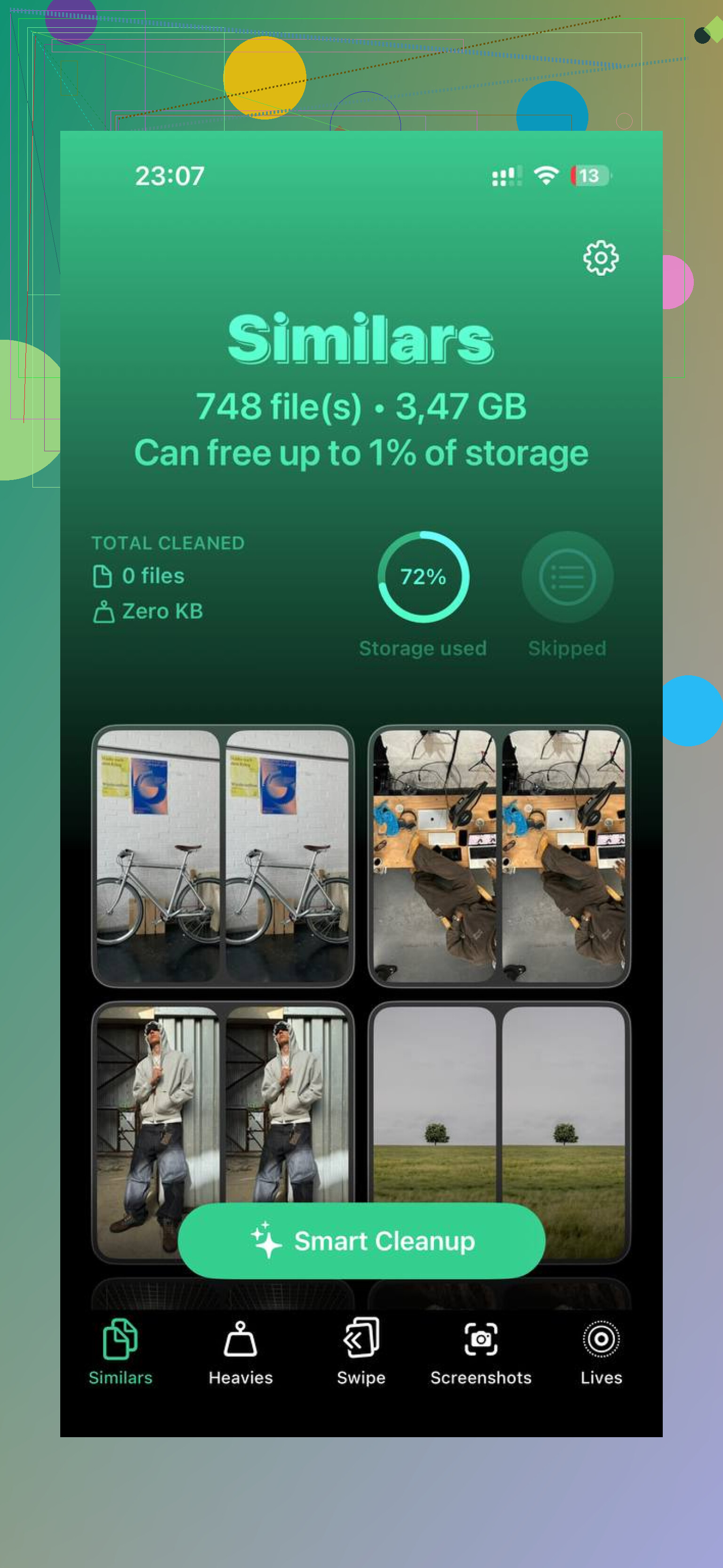
I ended up using Clever Cleaner for this because it made the cleanup less painful. A lot of cleaner apps are sketchy subscription traps, but this one is free and didn’t bury the useful parts behind ads or a paywall.
The most useful part for this situation is the Heavies tab, since it sorts your library by file size. That makes it much easier to delete a few giant screen recordings or old video exports first instead of trying to select thousands of regular photos. The Similars section is also handy if you have a bunch of near-duplicate shots, and the Screenshots area shows file sizes on the thumbnails so you’re not guessing. It also processes on the device, so your photos aren’t being uploaded somewhere else.
Once you clear even a little space, the phone usually starts behaving better. After that, the built-in Photos tools are less likely to choke.
One final step people miss: deleted photos don’t free space immediately unless you empty Recently Deleted. Go to Albums, scroll to Recently Deleted, then choose Delete All. Otherwise they can sit there for 30 days. If the storage number still looks wrong after that, restart the phone. Sometimes iOS needs a reboot before it shows the freed-up space properly.
4 Likes
Favorites is only a label, not a safety lock. If a favorite gets selected in a delete batch, iOS will delete it like any other photo, so I would not treat the heart as protection by itself.
The cleaner way, if you have access to a Mac using the same iCloud Photos library, is to do it there instead of wrestling with the iPhone screen. In Photos on Mac, make a Smart Album for items where “Photo is not Favorite,” select everything in that smart album, then delete. That avoids the whole hide/unhide shuffle and is much easier to review before you hit delete. The catch is the same as mentioned above: with iCloud Photos on, that deletion syncs everywhere. So only do this after anything important is backed up somewhere outside iCloud Photos.
If you only have the phone, I’d do a small emergency cleanup first rather than trying to delete 40,000 items in one shot. Remove a few large videos, empty Recently Deleted, restart, then do the Favorites-hiding method in smaller chunks. It’s slower, but a full iPhone can fail halfway through big selections and leave you unsure what actually happened. The annoying truth is there isn’t a nice built-in “delete everything except favorites” button on iPhone, which is why the workarounds all feel a bit clumsy.
Hiding Favorites as a shield has a quiet downside: if you already have anything in the Hidden album, you can accidentally mix it all together and then unhide private photos you meant to keep hidden.
So the hide-Favorites method can work, but I would not do the “select everything in Hidden and unhide it” part blindly unless Hidden was empty before you started. If you have old hidden photos in there, either leave them alone or make a temporary note of how many Favorites you hid so you know what you’re bringing back.
The other thing I’d be careful about is deleting from the Library view instead of from a specific album. Albums on iPhone are mostly pointers, not separate copies. If you delete a photo from an album the wrong way, you may just remove it from that album, but if you delete it from Library/Recents, it is actually deleted. That distinction trips people up when they’re rushing because the wording changes depending where you are.
If this were my cleanup plan, I’d do it in a more boring order:
- Go to Favorites and make sure the favorites are really marked.
- If you have iCloud Photos on, assume every delete will sync to iCloud and other Apple devices.
- Back up the Favorites somewhere outside Photos if they matter. Even just exporting the most important ones to a computer, external drive, or cloud storage is better than trusting the heart icon.
- Clear a little working room first by deleting a few obvious huge videos.
- Empty Recently Deleted.
- Restart the phone.
- Then do the bulk delete in smaller chunks.
The reason I’d clear space before the big operation is that a completely full iPhone gets weird. It may look like it deleted items, then the storage graph barely moves, or Photos stalls while trying to update the library. Smaller batches are less satisfying, but they make it easier to see what happened.
I’d also avoid the duplicate-Favorites trick if storage is already full. It’s clever in theory, but duplicates need temporary space. If the phone is already choking, asking it to create more media files before deleting anything is asking for more problems.
For a fast imperfect workaround, use the Videos, Screen Recordings, Bursts, and Screenshots media types first. You don’t have to solve the whole “everything except Favorites” problem immediately. Deleting ten large videos can free more space than deleting thousands of normal photos, and once the phone has breathing room, the Favorites cleanup is less likely to fail halfway.
Clever Cleaner or a similar cleaner app can be useful for finding large items faster, but I’d still treat it as a sorting tool, not as the thing that protects your Favorites. The protection comes from having a separate backup and checking what is selected before you delete.
And don’t forget that “delete” is only half the job. Until Recently Deleted is emptied, the space usually is not really available. After that, give iOS a few minutes or restart before deciding it didn’t work. Storage reporting in Settings can lag behind what you just did in Photos.
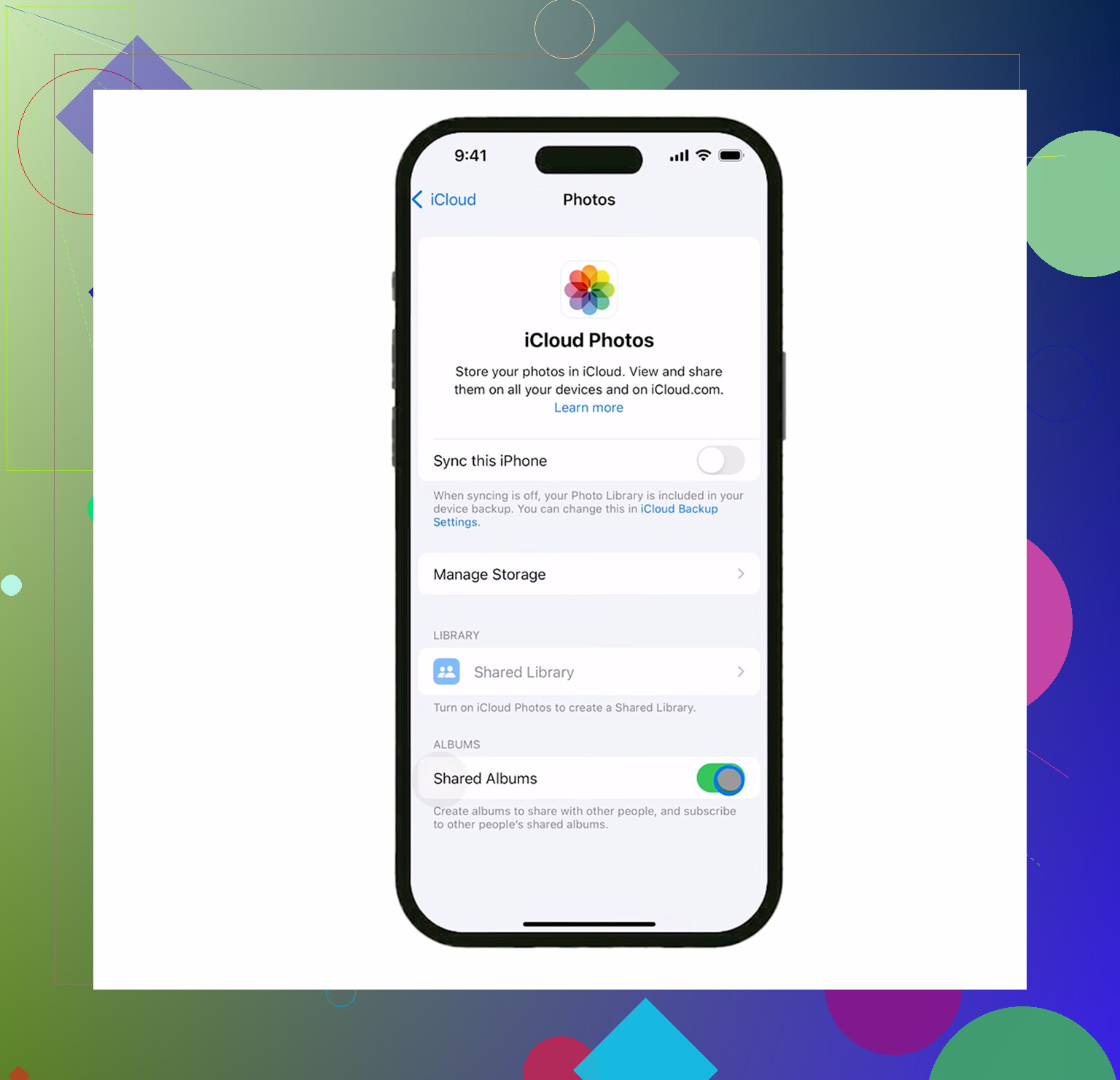
The sneaky downside is that “all photos except Favorites” may not free as much space as you expect if iCloud Photos is set to Optimize iPhone Storage. In that setup, a lot of the non-favorite photos may only be small local previews, while the originals live in iCloud. Deleting them still deletes the real photos from iCloud, but the immediate storage win on the phone can be smaller than people expect. Big local videos are usually where the fast space recovery is.
I agree with @sterrenkijker that doing the actual filtering on a Mac is the least annoying method if you have one. Smart Album: not favorite, review it, delete it. On the phone itself, Apple just doesn’t give you a proper “select inverse of Favorites” button, which is the whole reason these workarounds feel so dumb.
If you are stuck on the iPhone only, I would treat Favorites as “things to preserve,” not “things protected from deletion.” Before doing any mass delete, open Favorites and move the important ones somewhere outside the Photos library if possible. AirDrop to a Mac, copy to an external drive, upload to another cloud service, whatever is realistic. Saving them to Files on the same nearly-full iPhone is not much help because it still uses local storage.
For speed, I would not start with the perfect cleanup. I’d do this first:
- Photos > Albums > Media Types > Videos.
- Delete the obvious huge junk first, especially screen recordings and long clips.
- Empty Recently Deleted right away.
- Restart the phone.
- Then attempt the Favorites-only cleanup.
That gives iOS enough breathing room to handle the boring selection work. Clever Cleaner can fit here if you just need a quicker way to spot huge files, but I would not use any cleaner app as the “thing that keeps Favorites safe.” The safe part is your own backup and checking the delete selection before confirming.
Small annoyance that catches people: if you use the hide-Favorites trick, make sure Hidden is unlocked and visible before you begin, and do not forget that hidden items are still part of the same Photos library. Hiding is only a temporary sorting trick. It is not a backup, not a lock, and not separate storage.