My iPhone storage is almost full, and Messenger seems to be taking up a lot of space. I can’t find a clear cache option in the app, and I’m worried about deleting chats or photos by mistake. What’s the safest way to clear Messenger cache on iPhone and free up storage?
If Messenger is taking up several GB on your iPhone, the most reliable fix is still deleting it and installing it again. iOS doesn’t really give you the same kind of “clear cache” button Android users get, so you’re stuck using the storage options Apple gives you.
You can start with the less aggressive option: Offload App. Go to Settings > General > iPhone Storage > Messenger, then choose “Offload App.” That removes the app itself but keeps your documents, login-related data, and other saved info. After you reinstall it, some temporary junk may be gone, but it’s not always a full reset.
If you want the cleaner version, delete Messenger completely and reinstall it. You can do that from the same iPhone Storage screen or by long-pressing the app icon. That clears the local stuff Messenger has been holding onto, like cached images, thumbnails, videos, stickers, and temporary login files.
Your chat history should be fine. Messenger conversations aren’t just sitting inside the app cache on your phone, they’re tied to your account on Meta’s servers. Once you reinstall and log back in, your chats should come back. The main thing is to make sure you know your password and have access to your two-factor authentication before deleting the app. Cached photos or videos may disappear from local storage, but they can load again when you reopen those chats.
One annoying part: this fix usually doesn’t last forever. Messenger builds its cache again as you use it because that’s how it keeps things loading quickly. Profile photos, stickers, previews, and media start piling back up. So if your phone is still low on storage after clearing Messenger, Messenger may not be the main problem.
In my case, the bigger issue ended up being the Photo Library. Old screenshots, duplicate-looking pictures, burst shots, and huge videos were eating way more space than Messenger. I kept deleting apps and clearing caches, but the phone still felt cramped until I looked more closely at photos and videos.
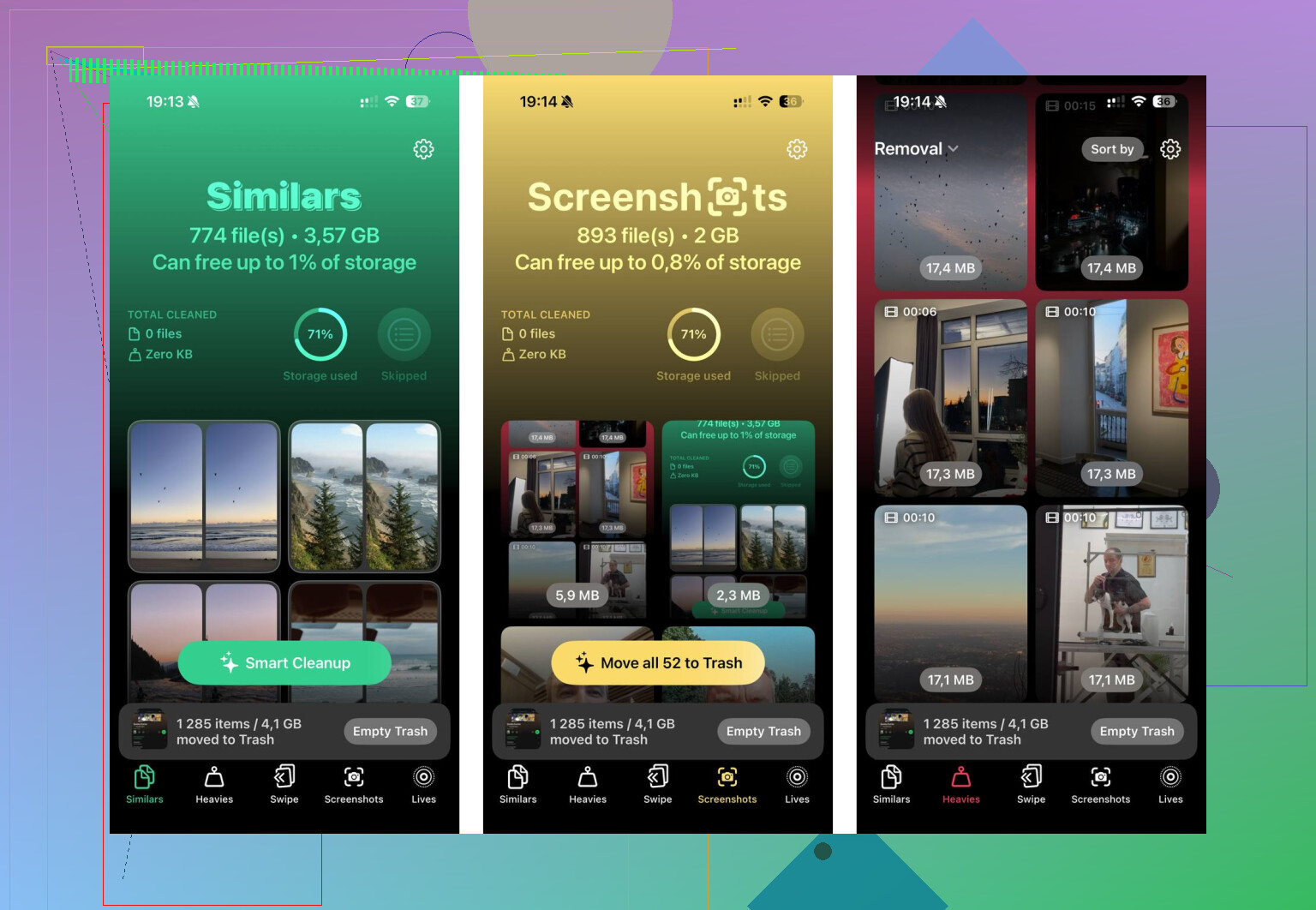
If sorting all that manually sounds miserable, Clever Cleaner is worth checking out. A lot of cleaner apps are sketchy or packed with ads, but this one is actually free, with no trial trap, paywall, or annoying ads.
The useful part is that it helps you find the stuff that actually matters for storage. The Heavies tab sorts media by file size, so instead of deleting hundreds of tiny photos, you can spot one giant video that’s taking up a ridiculous amount of space. It shows the size of each file, which iOS still doesn’t make especially easy.
The Similars tab is also handy. It groups photos that are almost the same, like five shots of the same pet or the same scene where only one is worth keeping. You can pick the best one and remove the extras pretty quickly. It also has a section for old screenshots, which tend to pile up without you noticing.
Another nice thing is that Clever Cleaner processes the photo library on your device instead of uploading your stuff somewhere else to scan it.
Just don’t expect it to clean Messenger itself. It won’t clear app cache or mess with Messenger data. For that, you still need to offload or reinstall the app. But if Messenger cleanup only frees space for a little while, your gallery is probably the next place to look.
15 Likes
The sneaky risk with reinstalling Messenger is not the normal chats, it’s login and encrypted-message access if you don’t have your password, 2FA, or PIN set up correctly.
I’d check those first, then delete and reinstall the app instead of poking around inside chats trying to remove media manually. Offload is safer but weaker; reinstall is the cleaner reset.
Don’t clean it from inside the conversations. That’s where people accidentally remove media or messages they meant to keep. Go by the iPhone Storage screen instead: if Messenger shows a huge “Documents & Data” amount, delete and reinstall is the cleanest fix after you confirm you can log back in. If the number is mostly small or your storage bar is really Photos, Messages, or System Data, reinstalling Messenger may only free a little space and you’ll be chasing the wrong problem. Also empty “Recently Deleted” in Photos after clearing big videos, because iOS won’t give that space back right away until those are gone too.
If your iPhone has almost zero free space, don’t delete Messenger first, because the reinstall can fail until you make room. Clear a small video, downloaded podcast, or old file first, confirm your login works, then delete and reinstall Messenger instead of deleting stuff inside chats.
Offload and delete sound similar but they hit storage differently: offload keeps the Documents & Data, which is the exact cache pile you’re trying to shrink, so it barely helps. Only a full delete and reinstall actually clears that. If your Messenger ‘Documents & Data’ number is small though, skip all this and check Photos first, like @andarilhonoturno said.