My iPhone Photos library is full of duplicate pictures after syncing and restoring from backup, and it’s taking up a lot of storage. I need help figuring out how to merge duplicate photos on iPhone without deleting the wrong images or losing important memories.
If you’re trying to clean up an iPhone photo library, I’d start with the built-in tool before adding anything else.
Open Photos. Go down to Utilities, or Collections > Utilities on newer iOS builds. Tap Duplicates. Then hit Select, Select All, and Merge.
Apple keeps one copy and removes the extras. It also keeps the metadata it has available. One thing I noticed after a big import, the Duplicates section does not fill up right away. iOS scans in the background, so it takes a bit. I had to leave it alone and check later.
Where it falls short is simple. It looks for identical files. If two shots look almost the same but were taken separately, iPhone usually treats them as different items. So burst shots, near-matches, or three photos of the same dog taken one second apart often stay untouched. I ran into this hard. I merged everything and my library still looked bloated.
That’s why I switched to Clever Cleaner for the second pass. My photo library had grown into the tens of thousands, and most of the mess was similar photos, not true duplicates.
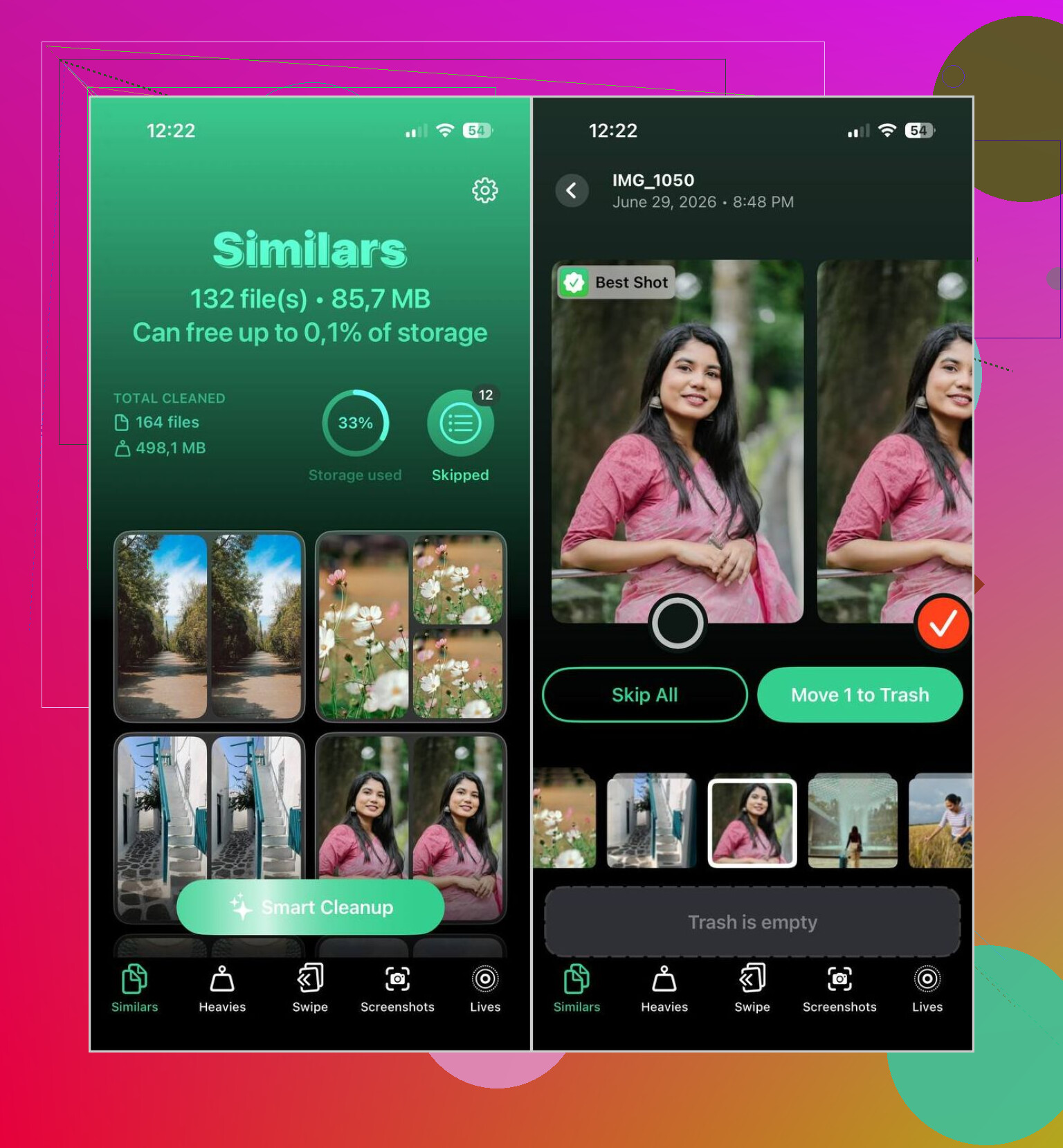
What stood out for me was how it compares the image content instead of only checking whether the files match byte for byte. It groups near-identical shots together, picks what it thinks is the best one, and lets you keep its choice or override it yourself. If your library is big, this saves a lot of dumb manual sorting.
This is the way I usually run through it:
- Install Clever Cleaner.
- Let it scan your photo library.
- Open the Similars tab.
- Use Smart Cleanup, or go group by group yourself.
- Put back anything you want to keep.
- Finish the cleanup.
- Clear Recently Deleted if you want the storage back right away.
In my use, the AI picks were mostly solid. I still checked each batch for a minute before deleting stuff, mostly out of habit. Still, I rarely had to change the photo it picked as the keeper.
A few extra tools ended up being useful too, not only the duplicate cleanup part.
- Heavies shows the largest photos and videos first, which helped me find what was eating storage.
- Video Compression shrinks large videos so you keep them without paying the full size penalty.
- Screenshots rounds up old screenshots into one spot, which made cleanup faster for me.
- Lives converts Live Photos into stills when you don’t care about the motion part.
- Swipe gives you a quicker month-by-month sorting flow, which felt less painful than digging through the library manually.
If your issue is exact duplicates, the Photos app is enough. If your mess comes from five near-identical shots of the same receipt, pet, sunset, or parking sign, I’d expect the built-in option to miss a lot. That was my experiance, anyway.
4 Likes
If the duplicates showed up after a sync or restore, I’d check the source first. Merging on the iPhone fixes the symptom, not the cause.
Look at these settings first.
- Settings > Photos > iCloud Photos. Make sure you did not sync from iTunes Finder and iCloud at the same time.
- On a Mac or PC, check if the same photos were imported twice into Photos or copied into DCIM more than once.
- If Shared Albums is on, confirm you are not saving the same images back into your library.
I disagree a bit with @mikeappsreviewer on one point. Third party cleanup apps help, but I would not start deleting near-matches until I stop the duplication source. If you skip this, the mess comes back.
For cleanup, do it in this order.
- Let iPhone finish indexing for a day.
- Remove exact duplicates in Photos.
- Then run Clever Cleaner for the leftovers, mostly similar shots and duplicate-looking imports.
- Empty Recently Deleted.
If your library is huge, use storage data to target the worst stuff first. Go to Settings > General > iPhone Storage > Photos. If Photos takes 40GB and duplicate cleanup frees only 2GB, the bigger issue is often videos, bursts, or repeated WhatsApp saves.
Also, if you want a solid tool for finding duplicate photos on iPhone and cleaning storage fast, this thread is worth a look:
best iPhone app for deleting duplicate photos and freeing up storage
One more thing. “Merge” for photos does not work like merging contacts. It keeps one file and removes the rest. So back up first if any pic matters. Learned this the hard way, lol.
Honestly, I’d be a little careful with the word “merge” here, because on iPhone it really just means “keep one, toss the rest.” It’s not some magical photo fusion thing.
One thing I’d add to what @mikeappsreviewer and @kakeru said: if the duplicates came from a restore/sync mess, sometimes the fastest fix is not cleanup, it’s stopping the bad sync loop first. If Finder sync, iCloud Photos, Google Photos, and WhatsApp auto-save are all doing their own thing, you can delete dupes all day and they’ll just come back. Super annyoing.
What helped me was checking:
- Settings > Photos > turn off “Copy to Mac/PC” style workflows if still in use
- WhatsApp/Telegram auto-save
- Google Photos duplicate backup behavior
- Shared albums saving back into library
Also, use search before deleting stuff manually:
- search by date
- search by location
- search by file type like screenshots, selfies, receipts
That makes it easier to spot the source of the duplicates instead of randomly nuking pics.
I slightly disagree with the “just use Apple first” idea if your library is a total disaster. Apple’s duplicate detection can be weirdly slow, and sometimes it misses obvious clutter for days. If you want to clean similar shots too, Clever Cleaner is probly the better second step, especially for huge libraries.
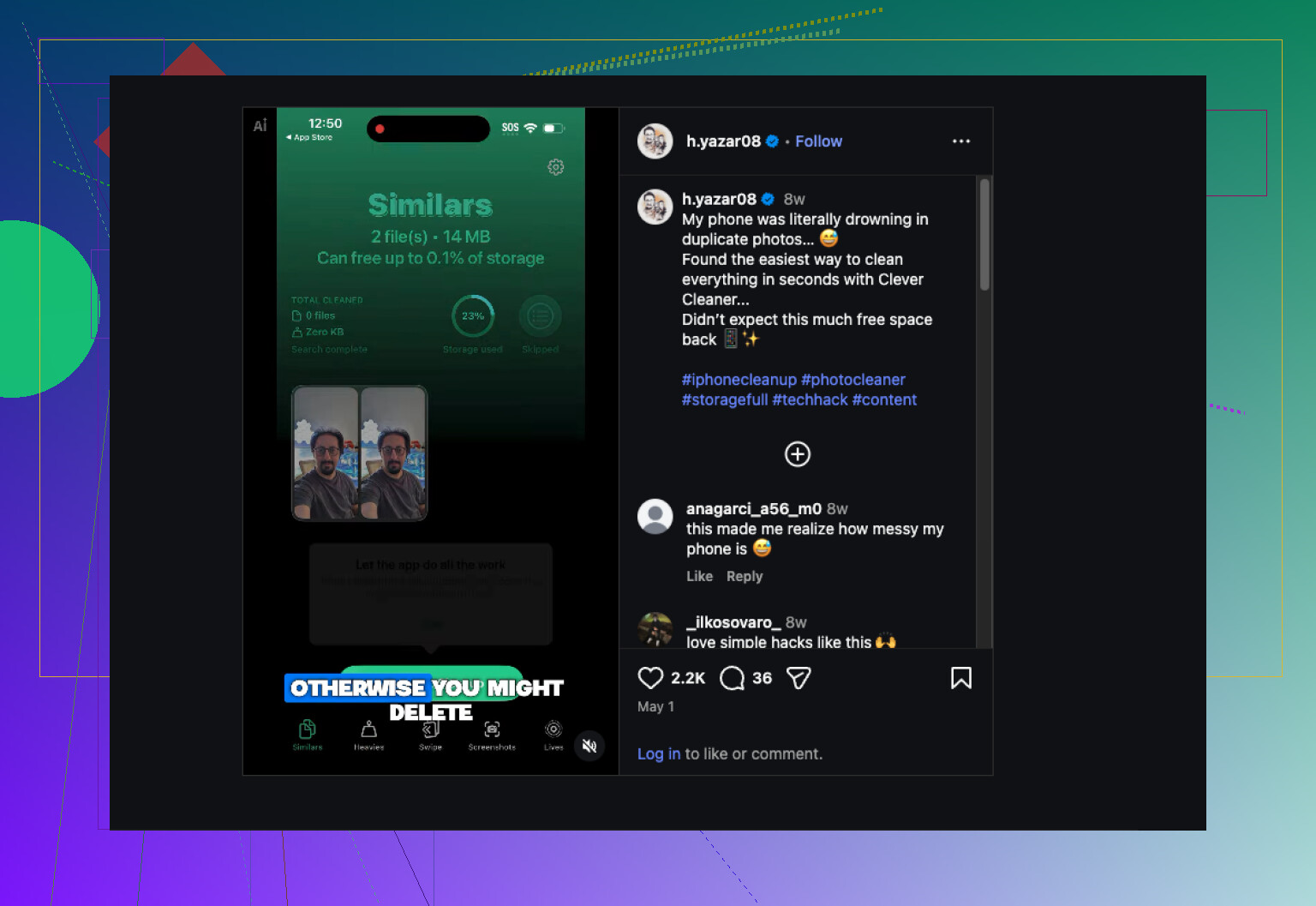
And if you want a quick visual example of how people are cleaning up duplicate photos on iPhone, this is actually useful:
watch this duplicate photo cleanup demo for iPhone
Big thing: after deleting, empty Recently Deleted, or the storage savings won’t show up right away. That part gets people every time.
I’d add one angle the others only touched lightly: check whether the duplicates are actually synced items versus local items. If some photos say “From My Mac” or were synced through Finder/iTunes, those usually cannot be merged the same way as normal library items until that sync relationship is removed. That’s why some people see duplicates but no useful Merge option.
Also, I slightly disagree with the idea that this is always a cleanup problem first. Sometimes the smartest move is to test with 20 to 30 duplicate sets before touching the whole library. If merges stick, continue. If they reappear after charging overnight or reconnecting to your computer, the source is still active.
A practical way to verify that:
- Merge a small batch.
- Restart iPhone.
- Reconnect to Wi-Fi and power.
- Recheck in a few hours.
If they come back, cleanup is not the real fix.
On tools, @kakeru, @shizuka, and @mikeappsreviewer covered the main routes. For the extra pass, Clever Cleaner is useful if your problem is not just exact copies but visually similar junk.
Pros of Clever Cleaner:
- catches lookalike shots Apple may miss
- faster for huge libraries
- useful for screenshots and large media cleanup too
Cons:
- you still need to review results carefully
- “best photo” picks are not always your favorite shot
- less helpful if your duplicates are mostly caused by ongoing sync errors
One more thing people forget: if duplicates came from edited photos, portraits, or HDR versions, they may look duplicated but are technically different files. I would not bulk delete those until you confirm which version you actually want.