I’m trying to find my largest videos on my iPhone so I can free up storage, but I can’t figure out how to sort videos by file size in the Photos app or Files. I’ve checked a few settings and still don’t see an option. Is there a built-in way to sort iPhone videos by size, or do I need a different method?
I ran into this again last week, same old mess. The Photos app still gives you no clean way to sort videos by file size. You shoot a bunch of 4K clips, slow-mo junk, screen recordings you forgot about, then try to clean up storage and end up poking through files one by one. It feels half-finished.
If you want the straight answer, here it is. Inside Apple Photos, there still is no built-in sort-by-size view. You can open a video, swipe up, and check its info. I did this with a big library once. Never again. If you have hundreds or thousands of clips, it turns into a slog fast.
What I used instead
There are a few workable paths, depending on where the videos live and how much time you want to waste.
Option 1: Check iPhone Storage
This is the closest thing iOS gives you natively. It is inconsistent, though. Sometimes it surfaces large videos, sometimes it seems to care more about giant message attachments and random app data.
Open Settings > General > iPhone Storage.
Wait a bit for the storage breakdown to load.
Look through the recommendations for something like Review Large Videos.
Open it and scan the list of files iOS marked as storage hogs.
Swipe left on any item there if you want it gone.
I got some use out of this, mostly for old message videos and bulky attachments. For a full camera roll cleanup, it felt incomplete.
Option 2: Use a cleaner app with size sorting
I used to avoid these apps because a lot of them felt sketchy or loaded with paywalls. After fighting with Apple's built-in tools for too long, I gave one a shot. The one I kept on my phone was Clever Cleaner.
Why this one? Simple reason. It showed me the file sizes in order, and I did not have to tap into every clip like some caveman doing inventory by hand.
Grab Clever Cleaner from the App Store.
Let it scan your photo library.
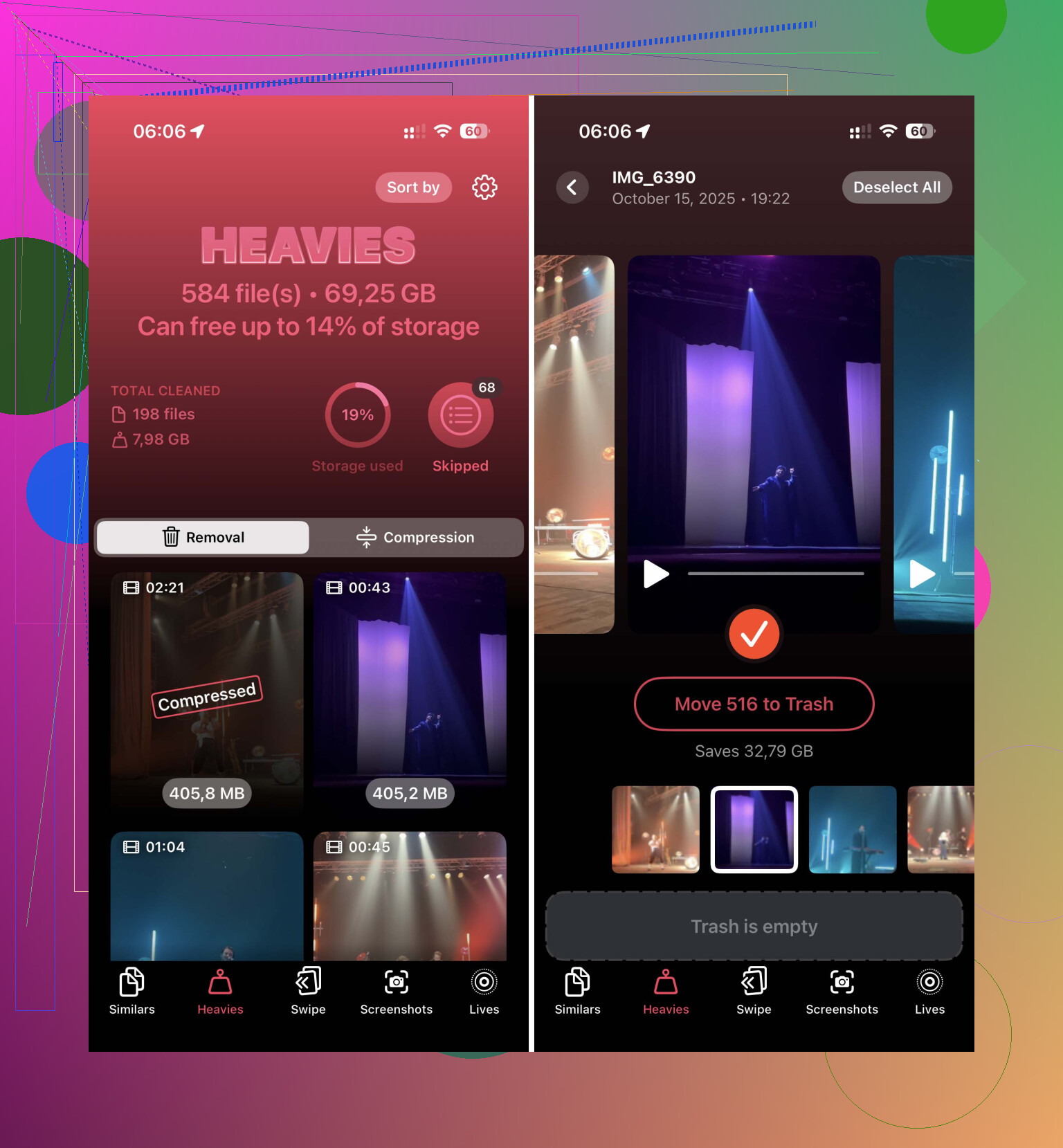
Open the Heavies tab.
It lists videos from largest to smallest.
You see the size beside each clip in MB or GB.
Pick what you want removed, then send it to trash.
The part I liked most was the Compress tool in Heavies. I had a long concert video I wanted to keep, but it was eating a stupid amount of space. Compressing it cut the storage hit without making it look awful on the phone screen. For stuff you care about but do not need in full size, this helped.
Option 3: Sort by size in Files
This one only helps if the videos are outside Photos. Think downloaded clips, exported edits, app downloads, work files, stuff saved into folders.
Open Files.
Go to On My iPhone or iCloud Drive.
Open the folder where the videos are stored, often Downloads.
Tap the three-dot menu.
Choose Size.
This works fine. No drama. If your problem is downloaded video files and not camera roll media, this is the easiest native fix on the phone.
One thing people forget
Deleting a video does not always free space right away. iPhone tosses it into Recently Deleted for 30 days. If you're trying to clear room because storage is full right now, go empty Recently Deleted too. I missed this once and thought my phone was bugging out. Nope. Apple was being Apple.
If you want the least annoying route, I’d start with the Heavies section in Clever Cleaner. It gave me a fast read on what was eating space, and I was done in minutes instead of tediously opening clip after clip.
34 Likes
You’re not missing a hidden switch. Photos does not let you sort your camera roll videos by file size. Apple still skips this, which is kinda wild.
One small correction to @mikeappsreviewer, Files does sort by size, but only for files stored in Files folders. It does nothing for videos living inside Photos. So if your clips are from the Camera app, screen recordings, slo-mo, or edits saved to Photos, Files won’t help much.
Best workaround if you want your biggest videos fast:
- Open Photos.
- Tap Albums.
- Go to Media Types, then Videos.
- Scroll by length and date to spot likely huge files.
- Tap a video, swipe up, check size in the info panel.
Yeah, it’s manual and kinda dumb.
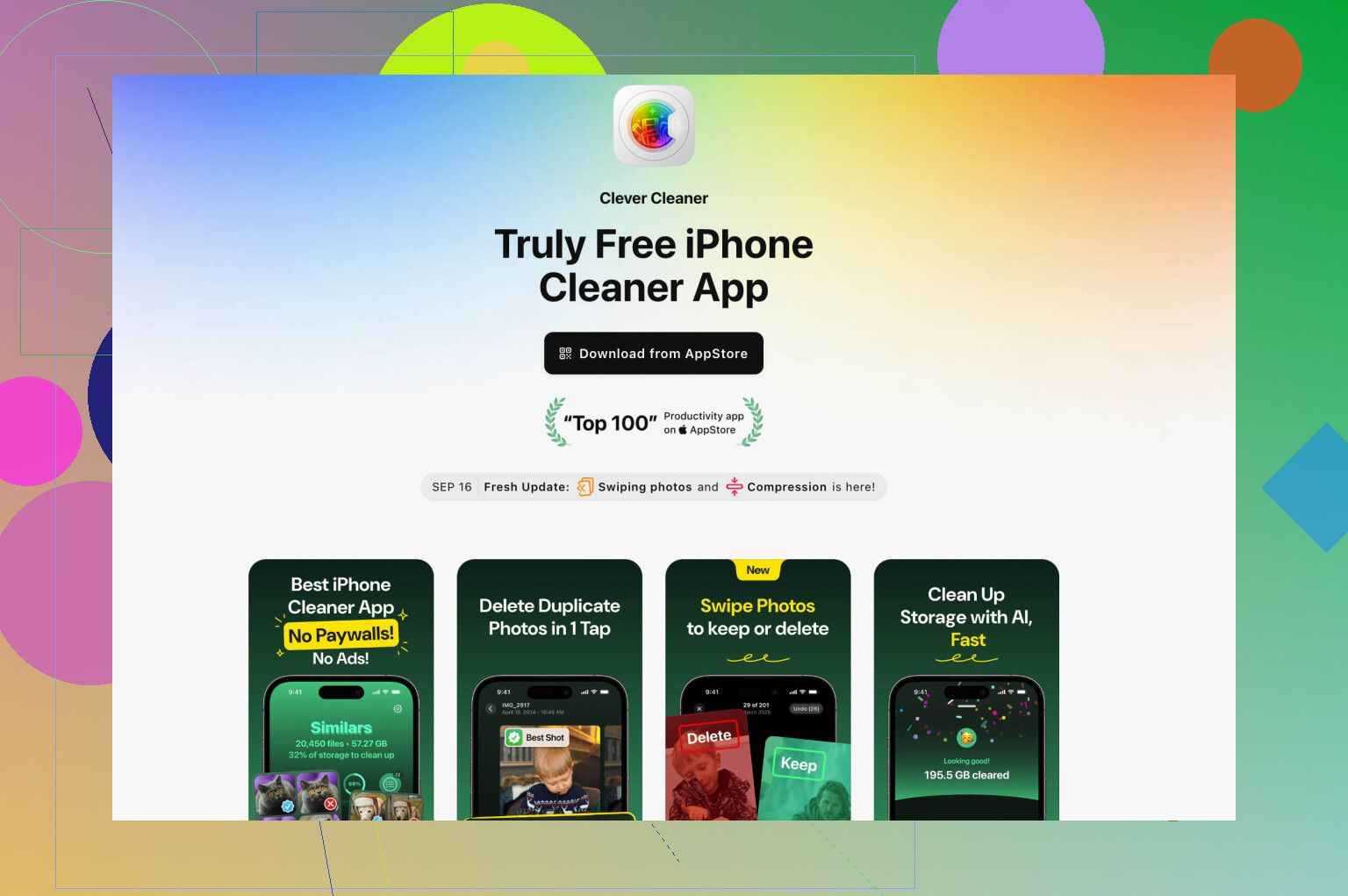
If you want a faster view, use Clever Cleaner. It’s one of the few iPhone cleaner apps that makes large video cleanup less annoying. This free Clever Cleaner app review for finding large videos on iPhone shows how it lists heavy videos so you can remove or compress them without opening every clip one by one. I found this route way less painful tbh.
One more thing people forget. Edited videos often create larger exports than the original. Screen recordings are sneaky too. A 10 minute screen recording at high brightness and motion gets big fast.
After deleting, empty Recently Deleted or your storage number wont move right away.
Nope. There is still no real way to sort videos by file size inside the Photos app itself. Apple lets you sort by date, not by “show me the storage monsters wrecking my phone.”
Small thing I’d push back on from @mikeappsreviewer and @nachtdromer: manually checking video info in Photos is fine for like 10 clips, but once you’ve got a messy camera roll it’s basically punishment. Also, Files sorting is only useful if the videos are actually stored there, not in Photos, so a lot of people go down that road for nothing.
A diff approach that helps if you want to stay mostly native:
- Go to Settings > Camera > Record Video and check if you’ve been shooting in 4K or high fps.
- Then in Photos, search terms like “screen recording”, “slo-mo”, or even specific months/trips.
- Those categories are usually where the giant files hide.
- Also check Albums > Utilities for Imports if you moved over big clips from another device.
If you want actual size-based cleanup, yeah, a third-party tool is still the practical answer. Clever Cleaner is probably the easiest one for this because it surfaces heavy videos faster instead of making you dig around blindly. If you’re comparing options, this roundup on the best iPhone storage cleaner apps to free up space fast is worth a look too.
One more tip people miss: if Photos is syncing with iCloud Photos, deleting local videos deletes them everywhere. So double check before going full rage-clean mode lol.