My iPhone photo library has gotten completely out of control, and now I waste time scrolling for pictures I know I saved. I need help with the best way to organize iPhone photos, albums, tags, and search so I can quickly find family, travel, and important screenshots later.
A huge photo library looks worse than it is. I hit this with a stack of old pics, screenshots, random burst shots, and clips I forgot I even filmed. What helped was doing things in order instead of poking around and making no progress.
Albums do not make extra copies
No. Putting a photo into an album does not clone the file. It works more like a playlist. One image, one stored file, and it shows up in as many albums as you want.
I learned the annoying part the hard way. If you delete the photo from your main library, it vanishes from every album too. If your goal is only to clean up one album, use Remove from Album. Do not hit Delete unless you want it gone from the phone.
Clean first, sort second
If your library is full of junk, organizing it feels like folding laundry on top of more laundry. Blurry shots slow you down. Fifteen versions of the same sunset slow you down. Screenshots from 2021 with no purpose, same deal.
There is also the storage issue. Once your phone gets close to full, things start getting weird. Apps stall. Saving files takes longer. The whole phone feels cramped. I saw this on mine and the lag was not subtle.
For the cleanup pass, Clever Cleaner made it quicker than doing it by hand. It is free, no ads, no subscription wall. If your photo mess goes back years, this is the order I used.
-
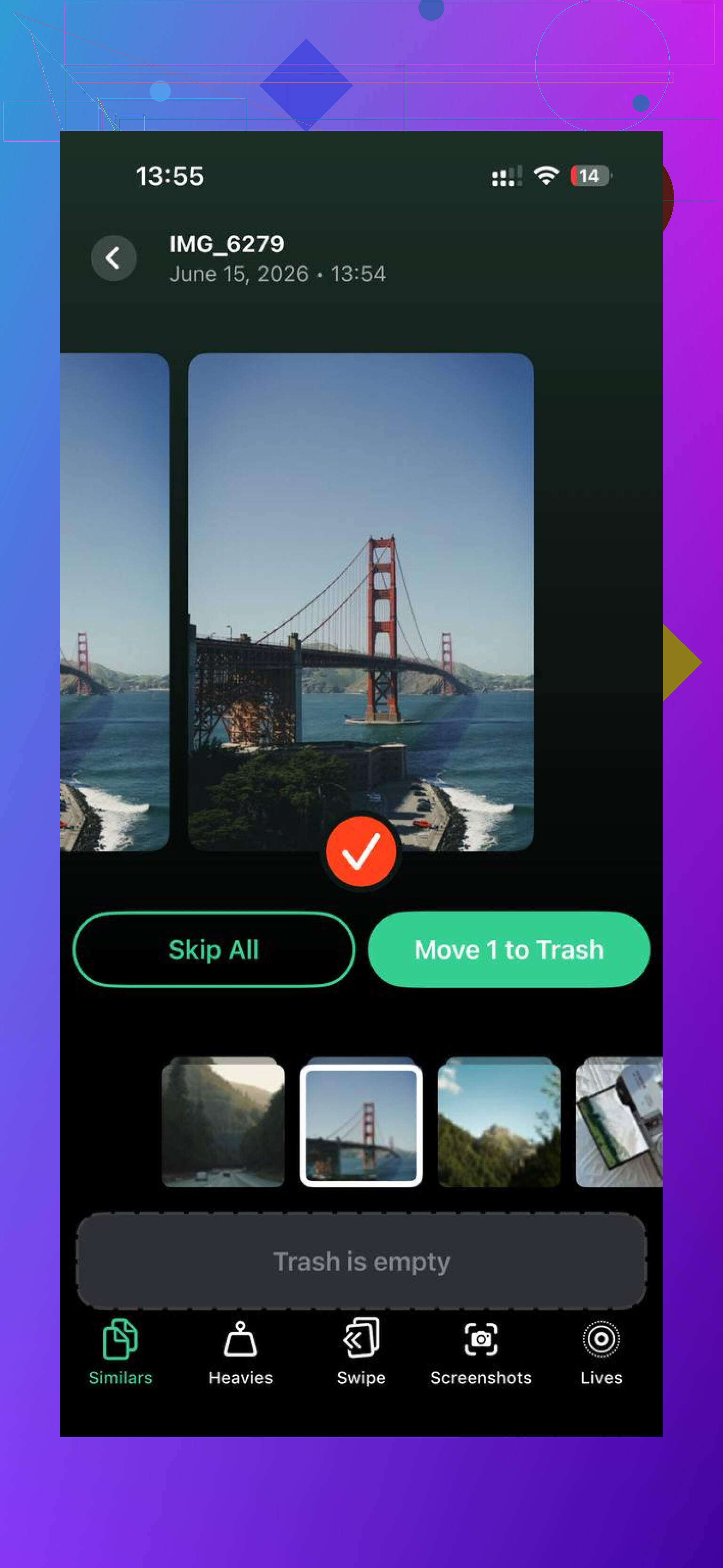
Start with Similars. This was the big one for me. It groups near-matching photos, not only exact duplicates. So if you took eight tries of the same group pic, or a burst where one frame is sharp and the rest are trash, it bunches them together and marks a Best Shot. I kept the good one and dumped the rest. Fast. Kinda satisfying too.
-
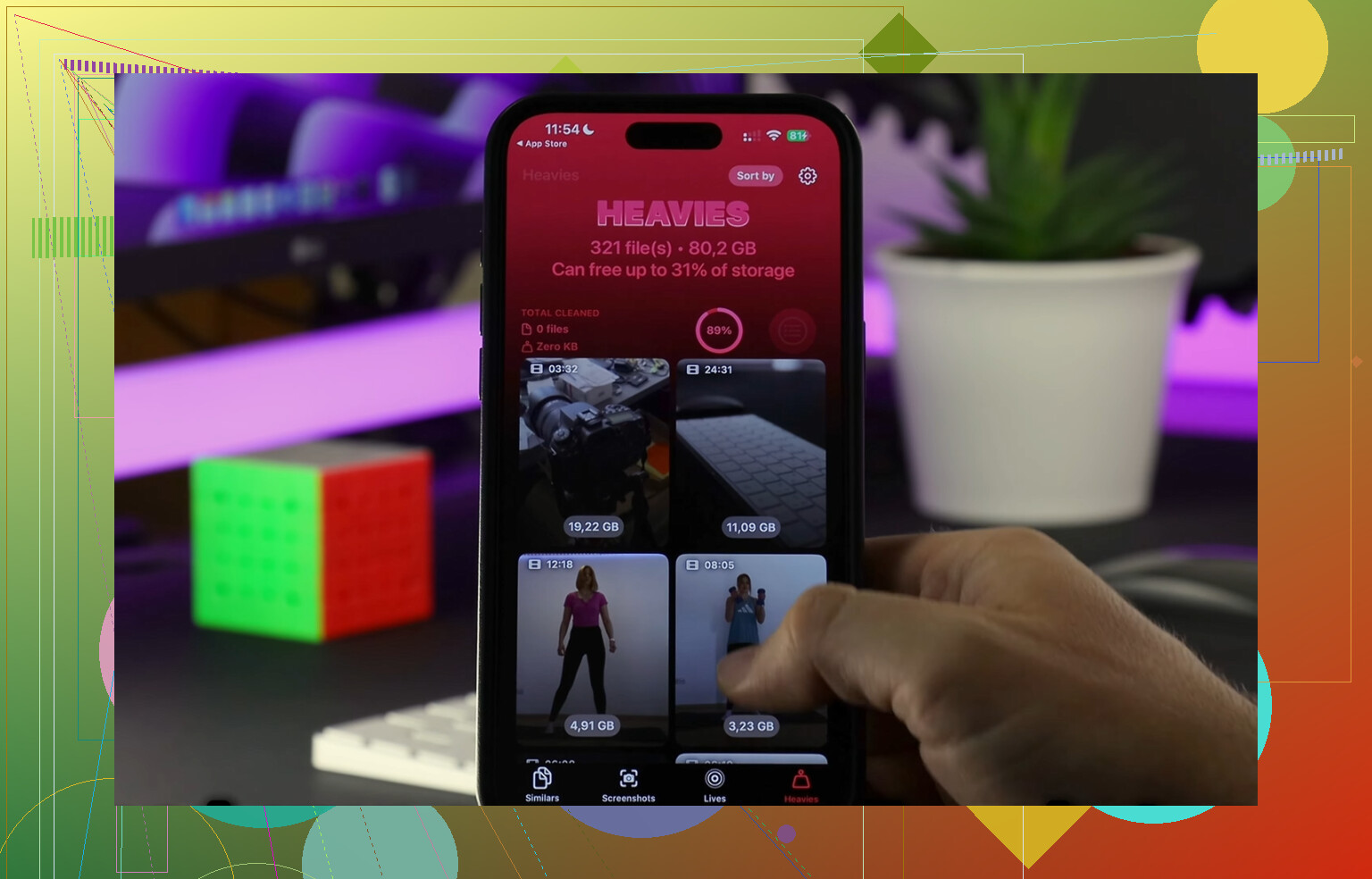
Then check Heavies. This sorts your files by size, biggest first, with the real numbers shown. In my case, a few old 4K videos were eating more space than thousands of normal photos. Deleting those first gave the fastest payoff.
-
Next, look at Screenshots. This tab made me realize how much junk I was sitting on. Receipts, tracking numbers, memes, app settings, random login screens. It shows the file size before removal, which helps when you are deciding whether a screenshot pile is worth clearing. On my phone it was, by a mile.
-
After that, use Swipe mode for older stuff. Photos are grouped by month, which makes the job feel smaller. Left for delete, right for keep. I went month by month instead of staring at the full timeline and giving up after ten secnds.
One part I liked, everything runs on the device. Nothing gets shipped off somewhere else. If your library has years of family photos, IDs, pets, trips, and personal stuff, you notice that detail.
Once I trimmed the junk, the library felt normal again. Smaller, faster, less cluttered. Sorting albums after cleanup took half the effort because I was no longer working around photos I never wanted anyway.
Finding photos later without digging forever
After cleanup, a few habits made a big difference for me.
-
Use Favorites for your best shots only. Treat it like your short list, not a dumping ground. Scrolling a tight set of good photos is way easier than rummaging through the whole library.
-
Use search. The built-in photo search is better than a lot of people think. I typed stuff like dog, beach, birthday cake, and it pulled up usable results without me tagging anything by hand.
-
Put albums inside folders. If you make lots of albums, folders stop the sidebar from turning into another mess. Something like a Vacations folder with separate albums for each trip keeps things readable.
How I kept the camera roll from turning ugly again
The fix was not one giant cleanup. It was maintenance. About ten minutes a week did more for me than one huge weekend session. I deleted the obvious trash, saved the keepers, moved a few things into albums, done.
There is another trick for old backlog. Search today’s date in On This Day and review only the photos from that date across past years. Five minutes here and there chips away at old clutter without turning it into a project you dread.
If your library feels impossible right now, I would not start by making albums. I did that once and it sucked. Clean first. Then sort what earned its place.
17 Likes
I’d split this into two goals. Find stuff fast, and stop future chaos.
I agree with @mikeappsreviewer on one point, cleanup first helps. I disagree a bit on albums coming later for everyone. If your mess is mostly “good photos, bad structure,” set up a simple system first so new pics stop piling into the same problem.
My setup:
- Use 5 to 7 top-level albums only.
Trips.
Family.
Work.
Receipts.
Pets.
Favorites.
Reference.
If you make 30 albums, search gets worse, not better.
-
Rename nothing. Add context with captions.
Open a photo, swipe up, add a caption like “passport renewal 2026” or “Jake birthday cake.” iPhone Photos indexes captions. Search finds them later. This is the closest thing to tags on iPhone, and it works better than most people think. -
Use people and pets.
Train the People & Pets section. Name faces. Fix wrong matches. After a week or two, finding “Mom at beach” gets way faster. This saves more time than album sorting, imo. -
Build smart habits for screenshots.
Don’t store screenshots in general albums. Keep one Screenshots album for temporary stuff, then clear it weekly. Screenshots are where photo libraries go to die, lol. -
Use location and date on purpose.
If you travel, search by city plus month. “Chicago March” is often faster than scrolling. Same for events, “Austin wedding,” “Boston hotel,” etc. -
Use Favorites like a shortlist, not a storage bin.
Mine stays under 300. If it grows past that, it stops being useful.
If your library is packed with dupes and old junk, Clever Cleaner is worth a look before you reorganize. This free AI iPhone photo cleaner review explains how it handles similar photos, big videos, and screenshots without making the process a slog.
Best rule I learned, organize for retrieval, not for perfection. If you find a photo in 10 seconds, your system works. If you need to rember which album you filed it in, it doesnt.
I’d actually push one thing a little differently than @mikeappsreviewer and @ombrasilente: don’t rely too much on albums as your main system. Albums are fine, but on iPhone the real power is search + captions + face recognition. Albums are backup structure, not the whole plan.
What worked for me:
- Make a “triage” workflow, not a perfect filing cabinet.
Every week:
- delete junk
- favorite the best 1 or 2 from an event
- add a caption to anything important
- Caption the photos you will need later.
Stuff like:
- “car insurance card”
- “kids school form”
- “Vegas hotel parking spot”
- “grandma birthday 2025”
That makes iPhone search wayyyy better. It’s basically tagging without a tagging app.
- Create utility albums, not memory albums.
Instead of 40 albums for every event, make a few useful ones:
- Need Soon
- Documents
- Selling Stuff
- Home Projects
- Medical
- Travel
You can always search “beach” or “dog” for fun pics. Albums should be for things you must retrieve fast.
-
Use hidden for clutter you can’t delete yet.
Not forever. Just to get visual junk out of the main library while you decide. -
Sort videos separately.
Videos are where libraries get bloated and harder to browse. I clean those first now.
If the library is already a disaster, then yeah, Clever Cleaner helps before reorganizing. Similar shots and screenshots are the obvious win. Also, if privacy is your concern, I found this useful: is Clever Cleaner safe for private iPhone photos.
Biggest lesson: if you need to remember what album something is in, the system is too complicated. Keep it boring and searchable. Thats the only way I’ve kept mine under control.
I’d keep one thing from @ombrasilente, @boswandelaar, and @mikeappsreviewer, but not all of it: don’t overbuild albums, and also don’t trust search alone. iPhone search is good, not magic. It still misses weird edge cases like receipts, whiteboards, serial numbers, or photos you took in bad lighting.
What worked better for me was a 3-layer system:
Layer 1: Let the Library stay chronological
Don’t fight the main camera roll. It is basically your inbox.
Layer 2: Make only “retrieval albums”
Not albums for every vacation or birthday. Albums for things you need to find under pressure:
- Docs
- Receipts
- Home
- Car
- Travel
- Work
- To Review
That’s it.
Layer 3: Add captions only to important photos
Not every photo. Only the ones Future You will search for. Example:
- water heater model
- tax receipt 2025
- parking spot B2
- passport application
That gives search something concrete to hit.
One thing I disagree with a little: using Hidden as an organizing tool can backfire. Out of sight becomes out of mind, and then Hidden turns into another junk drawer. I’d rather use a temporary album called To Review and empty it every Sunday.
Also, use shortcuts in album names so they sort together:
- DOCS - IDs
- DOCS - Insurance
- HOME - Repairs
- TRAVEL - 2026
That makes scanning albums much faster.
If your library is already packed with dupes and junk, then yeah, clean first. Clever Cleaner is useful for that part.
Pros of Clever Cleaner
- fast at finding similar shots
- good for screenshot clutter
- helps surface giant videos fast
- easier than manual cleanup
Cons
- AI “best shot” picks are not always your favorite shot
- you still need to review before deleting
- cleanup apps solve clutter, not your filing system
So my rule is simple: albums for urgency, captions for search, Library for everything else. That’s way easier to maintain than trying to become a full-time archivist for your phone.