I’m trying to delete or permanently hide the Hidden album in the iPhone Photos app, but it keeps showing up again. I’ve already checked my Photos settings, and I need help figuring out if there’s a way to stop the Hidden album from coming back on iOS.
The main thing to know is that the iPhone Hidden album is not really a separate vault. It is part of your Photos library with a couple of visibility and lock settings layered on top. That is why some issues with it feel weird, like the album vanishing, Face ID not showing up, or deleted items still taking space.
Check the Hidden album settings first
There are two different toggles under Settings > Photos that matter here.
Show Hidden Album decides whether the Hidden folder shows up in Photos under Utilities. If you turn this off, the album disappears from the Photos app, but the photos inside are still there.
Use Face ID decides whether the album requires Face ID before opening. If you turn that off, the Hidden album is still visible, but it will open without a biometric check.
If you tap Hidden and Face ID does nothing, iOS should eventually fall back to the passcode prompt. If that never appears, restarting the iPhone usually clears the glitch.
Deleting everything from Hidden
Go to Photos, open the Albums tab, scroll down to Utilities, then tap Hidden. From there:
- Tap Select in the top-right corner
- Drag across rows if you want to select a lot of items faster
- Tap the trash icon
That only moves the items to Recently Deleted. They are not fully gone yet, and they still count against your storage for up to 30 days.
To actually free the space, go back to Utilities, open Recently Deleted, and choose Delete All. If you deleted something by mistake, this is also where you can recover it before the 30-day window runs out.
iCloud Photos makes deletion sync everywhere
If iCloud Photos is turned on, deleting hidden photos on your iPhone also deletes them from iCloud and any synced iPad, Mac, or other device. The Hidden album is just a filtered part of the same library. It is not local-only storage, so this method cannot remove something from the phone while keeping the iCloud copy.
The bigger storage problem is usually outside Hidden
Cleaning the Hidden album can help, but it is often a small part of the issue. Most of the wasted space is usually in the regular photo library: repeated shots, burst photos, old screenshots, huge videos, and stuff that was saved once and never looked at again.
When an iPhone is almost full, iOS starts getting sluggish. The camera may open slower, apps can stutter when switching, and background tasks do not run as smoothly. Emptying Hidden is worth doing, but it usually will not recover enough space if the rest of the library is messy too.
Clever Cleaner cannot clean the Hidden album, because Apple does not let third-party apps access that folder. For Hidden, the manual cleanup steps above are the only real option.
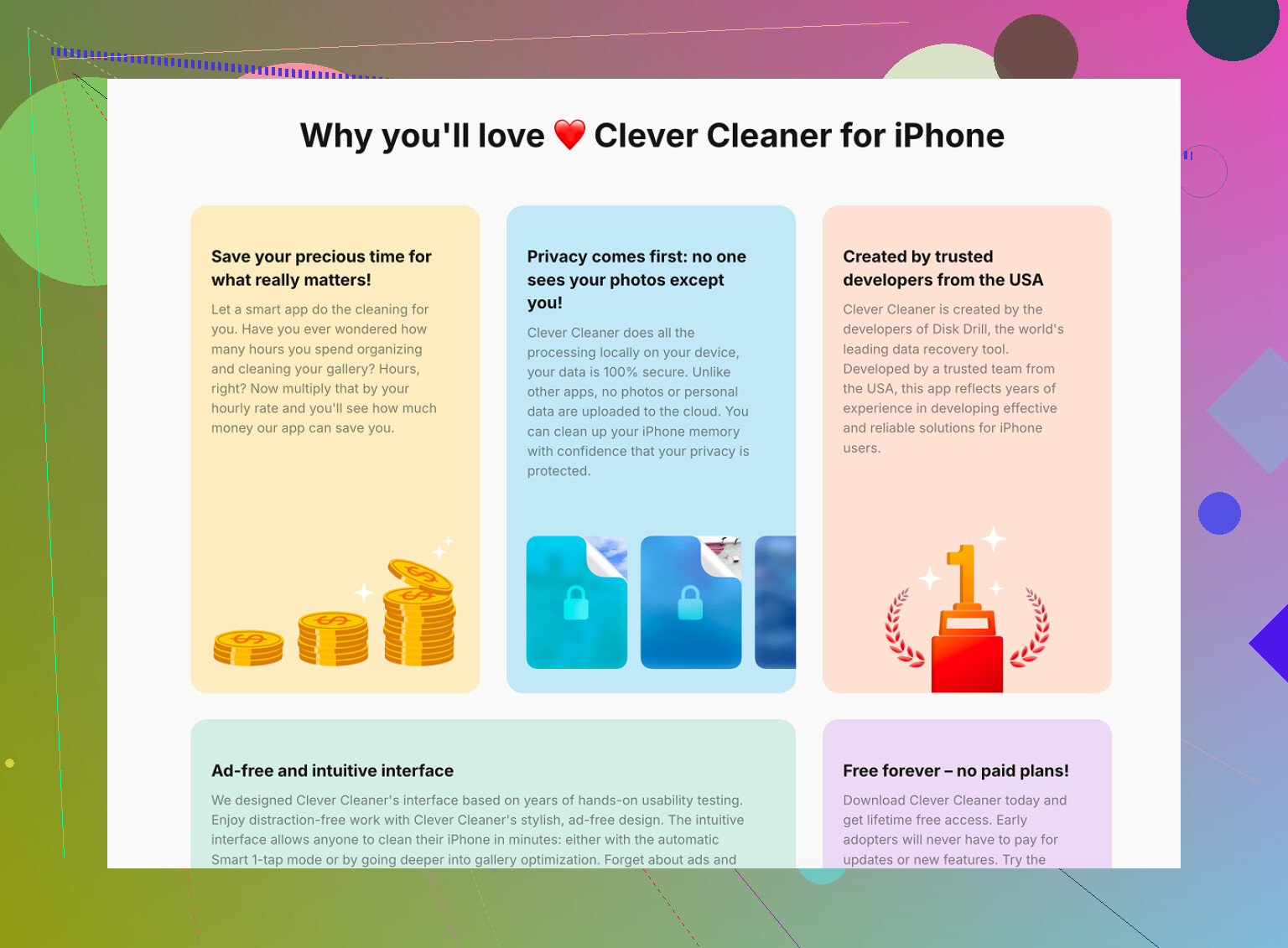
For the normal photo library, though, it is free, with no ads and no subscription.
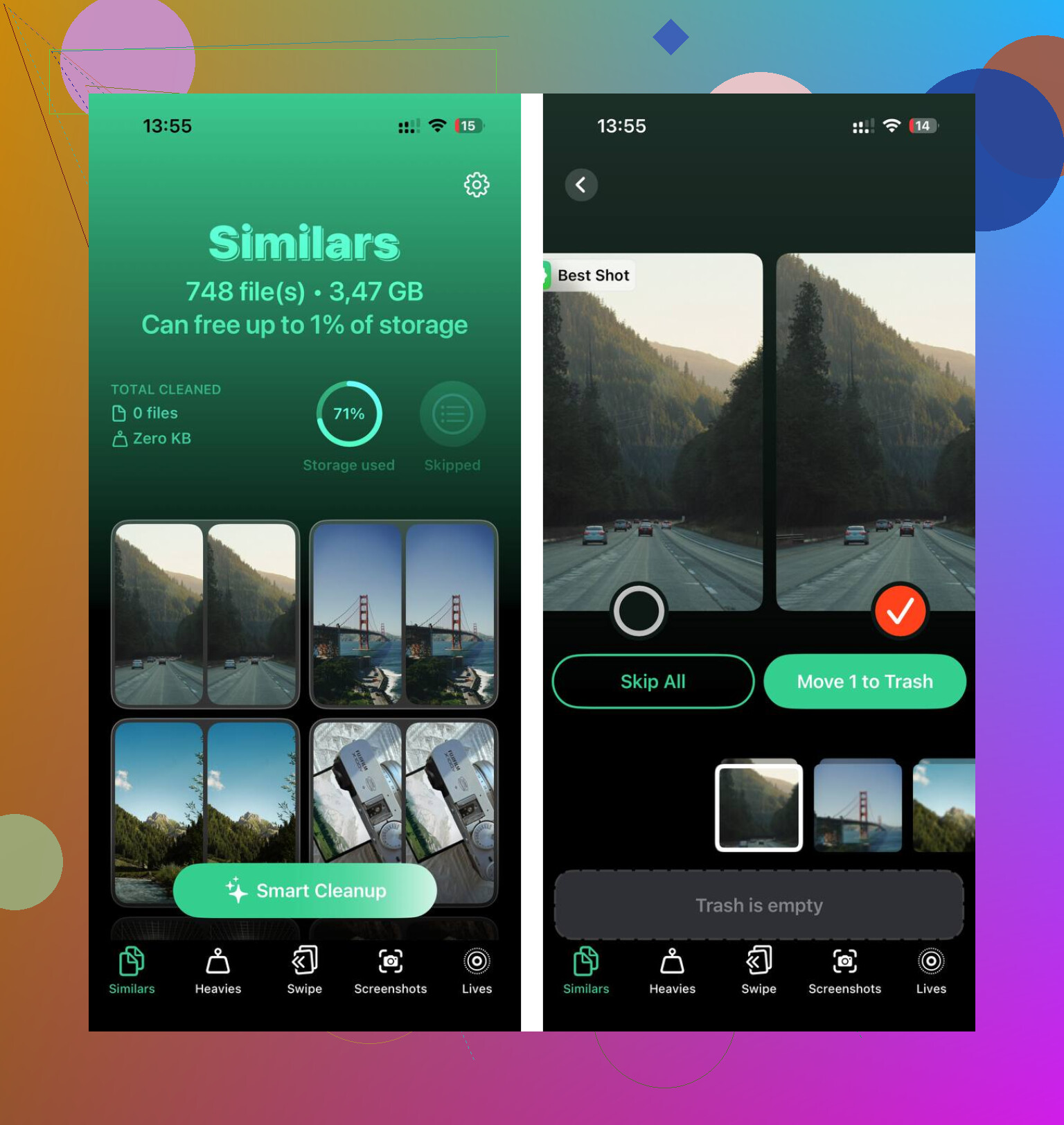
The Similars tab scans the library and groups photos that look nearly the same. It suggests a Best Shot in each group, usually the sharpest one, so you can clear the extras without opening every single photo.
The Heavies tab is more direct. It sorts files from largest to smallest, which is useful because a few big videos can take up more space than thousands of regular pictures.
It also shows file sizes on screenshots before you delete anything, which makes it easier to decide what is actually worth removing.
The scan and cleanup run on the device. Nothing gets uploaded or sent out during the process.
16 Likes
If you mean delete the photos inside it, yes; if you mean remove the Hidden album as a built-in Photos feature, no. @mikeappsreviewer is right that it is not a separate folder you can uninstall. The closest permanent option is to empty Hidden, empty Recently Deleted, then turn off Show Hidden Album in Settings > Photos. If it “comes back,” check whether another iPhone, iPad, or Mac on the same iCloud Photos library still has hidden items, because syncing can make it look like the album returned on its own. The album itself may still exist in iOS, but with the setting off it should not be visible in Photos.
If the album is visible but empty, that’s a different problem from hidden photos actually coming back. The first is just Apple’s built-in Photos layout showing a utility album. The second means something is restoring or syncing items back into your library.
I agree with @cazadordeestrellas on the iCloud angle, but I’d check the boring stuff too: do you have Shared Library, an old iPad/Mac signed into the same Apple ID, or another device where the photos were hidden but not deleted? If you delete from Hidden on the phone but don’t empty Recently Deleted, or another device still has the items and sync catches up later, it can look like the iPhone “recreated” the album.
Blunt answer: you can’t delete the Hidden album as a feature. You can only hide the Hidden album from view with Show Hidden Album turned off, lock it with Face ID/passcode, or remove the photos inside it. And no cleaner app is going to remove that album either, including Clever Cleaner or anything similar, because Apple does not give apps control over that protected section. If it keeps showing in Photos after you turned it off, I’d restart the phone, confirm Settings > Photos > Show Hidden Album is still off, then check other Apple devices tied to the same Photos library.
Don’t waste time hunting for a way to uninstall the album, it doesn’t exist and you’ll just keep circling back. Since you said it ‘keeps coming back,’ the real tell is a second device or Shared Library re-adding hidden items, so check there before you touch settings again.