My iPhone storage is almost full, and I noticed my Photos app is packed with old screenshots and duplicate pictures. I’m trying to clean everything up quickly, but I can’t figure out the easiest way to remove both without deleting photos I want to keep. I need help finding the best way to delete screenshots and duplicates on iPhone safely.
I hit this wall after realizing my phone was stuffed with screenshots I didn't even remember taking. Login codes, shipping updates, random memes, maps, receipt screens, all of it. It sneaks up on you. One file might be a few hundred KB, another one is over 2MB, and if you use a newer iPhone with a sharper display, the total gets ugly fast. Mine had grown into a few GB before I noticed.
What annoyed me most was Photos. It shows the screenshots, sure, but it does not tell you which ones are the space hogs while you're sorting through them. No file size view in the grid. No clean way to attack the worst offenders first. I was deleting blind.
What worked better for me
I had a better time starting with Clever Cleaner because it shows the stuff Photos hides. This video covers the same idea: https://www.youtube.com/watch?v=PJZfJnOUmRE
The app is free, no ads, no paywall popping up every second. In the Screenshots section, each thumbnail shows the exact file size. I liked this more than I expected. You look at a screenshot and already know whether deleting it gives you 300KB back or 3MB.
Then there is the Heavies section. This part helped most. It ranks your library from biggest file down, so the giant screenshots float right to the top. Full-page captures, oversized images, odd HDR saves, all the bulky stuff shows up first. I stopped wasting time on tiny junk and started with the files doing the most damage.
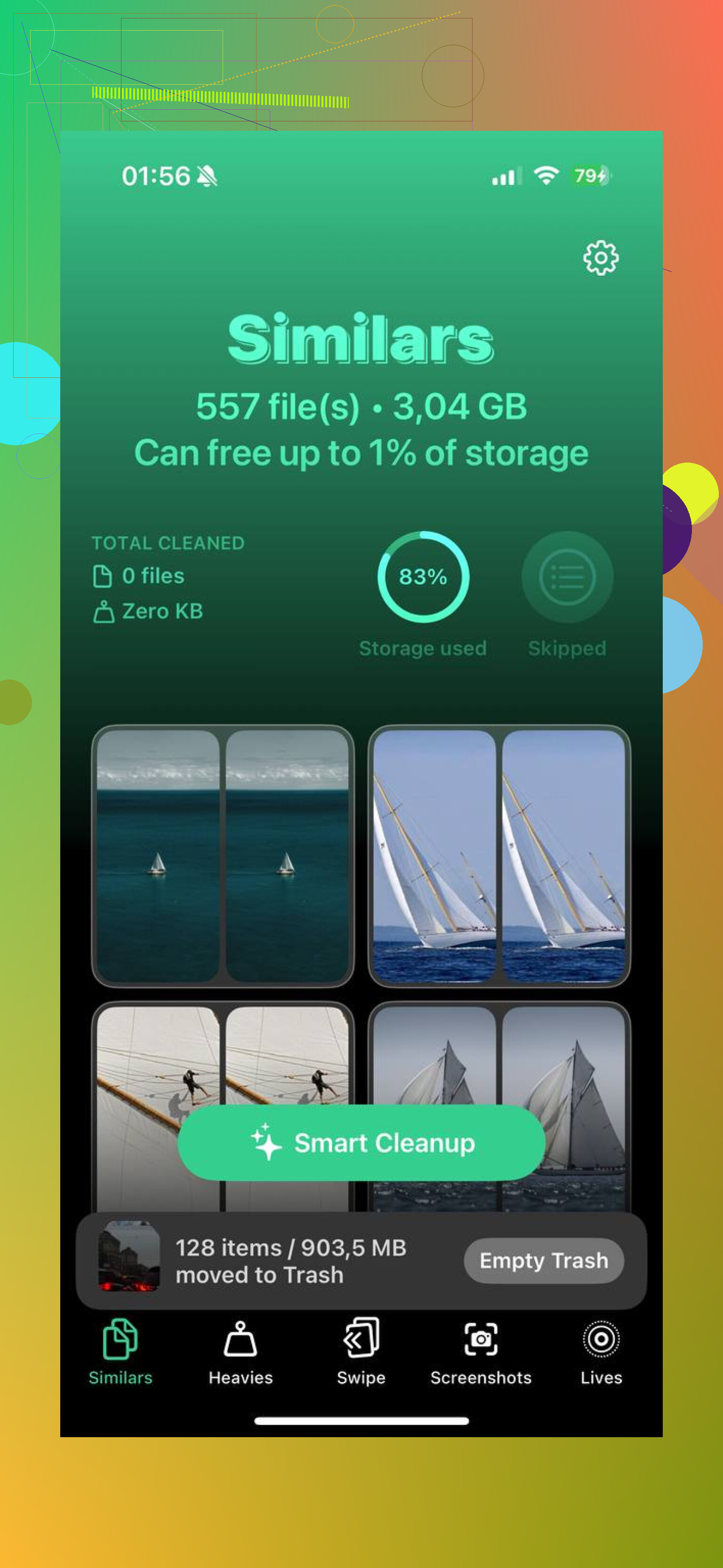
The Similars tool is separate, and it deserves it. iOS 18 spots true duplicates, but it still misses those near-matches where you took five versions of the same screen because your thumb slipped or the crop looked off. Clever Cleaner grouped those sets for me and let me keep one. The rest were easy to dump. Fewer taps, less second-guessing.
If you're doing it with Photos only
Open Photos, go to Albums, scroll to Media Types, then open Screenshots. On iOS 18, I had to swipe across the Media Types row to even find it. Apple moved things around again. If you want it easier next time, go to the bottom of Albums, tap Customize and Reorder, then move Media Types higher up.
Inside the Screenshots album, tap Select. After that, tap one thumbnail and drag across, then downward, to grab a big chunk at once. This part matters though. If your storage is already close to full, deleting hundreds in one shot made Photos hang on me. Not every time, but enough times. Smaller batches worked better. I stayed around 50 to 100 per round and it was less of a mess.
The part people miss
Deleting screenshots from the main library does not free the storage right away. They go into Recently Deleted and sit there for 30 days. If you need space back now, open Recently Deleted under Utilities, tap Select, then Delete All. That is the step where the storage comes back.
How I stopped feeding the problem
For throwaway screenshots, I started using Copy and Delete. You take the screenshot, tap the preview, hit Done, then pick Copy and Delete. The image goes to your clipboard, so you paste it into a text or email, and Photos stays clean. I use this for 2FA codes, order confirmations, and stuff I only need for a minute. Small habit, big diffrenece.
If you removed the wrong thing
First stop is Recently Deleted, since it keeps files for 30 days. If you already emptied it, recovery software is the route I trust more than hoping iCloud happened to back up the right version at the right time.
Once I cleared mine out, the phone felt less clogged. Storage dropped, Photos stopped lagging as much, and I was no longer staring at thousands of useless captures.
6 Likes
Do both from the Photos app first. It is faster than people make it sound.
- Open Photos, then scroll to Utilities.
- Tap Duplicates. Merge all the obvious copies first.
- Go back, then use the Screenshots album.
- Hit Select, swipe through chunks, delete them.
- Empty Recently Deleted right after, or your storage number barely moves.
I disagree a bit with @mikeappsreviewer on one point. Third party apps are useful, but for true duplicates, Apple’s built in Duplicates tool is safer becuase it keeps photo data and metadata cleaner in my experience.
If Photos feels too slow, use Clever Cleaner for the second pass. It helps more with similar shots than exact duplicates, and it is easier when your library has a lot of junk mixed in. If you want a quick overview first, this easy Clever Cleaner review for iPhone photo cleanup breaks down what it does.
One more trick. In Photos, sort screenshots by oldest first and kill the ancient stuff. Those old app login grabs and reciepts add up fast. On a full phone, even clearing 500 to 1,000 images often frees a few GB, dependng on screenshot quality and Live Photos dupes.
I’d actually split this into 2 passes, not try to do both at the exact same moment. That sounds slower, but it’s less chaotic.
@shizuka is right that Apple’s built-in Duplicates tool is the cleanest place to handle exact copies. I kinda disagree with @mikeappsreviewer on starting with screenshots first if your library is a mess, because duplicates usually take less decision-making. Merge those fast, then go after screenshots with a harsher filter.
What helped me most was this rule: if a screenshot is older than a few weeks and not tied to travel, taxes, work, or a purchase dispute, delete it. Brutal, but effektive.
If Photos starts lagging or you want to remove near-duplicates too, Clever Cleaner is worth using for the second round. That’s where it beats Photos a bit, since Apple is decent with true duplicates but not always with those “same pic, 4 tries” situations.
Also, check whether screenshots are being backed up to iCloud Photos before you go wild. Deleting locally deletes there too, which catches people off guard.
For extra reading, this thread on best free iPhone cleaner apps for clearing duplicate photos and junk has some useful user opinions without a bunch of marketing fluff.
Biggest tip: after every cleanup round, reopen Storage and wait a minute. iPhone storage numbers are weirdly slow to update sometiems.
I’d actually do screenshots first if storage is critically low, so slight disagreement with @shizuka and @sterrenkijker there. Reason: screenshots are low-risk deletes. Duplicates sometimes need a second look in case one version has edits, captions, or different metadata.
My cleaner way to handle it:
- In Settings > General > iPhone Storage, check whether Photos is really the main problem
- In Photos, remove the obvious junk category first: screenshots, screen recordings, memes, temporary receipts
- Then handle duplicates and near-duplicates after the easy win
Why this order works:
- screenshots are usually disposable
- you free space faster
- Photos tends to behave better once the library is a bit lighter
One thing @mikeappsreviewer touched on indirectly that matters a lot: videos and screen recordings are often worse than screenshots. If you are cleaning manually, don’t ignore those.
If the built-in Photos cleanup feels clumsy, Clever Cleaner is decent for doing a broader sweep.
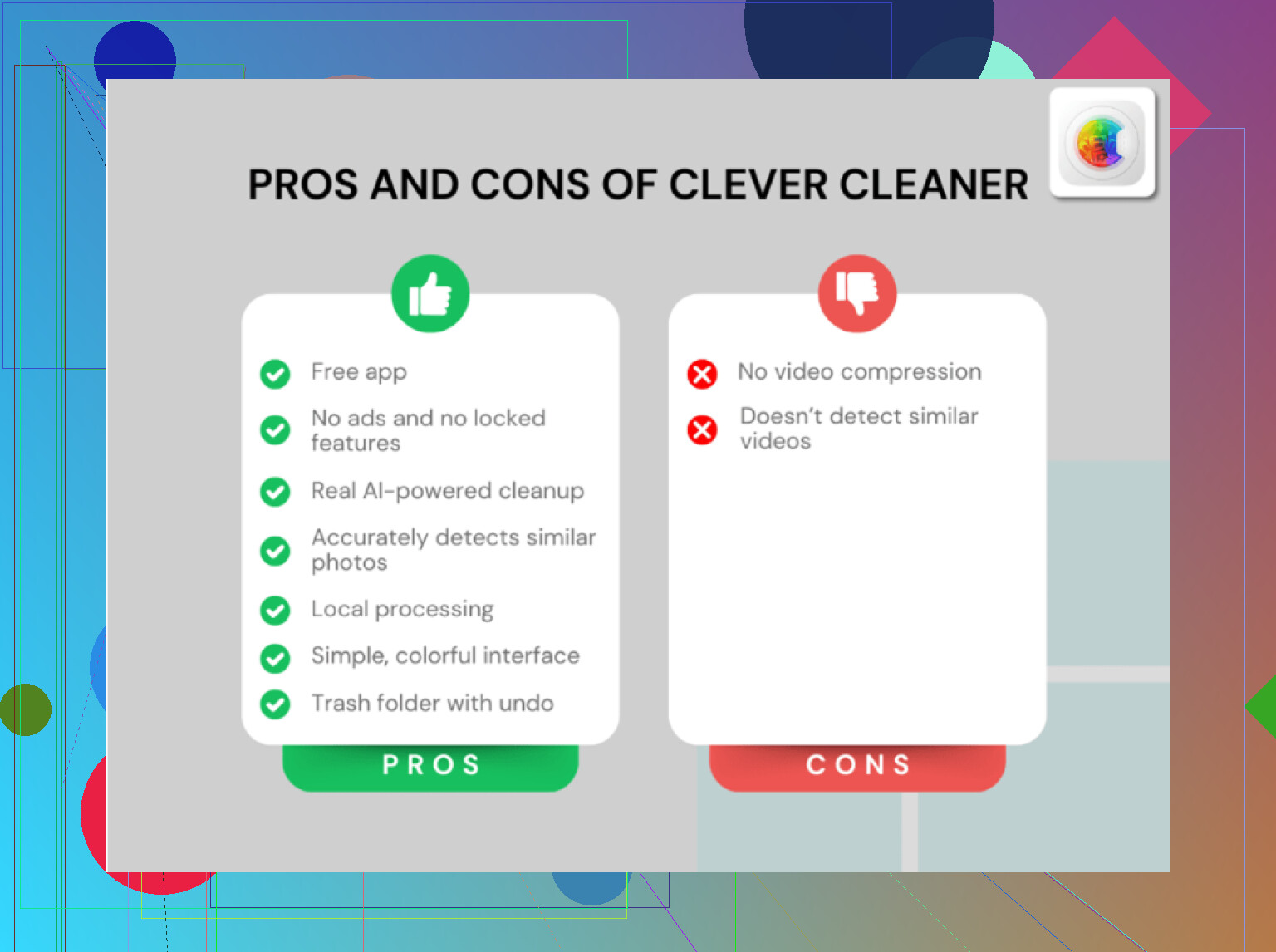
Pros of Clever Cleaner
- easier to spot similar shots, not just exact duplicates
- can surface large files faster
- less tedious than tapping through Photos
Cons of Clever Cleaner
- still requires review if you care about keeping the best version
- third-party app access to your photo library may make some people uncomfortable
- Apple’s own duplicate merge is usually safer for exact duplicate metadata handling
So my vote:
- obvious junk screenshots and screen recordings
- exact duplicates in Photos
- similar photos in Clever Cleaner if needed
That gets you space back fastest with the least regret.