My iPhone storage is almost full, and I think temporary files, cache, or system data may be taking up more space than they should. I want to free up storage and improve performance, but I’m worried about deleting something important or causing problems with my apps. What’s the safest way to clear temporary files on an iPhone without breaking anything?
Seeing “System Data” eat more space than your apps feels broken. I ran into this on my iPhone too. Apple does not spell out why it happens, and the fix is scattered across settings nobody checks.
Why tiny apps end up sitting on huge piles of junk files
Here’s what I noticed. Apps like Instagram, TikTok, Spotify, and browsers keep local copies of stuff you already viewed. Video chunks, thumbnails, audio bits, site assets. They do it so the app loads faster the next time. Fine in theory. Over time, it gets dumb.
An app listed as 60 MB in the App Store might sit on 1 GB, 2 GB, sometimes more after months of use. iOS does clean some of this on its own, but not on a neat schedule. It usually waits until your free space is low enough to become a problem.
Why deleting temporary files often feels pointless
Two things are going on.
First, the cache starts growing again the second you use the app. Open TikTok for ten minutes and it begins filling back up. Same with Instagram reels, streaming apps, and heavy websites.
Second, app cache is often not the main problem anyway. On most phones I’ve checked, the real storage hog was the photo library. Repeated shots, old screen recordings, random screenshots, long 4K clips nobody plans to edit. Clearing a browser cache helps a bit, sure, but it won’t touch the stuff doing the real damage.
Safe ways to clear temporary files without wrecking your setup
I’d start with the low-risk stuff.
Restart the iPhone. I do this about once a week. It clears leftover temp logs and small system junk without touching your apps or settings.
Clear Safari data. Go to Settings > Apps > Safari, then tap Clear History and Website Data. This removes cached site files and history. It also signs you out of many websites, so be ready for that.
If you use Chrome, clear it inside Chrome. Open the app, go to Settings > Privacy and Security, then clear browsing data there.
For apps like Instagram, Facebook, and TikTok, there usually isn’t a proper cache clear button on iPhone. The blunt fix is the one I used. Delete the app, then install it again. Your account stays fine, but the stored junk gets wiped.
Why the junk comes back every time
This part is normal, even if it feels broken. Apps are built to keep cached data around. Every session adds more. Clearing it is temporary by design. You are not ending the process, you are resetting it.
What mattered more for me was timing. Once free storage dropped under around 10% to 15%, the phone started acting off. Camera slower. Apps quitting. Small pauses in places where there shouldn’t be any. After I freed enough room, those symptoms backed off fast.
What worked best for me without using a computer
The manual cleanup steps help with browser junk and app leftovers. They do not solve the bigger mess sitting in Photos. For me, that was where most of the lost space lived.
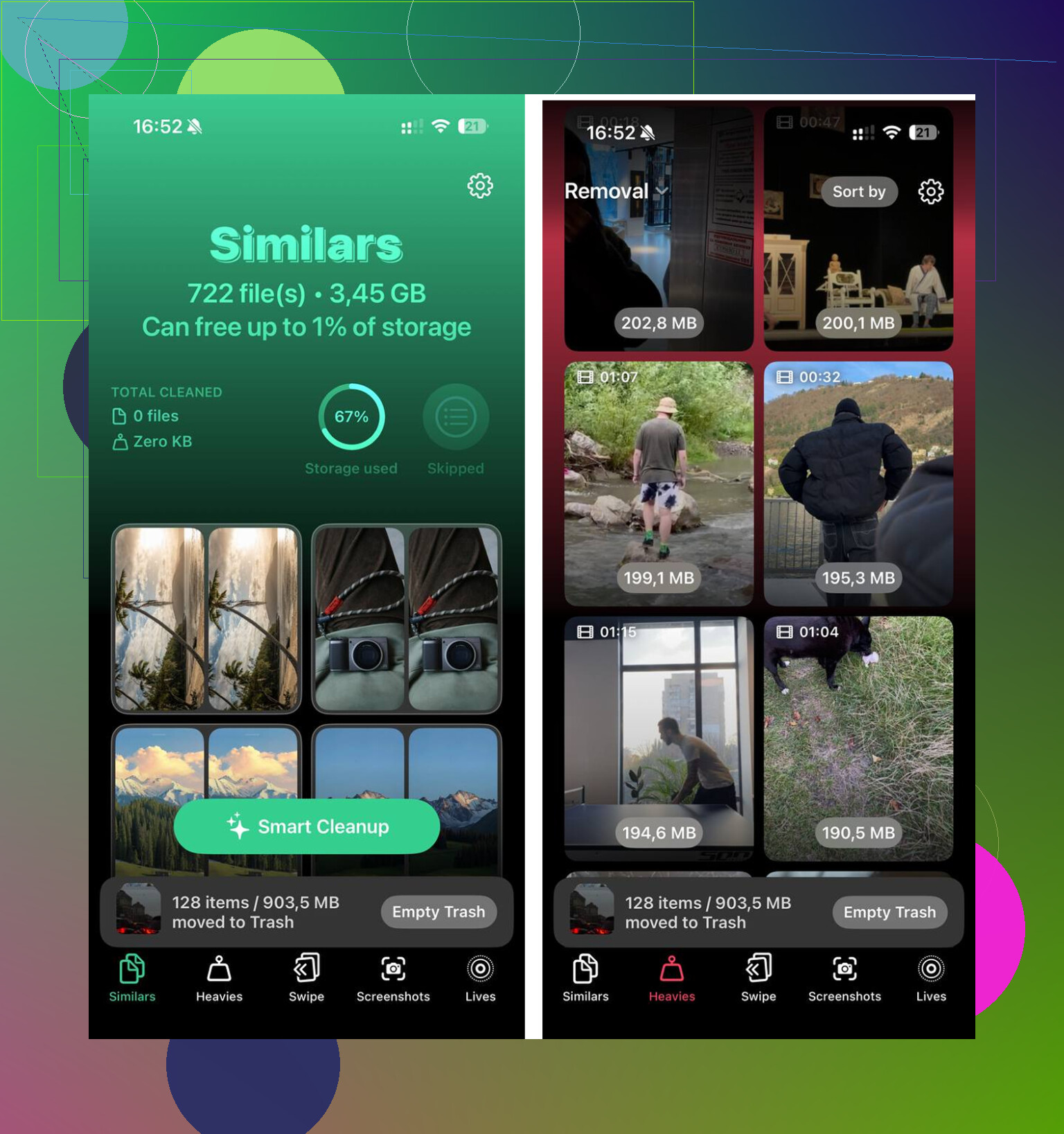
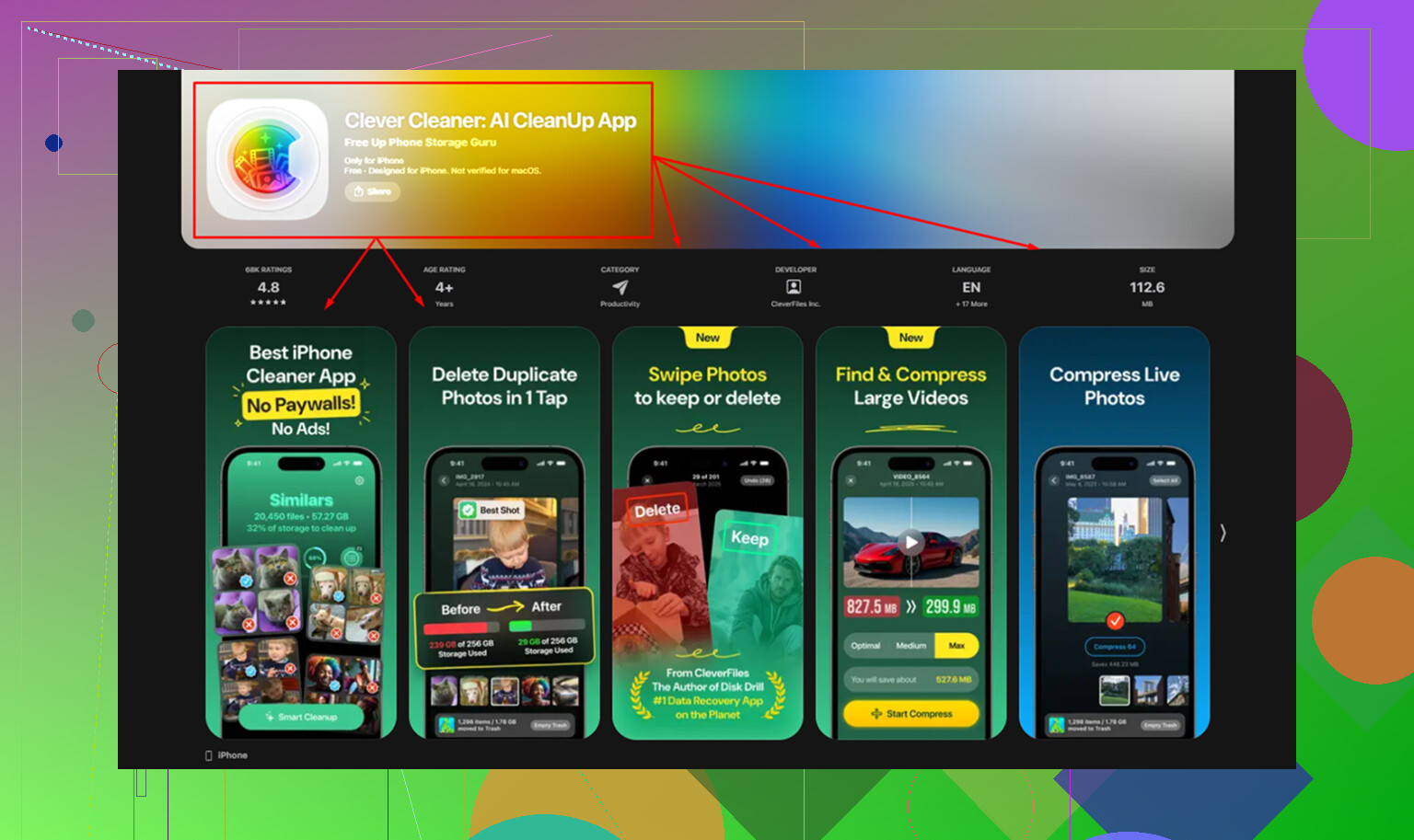
Clever Cleaner filled in that gap. What stood out was how direct it was. No ads in my face, no subscription wall when I tried to remove stuff.
The Heavies tab shows your biggest files first, with sizes right there. I found old videos and screen recordings fast instead of digging through years of camera roll clutter. The Similars tab grouped near-duplicate photos, not only exact copies. Burst shots, three failed tries of the same receipt photo, ten versions of the same cat pic. Stuff like thta. I kept one and trashed the rest. From what I saw, it processed on the phone itself.
After I cleared about 20 GB between duplicate photos, forgotten videos, and the usual app cache cleanup, the phone felt normal again. The lag was gone. System Data stopped being the thing I stared at, because there was finally enough breathing room for iOS to do its job.
5 Likes
I would not chase “temporary files” too hard on iPhone. iOS hides most of it, and random cleaning usually saves less space than people expect.
A safer route:
-
Check Settings > General > iPhone Storage.
Look at the biggest categories first. If Photos, Messages, or Media are huge, start there. -
Review Messages.
Open large threads. Delete old videos, voice notes, and attachments. Message attachments eat storage fast. -
Remove downloaded media.
Spotify, Netflix, YouTube, Podcasts, Maps offline data. Downloads sit there forever if you forget them. -
Offload apps, don’t delete them.
Settings > General > iPhone Storage > tap app > Offload App.
This keeps documents and settings. Less risk than full deletion. I disagree a bit with @mikeappsreviewer here, because deleting apps is not always the best first move if you want zero setup hassle. -
Clean Mail storage.
If Mail is bloated, remove and re-add the account. Cached attachments often shrink after that. -
Update iOS.
Some iOS versions misreport System Data. An update fixes it sometimes. -
If “System Data” is still insane, do an encrypted backup, then erase and restore. That is the only reliable deep cleanup I’ve seen for stubborn junk.
If your real problem is photo clutter, Clever Cleaner is worth a look for duplicates and big files. Also, this short video on clearing iPhone storage explains the process fast: see the quick iPhone storage cleanup video
Do the low risk stuff first. Don’t touch random “cleaner” apps that promise full system cache access. iPhone does not allow that anyway. Some of them are bs, tbh.
I’d be careful with the whole “clear temp files” idea on iPhone, because iOS is weirdly locked down. You usually can’t nuke system cache directly, and that’s probly a good thing since it keeps people from deleting something important.
Where I kinda differ from @mikeappsreviewer and @shizuka is this: I would check a few hidden space hogs before deleting apps or doing a full restore.
Stuff people forget:
- Files app > On My iPhone > Downloads
- Voice Memos
- Safari Reading List offline saves
- WhatsApp/Telegram media inside the app
- Apple Music downloaded songs
- Podcasts set to auto-download
- Recently Deleted in Photos, Files, and Notes
Also check Settings > Accessibility > Spoken Content if you’ve downloaded premium voices. Those can be bizarrely huge.
If “System Data” is bloated, connect the iPhone to Wi-Fi, plug it in, and leave it overnight after freeing a couple GB. iOS sometimes reindexes and trims junk on its own. Sounds fake, but I’ve seen it happen.
One safe move is to stop apps from re-creating junk so fast:
- turn off background app refresh for non-essential apps
- disable automatic podcast downloads
- set Messages to keep messages for 1 year or 30 days if you don’t need old threads forever
For photo clutter, that’s where something like Clever Cleaner actually makes more sense than random cache cleaners, since iPhone doesn’t really allow true system cleaning anyway. This Clever Cleaner iPhone storage cleanup review explains what it does pretty clearly.
So yeah, don’t chase “temporary files” too hard. On iPhone, the bigger win is usually hidden downloads and media bloat, not magical cache purging.
One thing I’d push back on a bit: people fixate on “System Data” when the bigger issue is often poor free-space margin. iPhones behave better when you keep at least 8 to 10 GB open. If you clear 2 GB of cache but stay nearly full, the phone still feels rough.
So instead of hunting temp files directly, I’d check what is constantly regenerating storage:
- Camera settings: if you shoot ProRAW, 4K/60, or Cinematic, one afternoon can eat more than months of cache
- Messages app stickers, GIF packs, and shared media from group chats
- Notes with scanned PDFs
- GarageBand, iMovie, CapCut, Lightroom, and other editor projects
- iCloud Drive local copies of big files
A couple safe tricks that weren’t really covered above:
- Turn on Optimize iPhone Storage for Photos if you use iCloud Photos.
- Open streaming and editing apps and delete project files, not just the app itself.
- Check large attachments in Notes and Files, not only Messages.
- If an app is huge, compare “App Size” vs “Documents & Data”. That tells you whether reinstalling is worth the hassle.
I mostly agree with @shizuka, @suenodelbosque, and @mikeappsreviewer that random cleaner apps can’t magically wipe iOS system cache. But for photo junk specifically, Clever Cleaner is one of the more sensible options.
Pros of Clever Cleaner:
- good for duplicate and similar photo cleanup
- helps surface giant videos fast
- easier than digging manually
Cons:
- won’t truly clear iOS system cache
- you still need to review before deleting
- less useful if your storage problem is from app projects or offline downloads, not photos
So yeah, safest rule: free space from media first, not “temporary files” first. That’s where the real gains usually are.