My iPhone storage is completely full, and a big chunk is being used by System Data. I already deleted apps, photos, and videos, but the available space barely changed. I need help figuring out how to reduce System Data so I can free up storage and use my phone normally again.
I ran into this on my own iPhone, and yeah, the storage warning and the app crashes usually go together. When your phone is packed, iOS starts tripping over temp files, cached stuff, updates, and background tasks. Mine got slow first, then apps started closing out for no clear reason.
First thing, make sure the warning is legit.
A lot of fake alerts show up in Safari and even through sketchy pages pretending to be Apple notices. I saw one once after tapping a bad streaming link. It looked official enough to fool tired people. Check your real storage here:
Settings > General > iPhone Storage
Wait a bit for the bar to finish loading. If you still have a few GB free, the popup was fake. If the bar is full or close to red, then the phone is telling the truth.
One part trips up a ton of people. Deleting photos does not free space right away.
The Photos app keeps them in Recently Deleted for 30 days. So you delete 10GB of videos, look at storage again, and nothing changes. Been there. You need to open Photos, scroll to Utilities, open Recently Deleted, then remove everything from there too. If you skip this, your storage number barely moves.
If you already cleared Recently Deleted and the phone still says full, look at System Data.
This is the junk drawer. Safari cache, app leftovers, logs, temp files, media fragments, all of it piles up there. A restart helped me more than I expected. I know it sounds too simple, but I did it and saw some space come back after reboot. If one app is bloated, Instagram was bad for me, deleting and reinstalling it worked better than anything else. iOS does not give you much control over app cache cleanup, so reinstalling is often the fastest fix.
When mine was at its worst, my iPhone 13 felt broken. Typing lagged. Opening Messages felt delayed. I went through photos, Downloads in the Files app, old videos, random screenshots. Took forever, and I still missed stuff.
I ended up using a cleanup app because doing it by hand got old fast. The one I stuck with was Clever Cleaner. I don’t trust most of these apps, so I went in suspicious. This one felt different for two reasons. No paywall popped up on me, and it handles the scan on the device, which mattered to me because I did not want my photo library sent somewhere else.
The two parts I used most:
-
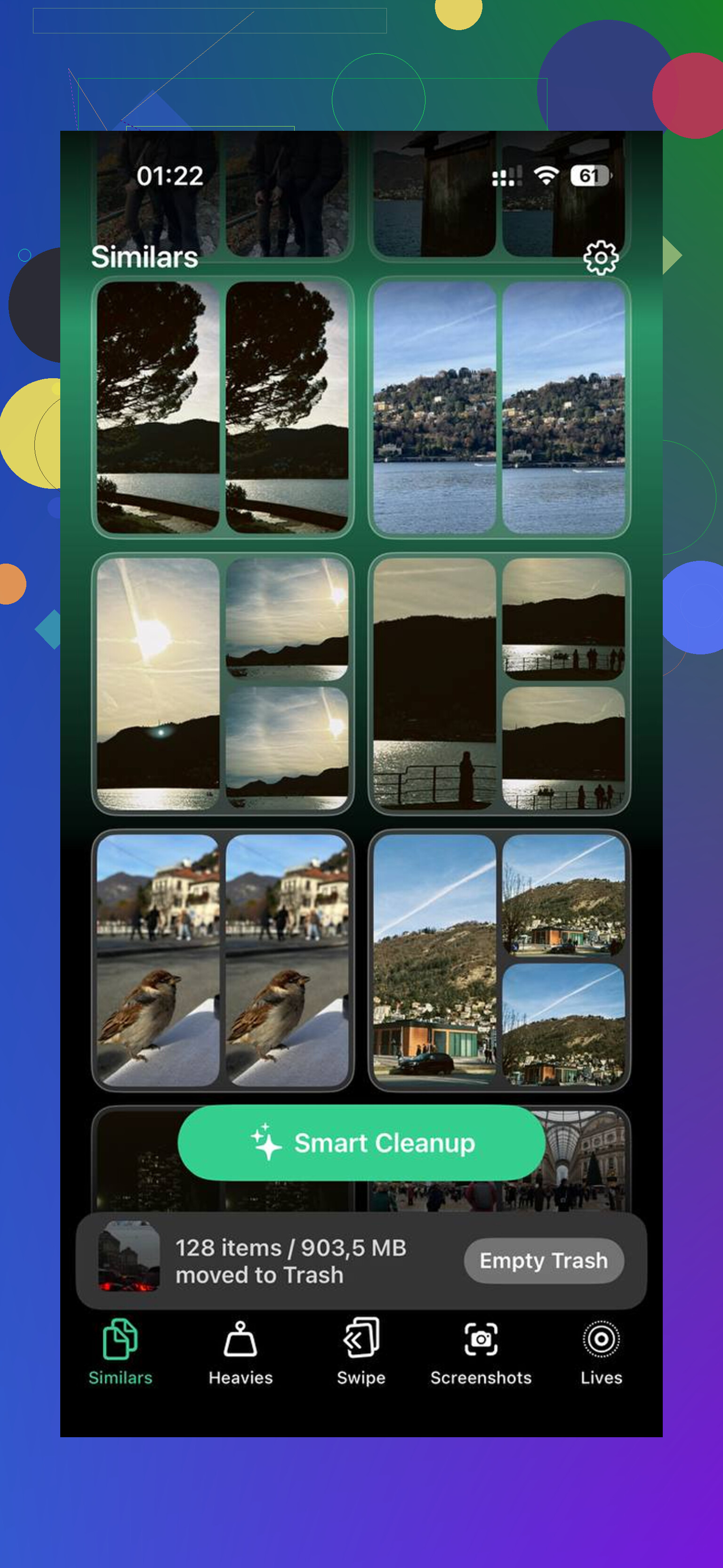
Similars
It grouped near-duplicate photos. Same angle, same face, same sunset, same receipt pic five times because the first one looked blurry. It picked a best shot, then I removed the extras. -
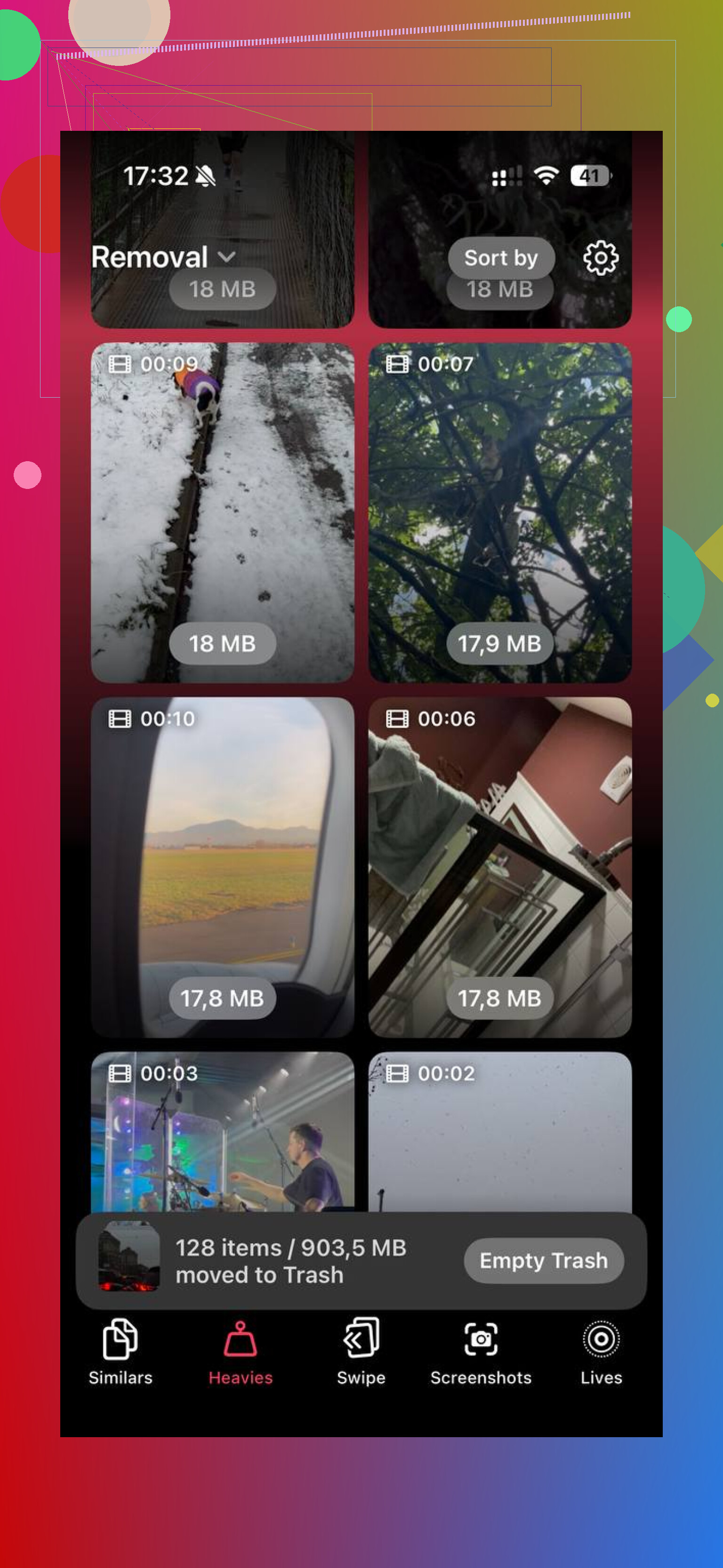
Heavies
This sorted media by size. Mine exposed a pile of giant videos I forgot about, plus some huge screen recordings. Seeing file size beside each item made decisions easier.
After I cleared around 15GB, the lag stopped. Crashes stopped too. Phone felt normal again. Kinda annoying how much junk piles up before you notice it.
If you’ve already done all of this, emptied Recently Deleted, restarted, removed bloated apps, offloaded unused apps, maybe used a cleaner, and System Data is still huge, you might be stuck with an iOS bug. At that point, the hard reset route is usually what fixes it:
- Back up the iPhone to iCloud or a computer
- Erase the phone
- Restore from the backup
It’s a pain. Still, I saw people fix stubborn storage bugs this way when nothing else moved the number.
If you want the short version, do this first:
- Check storage in Settings
- Empty Recently Deleted
- Restart the phone
- Reinstall apps with huge caches
- Clear out the biggest videos and screenshots
- Reset only if the storage data still looks broken
Start with the easy stuff. Recently Deleted gets ignored all the time, and it wastes hours. After tht, use a tool if manual cleanup is dragging. Going through old iMessage attachments one by one is miserable.
309 Likes
System Data is often bloated by cached message attachments, failed iOS update files, Safari website data, streaming leftovers, and logs. Deleting photos alone won’t hit those. I agree with part of what @mikeappsreviewer said, but I don’t love the full erase-and-restore move unless nothing else works. Restoring from backup sometimes brings the junk back too. Been there, wastd my evening.
Try these instead:
-
Delete old Messages attachments.
Settings > General > iPhone Storage > Messages.
Review Photos, Videos, GIFs, Stickers, Documents. These eat gigs fast. -
Remove downloaded content.
Check Spotify, Netflix, YouTube, Podcasts, Books, Files, Maps. Offline downloads often hide outside your main media count. -
Clear Safari website data.
Settings > Safari > Clear History and Website Data.
If you use Chrome or Firefox, clear cache inside those apps too. -
Cancel stuck iOS update files.
Settings > General > iPhone Storage.
If you see an iOS update listed, delete it. -
Change message retention.
Settings > Apps > Messages > Keep Messages > 30 Days.
If you hoard texts, this helps a lot. -
Sync once, then wait.
Plug into Finder or iTunes, sync, restart, then recheck storage after 10 to 20 mins. iOS sometimes recalculates late. It’s dumb, but it happens.
If you want a faster photo cleanup pass, Clever Cleaner is decent for finding dupes and large files. Also worth skimming this guide on the best AI cleaner apps for iPhone storage cleanup.
If System Data still sits at 20GB+ after all this, update iOS first. If you’re already current, then do the erase setup as new iPhone route, not restore from backup. That gives the cleanest result.
I’d actually push back a little on @mikeappsreviewer and @chasseurdetoiles on one thing: “System Data” is not always real junk you can fully clean. Sometimes iOS labels active caches, indexing files, and temporary swap space there, so the number looks scarier than it rly is.
A few less-mentioned fixes:
-
Turn off Siri voice downloads you don’t use
Settings > Accessibility > Spoken Content > Voices, and also check Translate / Keyboard dictionaries. Those files can pile up. -
Remove Mail cache by deleting and re-adding the account
Apple Mail can hoard attachments badly. If you use Gmail/Outlook in the Mail app, remove the account, reboot, add it back. -
Disable and re-enable iCloud Photos
Only if your originals are safely in iCloud. This can force a local storage recalculation. -
Check Voice Memos
People forget these, and long recordings can sit around forever. -
If Apple Music is syncing a huge library, toggle Sync Library off/on
Same for Podcasts. Corrupt local cache happens more than Apple admits.
Also, if you want a faster cleanup pass for duplicate pics and giant videos, Clever Cleaner is one of the few iPhone storage cleaner apps that’s actually useful instead of pure paywall nonsense.
And if you want a visual guide, this complete iPhone cleaner app walkthrough for freeing up storage is easier than poking around menus blind.
If System Data drops after 24 hours on charger + Wi-Fi, it was indexing. If not, then yeah, deeper cleanup or full reset time. iOS storage reporting is jst weird sometimes.
One thing I’d add that @chasseurdetoiles, @viajeroceleste, and @mikeappsreviewer didn’t really stress enough: sometimes System Data spikes because logs and analytics files are stuck, not just cache.
Try this angle:
- Settings > Privacy & Security > Analytics & Improvements > Analytics Data
If this list is huge and repeating crash logs, that can be part of the bloat. - Force a normal shutdown, leave it off 2 minutes, then boot back up on power.
- Check VPN, ad blockers, and security apps. I’ve seen those balloon local data way more than expected.
- If you use Mail heavily, set Mail days to sync lower, or switch from Apple Mail to the provider app temporarily.
I slightly disagree with the “restore from backup” idea if storage corruption is the problem. Backup can carry some junk behavior back with it. If you go nuclear, set up as new is cleaner.
If sorting media manually is making you lose your mind, Clever Cleaner is useful for finding large videos and duplicates fast.
Pros: actually quick, simple UI, good for big-photo-library cleanup.
Cons: won’t magically erase true iOS System Data, and you still need to review before deleting.
Also check storage after overnight charging on Wi-Fi. iOS sometimes purges temporary files only when idle. That part is annoyingly real.
Quick recap. You covered Messages, offline downloads, browser data, stuck updates, retention, Recently Deleted, reinstalls, analytics logs, VPN, Mail, cleaners, overnight purge.
Simpler route. Move media and messages to iCloud, shrink local copies.
Settings > Photos > iCloud Photos on. Optimize iPhone Storage.
Settings > your name > iCloud > Messages on.
Plug in, Wi‑Fi, screen locked. Flip both toggels. Leave idle 30 to 60 mins.
This often frees double digit GB on 128 GB phones within a day. Example, 12 GB from a 20k library.