My iPhone says storage is almost full, but I’m not sure what’s actually taking up space or where to look for the most accurate breakdown. I tried checking the settings, but the numbers seem confusing and keep changing. I need help figuring out how to check iPhone storage properly so I can free up space without deleting the wrong things.
I kept running into the same “Storage Almost Full” alert, and after a while it stopped feeling like a warning and started feeling like harassment. I hadn’t added much, yet my iPhone got slow, twitchy, and weirdly stubborn.
If you want the full storage breakdown, go to Settings, then General, then iPhone Storage. That screen shows the main picture. You’ll see a colored bar near the top with chunks for apps, photos, media, and system data. Under it, Apple usually throws in cleanup suggestions like offloading unused apps or checking big attachments.
If you only want the short version, open Settings, then General, then About. Scroll until you see Capacity and Available. One thing tripped me up at first, the capacity number there looks lower than the number printed on the box. iOS already takes a chunk for itself, often around 8GB to 10GB, so the full advertised number was never going to be open space.
I got a steadier read by plugging the phone into a computer. On a Mac, Finder shows the storage bar. On Windows, use the Apple Devices app or iTunes. For me, the on-phone numbers were sometimes behind or plain off because of cached junk. The computer view felt cleaner. Syncing seemed to flush some temp stuff before showing the total, or at least it looked closer to reality.
One part people mix up a lot is local storage versus iCloud storage. They are not the same pool. Your phone storage is the space on the device. iCloud is separate. To check iCloud, tap your name at the top of Settings, then open iCloud. I’ve seen people stare at 100GB free in iCloud while their phone still had no room left. Both things were true.
If photos are eating your phone alive, check whether Optimize iPhone Storage is enabled in your iCloud Photos settings. I turned it on and it helped. The phone kept smaller versions on-device and left the full-resolution files in iCloud.
Then there’s System Data, which used to be called Other. This part gets bloated fast. Caches, Siri voices, fonts, leftovers from apps, all sorts of junk ends up there. Open the iPhone Storage list again and tap individual apps. You’ll get a split between App Size and Documents & Data. Some apps are much worse than others. Telegram was one for me. Netflix too, once I forgot I had a pile of offline downloads sitting there. A lot of apps let you clear downloads from inside their own settings, so check there before deleting the app outright.
My phone got slow enough a few months back that even swiping between home screens felt off. Apps closed on their own. A few froze. What fixed it was clearing storage. Low free space seems to hit iPhones harder than people expect, because the system needs room for temp files and background tasks. When there’s no room left, performance drops.
I tried the manual cleanup route first. It was miserable. Deleting screenshots one by one, checking duplicate photos by eye, hunting for giant videos from six months ago. I gave up and used Clever Cleaner.
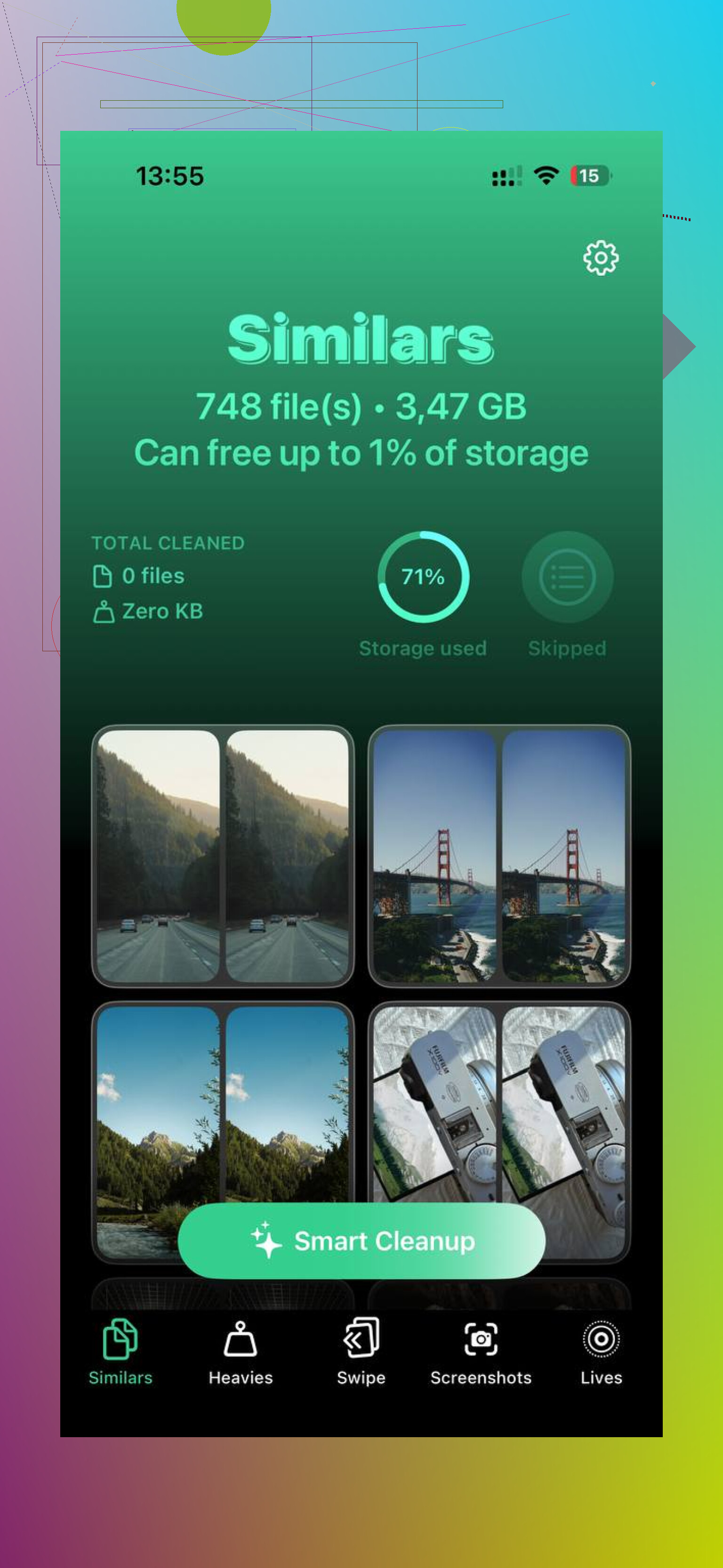
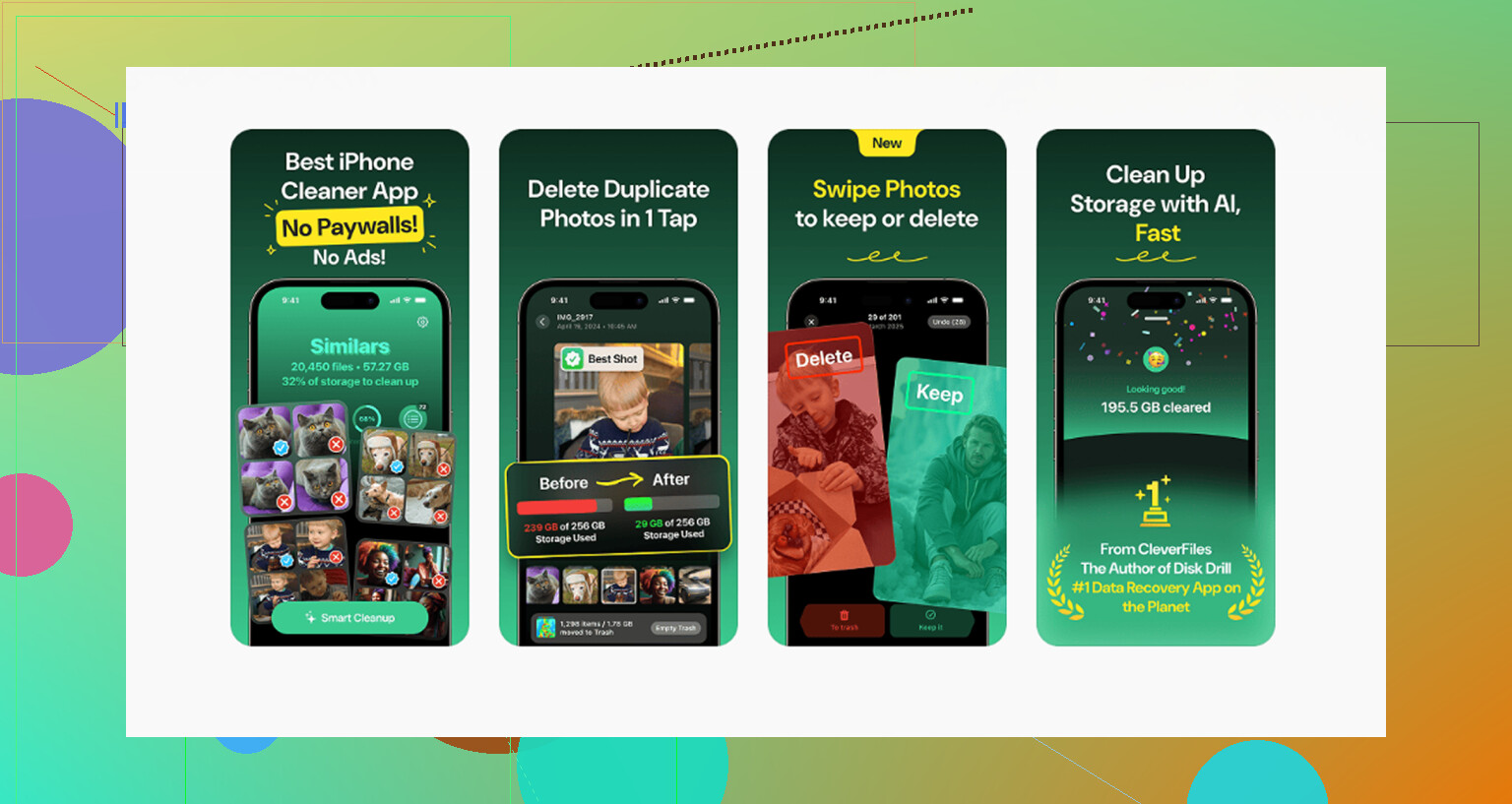
What made me keep it was simple stuff. No ads popping up. No fake free trial nonsense. No buried paywall after five taps. It has a Similars section, which grouped near-duplicate photos well enough for my mess of repeated pet pics and blurry second takes. There’s also a Heavies section, and this was the part I used most. It sorted media by file size, so the biggest space hogs floated to the top right away. I found old 4K clips I forgot existed. It also showed exact sizes for screenshots, which sounds small, but once you’ve got a few thousand, the total gets ugly fast.
The privacy side mattered too. It processed files on the device. My photos didn’t need to leave the phone.
After I cleared space, the lag dropped off fast. So if your iPhone feels slow and the storage warning is showing up, start with Settings and look for the biggest categories first. Photos, app downloads, and system data are usually where the mess is hiding. Fixing storage was the quickest thing I did, and yeah, it made the phone feel normal agian.
37 Likes
The numbers change because iPhone storage is not static. iOS re-counts caches, message attachments, photo optimization, and temp files in the background. So if you want the most accurate read, check it twice, about 2 to 5 minutes apart, while connected to Wi-Fi and not downloading anything.
A few things I’d do different from @mikeappsreviewer.
First, restart the phone before checking. Sounds dumb, helps a lot. It clears temp junk and forces iOS to recalc some categories. Then open Settings, Privacy and Security, Analytics and Improvements, Analytics Data only if you want to confirm the phone has been logging storage pressure and crashes. If storage is too full, you often see side effects there before you spot the culprit.
Second, look for pattern, not one snapshot. If System Data jumps from 6 GB to 18 GB and back, that usually points to streaming apps, Safari cache, or failed updates. If Messages keeps growing, open the top conversations and check media inside them. A single group chat with years of videos eats space fast.
Third, check app behavior. Go to App Store, tap your profile, and look at recent app updates. Some apps bloat after updates because old cache sticks around. Deleting and reinstalling one problem app often cuts 1 GB to 5 GB. Instagram, TikTok, Spotify, podcasts, offline maps, all common offenders.
If you want a faster cleanup pass, Clever Cleaner is worth a look. It’s useful for big videos, duplicate pics, and screenshot piles. This review explains why Clever Cleaner stands out as a top iPhone cleaning app, see why Clever Cleaner ranks among the best free iPhone cleaner apps.
Best test is simple. Note free space, delete 2 or 3 known large items, wait a few mins, check again. If the number barely moves, cached data is the issue, not your photos. That part trips people up al lthe time.
The part I slightly disagree with from @mikeappsreviewer and @sognonotturno is the “most accurate” view being on a computer. Sometimes it is, sometimes it isn’t. iPhone storage is constantly reindexing photos, caches, logs, message attachments, and app data, so there really isn’t one perfectly frozen number.
What helped me more was checking what grows over time. Open iPhone Storage, take a screenshot, come back an hour later after normal use, and compare. If one category jumps, that’s your culprit. Usually Messages, Safari website data, downloaded media, or a badly behaved app.
Also, don’t ignore voice memos, GarageBand files, Files app downloads, and podcast episodes. Those are sneaky space hogs and people forget they exist. Photos gets blamed for everything lol, but it’s not always photos.
If you want a faster cleanup without manually digging through thousands of files, Clever Cleaner is actually useful for spotting large videos, duplicate shots, and screenshot clutter. I’d use it more for identifying junk than trusting Apple’s weirdly shifting bars. There’s also a solid breakdown here on how Clever Cleaner helps free up iPhone storage without a paywall.
Short version: don’t obsess over one number. Watch which category keeps bloating. That’s the real answer.
Try a simple size-first check in the Files app. Open Files, tap Browse, then On My iPhone. Open each folder, tap the three dots, choose Sort, then Size. Large downloads, ZIP files, exported videos, and editing projects often sit here unseen.
Delete one large file, empty Recently Deleted in Files, then restart your iPhone. Check Settings, General, iPhone Storage after five minutes. This avoids chasing changing storage bars and shows exact file sizes. Old video projects eat alot of space becuase apps rarely remove exports.
Don’t waste time deleting photos and expecting the bar to drop right away. Anything you remove sits in Recently Deleted for about a month, so it’s still eating space until you go clear that album out manually. Same with Messages, deleting a thread doesn’t always dump the attachments straight off.
I think @cacadordeestrelas nailed the real point, watch which category creeps up rather than chasing one number. The computer-check idea is fine but honestly overkill for most people just trying to free a few gigs. If you do try Clever Cleaner for the big-video sweep, the thing I liked is it doesn’t make you set up an account before it’ll scan, you just open it and go. For me the fastest win was emptying Recently Deleted first, then hunting the heavy clips. Do that before anything fancy.