I misplaced my TV remote and want to use my iPhone to turn off the TV instead. Which apps or built-in iPhone features can control a smart TV, and how do I set them up?
For most smart TVs, your iPhone and TV just need to be connected to the same Wi-Fi network. After that, the easiest option is usually a universal remote app like TVRem.
It gives you one power button for Samsung, LG, Roku, Fire TV, Android/Google TV, and Apple TV devices. That’s especially useful if you have multiple TVs and don’t want a separate app for every brand.
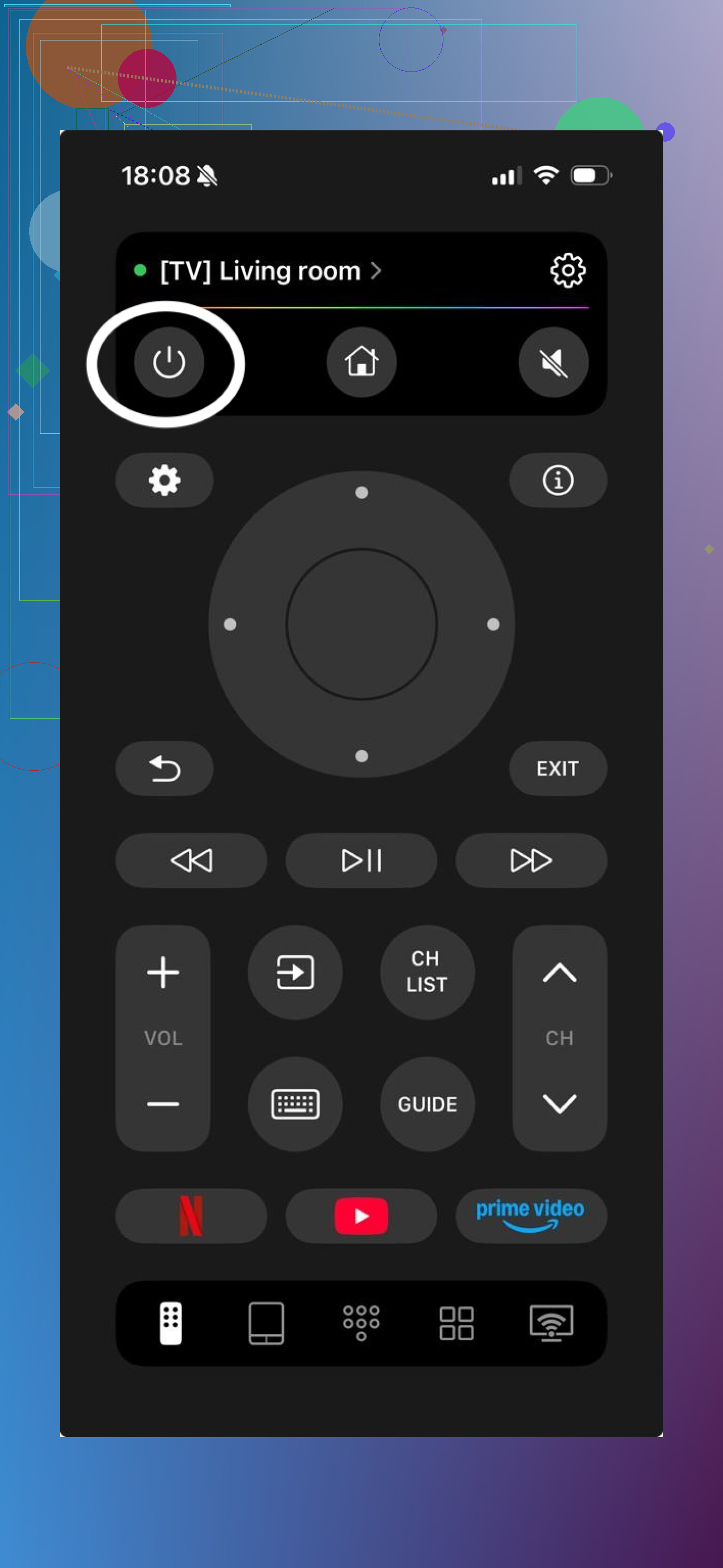
You can also use the manufacturer’s own remote app:
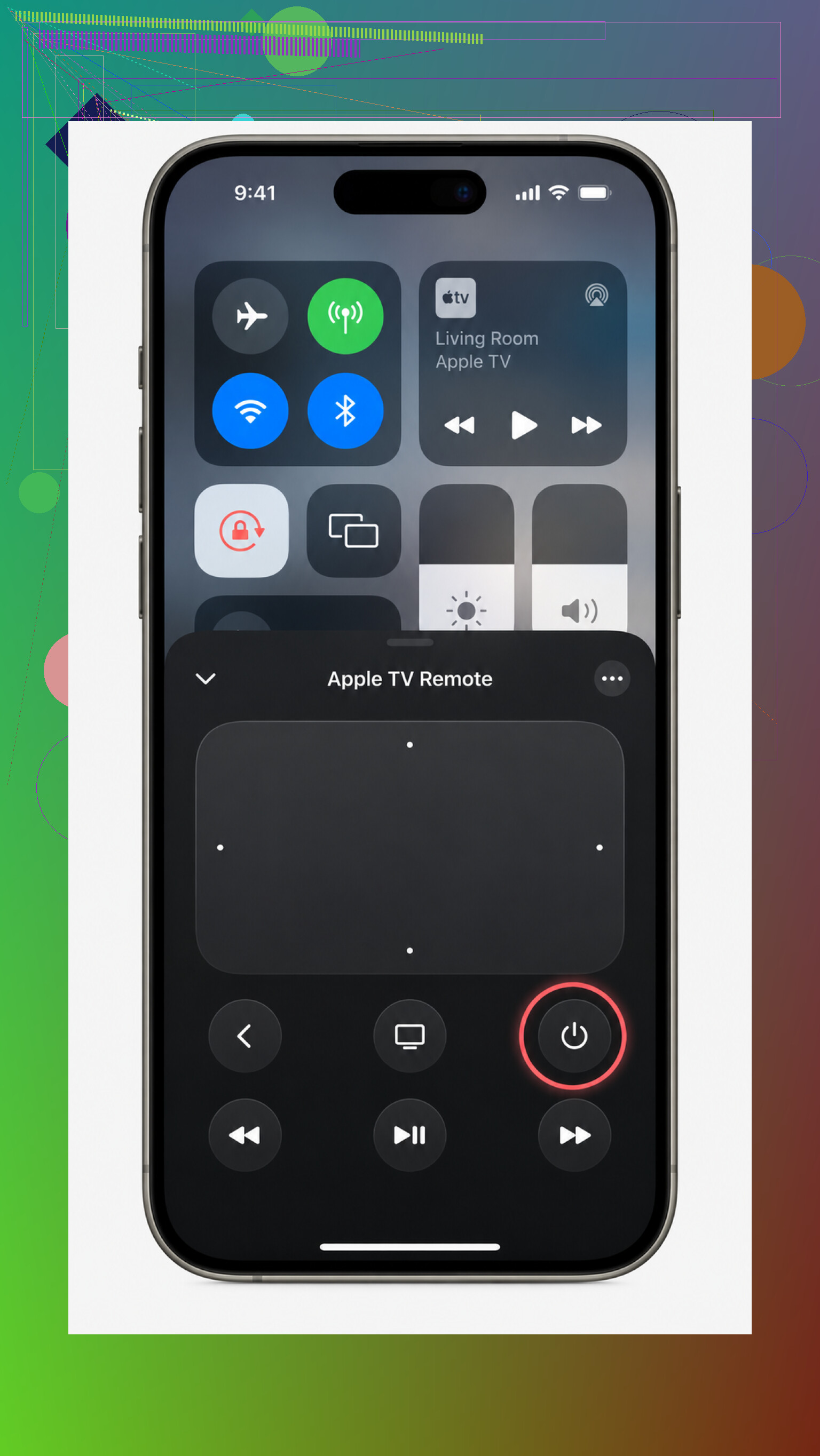
Apple TV: Open Control Center by swiping down from the top-right, then tap the Apple TV Remote. If HDMI-CEC is enabled, putting the Apple TV to sleep should also turn off the connected TV and other supported equipment. You can also say, “Hey Siri, turn off the Apple TV.”
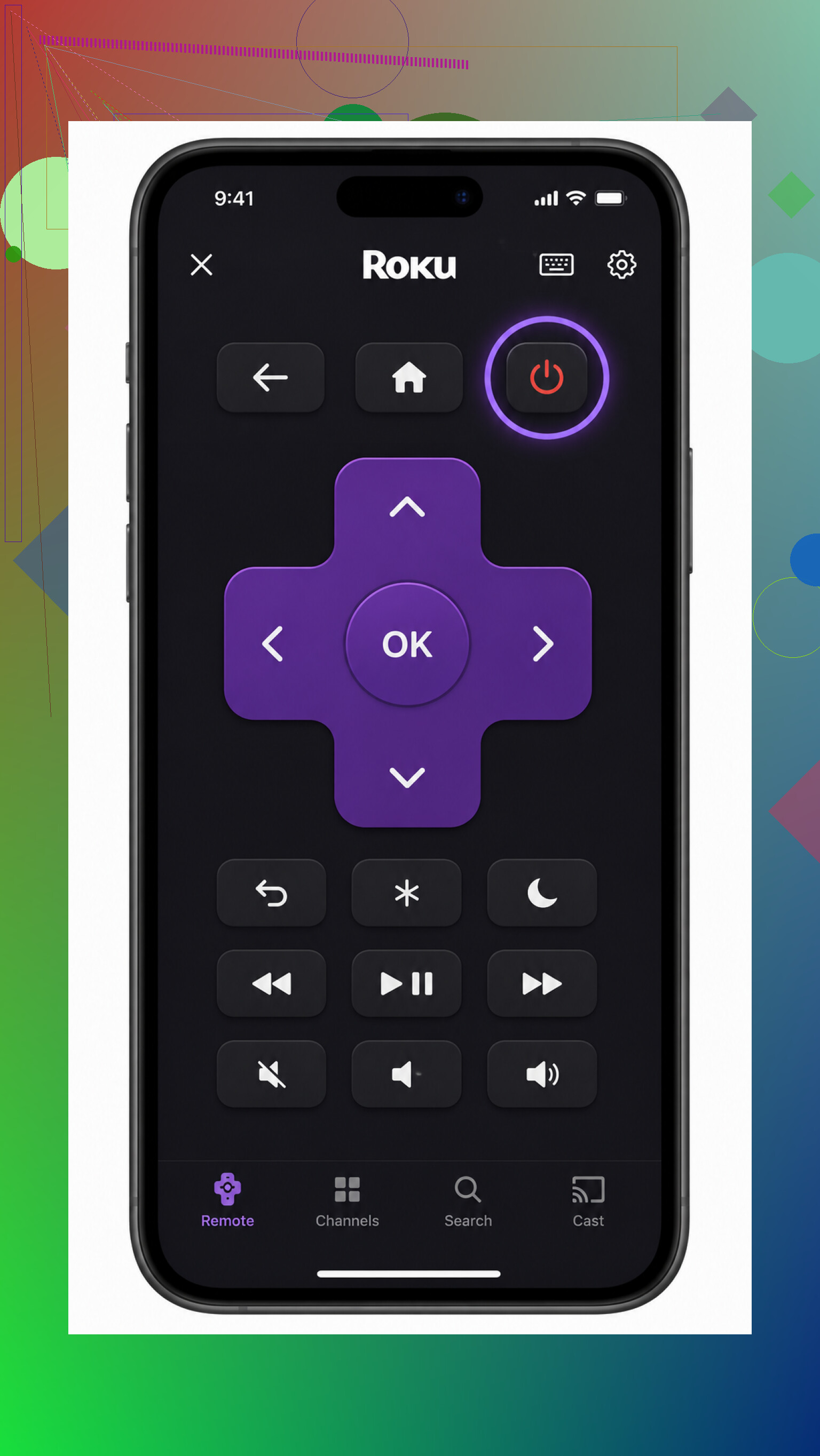
Roku: The remote inside the Roku app includes a power button for Roku TVs and TVs with Roku built in.
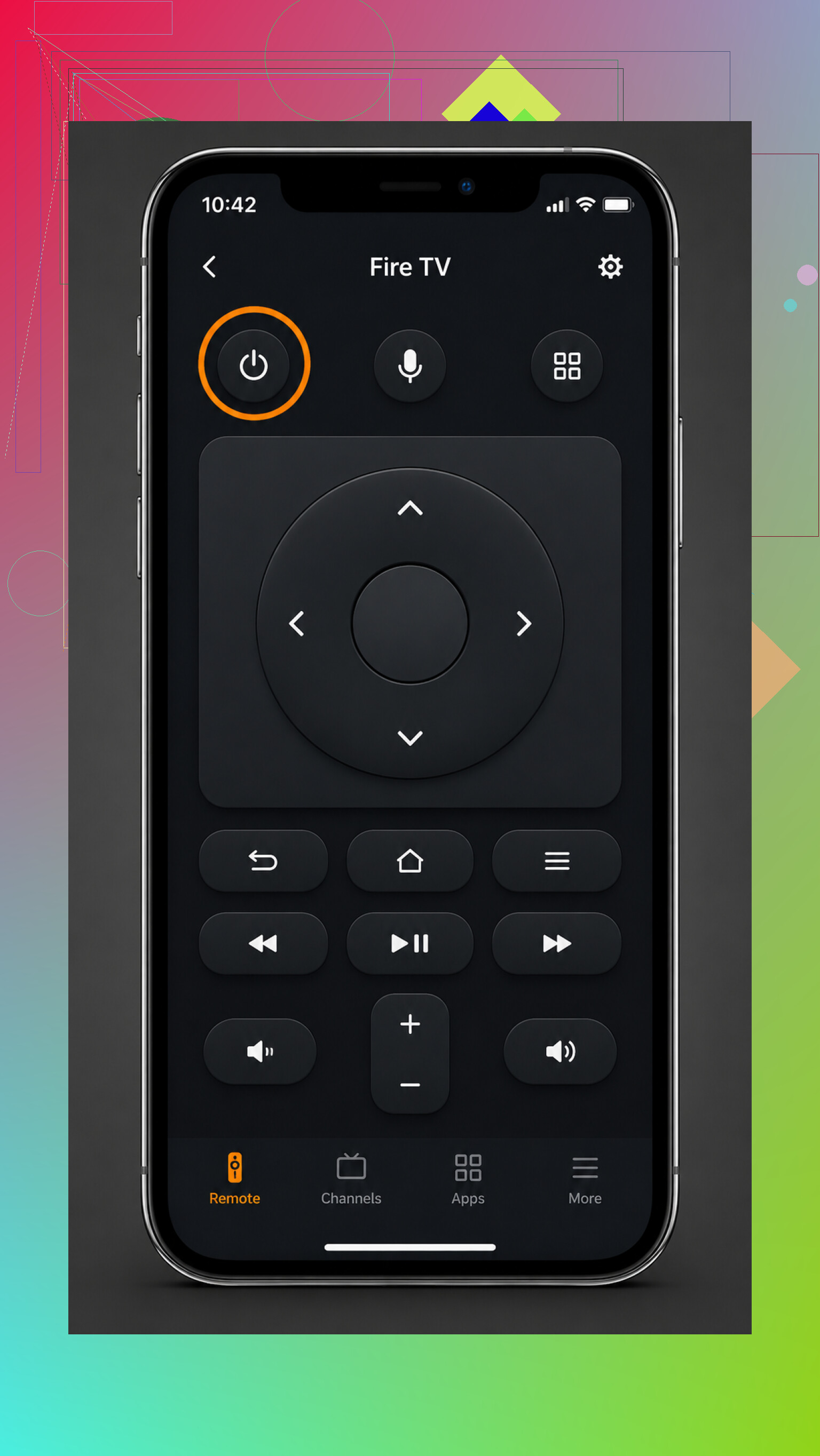
Fire TV: The Fire TV app can turn off the TV on supported models.
Samsung and LG: Link the TV in Samsung SmartThings or LG ThinQ, then use the power control in the app.
If your TV is connected to Alexa or Google Assistant, you may not need an app at all. A command like “turn off the TV” should work once everything is linked correctly.
Keep in mind that these controls usually put the TV into standby or sleep rather than completely cutting power. That’s normal. App controls and HDMI-CEC generally work the same way as pressing the power button on the regular remote.
An older TV without Wi-Fi usually can’t be controlled directly from an iPhone. You’ll need the physical remote or wall switch unless you add something like a smart plug that can cut power.
The exact steps depend on whether you’re controlling a smart TV directly or using an Apple TV, Roku, Fire TV, or another streaming device.
34 Likes
Check Control Center first if you use an Apple TV. The built-in Apple TV Remote can put the box to sleep, but the television itself will only shut off with it if HDMI-CEC is enabled in both the TV and Apple TV settings. For compatible TVs already added to Apple Home, the Home app or a Siri command can handle power too.
I’d try the TV maker’s free app before paying for a universal remote app. Samsung SmartThings, LG ThinQ, Roku, Fire TV, and Google TV apps usually require the phone and TV to be on the same network, followed by a pairing code shown on the screen. That creates an annoying catch: if the app was never paired and you cannot navigate the pairing prompt, you may still need the original remote, its physical buttons, or a cheap replacement remote for the initial setup.
An iPhone does not have an infrared blaster, so it cannot directly control an older non-networked TV like a traditional universal remote. A smart plug is a rough workaround, but many TVs stay off after power is restored, and routinely cutting power is less graceful than using standby.
Expect this to work only if the TV is already connected to your home network and still listens for network commands while in standby. Turning it off is usually easy. Turning it back on later is where people get stuck, because some TVs disable Wi-Fi or Ethernet when they sleep.
Before pairing an app, use the physical button on the TV to open its settings and enable anything named “Power on with mobile,” “Network standby,” “Quick Start,” “Remote start,” or similar. The wording varies by brand. Without that setting, the iPhone app may control volume and menus while the screen is on, then lose the TV as soon as you press power.
I’d set it up this way:
- Put the iPhone and TV on the same home Wi-Fi. Avoid a guest network, since guest networks often block devices from seeing each other.
- Install the TV manufacturer’s app, such as SmartThings for Samsung or ThinQ for LG. For a Roku TV, use the Roku app. Google TV can control compatible Google TV and Android TV devices.
- Select the TV when it appears and enter or approve the code shown on the television.
- Test both power-off and power-on before deciding the setup is finished.
- If the TV disappears after shutdown, check its network standby setting rather than immediately trying another remote app.
The built-in Apple TV Remote in Control Center is the cleanest choice when an Apple TV box is involved, but @securelogic5094pro is right about HDMI-CEC. The Apple TV can request that the television turn off, but the TV may call CEC something odd like Anynet+, Simplink, Bravia Sync, or Viera Link. It needs to be enabled on both devices.
I’d be cautious about assuming a Fire TV phone app can replace every button on a normal TV remote. Streaming-device apps mainly control the streaming interface over Wi-Fi. TV power and volume may depend on HDMI-CEC, the particular Fire TV television model, or hardware commands that the phone itself cannot send.
There is another annoyance: some routers separate 2.4 GHz and 5 GHz devices or block local discovery. The phone and TV do not always need to use the same Wi-Fi band, but they do need to be on the same local network and allowed to communicate. Temporarily disabling a VPN on the iPhone can help during pairing too.
If no app can find the TV, use the TV’s physical controls to get through setup. They are often hidden under the center logo, along the bottom edge, or on the rear panel. A basic replacement remote is usually a better fix than a smart plug, especially if you need to change inputs or approve an on-screen pairing request.
Don’t expect the iPhone’s side buttons or Control Center volume slider to act like a universal TV remote. The built-in Apple TV Remote only controls an Apple TV box or compatible AirPlay setup. It can shut down the television through HDMI-CEC, but it is not a direct remote for every smart TV.
For the quickest setup, install the TV brand’s official app, connect both devices to the same Wi-Fi, select the television, and approve the pairing message on its screen. If the TV never appears, check Settings > Privacy & Security > Local Network on the iPhone and make sure that app has permission. That small iOS setting causes a lot of “TV not found” problems. Turning off a VPN during pairing may help as well.
I agree with @securelogic5094pro that paid universal apps should not be the first stop. They can be convenient for several brands, but they still rely on the same network support and permissions. If the TV is older or has Wi-Fi disabled, no app will magically fix that because iPhones do not transmit infrared commands.
Turn the TV on with its hidden physical button first. If no phone app was paired before the remote disappeared, setup usually requires approving a code on the TV screen. The button is commonly underneath the center edge or around the back.
Once it is awake, pair the manufacturer’s free app on the same Wi-Fi. Use Apple TV Remote in Control Center for an Apple TV, SmartThings for Samsung, ThinQ for LG, or the Roku, Fire TV, or Google TV app for those platforms. HDMI-CEC may let a streaming box shut down the television too.
Universal apps can be convenient, but they do not give the iPhone infrared hardware. If the TV is old, offline, or refuses network commands while asleep, a cheap replacement remote is the less clever and more reliable answer.
If the TV already appears in Apple’s Home app, you can skip the pile of “universal remote” apps. Open Home, tap the TV accessory, and use its power control, or tell Siri to turn off that room’s TV. You can even make a Shortcut and place it on the Home Screen or Lock Screen for a one-tap power button.
The catch, because apparently televisions enjoy paperwork, is that Home control must already be supported and configured. Some AirPlay-compatible TVs can be added to Apple Home, while others only support streaming and expose no power control. An Apple TV box can shut down the television through HDMI-CEC, as @jackson mentioned, but that setting has to be enabled first.
If neither Home nor the Apple TV Remote works, use the manufacturer’s app rather than paying immediately for a generic one. Just remember that the initial pairing prompt may still require the TV’s physical button or a replacement remote. The iPhone can replace a remote after setup much more easily than it can rescue a TV that was never configured for network control.
Half this thread is solving a bigger problem than you have. You misplaced the remote, you didn’t throw it in a lake. Before you install SmartThings and fight with pairing codes, check the obvious spots first because a found remote beats every app here. The physical button on the TV can turn it on and get you into settings, but on a lot of sets that single button just cycles inputs or toggles power, so don’t assume it replaces the remote for navigation.
The correction I’d make to the general vibe here: getting the phone app paired the first time is often more annoying than just buying a cheap replacement remote, especially since most brand apps make you approve a code on the screen and you need a working remote or the exact right physical button to even reach that prompt. So the app route is great once it’s set up, but as an emergency fix for a lost remote it’s backwards. If you plan to keep using your phone long term, sure, do the pairing. If you just want the thing off tonight, a universal replacement remote is a few bucks and needs zero setup.
I’ll agree with the crowd that HDMI-CEC is the quiet hero if you have an Apple TV or similar box plugged in, since putting the box to sleep can drag the TV down with it. Just don’t expect it to be reliable across inputs. And @techrouter3112’s TVRem type of app is fine for consolidating brands later, but it still leans on the same network handshake everyone described, so it won’t rescue a TV that’s asleep with its Wi-Fi turned off. Same limitation, nicer icon.
Use a connected game console instead. If your PlayStation, Xbox, or Nintendo Switch already uses HDMI-CEC, shutting down the console also turns off the TV.
Open the console’s power menu, then choose Turn Off or Enter Rest Mode. If nothing happens, enable HDMI device control in the console settings and CEC in the TV settings. Brands label CEC differently, so check for Anynet+, Simplink, or Bravia Sync. It’s quick, free, and requres no iPhone app.