My iPhone storage is almost full, and I just realized a lot of my pictures were saved as Live Photos. I want to convert them all to still photos without losing the images, but I can’t find a quick way to do it in bulk. I need help figuring out the easiest method to save storage space and keep my photo library organized.
If your Photos library looks like mine did, there’s a decent chance a bunch of “pictures” are those motion shots from Live Photo. I noticed it after trying to send a plain image and getting a moving clip instead. Worse part was storage. My phone had been hanging on to tiny animations of receipts, shopping lists, and random junk I only meant to snap once.
First, stop your iPhone from doing it again
Before cleaning up old files, I’d fix the source.
Go to Settings > Camera > Preserve Settings, then switch Live Photo to ON there. After that, open the Camera app and turn Live Photo off.
This matters because your iPhone tends to forget your choice unless Preserve Settings is enabled. Once I changed this, it stopped re-enabling Live Photo on its own.
Ways I used to turn Live Photos into normal still images
What I picked depended on volume. Ten files, one method. A thousand, different story.
- Cleaner apps
If your library is packed with these things, doing them one by one feels bad fast. I tried manual cleanup first. Gave up.
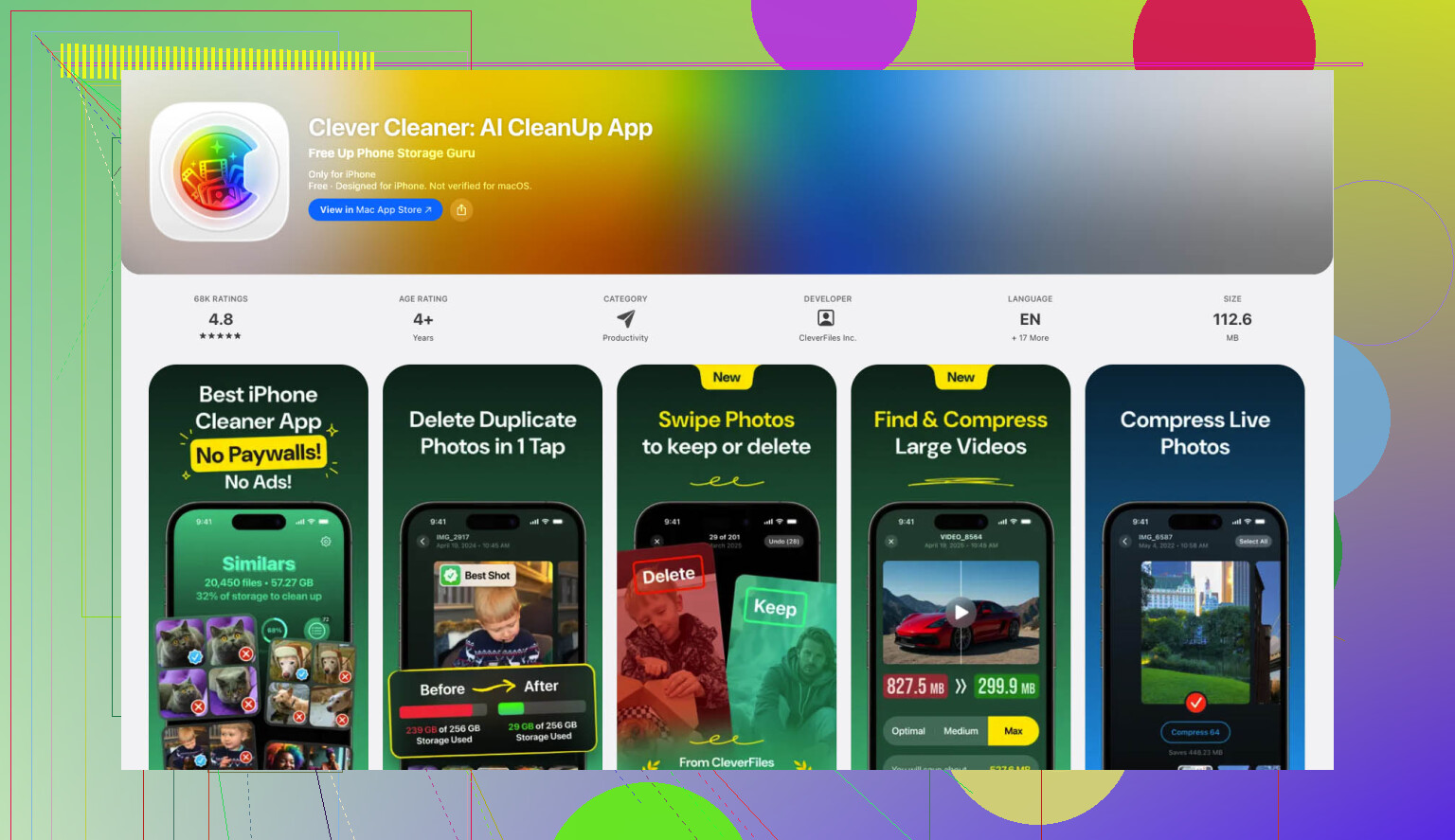
One app route I found useful was Clever Cleaner. The reason I stuck with it was simple. No ads. No paywall popping up halfway through. It has a section made for Live Photos.
What I did:
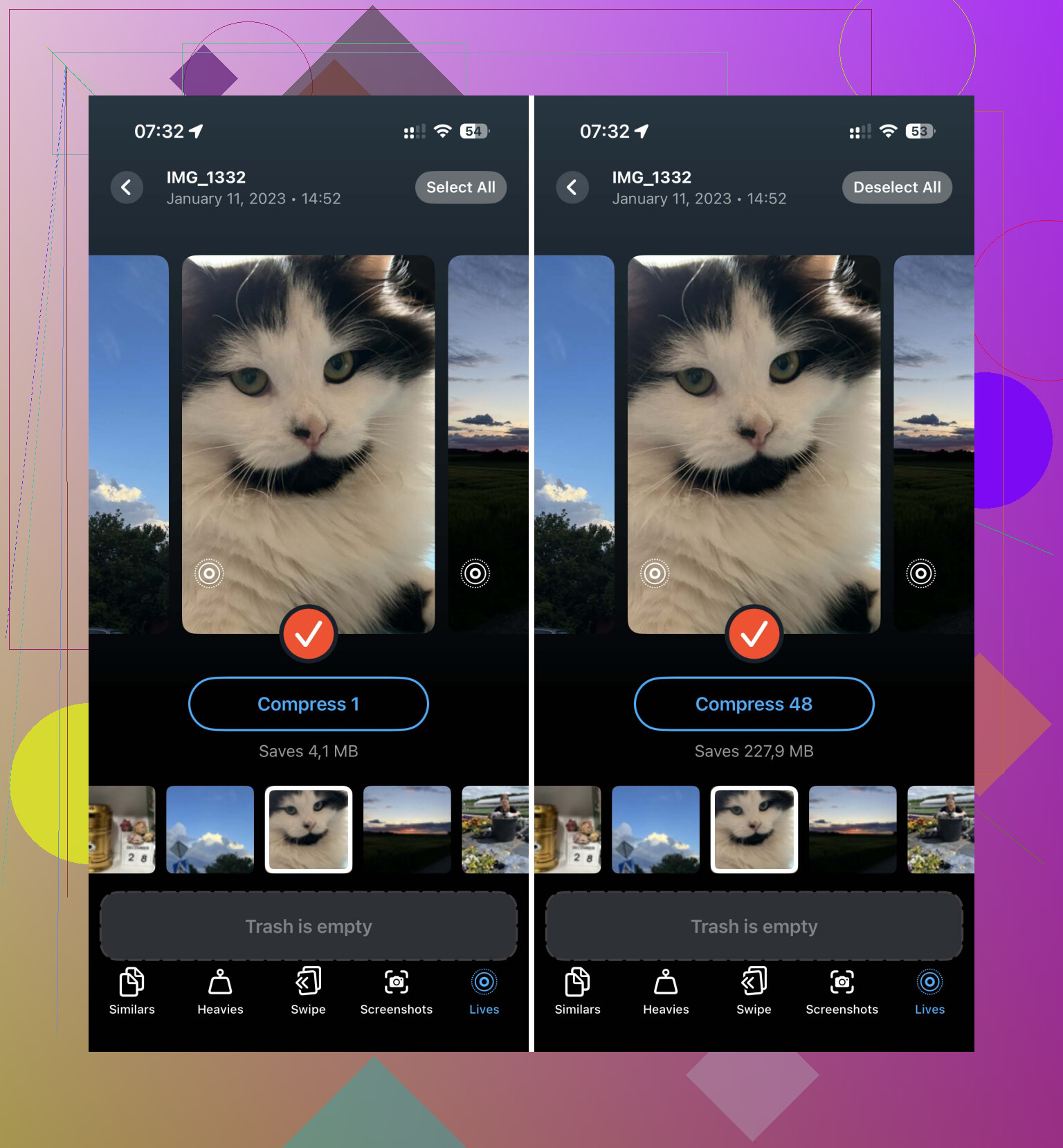
- Open the app and go to the Lives section.
- Sort by date or size if you want to spot the worst storage hogs first.
- Tap Select All, then Compress.
The label says “Compress,” though what it’s doing here is removing the motion part and keeping a still image.
After it finishes, it shows how much space you get back. Then you choose whether to delete the original Live Photos or keep them in its trash for a bit. I liked seeing the storage number before hitting delete. Made the cleanup feel worth it.
- Shortcuts app
If you prefer Apple’s own tools and don’t mind setting up a small workflow, Shortcuts works.
I used this when I wanted more control and didn’t want to screen-capture photos, since screenshots tend to be a dumb way to do this if you care about image quality.
Steps:
- Open Shortcuts.
- Tap the + to make a new shortcut.
- Add Find Photos.
- Set the filter so Photo Type is Live Photo.
- Add Repeat with Each.
- Inside the loop, add Convert Image and choose JPEG or HEIF.
- Add Save to Photo Album.
When you run it, your iPhone goes through the Live Photos and saves still copies.
One catch. It does not remove the originals. You still need to open your Live Photos album later and delete those yourself.
- Duplicate as Still Photo
For a small batch, I’d skip automations and do it in Photos.
This one is buried a bit, but it works.
- Open Photos.
- Go to Media Types > Live Photos.
- Tap Select and choose the files.
- Open the three-dot menu.
- Tap Duplicate.
- Choose Duplicate as Still Photo.
Your phone then makes separate still-image copies.
Important part, if you want storage back, delete the original Live Photos after duplicating. Then empty Recently Deleted. I missed this once and wondered why my storage number barely moved. Those deleted files sit there for 30 days unless you clear them out.
What worked best for me
For a few files, Duplicate as Still Photo was fine. For a huge backlog, a cleaner app was faster. Shortcuts sat in the middle. More setup, less tapping later.
If your main goal is stopping the problem, fix the Camera setting first. If your goal is getting space back, make sure the original Live Photos are gone and Recently Deleted is empty too. Otherwise, you did half the job.
65 Likes
Bulk conversion is the annoying part. iPhone does not give you a true one-tap “convert all Live Photos to stills and remove motion” tool in Photos. Apple made this way harder than it should be.
One option people miss is using a Mac. If you have one, import your library into Photos, export the Live Photos as still JPEGs, then sync or re-import the stills. It takes longer up front, but for huge libraries it is cleaner than tapping through albums on your phone. I think this is less messy than the Shortcuts route @mikeappsreviewer mentioned, because Shortcuts tends to leave you with duplicates and cleanup work.
If you want to stay on iPhone, Clever Cleaner is the faster route for bulk cleanup. Its Live Photos tool strips the motion part and keeps the image, which is the part you care about for storage. Afterward, delete the originals and clear Recently Deleted or you won’t see much space back. Ths is where most people get tripped up.
Also check your storage first. A Live Photo often takes about 2x the space of a still, sometimes more if the clip is longer or HDR data is involved. If you have 2,000 Live Photos, the savings add up fast.
For stopping it going forward, turn off Live in Camera and keep the setting saved. For cleanup help, this video on how to free up iPhone storage with Clever Cleaner covers the app’s photo cleanup tools in a pretty clear way.
Short version:
Use a Mac for bulk export if you want Apple-only.
Use Clever Cleaner if you want fast on-phone cleanup.
Delete originals.
Empty Recently Deleted.
Or else you saved almost no space, which is dumb but yep, taht’s iPhone.
I’d actually push back a little on @mikeappsreviewer and @viajeroceleste here. Converting everything to stills just for storage is not always the best first move, because Live Photos are often not the biggest space hogs in a full library. Videos, duplicates, burst shots, and giant app caches usually beat them by a mile.
So before you spend an hour nuking motion from 2,000 pics, check Settings > General > iPhone Storage and make sure Photos is really the main problem.
If it is, my preference is this:
- In Photos, go to Albums > Media Types > Live Photos
- Be selective with the junk ones first
- For the keepers, use Edit > tap Live icon > turn Live off > Done
That keeps the image and disables the motion on that item. It’s slower, yes, but it avoids making extra duplicates everywhere, which is where some methods get messy fast. Apple annoyingly does not give a true bulk convert tool built in. Super helpfull, right?
If you want a faster mass-cleanup route on iPhone, Clever Cleaner is probably the more practical option since it can identify Live Photos and help strip them down without as much manual work. I’d also read this before using it: see how Clever Cleaner handles Live Photos and storage cleanup.
One more thing people forget:
- Optimize iPhone Storage in Photos settings can save space without altering your originals
- deleting Live Photos won’t free much space until Recently Deleted is emptied
So my order would be:
- Turn off Live Photo for future shots
- Check if Photos is really the issue
- Remove junk Live Photos first
- Use Clever Cleaner if you need bulk help
- Empty Recently Deleted
Not as elegant as it should be, but that’s iPhone storage managment in 2026.
One angle missing from @viajeroceleste, @cacadordeestrelas, and @mikeappsreviewer: if you use iCloud Photos, converting Live Photos to stills may free less local space than expected unless you also change how originals are stored. A lot of people do all this work, then see barely any gain because iCloud is still managing the library.
What I’d check first:
- Settings > Photos > Optimize iPhone Storage
- If that is off, turn it on
- Wait a bit on Wi-Fi and power
That alone can reclaim a surprising amount without touching your library.
If you still want Live Photos gone, I actually would not do a full-library conversion blindly. Keep the important ones live, especially people, pets, and moving shots. The dumb receipt photos and accidental pocket snaps are the best targets first.
About Clever Cleaner since it came up:
- Pros: quick for scanning lots of Live Photos, easier than manual sorting, decent for spotting storage-heavy clutter
- Cons: you still need to review results, bulk cleanup can feel risky if you hate third-party apps touching your photo library, and you must verify originals are removed afterward if space is the goal
So my take is:
- Turn on Optimize iPhone Storage
- Stop future Live Photos in Camera settings
- Remove junk Live Photos first
- Use Clever Cleaner only if the manual review is too slow
- Then clear Recently Deleted
I slightly disagree with the “convert everything” approach. Storage-wise, selective cleanup plus optimization usually gets you most of the benefit with less regret later.
Quick recap: No one tap bulk convert in Photos. Options shared: export via Mac Photos, use Clever Cleaner, Shortcuts workflow, or Duplicate as Still. Delete originals, then clear Recently Deleted. Turn off Live and preserve the setting. Optimize iPhone Storage to reclaim space. Prefer selective cleanup.
Simpler altnerative: use iCloud.com in a browser. Steps:
- Open Photos on iCloud.com, filter Live Photos.
- Select All, click Download, pick Most Compatible. You get JPEG stills.
- Delete the selected Live Photos in iCloud, then empty Recently Deleted.
- Reupload the JPEGs if you want them back on iPhone.