I accidentally permanently deleted important files on my Windows 11 PC and already emptied the Recycle Bin. These documents and photos are really important, and I need to know if there’s any way to recover them safely. I’d appreciate advice on the best Windows 11 file recovery options before I make things worse.
Hey,
I’ve had this happen on Windows 11, and yeah, deleted for good does not always mean gone for good. A file often sits on the drive until something else takes its spot. So if it vanished from the Recycle Bin, there is still a shot.
Before I touched recovery software, I checked the boring stuff first. It saved me time more than once.
- Recycle Bin. Sounds obvious, but I’ve seen files end up there when I swore I used Shift+Delete.
- OneDrive Recycle Bin, if your Desktop, Documents, or Pictures were syncing.
- File History backups.
- Previous Versions on the folder where the file lived.
- Any old backup source, external SSD, USB stick, cloud account, or another PC where you copied the file earlier.
The big thing is this. Stop writing to the drive if you can. Don’t install random apps on it. Don’t download big files. Don’t move stuff around. Every write lowers your odds because Windows might reuse the same sectors. On SSDs, TRIM makes this worse. Once TRIM clears the deleted blocks, recovery gets a lot uglier, somtimes impossible.
If none of the backup or recycle bin checks turn up anything, then I’d move to recovery software.
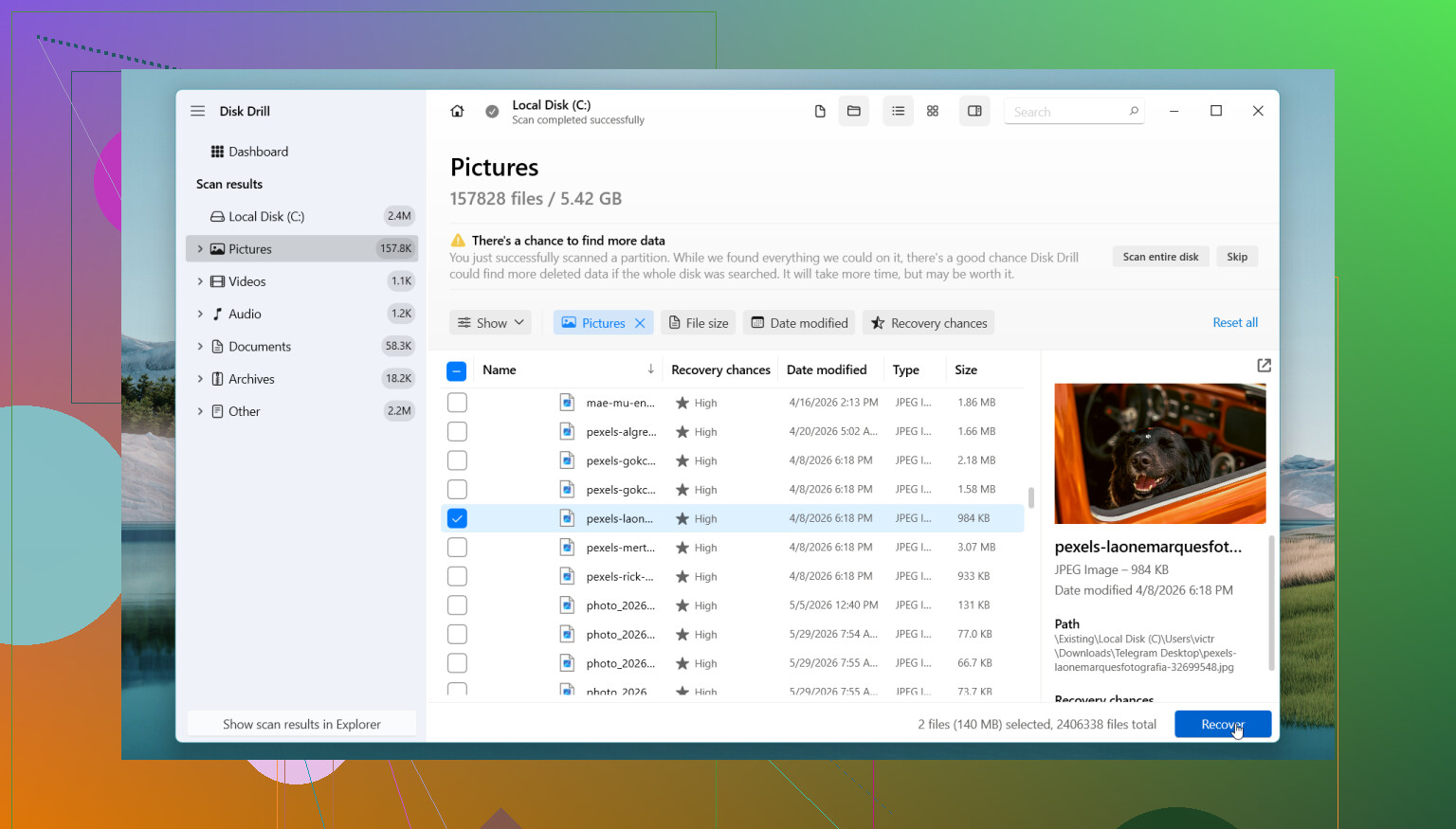
I’d start with Disk Drill. I used it on a secondary drive after I wiped the wrong folder, and it was easier to sort through than a lot of the other tools I tried. It scans deleted files, formatted volumes, and in some cases keeps the old names and folder layout, which saves a lot of cleanup later.
The steps are simple enough:
- Install Disk Drill on a different drive, not the one where the files were deleted.
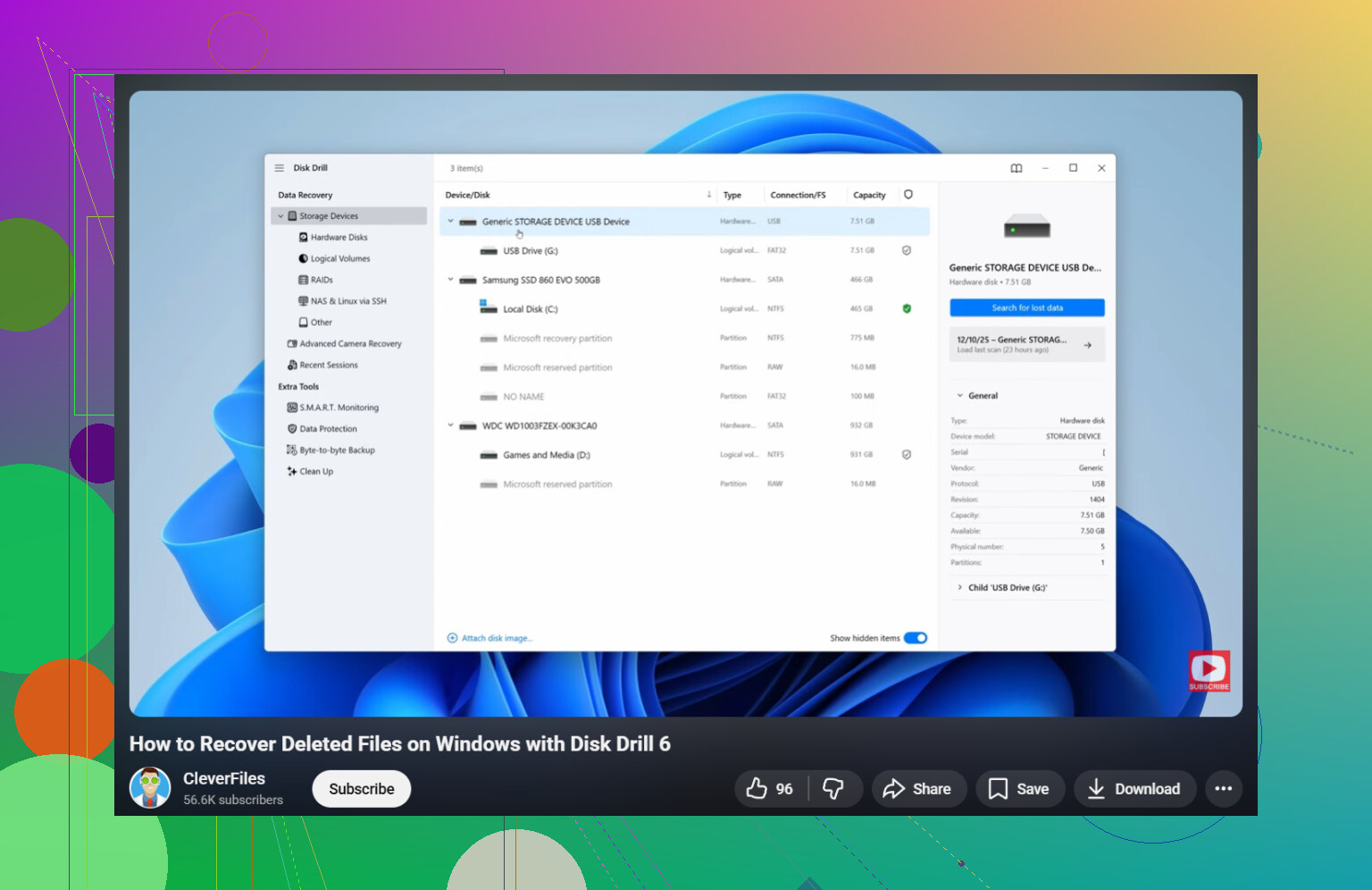
- Launch it and pick the affected drive.
- Hit Search for Lost Data and let the scan finish.
- Use search and filters to narrow the list.
- Preview files when the option shows up.
- Restore them to another drive, not back to the same one.
The free Windows build lets you scan and preview without limits, and it recovers up to 100 MB. For small docs or a few photos, that is enough to test whether the scan found the right stuff before spending money.
If you want a no-cost route, PhotoRec still works. I used it once on an SD card. It pulled back a pile of files, but the names were gone and the folder structure was toast. So yes, it recovers data, but sorting the mess takes time.
There are cases where I would stop doing this myself and hand it off:
- The drive clicks, grinds, or makes any odd noise.
- Windows stops seeing the drive at all.
- The drive drops off and reconnects on its own.
- The SSD or HDD looks physically damaged.
- The files matter enough where one bad move is not worth it.
- Recovery tools scan the drive and find nothing useful.
When hardware starts acting up, more DIY poking around tends to make things worse. I’ve seen people keep retrying scans on a dying disk and end up with less to recover than they started with. At that point, a recovery shop is the safer bet.
So, first check every backup path you forgot you had. If nothing turns up, keep drive use close to zero and scan fast. Your odds are better when the drive has not been churned on for hours after deletion.
8 Likes
Start with what Windows keeps outside the normal delete flow. Open Windows Security, then Protection History. Ransomware protection and Controlled folder access sometimes block saves or move files in weird ways, and people mistake it for deletion. Also check the hidden folder C:$Recycle.Bin from an admin account. Rare, but I’ve seen files stuck there.
I differ a bit from @mikeappsreviewer on one point. If the deleted files were on your system SSD and you kept using Windows 11 for hours, SSD TRIM drops recovery odds fast. On HDDs, odds stay better for longer. So your drive type matters a lot.
If you had Storage Sense on, Windows might have cleared temp copies and old restore data too. Check this command in Command Prompt as admin:
vssadmin list shadows
If you see shadow copies, tools like ShadowExplorer sometimes pull older file versions even when Previous Versions shows nothing.
For built-in recovery, try Windows File Recovery from Microsoft Store. It is free, command-line only, and works best if you know file types or folder path. Example:
winfr C: D:\Recovery /regular /n \Users\YourName\Documents*.docx
Restore to another drive, not C:.
If you want an easier scan with previews, Disk Drill is still one of the cleaner options on Windows 11. Better UI, faster sorting, less guessing. Test with preview first so you do not waste time.
Also worth checking this video guide for recovering deleted files on Windows 11:
watch this Windows deleted file recovery walkthrough
If the files are irreplaceable, stop trying stuff after 1 or 2 scans. Repeated writes and rescans are how people make a bad sitaution worse.
If the files are really important, I’d actually add one thing that neither @mikeappsreviewer nor @sognonotturno pushed hard enough: make a byte-for-byte image of the drive first if you can. Especially if this is an HDD or an aging SSD. That way you scan the copy, not the original, and you only get one chance to avoid making things worse.
A few extra checks that are easy to miss:
- Office apps sometimes have AutoRecover copies in temp folders
- Photoshop, some PDF editors, and photo apps keep their own recent/temp cache
- If the files were attached to an email or chat, search Outlook, Gmail, Teams, WhatsApp desktop, Discord, etc.
- Search Windows with part of the filename plus:
.tmp.asd.wbk~
Also, I slightly disagree with the “just scan asap” advice if you’re not comfortable doing this stuff. Panicked clicking is how people overwrite data. Slow down, verify the drive letter, then recover to another disk.
If you want readable Windows 11 permanently deleted file recovery tips from the community, that thread is worth a skim too.
For actual software, Disk Drill makes sense because previews help confirm the files are intact before restoring. That matters more than people think. If preview is broken, the file may be toast. Just don’t install it on the same drive you’re trying to recover from. Kinda obvious, but ppl do it anyway.
If nothing shows up and this was your system SSD, honestly, chances are not amazing. Not impossible, just… not great.