I accidentally deleted several important files from my exFAT external hard drive and need help recovering them. I haven’t saved anything new to the drive yet because I’m worried about overwriting the deleted data. What’s the safest way to recover files from an exFAT hard drive after accidental deletion?
First thing: stop using the drive right now. If this is just an accidental delete on an exFAT external drive, the files may still be recoverable, but every new write to that drive lowers your odds.
I had a similar scare with an exFAT drive after deleting a folder I thought I had already copied. For a bit I was sure it was gone for good. What helped was doing nothing to the drive until I was ready to recover the files.
With exFAT, deleting files usually does not wipe the actual data immediately. The file system mostly marks that space as free. So the files can often be rebuilt unless something new gets written over the same area.
Do this first
Do not:
- Copy anything new to the drive.
- Format it, even if Windows tells you to.
- Run CHKDSK before you’ve recovered the files.
- Install recovery tools onto the same drive you’re trying to recover from.
Instead, disconnect the drive until you’re ready to work on it. When you do reconnect it, use a Windows PC if possible. If it is an external hard drive, also pay attention to weird symptoms like clicking, grinding, or constant disconnects. That changes how risky DIY recovery is.
Check the easy stuff before scanning
Sometimes the files are not actually deleted. Windows may just not be showing them properly.
A few quick things worth trying:
- Search for the missing folder or file name in Windows Search.
- Turn on Show hidden files in File Explorer.
- If you are comfortable in Command Prompt, you can use
attribto remove hidden attributes from files and folders.
If none of that brings the files back, then I’d move on to recovery software.
Recovering deleted files
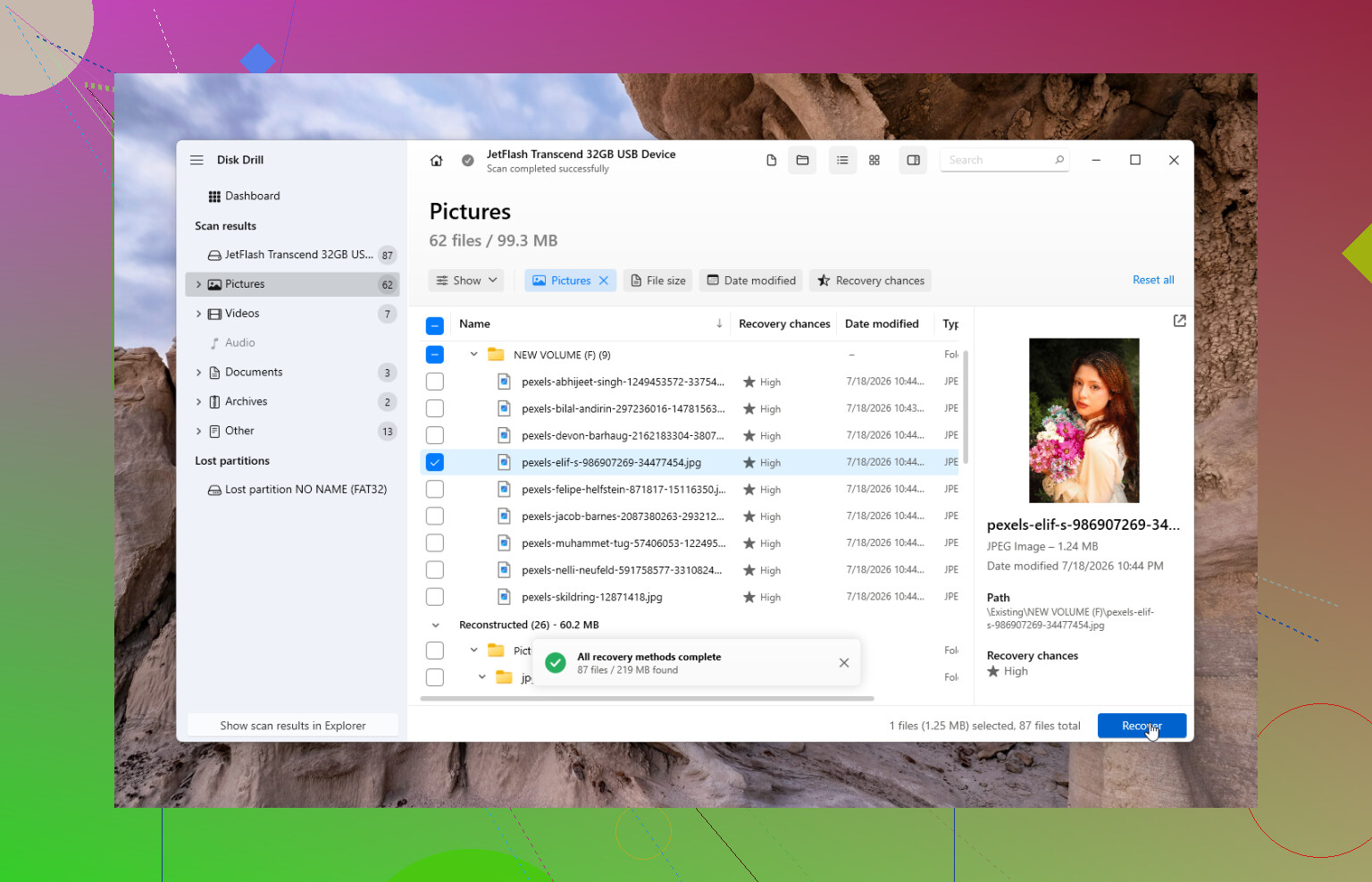
Disk Drill was the tool that worked best for me. It was straightforward, and in my case it recovered nearly everything I had deleted.
The safer workflow is:
- Install Disk Drill on your computer’s main system drive, not the affected external drive.
- If the drive seems flaky, make a disk image first and scan that image instead of scanning the physical drive over and over.
- Choose the exFAT drive in Disk Drill.
- Run Universal Scan.
- Wait for the scan to finish.
- Preview the files you care about.
- Recover them to a different drive. Never save recovered files back to the original drive.
The Windows version also lets you recover up to 100 MB for free, which is useful if you just want to confirm the files are actually recoverable before paying for anything.
Other tools worth knowing about
Disk Drill is usually the first thing I’d suggest for deleted files, mostly because it is easier for normal users.
If the issue is a damaged partition rather than simple deletion, TestDisk can be very good. It is free and has been around forever, but it is more technical and not something I’d call beginner-friendly.
Also, if you have File History, OneDrive, or any other backup that might contain the files, check that first. Restoring from a backup is usually faster and safer than scanning the drive.
If Windows says the drive needs formatting
If you see a message like:
'You need to format the drive before you can use it.'
Do not format it yet.
If the drive still shows up in Disk Management with the correct size, it may only be file system corruption. That is often recoverable with software, even if Windows itself cannot open the drive normally.
But I would stop trying DIY recovery if the drive:
- clicks or grinds,
- drops offline during scans,
- shows the wrong capacity,
- does not show up on multiple computers,
Those are signs that the hardware itself may be failing, and repeated scans can make things worse.
When a recovery lab makes more sense
If the drive was dropped, got wet, will not spin correctly, or keeps disconnecting, software probably is not the safest route. A professional recovery lab is the better option for that kind of failure.
Good labs usually offer a free evaluation and often work on a “no data, no fee” basis. Cost can vary a lot, but it is commonly somewhere around $300 to well over $1,000 depending on what is wrong. Expensive, yes, but sometimes worth it for family photos, work files, or anything you truly cannot replace.
If this is only accidental deletion or logical corruption, your odds are much better, especially if you stop using the drive immediately. That is what saved my files, and it is still the first advice I’d give for an exFAT drive.
13 Likes
Whether this is a spinning hard drive, SSD, or thumb drive matters a lot. On a normal external HDD, accidental deletion from exFAT is often recoverable if nothing has been written afterward. On some SSDs or flash drives, TRIM/discard behavior can make deleted files unrecoverable much faster, even if you personally did not copy anything new to it.
I agree with the “stop using it” advice, but I’d be a little stricter: don’t browse the drive “just to check,” don’t let photo apps index it, and don’t let Windows repair it. If the files matter, make an image of the drive to another disk first, then scan the image. That way if the drive starts acting weird or the first scan is bad, you haven’t been beating up the only copy.
Disk Drill is fine if you want a nicer interface and previews, but don’t judge success only by whether it shows the old folder names. Deleted exFAT recoveries can come back with missing names or messy folders, especially after a deep scan. Look by file type, size, and date, then recover to a completely separate drive. If you only need photos/videos/docs and don’t care about filenames, a free tool like PhotoRec can be worth trying too, though it’s much less pleasant to sort through afterward.
Do not let any recovery program, Windows prompt, or “repair” tool write changes to that exFAT volume before you have copied the recoverable data somewhere else.
The slightly annoying part with exFAT is that a normal delete may leave the file contents sitting there, but the bookkeeping around those files can be fragile. So yes, the earlier advice about stopping use is right, but I’d be careful with “quick checks” too. Opening the drive in Explorer can create thumbnail/cache activity in some situations, and some tools will offer to “repair” the disk before recovery. Decline that for now.
I would skip anything that modifies the drive, including attribute commands, CHKDSK, formatting, partition repair, or “undelete in place.” If the files were truly deleted, changing hidden/system attributes will not bring them back anyway. That kind of check is more useful when files are present but invisible. For an accidental deletion case, you want read-only scanning, not cleanup.
My preferred order would be:
- Unplug the drive until you have another drive ready.
- Make sure the destination drive has enough space for everything you want to recover.
- If the deleted files matter a lot, clone or image the exFAT drive first.
- Scan the image, or scan the original only if you accept the risk.
- Recover to a different physical drive.
- Open a few recovered files before assuming the job is done.
That last step gets overlooked. A recovery program can show filenames and folder trees that look perfect, but some recovered files may still be corrupt, incomplete, or from an older deleted copy. For documents, open them. For photos, check full-size previews, not just thumbnails. For videos, scrub through the middle and end, because the beginning can play while the rest is damaged.
Disk Drill is fine for this kind of job if you want a graphical tool and previews, especially if you are not comfortable with command-line recovery. I would treat it as a scanner and copier, though, not as something that should “repair” the original disk. Install it on your internal drive, recover to another disk, and avoid saving any scan session or recovered data back to the exFAT drive.
A small caveat: don’t expect the recovered result to always look like your old folder. With exFAT, especially after a deeper scan, you may get files grouped by type with generic names. That does not mean the recovery failed. It may just mean the directory entry information was lost or incomplete. Sorting by file size, file type, and modified date can be more useful than hunting for the old folder name.
If this is an external SSD or a flash drive, I’d lower expectations. @nachtschatten’s TRIM point matters. Some devices clear deleted blocks quickly, and once that happens, software will mostly find empty data or broken shells of files. With a spinning USB hard drive, accidental deletion with no new writes is usually a much better situation.
If Windows pops up with “you need to format this drive,” close it. If the drive clicks, vanishes during scans, gets very slow, or shows the wrong capacity, stop. At that point the problem may not be deletion anymore. Repeated full scans on a failing drive can turn a recoverable case into a worse one.
For a non-failing HDD where you simply deleted files and then stopped using it, your chances are decent. The safest practical move is image first, scan second, recover elsewhere, verify the recovered files, and only then decide what to do with the original drive.
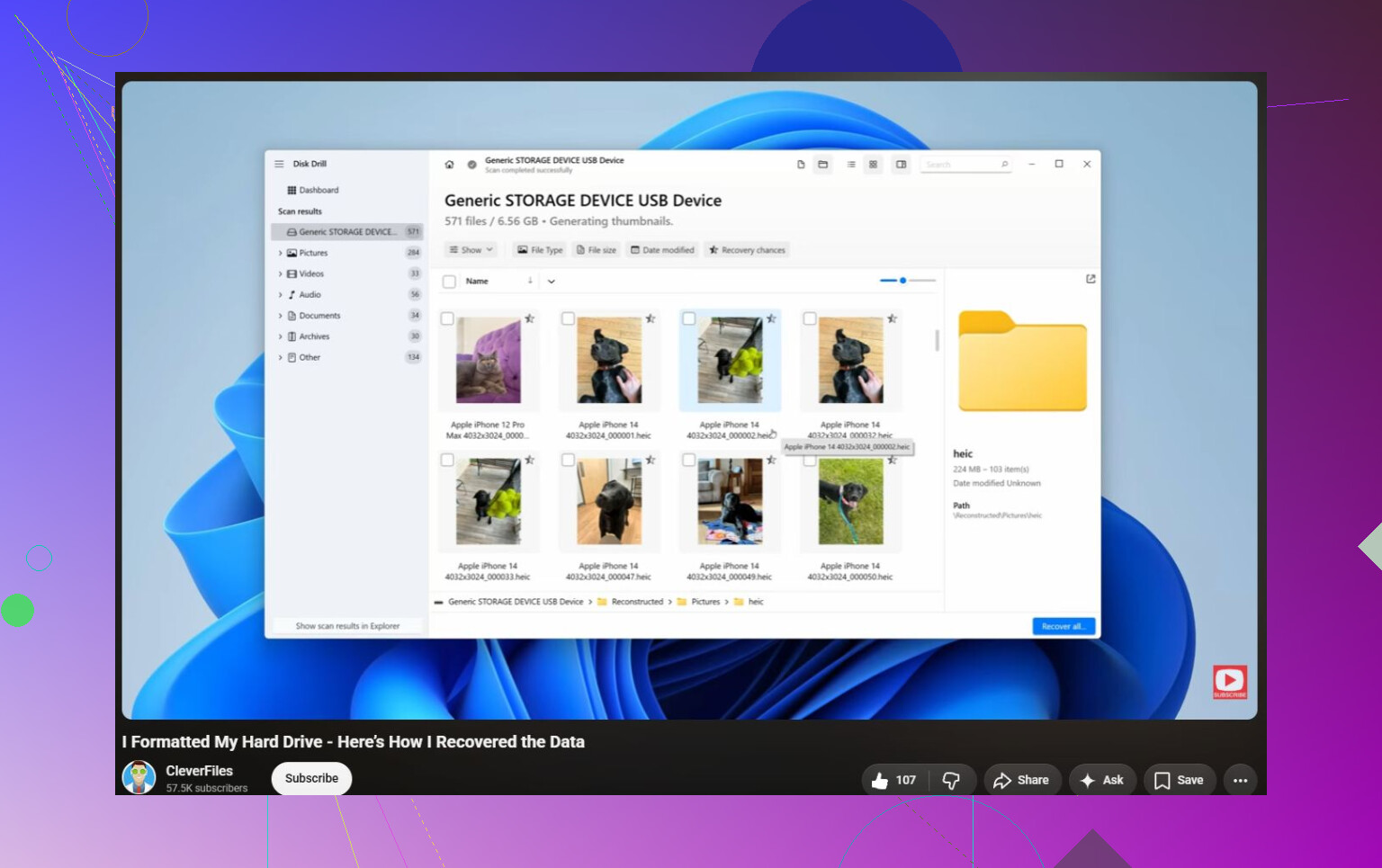
Expect the scan to find some files, but not necessarily with their original names or folders.
The files I’d be most nervous about are large videos, archives, and database files, because if they were fragmented, recovery software may only rebuild part of them. Use Disk Drill or another tool to preview first, recover only to a different drive, and don’t trust a recovered file until you actually open it.