My SD card suddenly stopped opening on my phone and computer, and I’m worried I’ll lose important photos and videos stored on it. I already tried restarting the devices and reinserting the card, but nothing worked. I need help figuring out the safest way to recover files from an SD card that won’t open without making the problem worse.
I’ve been in this mess before, and the first move is simple. Stop touching the card.
- Pull the SD card out now.
- Do not take more photos.
- Do not record new video.
The reason is boring but important. A delete on an SD card usually removes the file entry, not the photo data itself. The pictures often stay on the card until new data lands in the same spots. If you keep using it, you shrink your odds fast. If you stopped right after the mistake, your chances are still decent.
Before you run recovery tools, check the obvious places once:
- Trash or Recycle Bin. This matters if you deleted the files while the card was plugged into your computer.
- Cloud uploads. Look in Google Photos, Dropbox, OneDrive, or whatever your phone uses. I missed this once and found half my stuff already synced.
If the files are gone for real, you’ll need recovery software. One thing people miss, I did too the first time, do not connect the camera by USB if you want a proper scan. Use an SD card reader and plug the card into the computer directly. Cameras often expose storage in a way recovery apps don’t handle well.
I tried a pile of these apps. The one I’d start with is Disk Drill. On camera cards, it gave me the least trouble and found files other tools skipped.
Why I’d pick it first:
- It handles camera formats well. RAW files and chopped-up video clips are where some tools fall apart. This one tends to do better there.
- You get previews. That matters. You can check if the photo opens before you waste time restoring junk.
- There’s a free test on Windows. Up to 100 MB, which is enough to see if your missing files show up.
If you want other routes, here are the two people usually bring up:
- Windows File Recovery. Free, straight from Microsoft. It works through commands in a terminal window. No nice interface. Also, SD cards using FAT32 or exFAT don’t always scan as cleanly as you’d hope. I got mixed results with it.
- DiskDigger. Small app, no full install needed. Good at spotting image files. The free desktop version gets annoying fast because you have to wait and confirm files one by one. Fine for ten photos. Miserable for 600. There’s an Android version too, but deep scanning there usually needs root.
If you use Disk Drill, the flow is short. Put the SD card in a reader. Open the app. Select the card. Start the scan with Advanced Camera Recovery. Then wait and let it finish.
One more rule, and this one ruins recoveries when people ignore it. Do not save recovered files back onto the same SD card. Put them on your computer’s internal drive or another external drive. Writing restored files onto the card while recovery is still running is how hidden leftovers get overwritten.
So the order is: stop using the card, check trash and cloud, scan through a card reader, recover to a different drive. If you follow those steps without improvising, you’ve got a real shot.
17 Likes
If the SD card will not open on both phone and computer, I would treat it as a mounting or file system problem first, not a simple delete case. That’s where I differ a bit from @mikeappsreviewer. Recovery apps help, but you should check whether the card is detected at the hardware level before scanning.
Do this:
-
Test a different card reader.
A bad reader fails more often than people think. I’ve had two cheap USB readers die before the card did. -
Check Disk Management on Windows, or Disk Utility on Mac.
If the card shows with the right size, your data might still be there and the partition is damaged.
If it shows 0 bytes or no media, the card controller may be failing. Software recovery gets a lot harder then. -
Make an image of the card first.
Use a tool like USB Image Tool, HDD Raw Copy, or dd on Linux/macOS. Work from the image, not the card. This matters if the card keeps disconnecting. Fewer read attempts, less risk. -
Run CHKDSK only if the files are not irreplaceable.
Some people suggest it right away. I don’t. chkdsk /f can repair the file system, but it also edits structures on the card. I’ve seen it rename folders into FOUND.000 messes. If the photos matter a lot, recover first, repair later. -
Scan the image or the card with Disk Drill.
Disk Drill is one of the better picks for SD card photo and video recovery because it recognizes exFAT, FAT32, and many camera file signatures well. Preview what it finds before restoring. Save results to your PC, not back to the card. -
If no app sees the card size correctly, stop.
At that point it’s more like hardware failure. A lab is your best shot, esp if the photos are worth paying for.
Also, if you want a solid SD card video recovery guide, this helps:
SD card video recovery guide for lost or unreadable files
If you post what the card shows in Disk Management, like capacity, file system, or unallocated, people here cn narrow it down fast.
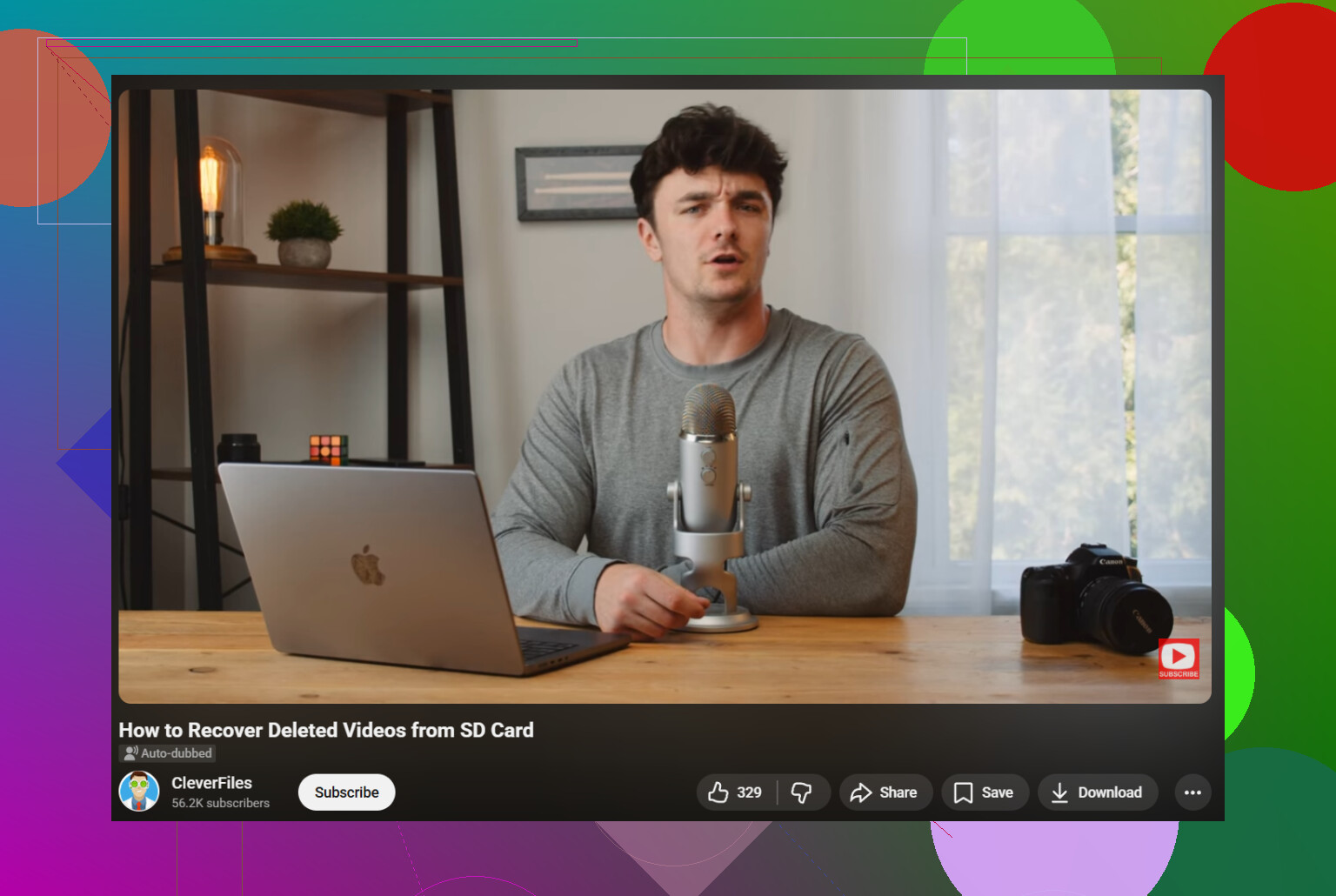
If it won’t open on both phone and computer, I’d also check for a fake or dying card, not just file corruption. That part gets missed a lot.
@byteguru is right about checking whether the card is even detected, but I’m a little less sold on running repair tools early. Even “light” fixes can make a bad sitation worse if the card is unstable.
What I’d do that hasn’t been stressed enough:
-
Try reading it on a different OS if possible.
Windows might choke on it, but a Mac or Linux box sometimes still reads enough to copy files off. -
Check the card’s physical lock switch if it’s a full-size SD in an adapter.
Sounds dumb, but bad adapters and half-slid switches cause weird behavior. -
If the card shows a weird reduced size, like 30 MB instead of 128 GB, that’s often controller failure. Software recovery usually won’t fix that.
-
If it does mount even briefly, copy the DCIM and PRIVATE folders first. Don’t waste time sorting anything yet.
If you need software, yeah, Disk Drill is a reasonable option after the detection check, esp for photos/videos. I’d use it only after confirming the card is at least visible to the system.
Also worth reading: best Reddit advice for recovering deleted files from an SD card
If the card shows 0 bytes / no media, stop DIY stuff. That’s usually lab territory, and repeated attempts can make it worse.
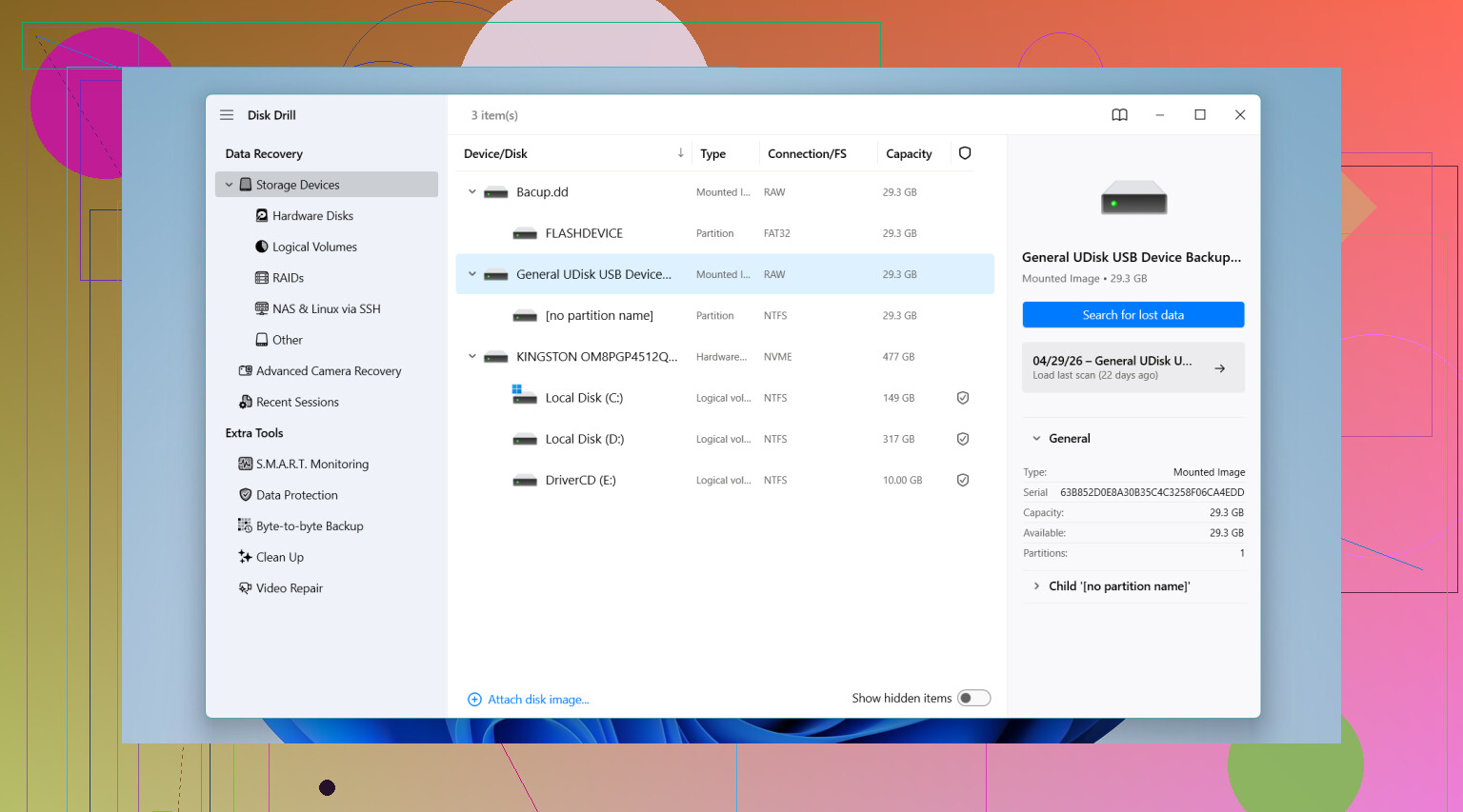
One thing I’d add to what @byteguru, @stellacadente, and @mikeappsreviewer said: check whether the card is asking to be formatted. If Windows or Android says that, do not accept it yet. That prompt usually means the file system is unreadable, but the actual photo/video data may still be recoverable.
A couple extra checks that help narrow it down:
- Try copying with a powered USB hub or a rear motherboard USB port. Some readers underpower flaky SD cards.
- Listen for disconnect/reconnect loops on Windows. If it keeps chiming, the card is unstable, and long scans may fail unless you image it first.
- On Android, see if the phone reports “corrupted SD card” versus simply not showing files. Different symptom, same warning: don’t write anything.
I slightly disagree with trying too many readers/computers in a row if the card is acting erratic. Repeated mounts on a failing card can make a bad situation worse. A few checks, yes. Endless retries, no.
If the card is at least visible, Disk Drill is a sensible next move.
Pros of Disk Drill
- easy previews for photos/videos
- good support for common SD card formats
- simpler than command-line tools
Cons of Disk Drill
- not magic if the card shows 0 bytes or no media
- deep scans can return lots of unnamed files
- free recovery limits depend on platform/version
If the files are truly irreplaceable and the card is clicking, overheating, or disappearing constantly, skip DIY and go to a recovery lab. That’s the point where software usually stops being the answer.