I accidentally emptied the Trash on my Mac and realized important files were still in it, including documents and photos I need for work. I’m looking for a reliable way to recover deleted Trash on Mac without making things worse. Are there any safe methods or tools that actually work?
I’d stop using the Mac right now. Close apps. Don’t save anything. Let it sit for a minute.
Here’s the bad part. Emptying Trash on macOS usually does not erase the file data right away. The system drops the index entry and marks the space as free. Your files often still sit on the SSD until new data lands in those blocks. So every app launch, browser tab, download, cache write, all of it raises the chance of overwriting what you want back. On top of this, SSDs in Macs use TRIM. That cleanup runs in the background and clears deleted blocks for drive maintenance. So yeah, time matters.
Check the easy stuff first
- Cloud accounts
If the files lived in iCloud, Dropbox, or Google Drive, disconnect the Mac from Wi-Fi first. Then check those services from your phone or another device. Each one has a Recently Deleted area, and files often stay there for up to 30 days. - Photos or Notes
If what vanished was in Photos or Notes, open those apps and look in Recently Deleted. Apple usually keeps those items around for roughly 30 to 40 days. - Time Machine
If you ever turned on Time Machine, check it now. Open it from the menu bar and go back to earlier today. Even without the backup drive connected, macOS sometimes keeps local snapshots for the past 24 hours.
If those checks go nowhere, this is the next thing I’d do.
Disk Drill tends to be the practical route here, mostly on newer Apple Silicon Macs. A lot of free recovery apps hit a wall because of Apple’s storage encryption, and they don’t read the internal drive well enough to help.
How I’d handle the recovery
- Do not install it on the MacBook’s internal drive
This part matters most. Download Disk Drill on another computer, copy it to a USB flash drive, then run it from there. Installing software onto the MacBook writes data to the SSD, and you might wipe out the exact files you’re trying to recover. Kinda brutal, but true. - Make a full disk image first
Before scanning, create a byte-for-byte image of the drive and save it to an external disk. This gives you a frozen copy of the drive in its current state. If the first pass misses something, or you want to try different scan settings later, you work from the image instead of touching the original SSD again. I would not skip this. - Scan the image, not the live drive
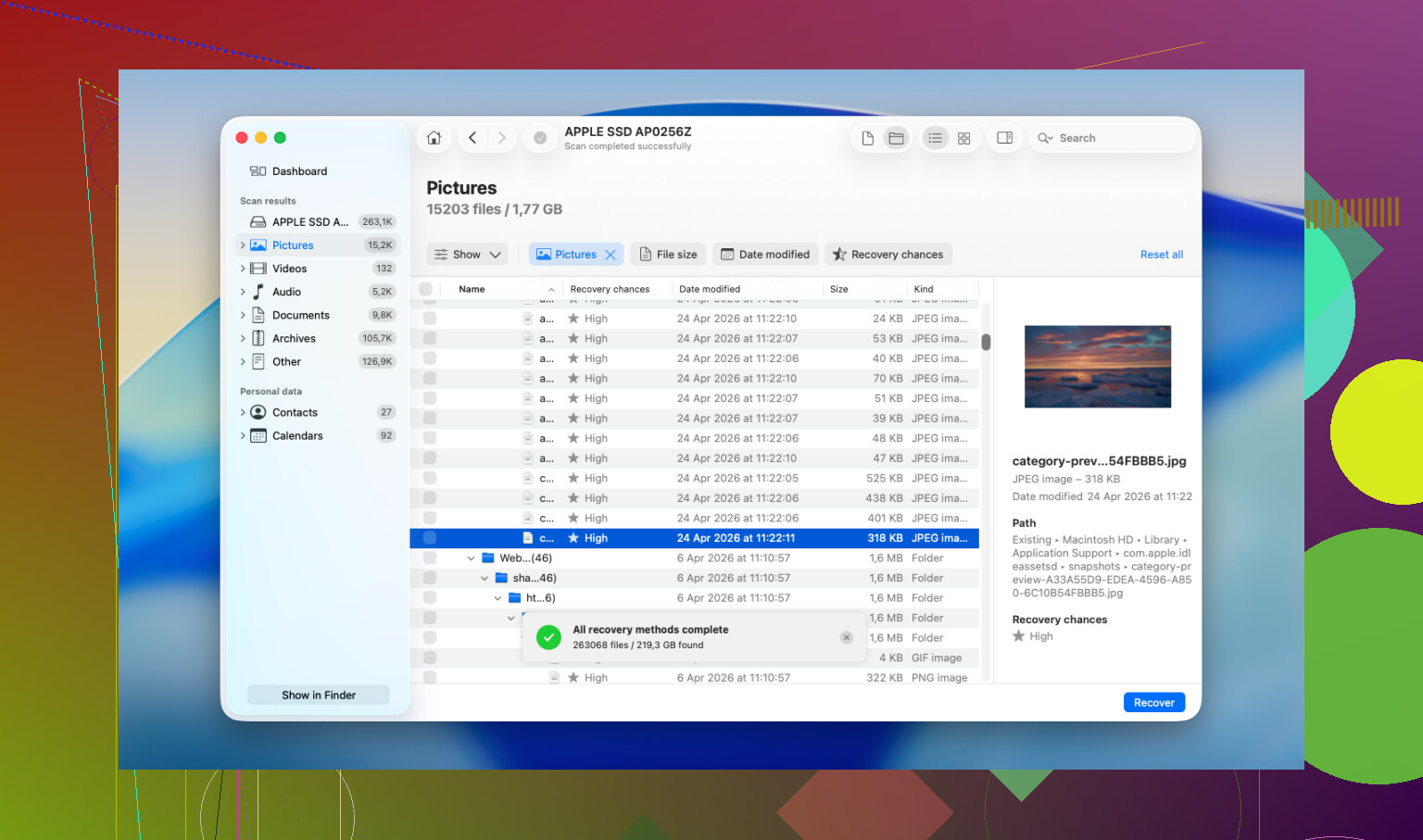
Point Disk Drill at the disk image you made and let it go through the raw sectors. Bigger drives take longer. Leave it alone and let the scan finish. - Preview before you pay
The scan itself is free. You get previews of what it finds, photos, documents, videos, thumbnails, the whole deal. So you can see whether the files are intact before spending money on the Pro license to recover them. - Restore to an external drive
If recovery works, save the recovered files to a USB drive or external hard drive. Do not write them back to the MacBook’s internal storage.
If software recovery fails
If the scan finds nothing useful, or only broken fragments, then I’d look at a data recovery lab. Software has limits. Recovery shops work closer to the hardware and deal with this stuff all day. A lot of them offer a free evaluation first, then give you a quote before doing the paid work. Turnaround is often a few days to a week. Cost is the rough part. I’ve seen most cases land somewhere around $500 to $2,000, depending on how messy it is. If the files matter a lot, it’s worth getting the quote at least.
14 Likes
I’d add one thing to what @mikeappsreviewer said. Before you go straight into recovery software, check version history inside the apps you used.
For work docs, open Word, Excel, Pages, Numbers, Google Docs, Adobe apps. A lot of them keep AutoRecovery, temp saves, or cloud version history even after the original file got trashed. For photos, check Messages, Mail attachments, Slack downloads, and app-specific export folders. I’ve seen people “lose” a file from Trash, then find the same file cached in an app folder 10 mins later.
Also, don’t count too much on local snapshots if you never set up backups. People mix this up a lot.
If the files are gone from app history too, then Disk Drill is a solid next move for deleted Trash recovery on Mac. What matters most is where you save the recovered files. Put them on an external drive, not your Mac.
This is also a decent quick walkthrough if you want a visual:
Mac Trash recovery steps for deleted files
If the docs are worth money or deadlines, stop using the Mac now. Every minute hurts your odds. Sad but truee.

I mostly agree with @mikeappsreviewer and @nachtdromer, but I’d push one extra angle before doing a deep scan: look for duplicate copies that macOS and apps quietly leave behind.
Check these spots:
- Finder search for the exact filename, plus partial names
~/Library/Containers/for sandboxed app temp data~/Library/Application Support/~/Library/Autosave Information/- Mail Downloads folder
- Messages attachments
- Preview’s recent files if you opened the docs before
A lot of “deleted from Trash” files are not actually your last copy. Especially docs and exported photos. People forget they attached the file in Mail or dropped it into Slack, then panic for no reason. Been there, did the dumb thing too.
One thing I slightly disagree on: local snapshots are not something I’d count on much for this specific case unless you already know backups were active. Nice surprise if present, but not Plan A.
If none of that turns up anything, then yeah, Disk Drill is probably the most practical Mac Trash recovery tool to try. Just don’t recover back onto the internal drive. That part people mess up alll the time.
Also worth reading if you want more real-world Mac Trash recovery discussion:
real Reddit advice for recovering emptied Trash on Mac
Short version:
- Stop using the Mac.
- Search for app-made copies and autosaves.
- Check cloud web trash from another device.
- If still nothing, use Disk Drill and save recovered files externally.
- If the files are worth serious money, skip DIY and call a lab.
If TRIM already cleaned those blocks, software recovery can be rough. Not impossible, just way less fun than the internet makes it sound.
One small disagreement with @nachtdromer, @hoshikuzu, and @mikeappsreviewer: after an emptied Trash event on a modern Mac SSD, I would not spend too long digging through hidden Library folders unless you already know which app made the file. That search can create more writes and waste the best recovery window.
What I’d add instead:
- Check other Macs/iPhone/iPad tied to the same Apple ID. Sometimes the file still exists in Files, iCloud Drive sync history, or app recents on another device that has not synced changes yet.
- If the docs were ever printed, check the app’s recent items and the printer spool related temp copies.
- For photos, look in external editors like Lightroom, Pixelmator, Photoshop catalogs, or exported project folders. Catalog apps often reference originals or keep previews.
If none of that helps, Disk Drill is the practical move.
Pros
- Good file signature scan for photos/docs
- Handles APFS better than many cheap Mac tools
- Can preview findings before recovery
- Disk image workflow is useful
Cons
- Recovery on TRIM-enabled SSDs is hit or miss
- Deep scans return lots of junk filenames
- Paid recovery tier
- Best results usually require another external drive
So yes, use Disk Drill if the files are valuable, but set expectations right. If the deleted files were on the internal SSD and a lot of time has passed, software recovery may find fragments only. If this is deadline-critical, I’d skip more experimenting and go straight to a recovery lab.