I accidentally deleted important documents from my MacBook and now I can’t find them in Trash or recent files. Some of these deleted files on Mac are work-related and I really need help figuring out the best way to recover them before they’re gone for good.
I’d still try. Emptying Trash kills the easy undo path, but it does not mean the file vanished from the drive on the spot. A lot of the time, the data sits there until macOS writes over it. The catch is SSDs. On newer Macs, deleted blocks often get cleared fast, way faster than the old spinning drives I used years ago.
First move, stop using the Mac. I mean it. Don’t download stuff, don’t install apps, don’t edit big files, don’t run a macOS update because “why not.” Every write lowers your odds.
What I’d check first
Before throwing recovery software at it, I’d go through the built-in stuff in macOS.
1. Time Machine
If Time Machine was on before the deletion, this is usually the cleanest fix.
- Open the folder where the file used to be.
- Start Time Machine.
- Jump back to a backup from before you deleted it.
- Pick the file, restore it.
When this works, it works well. You usually get the original filename, folder, and metadata back without weird cleanup after.
2. APFS snapshots
This one gets missed a lot. Even if you never plugged in a Time Machine drive, macOS often makes local APFS snapshots before updates and some system changes. I’ve seen people recover stuff from there when they thought they had zero backup.
Open Disk Utility, click your system volume, and look for available snapshots. If you spot one from before the deletion, mount it and copy the missing files out by hand.
Bit annoying, but worth checking.
3. Recovery software
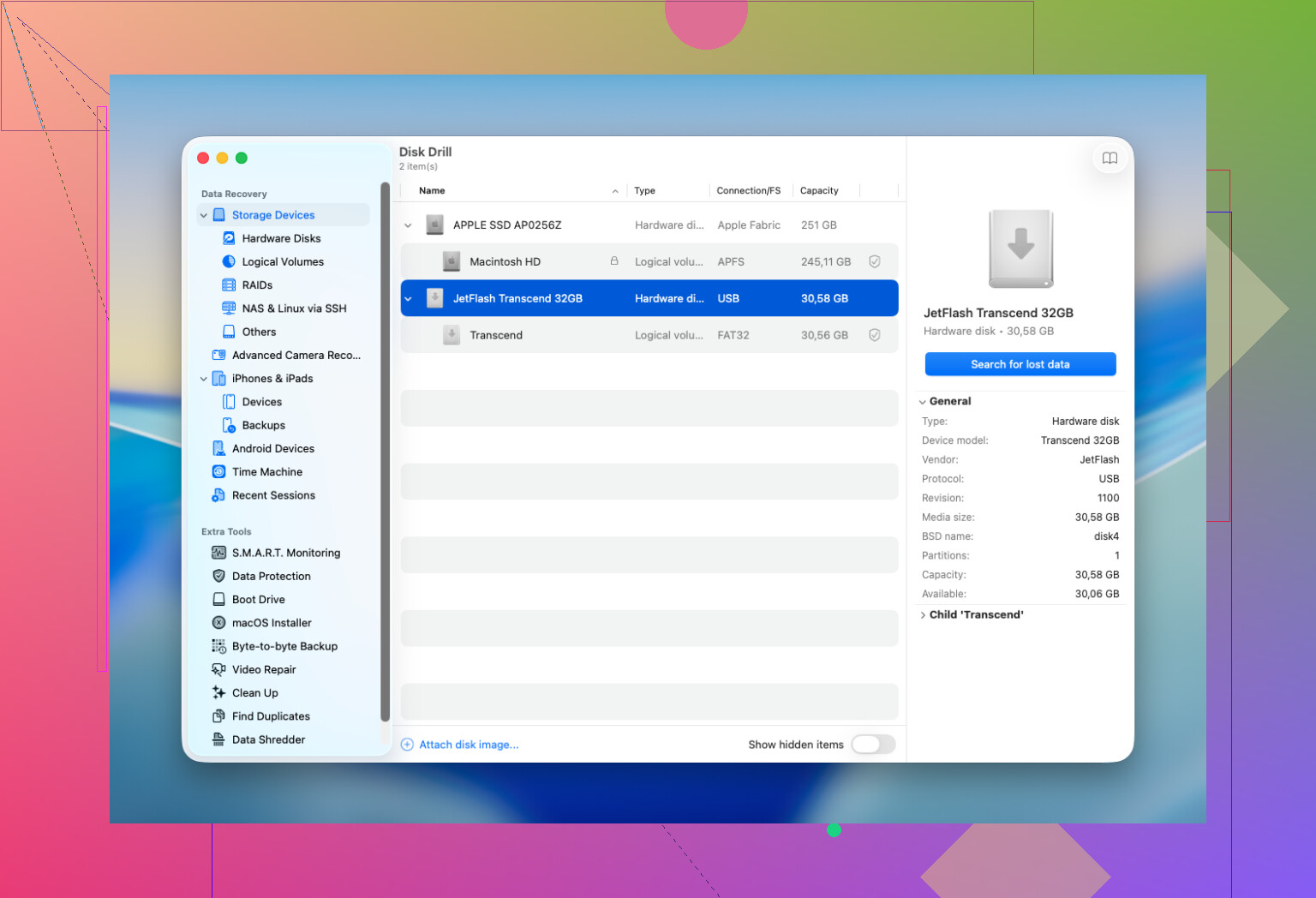
If backups and snapshots come up empty, I’d move to scan software. Disk Drill is usually where I start. It rolls a few scan types into one workflow, works with current macOS versions, and lets you preview files before recovery. For me, preview matters a lot. If the file opens in preview, your odds are usually better.
A few rules here, and I learned these the hard way:
- Install the recovery app on another drive if you’ve got one.
- Recover the files to a different drive, not back onto the same Mac volume you’re scanning.
- Check previews carefully. A file with a good preview tends to recover in usable shape more often.
4. When I’d stop and use a recovery lab
For plain accidental deletion, I usually would not jump straight to a lab. I’d save that for cases like these:
- The files matter enough where a failed DIY attempt feels too risky.
- The drive is acting wrong, random disconnects, read errors, weird noise, or it doesn’t show up in macOS.
- The Mac took liquid damage, power damage, or some other hit.
- The recovery tool won’t finish a scan, or it can’t read the drive at all.
A decent lab has tools and methods you won’t have at home. The bad part is the price. It might be a few hundred bucks, it might climb a lot higher. I’ve seen people get surprised by tha fast.
The part people get wrong
There isn’t some fixed timer where you get three days, or two weeks, or whatever. What matters is whether the deleted blocks were overwritten, or cleared by TRIM. So the people who do best are usually the ones who stop using the Mac right away and check backups or start a scan immediately.
If this were my machine, I’d go in this order: Time Machine, then APFS snapshots, then a recovery scan. Most successful Mac recoveries I’ve seen landed in one of those three paths.
11 Likes
If Trash is empty, I’d check one thing people skip. Cloud sync history.
If your docs lived in iCloud Drive, Dropbox, OneDrive, or Google Drive, log into the web version and check deleted files there. Most keep deleted items for 15 to 30 days. iCloud Drive data recovery is one of the faster fixes on Mac because the file might still exist on Apple’s servers even when Finder shows nothing.
I slightly disagree with @mikeappsreviewer on snapshots as a first manual check for most people. They help, sure, but for work docs I’d first look at app-level recovery. Word, Excel, Pages, and Adobe apps often keep AutoRecovery or temp copies. Search these folders:
~/Library/Containers
~/Library/Application Support
~/Library/Autosave Information
/tmp
Also open the app you used and check File, Open Recent, Recover Unsaved, or Version History. People miss this all the time.
If Spotlight is acting weird, force a direct search in Terminal:
mdfind ‘filename’
find ~/ -name ‘part_of_filename’ 2>/dev/null
If the file is gone from backup, cloud, and app recovery, then yes, use Disk Drill. It’s one of the better Mac file recovery tools because you get previews before recovery, and that saves time. Recover to an external drive, not your internal SSD. That part matters a lot.
For a quick explainer, this Mac file recovery tools video guide is easy to scan.
Fast order I’d use:
- Cloud deleted files.
- App auto-save folders.
- Terminal search.
- Disk Drill scan.
- Pro lab if the drive has errors or won’t mount.
If these are work files, stop usng the Mac for anything else till you try this stuff.
One thing I’d add to what @mikeappsreviewer and @andarilhonoturno said: check whether the files were ever moved, not deleted. Sounds dumb, but on Mac this happens a lot with drag-and-drop into Desktop, Downloads, or some app container folder. In Finder, hit File > Find and switch the search scope to “This Mac,” then sort by Date Modified and Kind. I’ve seen “missing” docs just sitting in the wrong place.
Also, if you use Pages, Numbers, Keynote, or Office, look for file versions. On macOS, some apps save document states separately from the obvious file itself. Right click the document if you find an older copy and check for version browsing. Not the same as autosave, slightly differnt angle.
I’d also check your email attachments and Slack/Teams downloads if these were work docs. People recreate “lost” files that way all the time.
If none of that turns up anything, then yeah, use Disk Drill and scan the drive from read-only if possible, recovering to an external disk. I slightly disagree with making Terminal searches a top priority unless you remember part of the filename. Otherwise it can waste time.
Useful read too: Reddit discussion on recovering deleted files from a MacBook.
One angle missing from @andarilhonoturno, @espritlibre, and @mikeappsreviewer: check the app’s own “revert” system through macOS document versioning. If you still have an older copy of the file, open it and use File > Revert To > Browse All Versions. That can resurrect content even when the “deleted” item was really a replaced or overwritten document.
I’d also check these two spots people forget:
-
~/Library/Mobile Documents/
Sometimes iCloud-related files are still cached here even when Finder looks empty. -
~/Library/Group Containers/
Office apps and some Adobe tools stash recoverable bits there.
Small disagreement with making snapshots a high-priority check for everyone. Useful, yes, but on newer Macs I usually care more about whether the file was overwritten, replaced, or unsynced rather than fully deleted.
If you get to scanning, Disk Drill is a solid Mac option.
Pros:
- Good preview support
- Simple interface
- Finds many document types
- Works well for external drives too
Cons:
- Deep scans can take a long time
- Recovery quality depends heavily on SSD TRIM
- Best results usually need another drive for saving recovered files
Also worth checking if your work system has MDM or company backup tools running silently in the background. A lot of managed Macs back up Desktop and Documents without users realizing it.