I accidentally deleted important files from my hard drive and then emptied the Recycle Bin before realizing I still needed them. These documents and photos are really important, and I’m trying to find the best way to recover deleted files from a Windows PC without making things worse. What recovery steps or software should I try first?
I’ve seen a lot of people write off a drive too fast when the files were still sitting there, untouched. Losing access is not the same thing as losing the data itself. I learned this the hard way after wiping a folder of photos I cared about. The first gut reaction is panic. Try not to do that yet. When photos get deleted from an internal or external hard drive, they do not vanish on the spot. The file system drops the references to those files and marks the space as free, so new data is allowed to overwrite it later.
So the first move matters more than anything else. Stop using the drive right away. If the deleted photos were on an external drive, eject it properly and unplug it. Leave it alone until you know your next step. If they were on your main internal system drive, the situation is tighter. Your OS keeps writing temp files, logs, cache, and other junk in the background. If you leave the machine running, you raise the odds of overwriting the deleted photos. Best case, shut the computer down, pull the internal drive, and connect it to another PC as a secondary drive. Internal or external, same rule. The more you use the disk, the higher the chance you overwrite the exact sectors where the photos still exist. Once new data lands there, recovery software is out of luck.
If the drive still spins normally, mounts like usual, and is not doing anything alarming, data recovery software is usually the practical path. I would not jump straight to an expensive recovery lab for a plain accidental delete.
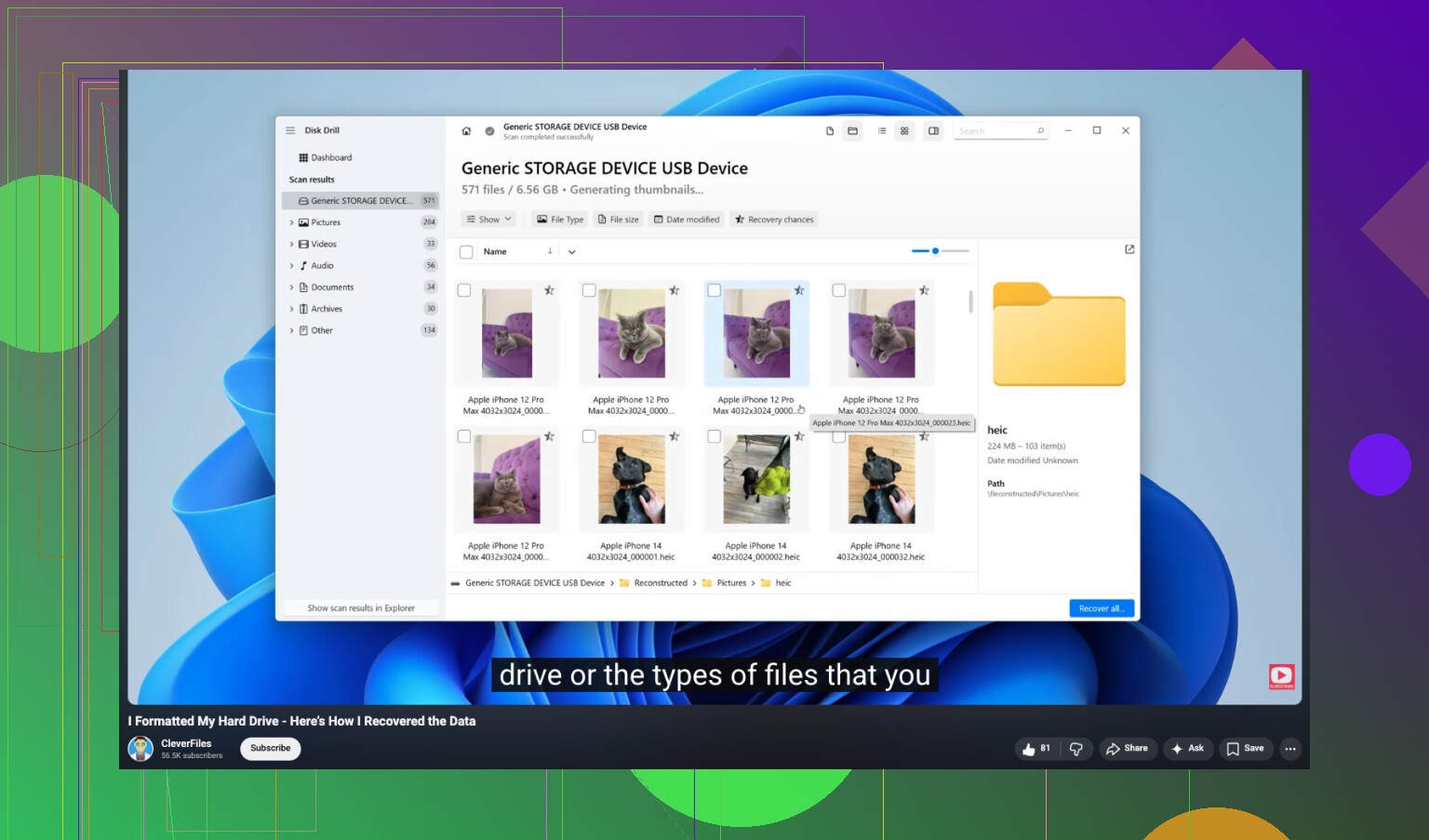
I’ve tried a pile of recovery apps over time on desktop drives and small external ones. Out of the bunch, Disk Drill worked best for me with photos. The layout is easy to follow, which helps when you’re already stressed, and the scan does a good job picking up raw image and video formats. You can install it, scan, and preview results for free. If the preview opens and the image looks normal, the file is usually intact.
- Install it somewhere else. Put the software on a different drive. Do not install it on the same internal or external disk where the photos were deleted. You want zero extra writes to the problem drive.
- Make a disk image first. This is the safest move I know. Use the software to create a full byte-for-byte image of the drive and save it to a healthy disk. That gives you a snapshot of the drive in its current state.
- Scan the image, not the original drive. Once the image file is done, run recovery against the image. This avoids extra wear on the physical drive and removes the risk of changing anything by mistake.
- Restore files to another device. Let the scan finish fully. Filter for image files and check what is recoverable. When you save the recovered photos, send them to a different drive, not back to the one they came from.
There are cases where software is the wrong move. I’d stop trying DIY recovery and go to a lab if any of these apply.
- The drive is making bad noises. Clicking, beeping, grinding, or scraping usually points to mechanical failure.
- The drive does nothing at all. No spin, no activity light, no sign of life. That often means an electrical problem inside the unit.
- The system does not detect it anywhere. If Disk Management or similar tools do not see the drive even after cable swaps and port changes, I’d suspect hardware trouble.
- The corruption is too severe. If recovery software cannot communicate with the file system or access the disk properly, you’re past the easy fixes.
Recovery labs have cleanroom setups and tools most people do not have at home. It costs a lot, yeah, but if the photos matter and the internal or external drive is failing physically, a pro service is the safer bet.
I hope you get the photos back. I know how bad this feels. After recovery, set up backups for real this time. Even one extra copy on another drive saves a ton of stress. If you’re still in the middle of it, post what kind of drive you have and what the symptoms look like.
6 Likes
If you emptied the Recycle Bin, your files are gone from Windows view, not always gone from the drive. First, check the easy stuff before you scan anything.
-
Look for backup copies.
Windows File History, OneDrive version history, Google Drive, Dropbox, old USB backups, email attachments. Office docs often exist in temp or autosave folders too. -
Check Previous Versions.
Right click the folder where the files lived, Properties, Previous Versions. If System Restore or File History was on, you might pull back an older copy fast. -
If the drive is an SSD, move fast but keep expectations in check.
I’ll disagree a bit with @mikeappsreviewer here. Stopping use is smart, but on SSDs TRIM often wipes deleted blocks sooner than people expect. Recovery odds drop hard after deletion, esp if Windows stayed on for hours. -
Run recovery from another drive.
Disk Drill is a solid pick for this because it previews files well and sorts docs and photos cleanly. Recuva is fine for quick checks, but I’ve had worse results on deep scans. Save recovered files to a different drive, not the same one. People mess this up al the time. -
If the files were docs, search by file signatures and temp names.
DOCX, XLSX, PDF, JPG, PNG. Sometimes filenames are gone, content is still there.
If you want a walkthrough, this video is decent for formatted drive recovery and the same ideas apply to deleted files too:
watch this hard drive data recovery guide on YouTube
If the drive is clicking, freezing, or vanishes from BIOS, stop. Software won’t fix a failing drive.
I’d add one thing neither @mikeappsreviewer nor @chasseurdetoiles really leaned on enough: check whether the files were ever synced somewhere stupidly convenient. A lot of “deleted forever” stuff is still sitting in OneDrive recycle, Google Drive trash, Adobe cloud, even WhatsApp/Desktop exports if photos got shared before. People forget this allll the time.
Also, don’t assume “empty Recycle Bin” means the same thing on every drive. If the files were on a USB stick, SD card, or network share, Windows sometimes bypasses the bin completely. That matters because recovery chances can actually be different depending on the filesystem and device type.
My order would be:
- Stop saving anything new.
- Check cloud/sync/version history.
- Look for app-specific recovery:
- Word AutoRecover
- Excel temp files
- Photoshop/LR catalogs
- PDF editors with autosave caches
- If nothing turns up, use recovery software.
Disk Drill is one of the better options for deleted file recovery on Windows because it handles both documents and photos well, and the preview feature helps you avoid restoring garbage. I don’t totally agree with the “always shut the PC down instantly” advice if you’re not comfortable opening drives and moving hardware around. For a lot of normal users, the bigger risk is panicking and making a mess. Just stop using that drive, install Disk Drill on another disk if possible, scan, then recover to a different location.
If you want a solid overview before trying it, this easy Disk Drill recovery walkthrough is worth a look.
One more thing: if your drive is an SSD, recovery odds can be pretty bad because of TRIM. Not impossible, just worse. If it’s a regular HDD, your chances are usualy better.

One angle I’d add to what @chasseurdetoiles, @sonhadordobosque, and @mikeappsreviewer covered: check whether the files are still indexed somewhere even if the originals are gone. Windows Search, recent files in Office, Lightroom catalogs, Adobe recent lists, and thumbnail caches can reveal the original path, exact filename, or a duplicate export you forgot existed. That matters because recovery is way easier when you know what you’re hunting for.
I also slightly disagree with the blanket “shut it down immediately” advice for everyone. If the deleted files were on the same Windows drive and you’re not comfortable removing hardware, a clumsy shutdown and restart loop can be just as messy. Better rule: stop creating new data, stop installs on that drive, and work from another disk or another PC if you can.
A practical trick people skip:
- Check hidden folders like
C:\Users\YourName\AppData - Search for file extensions, not filenames
- Look for exported copies in Messenger, Telegram, WhatsApp Desktop, or photo editors
If you do need software, Disk Drill is a reasonable choice.
Pros:
- Good preview support
- Easy filtering by file type
- Can recover from many common accidental deletions
Cons:
- Deep scans can return lots of junk names
- Best features may require payment
- SSD recovery after TRIM is still hit or miss, no app can magically fix that
One more thing: if the files were encrypted with BitLocker and the drive state changed, recovery can get uglier fast. In that case, clone first, then test recovery on the clone.