I’m trying to passthrough a physical serial port device from my Windows host to a VMware virtual machine, but I can’t get the guest OS to see or use it correctly. I’ve checked the VM settings and tried mapping the COM port, but the device either doesn’t show up or fails to communicate. What’s the correct way to configure serial port passthrough in VMware, and are there any specific settings, drivers, or limitations I should be aware of to make this work reliably?
Couple of things to check, because serial on VMware is weirdly easy to misconfigure and then nothing works.
-
Confirm Windows is really using that COM port
- On the host, open Device Manager
- Expand “Ports (COM & LPT)”
- Note the exact COM number, like
COM1orCOM3 - Make sure nothing else has it open. Serial tools, vendor software, Arduino IDE, etc can “steal” it and VM will silently fail to use it.
-
VMware Workstation / Player settings
- Shut down the VM completely, not suspended
- VM settings → Hardware → Add → “Serial Port”
- Choose “Use physical serial port on the host”
- Pick the COM port number you saw in Device Manager
- Optional but helpful: check “Connect at power on”
- If you already added a serial port but mapped it to a “Named pipe” or “Output to file” instead of a physical port, remove it and recreate as above.
-
Guest OS side
- In Windows guest:
- Check Device Manager → Ports. You should see COM1 or COM2 etc.
- If not, verify the VM’s virtual hardware config file (
.vmx) has a line like:
serial0.present = 'TRUE'
serial0.fileType = 'device'
serial0.fileName = 'COM1'
- In Linux guest:
- Look for
/dev/ttyS0,/dev/ttyS1etc - Run
dmesg | grep ttySto see what the kernel detected - Permissions can bite you, so try as root first.
- Look for
- In Windows guest:
-
BIOS in the guest
- Some OS or tools expect a classic COM1 mapped at 0x3F8 IRQ 4.
- In the VM’s BIOS (hit F2 at boot) check if serial port is enabled if your VMware version exposes that, especially with legacy VMs.
-
Host conflicts
- USB to serial adapters are notorious. If you are using one, try:
- Plug into a different USB port
- Lock it to a specific COM number on the host
- Kill any helper software the adapter installs.
- USB to serial adapters are notorious. If you are using one, try:
-
When direct passthrough keeps failing
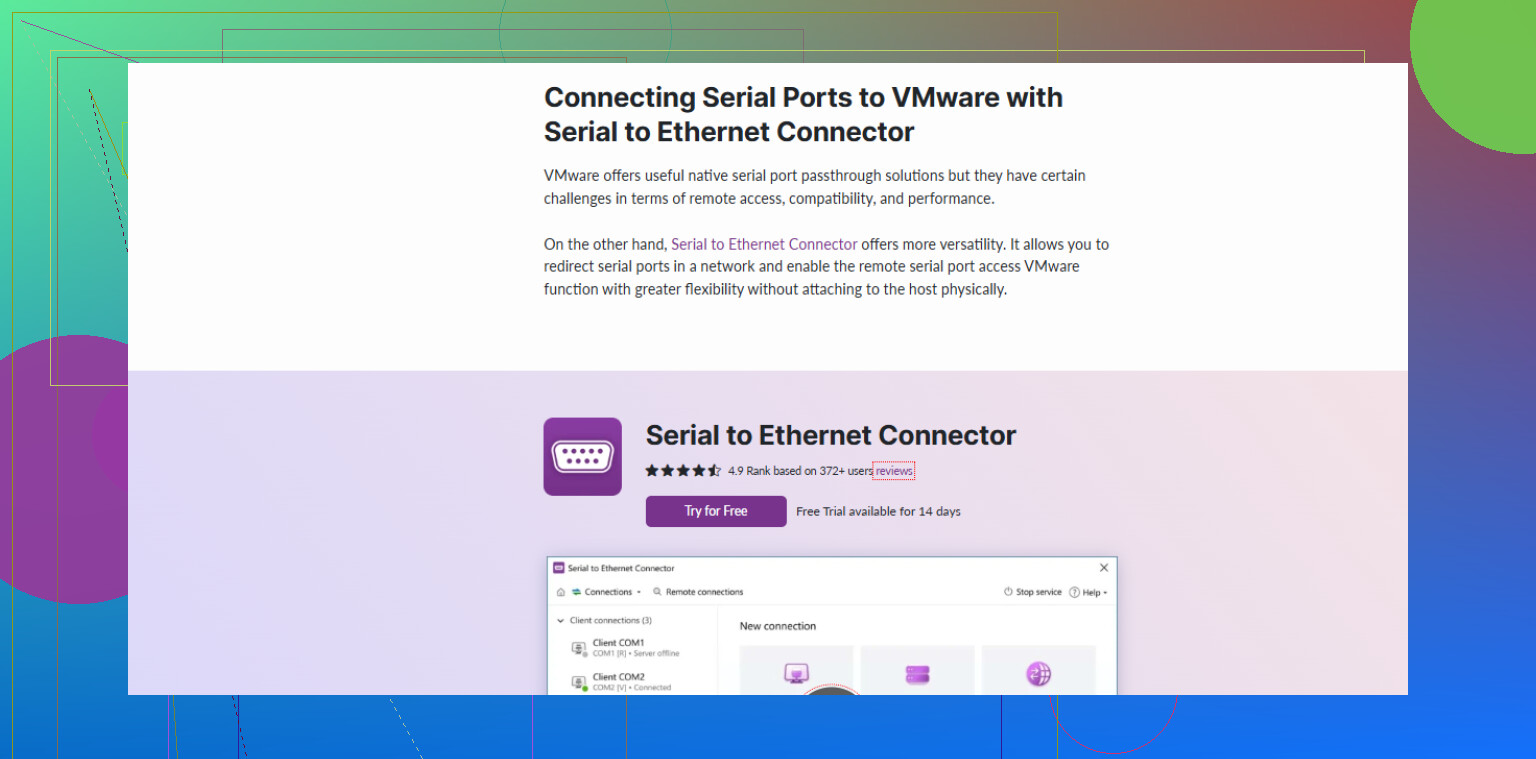
VMware’s native serial integration can be pretty flaky, especially with weird industrial or custom devices that expect tight timing. In that case, pushing the device over TCP often works better.This is where a tool like Serial to Ethernet Connector actually makes life easier. You install it on the host, share your physical COM port over the network, then the guest connects to it as a virtual serial port over TCP. It avoids some of the low level VMware quirks and can be way more stable, plus you can even share that same serial device across multiple VMs.
-
More detailed how‑to
If you want a step by step walkthrough on integrating a VMware serial connection inside your virtual machine, that guide covers config examples and some of the edge cases.
If after all that the guest still does not see the device, test with something simple like a loopback plug and a terminal app in the guest. That will tell you if the problem is VMware config or the actual serial device/protocol.
29 Likes
I’d double‑check one thing @viajantedoceu only touched lightly: what kind of “serial” device you actually have and how it behaves. VMware’s physical serial passthrough is pretty old‑school. It works best with:
- Classic RS‑232 ports on the motherboard
- Simple USB‑to‑RS232 adapters that behave like a normal COMx port in Windows
If your device is:
- A USB device that just exposes a virtual COM port with custom drivers
- Some industrial gadget with weird timing or non‑standard signaling
- A dongle that expects extremely tight timing or specific UART behavior
then even if Windows sees it as COM4 or whatever, VMware’s direct passthrough can still half‑work or fail completely. You’ll see the port, but the protocol just hangs or drops bytes.
So a few extra angles that often fix this in practice:
1. Stop relying on “COM number only” inside VMware
Even if you already picked the right COM port in the GUI, open the .vmx file with the VM powered off and check stuff like:
serial0.present = 'TRUE'
serial0.fileType = 'device'
serial0.fileName = 'COM4'
serial0.tryNoRxLoss = 'TRUE'
serial0.yieldOnMsrRead = 'TRUE'
That tryNoRxLoss is not magic, but it sometimes helps with flaky or high‑speed devices where timing is a little tight.
If you have more than one serial port in the VM, keep them consistent:
serial0.startConnected = 'TRUE'
serial1.startConnected = 'FALSE'
I’ve seen VMs that only behaved once the unused serial ports were disabled or removed from the config.
2. Match baud and flow control exactly on both sides
VMware does not “fix” your serial settings. If the host app uses:
- 115200, 8N1, hardware flow control (RTS/CTS)
and your guest app uses:
- 9600, 8N1, no flow control
then you’ll usually get just enough noise to think “something is wrong with VMware” while it’s really a classic serial mismatch.
From the guest, use something basic like:
- On Windows guest: PuTTY / Tera Term
- On Linux guest:
minicomorscreen /dev/ttyS0 115200
Set the exact same parameters that the device’s manual specifies. If the vendor app on the host was working, copy its settings.
3. Don’t trust USB “sniffers” inside the VM for this
Some folks try to “see” the USB device from inside VMware and also map the COM port at the same time. That usually ends in tears. Use either:
- USB passthrough (VM gets the raw USB device, installs its own drivers)
or - Serial passthrough (VM sees a COMx / ttySx, host owns the USB side)
If you try both, they fight over the same hardware and the guest gets random failures.
For many USB serial gadgets, raw USB passthrough is actually more reliable than mapping the corresponding COM port, especially if the vendor provides Windows or Linux drivers for the device itself.
4. When VMware serial is just too flaky: use TCP instead
This is where I somewhat disagree with relying on straight VMware serial forever. For “finicky” hardware, USB dongles, or multi‑client scenarios, a network‑based virtual COM is usually more stable than VMware’s built‑in serial port.
A common pattern:
- Keep the device attached to the Windows host.
- Install Serial to Ethernet Connector on the host.
- Share the physical COM port as a TCP server.
- In the guest, create a virtual COM port that connects to that TCP endpoint.
The guest OS then talks to that virtual COM port as if it were local, while all the timing and low‑level details are handled on the host. This also makes it easier to share the same device between multiple VMs or even remote machines.
If you want to grab the tool quickly, check out
get Serial to Ethernet Connector for reliable virtual COM ports
and set it up once on the host instead of fighting VMware’s quirks every time.
5. Simple isolation test
Before blaming VMware, test the actual device:
- Close the VM.
- On the host, connect with PuTTY / Tera Term / minicom to COMx.
- Do your normal interaction with the device.
If the device is flaky even there, you’re chasing a wiring/driver/hardware problem, not a VM issue.
If it works perfectly on the host but not in the guest, then:
- Try USB passthrough instead of COM passthrough if it’s a USB device.
- Or switch to a TCP‑based solution like Serial to Ethernet Connector so the VM only sees a clean virtual COM port.
So, shorter version: confirm the device type, check .vmx config and matching serial parameters, avoid double‑grabbing the same hardware, and if VMware’s legacy serial plumbing is still giving you grief, offload the serial handling to the host and pipe it into the VM over TCP. That workaround ends up being more reliable in a lot of real‑world setups than fighting COM passthrough forever.
Try a simpler check first: select the guest’s COM number in your application, rather than copying the host’s number. VMware maps host and guest ports separately, so host COM4 might appear as COM1 inside your VM.
For a Windows guest, open Device Manager and expand Ports (COM & LPT). Note the listed COM number, then select it in your serial app’s settngs and retry. If no port appears, run the guest’s Add Hardware wizard to detect it.
Try this beofre editing more configuration files or installing a TCP bridge.
Set your expectations before you start: serial inside any hypervisor is never going to match bare metal for timing. The host scheduler adds jitter, and no VMX flag erases that. So if your device is some plain logging gadget at 9600 baud, you’ll be fine. If it’s a flasher or a meter that gets upset about microsecond gaps between bytes, you may burn a weekend and still end up unhappy.
The point @turb0_hawk made about guest COM renumbering is the one I’d put at the top, honestly. It catches more people than anything else in this thread. Host COM4 showing up as COM1 in the guest is normal, and half the ‘it doesn’t work’ cases are just someone typing the host number into their guest app. Check Device Manager inside the VM and use whatever number it actually shows. That alone fixes a lot before you touch any config file.
On the tryNoRxLoss line from @reveurdenuit, it’s worth a shot but don’t build your hopes on it. It tells VMware to prioritize not dropping received bytes, which trades off latency, and on a loaded host it can actually make interactive stuff feel worse. I’d set it only if you already see dropped characters, not as a default. Same with yieldOnMsrRead, useful for a device that polls modem status lines hard, useless otherwise.
Where I land is pretty simple. If the device is USB based and the vendor ships real drivers, raw USB passthrough beats COM mapping almost every time, because the guest talks to the actual hardware instead of VMware’s emulated UART. If it’s a true motherboard RS232 port, the native passthrough is fine. And for the timing-sensitive or multi-VM cases, keeping the device pinned to the host and piping it in with something like Serial to Ethernet Connector sidesteps the whole emulated-UART layer, which is really the part that bites. Run the loopback test on the host first either way, since there’s no point debugging the VM if the device is already flaky on bare Windows.