My iPhone is almost out of storage, and I’m getting warnings when trying to take photos, update apps, and install iOS updates. I’m not sure whether I should delete files, use iCloud storage, offload apps, or upgrade my device. What are the best options to free up or add more iPhone storage?
You can’t really upgrade an iPhone’s internal storage the way you would with a computer. Some repair places may say they can swap the storage chip, but that’s not a normal upgrade. It’s expensive, risky, and you can end up with a phone Apple won’t want to touch for service later.
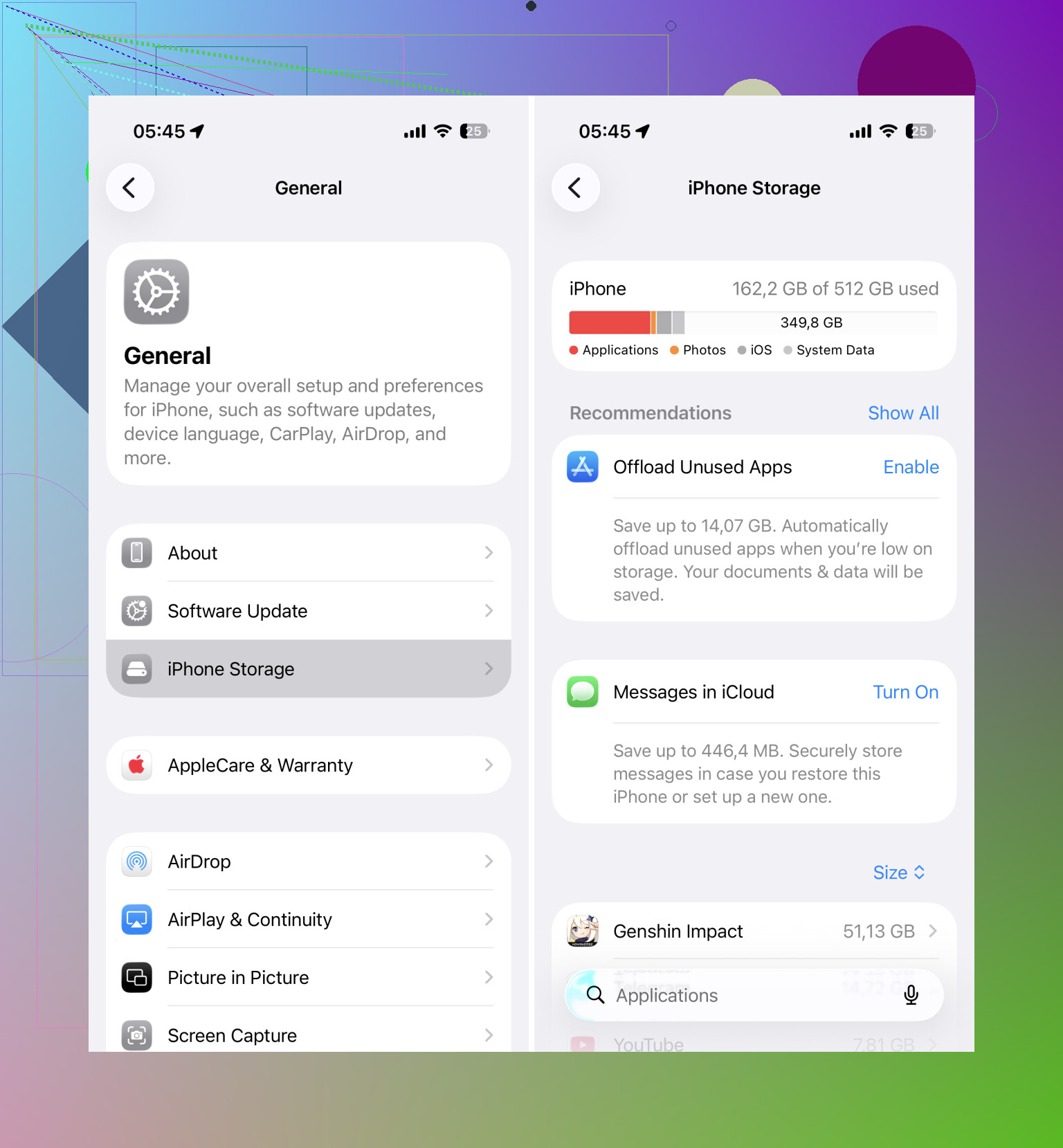
For most people, the better move is to clear out the storage that’s already being wasted. Start with Settings > General > iPhone Storage and see what’s taking up the most space. A lot of the time, Photos is near the top.
iOS does not make cleanup especially easy. Apps, downloads, Messages attachments, and random documents usually need to be handled one by one. Photos and videos are where you can usually get the biggest win without spending all afternoon on it.
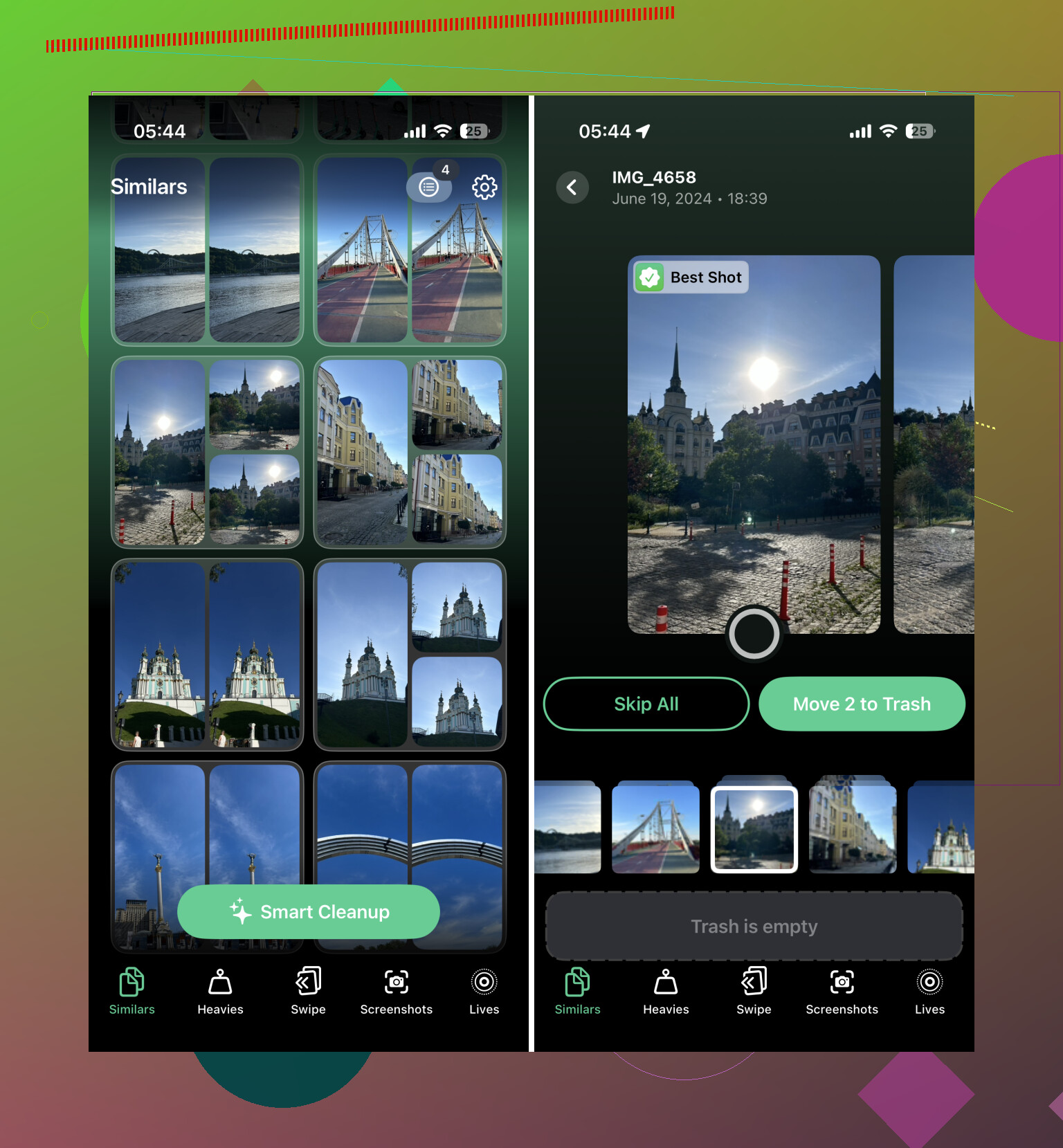
That’s why I’d start there. A cleanup app can help, especially if your camera roll is full of repeated shots, screenshots, and huge videos. Clever Cleaner is a decent option because it’s actually free right now, doesn’t show ads, and doesn’t put the basic cleanup behind a subscription like a lot of similar apps do.
The part that matters most is its Similars feature. It doesn’t just look for exact duplicates. It groups photos that look alike, picks what it thinks is the best one, and lets you delete the extras pretty quickly. That tends to save more space than relying only on Apple’s built-in Duplicates album.
Also check the Heavies section. It pulls up your largest videos, which is useful because a few old 4K clips can eat several gigabytes without you noticing.
Turn on Optimize iPhone Storage
After you clean up the obvious junk, go to Settings > Photos > Optimize iPhone Storage and turn it on. Your iPhone will keep smaller versions of your photos locally, while the full-resolution originals stay in iCloud. When you open something, the full version downloads as needed.
This can cut down local storage use a lot, but the catch is iCloud space. Apple only gives you 5 GB for free, so that may not be enough if you have a large library. If you don’t want to pay for more iCloud storage, moving older photos and videos to something like Google Drive can still help free up space without deleting them forever.
Use external storage if you shoot a lot of video
If your storage problem is mostly long videos, especially 4K or ProRes, an external drive can make sense. Lightning and USB-C flash drives can be used to move finished files off the phone. Some camera apps can also record straight to compatible external storage, so those huge video files never sit on the iPhone in the first place.
Know when cleanup is not enough
If you’ve deleted unused apps, cleaned up your photos, turned on storage optimization, and you’re still always getting storage warnings, then the phone may just not have enough capacity for how you use it.
A 64 GB or 128 GB iPhone can still be fine for lighter use. It gets annoying fast if you record a lot of video, keep a big photo library, or install a bunch of large apps. You also want some free space left so iOS updates and background tasks have room to work properly.
Still, I wouldn’t jump straight to buying a new phone. Do a serious cleanup first. Removing similar photos and large videos with Clever Cleaner, plus manually clearing out old apps and files, can sometimes recover tens of gigabytes. That may be enough to put off an upgrade for a while.
11 Likes
Deleted photos still sit in Recently Deleted for about a month, so you can delete a pile and barely see storage move. After using any cleanup app or doing it manually, empty that album, then check Settings > General > iPhone Storage again. Same idea with Messages attachments and downloaded Netflix/Spotify/Maps stuff, since those are easy to forget.
Buying more iCloud storage does not increase the storage inside your iPhone. It only gives your phone somewhere else to keep originals, backups, and synced data. That can help a lot with Photos if Optimize iPhone Storage is on, but it is not the same as turning a 64 GB phone into a 256 GB phone.
I’d be careful with the iCloud part because people get tripped up by sync. If iCloud Photos is enabled and you delete a photo from the iPhone, you are usually deleting it from iCloud too, not “moving it to the cloud.” To actually remove it from the phone but keep it elsewhere, you need to export it to a computer, external drive, Google Photos/Drive, etc., then confirm it is safely stored before deleting it from the phone and Recently Deleted.
For a fast fix, I’d do this order: delete downloaded video/music/podcast/maps content, remove big Messages attachments, offload apps you rarely use, then deal with Photos. A cleaner app like Clever Cleaner can be useful for finding similar shots and huge videos, but don’t expect it to fix “System Data” or app caches. If the storage warning is blocking an iOS update, updating through a Mac or PC can sometimes need less free space on the phone than doing it directly on-device.