My iPhone keeps saying storage is almost full, but I really don’t want to delete any of my photos or videos. I’ve already tried offloading some apps and clearing Safari data, but it barely made a difference. What are the best ways to free up space on an iPhone while keeping all photos safe, and are there any hidden settings or tricks I should check first?
I fought this same thing on my iPhone for months. Here is what helped me keep all photos and still free space.
-
Turn on “Optimize iPhone Storage”
Settings > Photos > iCloud Photos ON.
Then pick “Optimize iPhone Storage”.
Your full‑res photos stay in iCloud. Your phone keeps smaller versions. This freed gigabytes for me. -
Clean “Recently Deleted” in Photos
Photos > Albums > Recently Deleted.
Empty that folder. Until you do, those photos still take space. -
Check “System Data” bloat
Settings > General > iPhone Storage.
Look at “System Data”. If it is huge, a backup to iCloud or computer, then a full restore, often shrinks it. Annoying, but it works. -
Delete old message attachments
Messages > a big conversation > tap the name at top > “Info”.
Scroll to “Photos” and “Documents”. Remove old videos and memes. Those eat storage fast. -
Remove offline downloads
• Netflix, Spotify, YouTube, etc. Open each app and delete downloaded videos, playlists, or podcasts.
• Instagram, TikTok store cache. Log out and back in or reinstall them if storage is tight. -
Offload heavy apps you rarely use
You said you tried some, go harder on it.
Settings > General > iPhone Storage > tap an app > Offload App. Data stays, app icon stays, storage frees up. -
Use a cleaner tool for duplicate junk
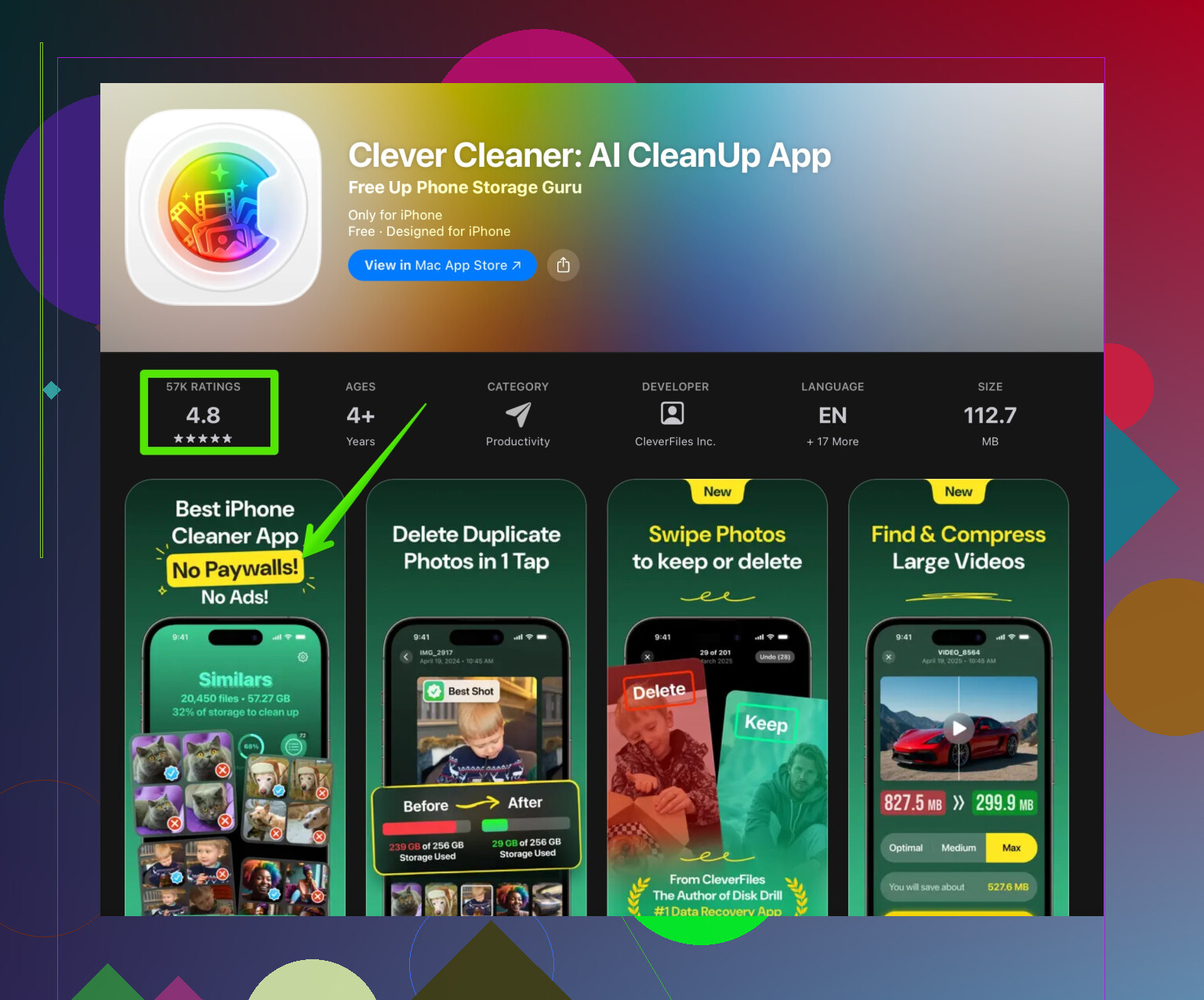
If your gallery has a ton of duplicates, blurred shots, or screenshots, use something like the Clever Cleaner App. It helps remove unneeded cache, similar photos, duplicate contacts, and other junk files without touching the photos you care about.
Check it here: smart storage cleanup for your iPhone. It did more than manual cleaning for me. -
Move videos off the phone
Biggest win.
Export long videos to a computer or an external drive or Google Drive / Dropbox. After upload, delete the local copy from Photos, then empty Recently Deleted. Photos stay safe elsewhere.
Do those in order. The “Optimize iPhone Storage” setting plus clearing streaming downloads and message videos gave me the largest gains, without losing any important photos.
38 Likes
My iPhone storage is almost full, but I don’t want to delete any photos or videos. I already tried offloading apps and clearing Safari data, and it barely helped, so I’m looking for smarter ways to free up space while keeping all my memories safe.
@kakeru already nailed a lot of the big stuff, but here are a few extra angles that might help without just repeating the same checklist:
-
Tame iCloud Drive and “On My iPhone” files
A lot of people forget the Files app.
Open Files > On My iPhone and iCloud Drive.
Old PDFs, ZIPs, WhatsApp exports, etc, can eat hundreds of MB. Move big stuff to a computer or external drive, then delete from the phone. No photos lost. -
Audit third‑party camera and editing apps
VSCO, Lightroom, CapCut, InShot, even scanner apps often keep their own copies of photos and videos.
Open each app’s gallery and clear out exported or draft projects you already saved to Photos. Those “hidden” duplicates can be massive. -
Control WhatsApp / Telegram / Messenger media
@kakeru mentioned Messages, which is huge, but apps like WhatsApp are just as bad.
WhatsApp > Settings > Storage and Data > Manage Storage.
Delete forwarded memes and videos you do not care about. You can also turn off auto saving media to your Camera Roll so it stops duplicating everything. -
Limit HDR, ProRAW, and 4K if you are on the edge
Slight disagreement with the “keep everything as is” mindset: if storage is always red‑lining, 4K 60 fps and ProRAW are overkill for daily stuff.
Settings > Camera > Record Video and pick 1080p or 4K at lower fps.
Also turn off ProRAW unless you actually edit those photos. This does not delete current photos, but it slows future storage bloat. -
Check mail attachments
Mail > big accounts with lots of photos and docs.
In Settings > Mail > Accounts, you can temporarily remove an account or set Mail to keep fewer messages. Many mail apps also have “Clear cached files” in their settings. -
Use a cleanup app for the junk around your photos
You said you do not want to delete your actual photos, which is where a cleaner tool can help you hit the stuff that is low value: duplicates, similar shots, screenshots, app cache, etc.
A solid option is the Clever Cleaner App. It is useful for quickly finding duplicate photos, burst shots you do not need, and random junk files. You stay in control of what gets removed, so you can keep the real memories and toss the clutter. If you want something focused on smart storage cleanup for iPhone, check this out:
clean up and speed up your iPhone storage -
Take “Optimize iPhone Storage” to the next level
I know @kakeru already mentioned turning it on. One extra tip:
After enabling it and giving the phone time on Wi‑Fi and power, stop opening old albums and years. When you keep scrolling way back, iOS re‑downloads older full‑res items. Let it quietly push full‑res stuff to iCloud and only pull back what you actually use. -
Extreme but effective: local backup then prune
If you are really stuck:
• Back up photos and videos in full to a computer or external drive.
• Verify they’re there and playable.
• Then remove the heaviest items from the phone, especially old 4K videos.
You will still “have” all your photos and videos, just not all locally. Some people count this as “not deleting” since they are archived safely.
Real talk: if your iPhone is 64 GB and you shoot tons of 4K video, eventually you are going to be in a permanent storage war. These tricks, plus something like the Clever Cleaner App for routine cleanup, can stretch that limit a lot longer without sacrificing the photos you care about.
Quick analytical breakdown, focusing on stuff not already covered by @kakeru and the follow‑up:
- Look at “System Data” and attack what feeds it
Settings > General > iPhone Storage > System Data.
If this is absurdly big, the only realistic way to shrink it is to reduce what iOS indexes and caches:
- Massive group chats in multiple apps
- Tons of downloaded media in social apps
- Huge offline maps, language packs, or AI packs inside apps
Try: - Google Maps / Apple Maps: remove offline maps you do not need.
- Language / translation apps: delete offline dictionaries or voices.
This indirectly shrinks System Data over a few days. No photos touched.
- Reduce local “smart” data from social apps
Instagram, TikTok, X, Reddit, etc keep a lot of cached video and images. Some of this is counted as “Documents & Data,” not “Media,” so it feels invisible.
Inside each app’s settings look for:
- “Storage / Cache”
- “Clear cache” or “Free up space”
If the app has no such button, consider deleting and reinstalling it. That can clear gigabytes. Logins sync back from iCloud Keychain, so the hit is small.
- Outsource big files with “hybrid access”
If you want your media logically “there” but not actually local:
- Use iCloud Drive / Google Drive / Dropbox for big videos and long screen recordings.
- Offload finished videos you edited, then delete the local copies from Files.
Unlike photo deletion, this keeps everything in a structured archive that you can re‑download on demand.
- Rethink live features that silently eat space
Slight disagreement with keeping every convenience turned on: some of these inflate storage over time.
- Live Photos: they store multiple frames, so they act closer to mini videos. Turning off Live Photos for everyday shots slows future growth without touching existing media.
- Shared albums and collaborative content can bring in other people’s photos onto your phone. If storage is tight, leave or disable shared albums you rarely check.
- Use a smarter cleaner, but treat it like a scalpel
The Clever Cleaner App is decent if you treat it as a review tool rather than “one tap and forget.”
Pros:
- Quickly surfaces duplicates, near‑duplicates, and junk like old screenshots and blurred shots.
- Interface is usually more understandable than digging through iOS storage menus.
- Helps you focus on low‑value photos around your “real” memories, so you keep what matters.
Cons: - You must manually review suggestions; if you tap through too fast, you might remove something you wanted to keep.
- Needs some initial trust and time to configure; not a magic fix in 30 seconds.
- Like any cleaner, it cannot solve the core issue if you are shooting constant 4K or downloading tons of content daily.
- Periodic “maintenance day” to avoid hitting the wall
Once a month, do a 15‑minute routine:
- Clear caches in social / streaming apps.
- Quickly run something like Clever Cleaner App just for duplicates and accidental screenshots.
- Remove offline maps, unused language packs, and stale downloads in Files.
That rhythm matters more than any one‑time purge. @kakeru covered the big hits already; the stuff above helps you stay under the red line without actually deleting the memories you care about.
Check downloaded media first. Open Spotify, Netflix, YouTube, Podcasts, and Apple Music. Remove offline songs, episodes, and movies you no longer need. A single HD movie often uses 2 to 6 GB, while podcast backlogs add several GB unnoticed. Your photos stay untouched, and streaming access remains.
Start with Settings > General > iPhone Storage. Tap each media app to spot the biggest one. Then remove downloads inside the app, not the app itself. This takes about five minuts and often frees more space than clearing Safari.
Honest expectation: on a 64GB phone that shoots 4K, none of this ends the storage war, it just delays it. The @kakeru tip about ‘Optimize iPhone Storage’ only helps if you actually pay for enough iCloud, otherwise your full-res stuff has nowhere to go. Cleaner apps are fine for trimming duplicates, but the real fix is fewer local videos or a bigger phone.