My iPhone storage is completely full because my Photos app is packed with thousands of pictures and several large videos. I need a quick way to delete all photos and big videos at the same time without missing hidden files or recently deleted items. What’s the easiest and safest method to free up iPhone storage fast?
Your photo library usually creeps up on you. Mine did. One week the phone felt fine, then out of nowhere Photos started hanging, deletions stalled, and the storage graph looked glued in place. What worked depended on where I did the cleanup and how full the phone was.
First, the part people mess up with iCloud
If iCloud Photos is on, deleting a photo from your iPhone removes it from your iPad and Mac too. I learned this the annoying way. It is sync, not backup.
If you want to keep the pictures but free local space, go to Settings > Photos and turn on Optimize iPhone Storage. The phone keeps smaller versions locally and pushes full-res files to iCloud. For a lot of people, this fixes the storage problem without deleting anything.
If your photos already live somewhere else and you want them off the phone, then do the cleanup.
Doing it from a computer
On Mac, I had better luck with Image Capture than with Photos. Photos tried to pull everything through iCloud and turned a simple delete job into a mess.
Plug in the iPhone, open Image Capture from Applications, and wait. With a big library, it can sit there for 30 minutes looking dead. Mine did. Then the thumbnails showed up. After that, Command + A selected everything, and I deleted the lot in one pass.
On Windows, you’re stuck using File Explorer and the DCIM folder. It works, sort of. I saw more disconnects there, especially with huge batches. If you’re doing this on a PC, keep each round under 500 files. Bigger chunks tend to fail and you’ll end up repeating the same job.
Trying to do it on the phone
The built-in Photos app starts falling apart once the library gets big enough. Somewhere around 10,000 to 15,000 items, it gets laggy. Selection misses. On a phone with almost no free storage, the app can freeze mid-delete because iOS still needs temporary working space.
Two things helped me before I started deleting:
Remove a big app first. A game, Netflix downloads, anything chunky. You’re making breathing room for iOS so it can process deletions without choking.
Delete in batches. Don’t select your whole library at once. A few thousand per round worked better for me. One giant wipe usually didn’t.
If you want to select fast without dragging through endless thumbnails, do this:
Tap Select.
Drag across the bottom row to start the selection.
Keep one finger down.
With your other hand, tap near the top of the screen.
The view jumps and the selection follows. It’s awkward, but faster than scrolling forever. It gets flaky with huge libraries, though.
Where the stock Photos app falls short
This is the part that got old for me.
You don’t get file sizes.
You can’t sort by size.
You can’t quickly spot which videos are eating 4 GB each.
You can’t bulk delete while cleanly protecting favorites.
You don’t get grouping for near-duplicate shots taken seconds apart.
For casual browsing, Photos is fine. For cleanup, not so much.
Clever Cleaner covers those missing parts
I tried it because the built-in app wasn’t giving me enough info to make smart cuts.
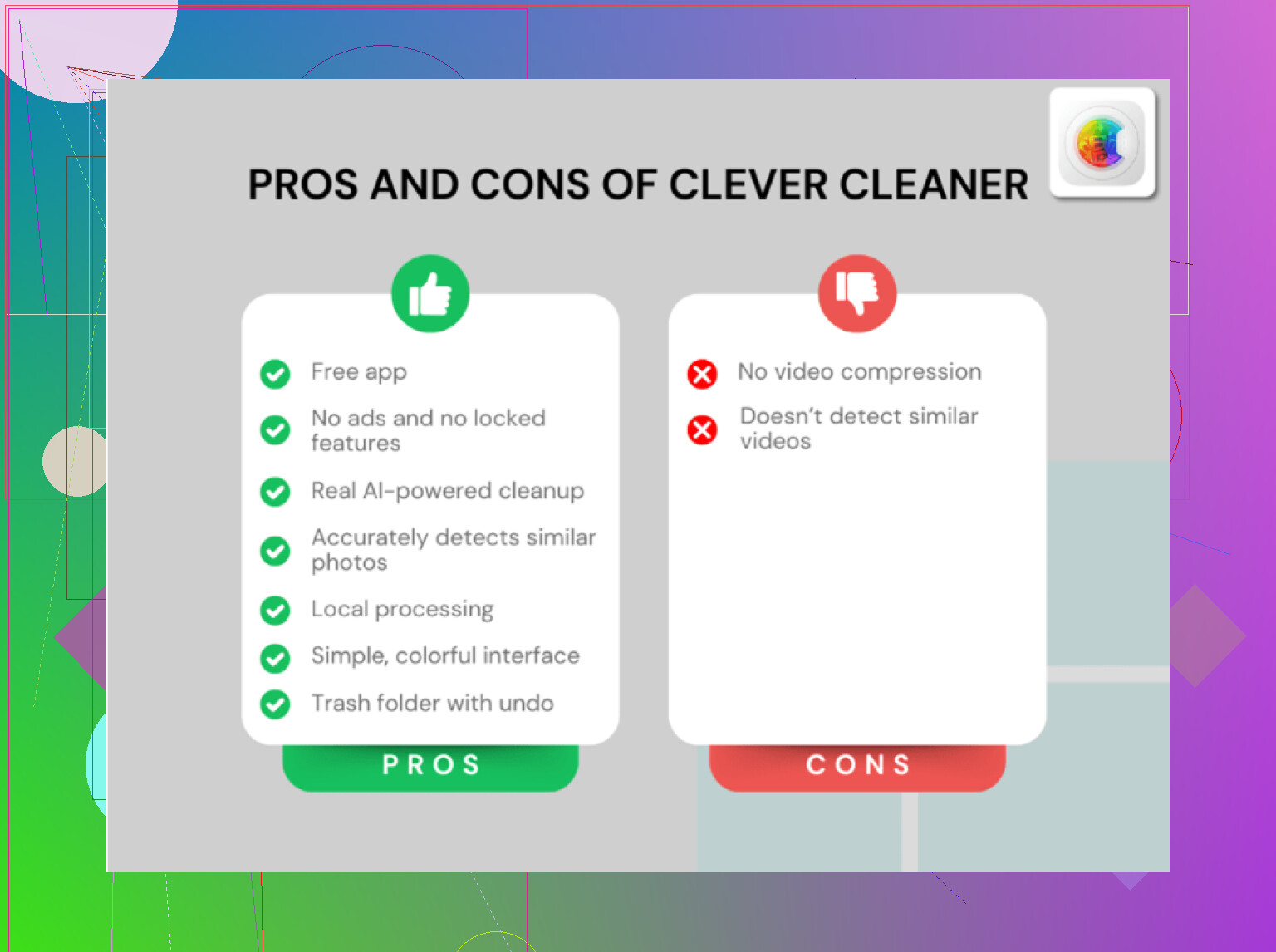
It’s free. No ads, no subscription, no paywall stopping the useful parts. On the App Store, that already puts it in a small group.
What stood out to me:
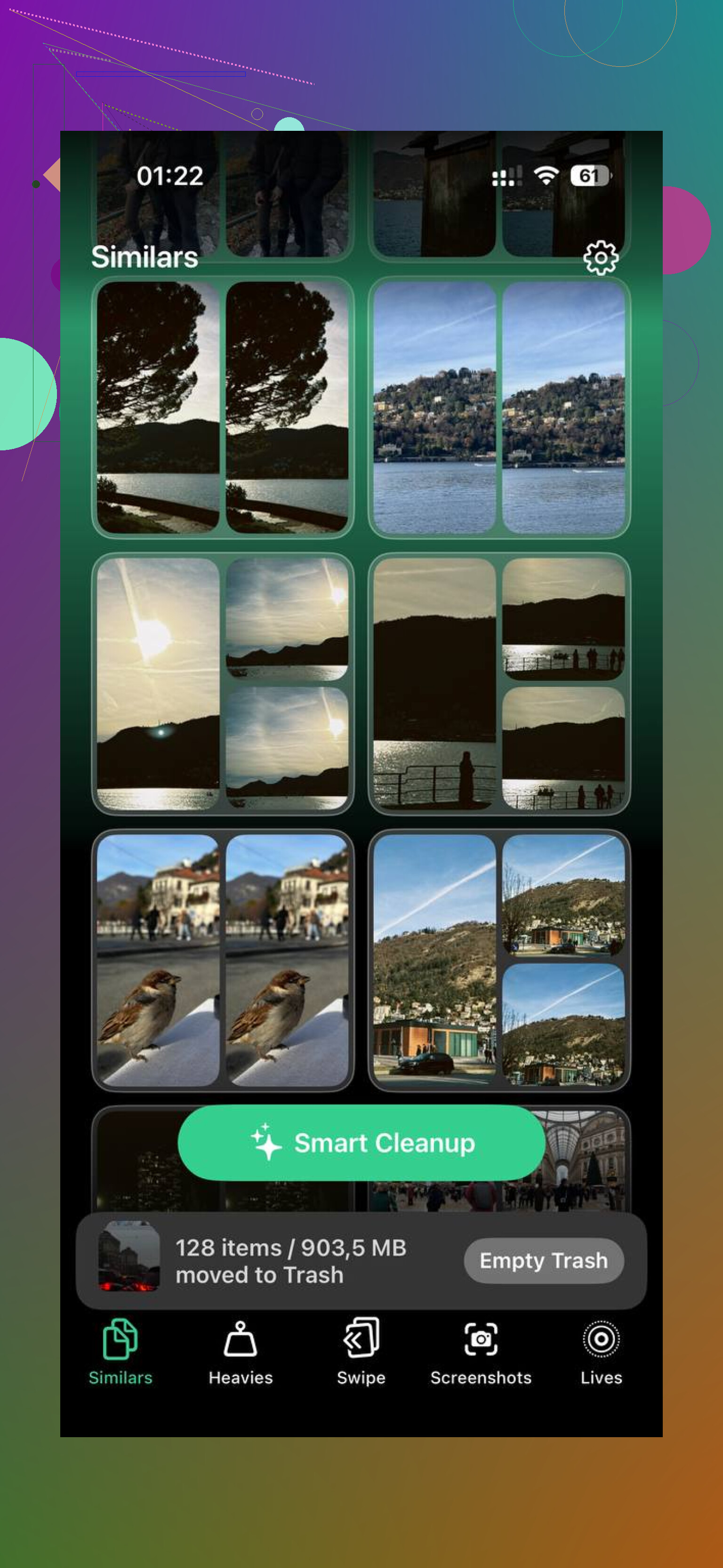
The Heavies section sorts your library by file size, largest first. This was the fastest win. I found old 4K clips and exported videos I forgot about. Deleting ten giant files freed more space than removing a few hundred normal photos.
The Similars section groups photos that look almost the same, not only exact duplicates. Burst shots, repeated attempts, tiny framing changes, all of those get stacked together so you keep one and toss the rest.
The Screenshots section shows file sizes right on the thumbnails. I liked this more than I expected. You see what each one costs before you remove it.
Everything runs on the phone. No upload step. No sending your photo library off for processing. If your library includes banking screenshots, IDs, chats, or private stuff, that matters.
If your plan is to keep favorites and clear most other clutter, this setup makes the job easier than the native app did for me.
The step people forget
Deleting photos is only half the job. iOS moves them to Recently Deleted and keeps them there for up to 30 days. Those files still count against storage.
So after cleanup, go to Albums > Recently Deleted.
Tap Select.
Tap Delete All.
That is the step that made my storage number finally move. Before that, it looked like nothing had changed.
If the storage reading still looks wrong after emptying Recently Deleted, restart the phone. I had to do that once. After reboot, the free space updated.
88 Likes
If you want everything gone fast, use Apple’s own bulk-delete options first, then sweep for leftovers.
- Go to Photos, Library, All Photos.
- Tap Select.
- Drag across rows, then keep dragging upward to grab huge blocks fast.
- Delete.
- Go to Albums, Recently Deleted, delete all.
For large videos, don’t hunt manually in the main grid. Go to Albums, Media Types, Videos. Sort is still bad there, which is why I disagree a bit with @mikeappsreviewer on doing all of this in batches first. If your phone is barely responsive, sorting the mess before removing the worst files saves time. Delete the biggest videos first, then wipe the rest.
Best built-in place to find storage hogs is Settings, General, iPhone Storage, Photos. It won’t show every file cleanly, but it tells you if Photos is the real problem and whether “Review Personal Videos” appears. If it does, use it.
If you want one pass for hidden clutter too, Clever Cleaner is easier than Apple Photos. It surfaces large videos, similar pics, screenshots, and other junk faster. This is the App Store page for free Clever Cleaner iPhone photo and video cleanup. It’s useful when your libray is too big to sort by hand.
Also check these spots people miss:
Hidden album
Recently Deleted
WhatsApp or Messages attachments
Files app, Downloads
Screen recordings
If storage is fully maxed out, restart after deletion. iOS sometiems lags before showing freed space.
If you want the nuclear option, I actually would not start in Photos app itself once the phone is totally stuffed. That app gets weird when storage is at 0 bytes left. @mikeappsreviewer is right about computer deletion helping, and @yozora is right that Recently Deleted is the trap, but there’s one faster angle people skip:
Go to Settings > General > iPhone Storage > Photos first. If Review Personal Videos shows up, use that before touching the main library. It surfaces the worst space hogs without you digging through years of junk.
If your goal is delete basically everything, do this:
- Turn off iCloud Photos only if you do not want deletions syncing to other Apple devices.
- Free a tiny bit of space first by deleting one app or offline downloads.
- Open Photos > Albums.
- Hit Videos and wipe those first. Big files free space fastest.
- Then go to All Photos, select chunks, delete.
- Then empty Hidden if you use it.
- Then Recently Deleted > Delete All. This is the part people forget and then wonder why storage didnt move.
Also check Messages > large attachments and Files > Downloads. A lot of “photo storage” is actually videos people saved from texts.
If you want something quicker for big videos + similar pics in one place, Clever Cleaner is probly the easiest iPhone photo and video cleanup app for that. Better triage than Apple’s own sorting.
If you want a visual walkthrough, see how to delete all iPhone photos and large videos faster.
I’d actually avoid the “select literally everything in Photos” approach first if the phone is already choking. @yozora, @kakeru, and @mikeappsreviewer covered the main deletion routes, but the part that usually saves the most time is filtering by duration/size outside the Photos grid.
A couple of extra angles:
- Use the search bar in Photos: search
screen recording,video,4K,slomo,timelapse. It’s not perfect, but it surfaces bulky media faster than scrolling. - Check Shared Library if you use it. People delete from Personal Library and forget the shared side still holds a ton.
- Look at imported folders in third-party apps like CapCut, Instagram drafts, Lightroom, or editing apps. Big exported clips often live there, not just in Photos.
- Disable Low Power Mode before mass deletion. Sounds minor, but indexing and cleanup can lag harder with it on.
On Clever Cleaner specifically:
Pros
- Faster view of large videos and similar photos
- Easier to catch screenshots and hidden clutter
- Good when the library is too bloated for manual cleanup
Cons
- You still need to review before deleting
- Any cleaner can group “similar” shots a bit too aggressively
- Native Apple tools are safer if you only want a full wipe and nothing selective
So my take: if you want a total nuke, do it with Apple tools. If you want “delete all the junk plus the heaviest videos without missing side clutter,” Clever Cleaner is more practical. Also remember: if you use iCloud Photos, deletion syncs everywhere.
Recap: Bulk delete in Photos, then empty Recently Deleted. Target large videos in Albums and iPhone Storage. Note iCloud Photos sync and Optimize iPhone Storage. Use Mac Image Capture or Windows DCIM for mass delete. Free headroom first, delete in batches, use search, check Hidden, Shared Library, chats, Files, editing exports. Clever Cleaner helps with size sorting and similars.
Simpler alernative: Google Photos. Install, sign in, back up on Wi Fi. After upload, tap Free up space to remove device copies in one go. Open Photos, Recently Deleted, delete all. Restart if storage lags sometiems.