My iPhone storage is almost full because I have thousands of old photos and screenshots. Deleting them one by one in the Photos app is taking forever, and I need a faster way to mass delete iPhone photos without messing up iCloud or losing anything important.
If your iPhone keeps yelling about storage, check Photos before assuming you’ve already cleaned everything out. I thought I had deleted the obvious junk, then found out I still had more than 18,000 photos sitting there. There was no chance I was going through that one tap at a time, so I ended up using a few different cleanup methods depending on what kind of stuff I was trying to remove.
For smaller cleanups, the regular Photos app is fine. Open Photos, tap Select, then drag your finger across rows of photos instead of tapping each one. If the library is huge, pinch out to the Months view first so you can grab bigger chunks faster. Once everything is selected, hit the trash icon. It’s the most precise way to do it, but it gets annoying pretty quickly when you’re dealing with thousands of images.
If you mainly want to clear out screenshots, screen recordings, bursts, or other obvious junk, use the albums Apple already creates. In Photos, go to the Collections tab, scroll to Media Types, then open something like Screenshots or Screen Recordings. From there you can tap Select and then Select All. That’s much faster than manually dragging through your whole camera roll, and it’s one of the few areas where Photos actually gives you a useful Select All option.
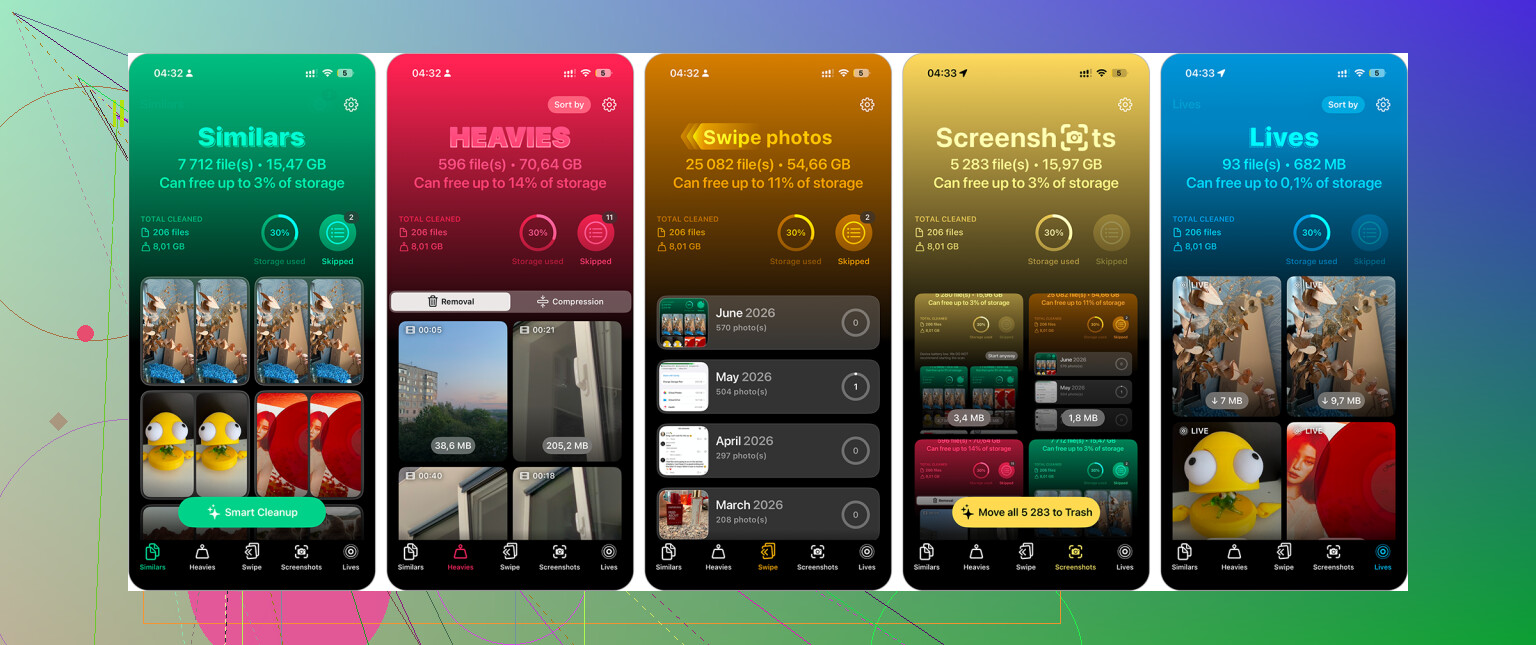
For a really large library, Clever Cleaner saved the most time for me. After you install it, check the Similars section first. It groups nearly identical shots and points out the Best Shot to keep, so you can swipe away the extras without comparing every photo yourself.
It also has sections for Screenshots, Live Photos, and Heavies. Screenshots are easy bulk-delete material. Live Photos can be converted into regular still images if you want to save space. Heavies is worth checking early because a couple of large videos can free up more storage than deleting hundreds of normal pictures. I’m usually skeptical of cleaner apps since so many are packed with ads or subscriptions, but this one is free and worked better than I expected for a big photo library.
If you’re deleting thousands of photos, using a computer can be less painful. If you use iCloud Photos, open iCloud.com on your computer, sign in, and use Shift-click to select big ranges. Delete what you don’t need, then give it time to sync back to the iPhone. A mouse and keyboard are just easier than dragging around on a small screen forever.
The nuclear option is resetting the phone. Only do this if you really don’t need anything on it, or you’ve already backed up what matters. Go to Settings > General > Transfer or Reset iPhone, then choose Erase All Content and Settings and follow the prompts. It’s overkill for normal cleanup, but if you’re selling the phone, handing it off, or want a totally fresh start, it’s the fastest way to wipe everything.
17 Likes
Deleted photos still sit in Recently Deleted, so your storage may barely move until you empty that folder too. After any big delete, go to Photos, scroll to Utilities, open Recently Deleted, authenticate, then delete them there permanently. I agree with using albums or a cleaner app for picking stuff faster, but don’t judge the cleanup by the storage bar until that second step is done and iCloud has had time to sync. If you use iCloud Photos, be careful too, because deleting on the phone usually deletes from iCloud and your other Apple devices, not just local copies.
Deleting an album does not delete the photos in it, and removing photos from an album does not free storage. You have to delete from the library itself, then clear Recently Deleted like @vrijheidsvogel said.
If you want the fastest method and you are not trying to carefully keep the best shot from every group, I’d stop doing it on the phone screen. Plug the iPhone into a computer and treat it like a big cleanup job with a mouse and keyboard.
On a Mac, open Photos or Image Capture, import anything you might want to keep, then delete from the phone after you confirm the import is actually there. On Windows, check the iPhone under File Explorer or use the Photos import tool, copy the DCIM folders/photos off first, then delete the unwanted batches. This is clunkier than Apple’s own Photos app, but selecting thousands of files with Shift-click or Ctrl+A is much less painful than dragging around with your thumb for 40 minutes.
The catch is iCloud Photos. If iCloud Photos is on, deleting from the phone is usually deleting from iCloud too. That can be what you want, but don’t assume it is just “freeing space on this device.” If your actual goal is only to make the phone stop being full, check Settings > Photos first and see whether “Optimize iPhone Storage” is enabled. That can reduce local storage without wiping the library. It will not help much if your phone is full of huge videos you keep opening locally, but it is safer than mass deleting when you are unsure.
For quick wins, I’d go after videos before photos. A few 4K videos, screen recordings, or long Live Photos can eat more space than hundreds of normal pictures. In Photos, search “Videos” or go through Media Types and sort the big stuff mentally first. Deleting 20 large videos is usually more useful than spending an hour selecting 2,000 random screenshots.
Clever Cleaner and similar apps make sense if you want help finding duplicates or near-duplicates, but I would not give any cleaner app full trust without scanning the selections before hitting delete. They are good for narrowing the pile, not for deciding what your memories are worth.
My rough order would be:
- Back up or export anything important first.
- Delete large videos and screen recordings.
- Use Media Types for obvious junk like screenshots.
- Use a computer if you need to wipe huge date ranges.
- Empty Recently Deleted only after you are sure.
The annoying part is that iPhone storage may not update instantly. After a big delete, give it some time, restart the phone if the storage graph looks stuck, and then check again. Sometimes the cleanup worked, but iOS takes a while to admit it.
Check your backup first.
The fastest delete method is only useful if you are not about to wipe the only copy. A lot of people think “iCloud backup” means their photos are safely archived somewhere, but if iCloud Photos is turned on, it is syncing the library, not keeping a separate old copy for you. Delete on the phone and the delete can follow everywhere. Before doing a big purge, I’d make a plain copy somewhere boring: Mac Photos export, Windows folder, external drive, Google Photos, whatever you trust.
For speed on the phone itself, use the built-in search more aggressively. Search for things like “screenshot,” “screen recording,” “receipt,” “whiteboard,” “menu,” “meme,” or even an app name if your photos came from downloads. Then hit Select and delete from those results. It is less clumsy than scrolling the full library because you are working inside a smaller pile of obvious junk. The Media Types albums are good, but search can catch stuff those albums do not separate nicely.
If you have a newer iOS version, check the Duplicates album under Utilities too. It is not magic, and it may not show up if the phone has not finished scanning your library, but it is worth a look before installing anything. Just don’t expect it to remove all the “same pose, slightly different face” photos. Apple’s duplicate tool is better for true duplicates than for cleaning up messy bursts or near-identical shots.
For mass selecting, the annoying trick is to tap Select, drag across a row, then keep your finger near the top or bottom edge so the grid scrolls while it keeps selecting. It is still awkward, but it beats tapping 3,000 thumbnails. Do it in chunks, because selecting a huge range and then accidentally brushing the screen wrong is the kind of thing that makes you question every life decision.
And yeah, empty Recently Deleted when you are sure. But I would wait until you have opened a few important dates or albums and confirmed you did not delete something dumb by accident. Permanent delete is permanent enough that saving five minutes is not worth losing a photo you actually cared about.