So You Want to Stream from Your Mac to Fire TV? Here’s What Actually Works
Let me save you some headaches I wish I’d avoided: before you even think about beaming stuff from your Mac over to your Fire TV, make sure those two devices are hanging out on the same Wi-Fi. Doesn’t matter how new your gadgets are, if they aren’t on the same network, you might as well be trying to send a pizza by email.
Double Check That Wi-Fi Connection
Seriously, I don’t care how many times you’ve done this—check again. I once spent thirty minutes swearing at my remote, only to realize I’d picked the wrong guest network. Fire TV has a settings maze, but here’s how to track down your network:
- Pop open your Fire TV’s main screen, hit up Settings.
- Next stop: My Fire TV.
- Find About and give that a click.
- Scroll like your life depends on it to Network.
- There, sitting smugly, is your SSID (that’s barely-disguised code for “Wi-Fi name”). Make sure your Mac claims to be joined to this exact network.
Once the names match, you’re ready for the fun part.
Apple’s AirPlay Doesn’t Work Out-of-the-Box Here (But Don’t Lose Hope)
Real talk: you’re not getting Apple’s classic AirPlay magic with a Fire TV. Apple TV? Of course. Fire TV? Not unless you like doing things the hard way. Luckily, there’s this workaround I stumbled on after cruising support threads and begrudgingly believing Redditors who’d been in the trenches: Elmedia Player. Seriously, this is the one appthat hasn’t made me want to throw my MacBook out the window.
Why Elmedia Player Doesn’t Suck
Picture this: you find the perfect video, hit play through Elmedia, and your Fire TV picks it up like it’s no big deal. Your Mac is free to keep doomscrolling or working or whatever it is you do—no screen mirroring necessary. It’s a godsend for anyone who wants to keep multitasking.
Check this out:
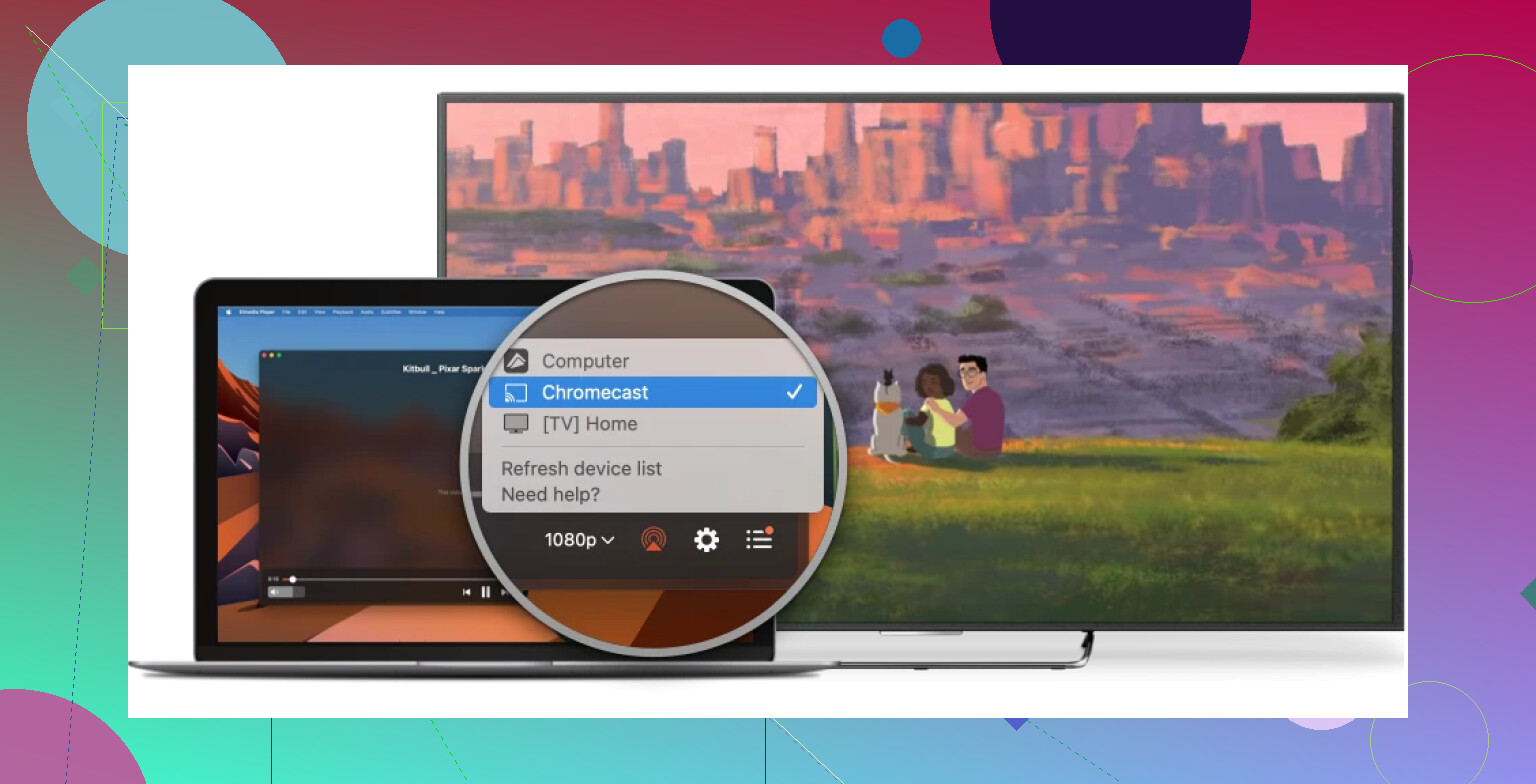
Yeah, the interface isn’t going to win any design awards, but it just works and I’ll happily take that over a flashier app with broken features.
Elaborate Cast of Formats Supported (Not Just .mp4s!)
Here’s something that’s actually kind of amazing: Elmedia hasn’t choked on any audio or video format I’ve thrown at it. AVI? Sure. MKV files ripped from a disc in 2012? Bring it on. Plus, you can jack up the playback speed, tweak how the video looks, or tell your Mac’s hardware to pitch in for some smooth performance. You don’t have to fuss with conversions or beg the universe for the right codec—just play and chill.
How to Actually Get Movies from Your Mac to Fire TV (Step-by-Step)
Let’s keep it straightforward because nobody wants to read more than they have to.
- Download and put Elmedia Player on your Mac (yeah, the PRO version, sorry).
- Again, check your Wi-Fi. You’ll thank me later.
- Crack open Elmedia, pick your video file, press play.
- Scan the bottom-right corner for this icon that kinda looks like AirPlay—click it, and bam, you should see your Fire TV as an option. That’s it, folks.
If you run into issues, nine times outta ten it’s some network weirdness. Reboot your router, sacrifice some coffee, and try again. If anyone found a smoother fix, chime in, but this setup has made my movie nights drama-free.