My external HDD shows the correct capacity in Windows, but it won’t open in File Explorer and may be corrupted. It started after an unsafe disconnect, and I need help figuring out how to repair the hard drive or recover the files without making the damage worse.
If the drive still shows up in Disk Management and the size looks right, that’s a decent sign. A crash can mess up the file system or partition info without actually destroying the files. So I wouldn’t assume the HDD is dead yet.
What I would avoid for now is anything that writes changes back to the drive:
- Don’t format it, even if Windows keeps asking.
- Don’t run CHKDSK as the first step.
- Don’t copy anything new onto it.
- Don’t keep rebooting over and over hoping it fixes itself.
Those tools and actions can change the file system. Sometimes that helps, but if the drive is already in a bad state, it can also make recovery harder.
I’d handle it in this order: first make sure the drive is detected with the correct capacity. If it’s external, try a different USB port, cable, or another PC just to rule out a simple connection problem. After that, recover the files before trying to repair the disk.
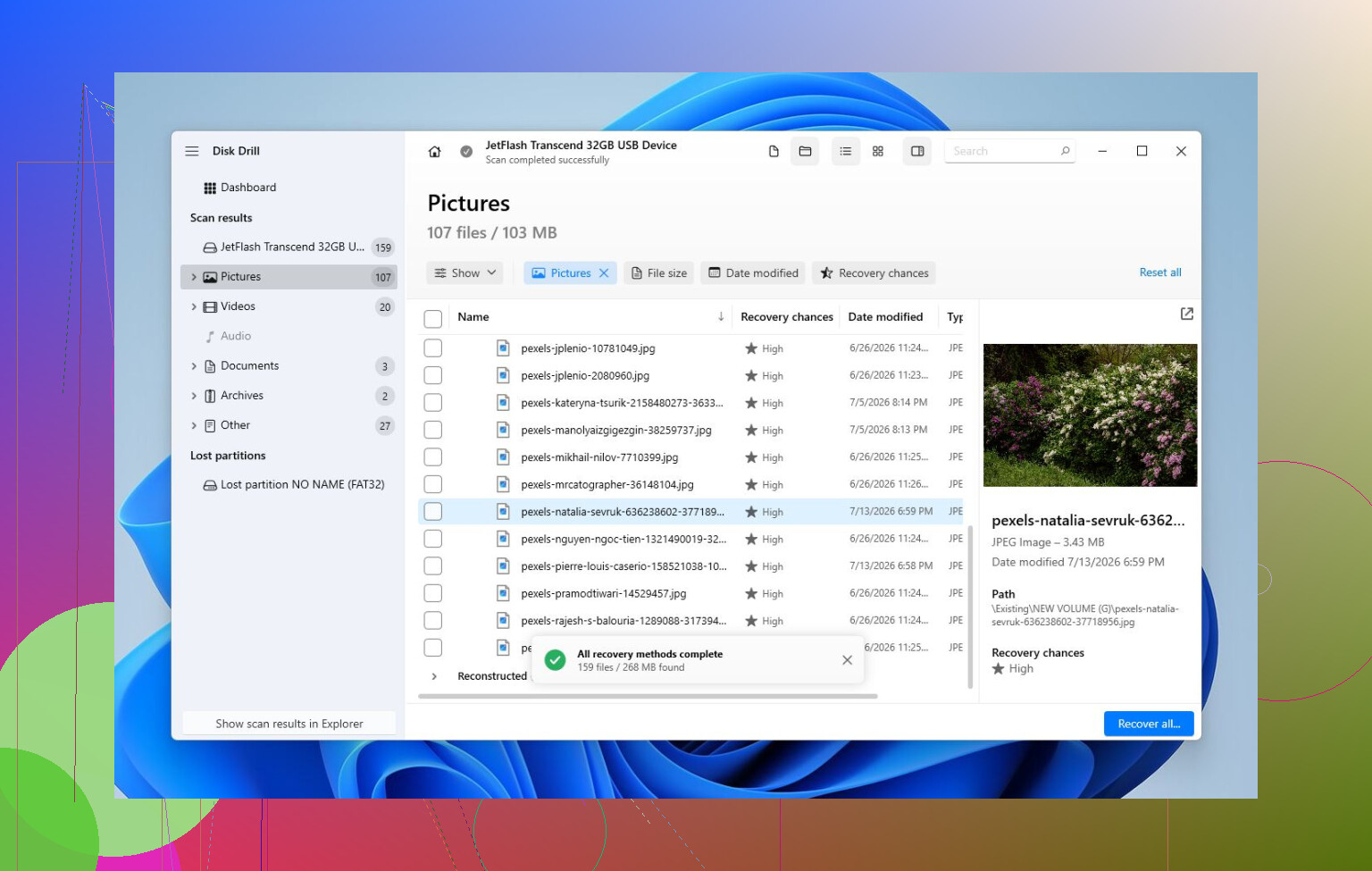
For the recovery part, Disk Drill is a solid option because it can make a full image of the HDD and scan that image instead of hammering the original drive. That matters if the disk is unstable.
The basic workflow would be:
- Install Disk Drill somewhere else, not on the corrupted drive.
- Create a full image of the problem HDD.
- Open the image in Disk Drill and run Universal Scan.
- Preview the files it finds.
- Recover the files to a different healthy drive.
The preview part is useful because you can see whether your photos, documents, videos, etc. are actually recoverable before committing to anything. Even without the paid version, scanning and previewing can at least tell you what your chances look like.
Once the important stuff is copied somewhere safe, then I’d start thinking about repairs. If the file system is still readable, CHKDSK may be worth trying, but only after recovery since it modifies the drive. If the partition shows as RAW or the partition table looks damaged, TestDisk can sometimes restore access without formatting. If neither works, then a quick format can rebuild the file system, assuming the issue is only logical corruption.
Also watch how the drive behaves. Clicking sounds, random disconnects, wrong capacity, disappearing from Disk Management, or becoming painfully slow are all bad signs. That points more toward hardware failure than a normal file system problem. If you see that, I’d stop DIY scans because every extra read can make things worse.
In that case, a professional recovery service is the safer route. They can diagnose the hardware, stabilize the drive if needed, clone it with proper equipment, and work from the copy instead of the failing disk. It costs more, but it’s usually the best option when the drive itself is physically failing.
So no, I wouldn’t panic yet. If Windows still sees the HDD with the right size, there’s a fair chance the data is still there. Get the files off first, then repair or format the drive later.
13 Likes
A drive that asks to be formatted but stays steady in Disk Management is a different problem from a drive that drops offline every time you touch it. In the first case, you’re probably dealing with file system damage from the unsafe unplug. In the second case, the USB enclosure, cable, power, or the drive hardware itself may be the real problem.
Before running repair tools, I’d check the boring hardware side. If it’s a 2.5’ portable HDD, try a short known-good USB cable and plug it directly into the PC, not through a hub. If it’s a 3.5’ external drive, make sure the power brick is right and stable. Some external enclosures have flaky USB bridge boards, so the actual disk may be fine while the enclosure makes Windows act like the volume is corrupt. If you are comfortable removing the drive and connecting it by SATA or another dock, that can change the result completely.
I agree with not using CHKDSK first if the files matter. CHKDSK is a repair tool, not a recovery tool, and “repair” can mean deleting broken directory entries so Windows is happy again. If you only need the drive usable and don’t care about the contents, then sure, format it and test it afterward. If you care about the data, recover to another disk first. Disk Drill is fine for a user-friendly scan, but if the drive is slow, clicking, or disconnecting, I’d stop scanning and clone/image it first or go to a recovery shop. The worst move is repeatedly trying different fixes on the original disk until it gets worse.
Check whether the partition has a normal drive letter and file system before you do anything else. In Disk Management, look at the lower pane and see if it says NTFS/exFAT, RAW, Unallocated, Healthy, No Media, or something like that. The wording matters more than the fact that the total disk size looks right.
The big trap people hit here is clicking whatever Windows offers. If Windows says “You need to format the disk before you can use it,” cancel it. If Disk Management asks to initialize the disk, cancel that too. Initializing is not a harmless refresh button. It writes new partition information, which can make a simple recovery job messier.
A drive showing the correct capacity usually means the USB bridge and the disk are at least identifying themselves correctly. That does not prove the file system is okay. After an unsafe disconnect, the directory structure or journal can be damaged while the actual file contents are still sitting there. That’s why File Explorer may refuse to open it even though Disk Management still sees the right size.
I’d separate this into two paths:
If the files matter, treat the drive as read-only for now. Don’t run repair commands yet. Don’t try to “take ownership,” don’t convert it, don’t format it, and don’t keep unplugging it while Windows is thinking. Use another drive with enough free space and recover or image the bad drive first. Disk Drill is fine for this kind of job if you want a GUI tool, especially if you can scan an image instead of the original HDD. The caveat is that no recovery tool should be used as a stress test. If the disk starts clicking, freezing the whole PC, or dropping connection during a scan, stop.
If the files do not matter and you just want the HDD usable again, then the answer is much simpler: delete the bad volume, create a new one, format it, then test the disk afterward. A quick format only tells Windows to rebuild the file system. It does not prove the drive is healthy. After formatting, check SMART health and run a surface test before trusting it again. A drive that got corrupted because of one bad unplug may be fine. A drive that has weak sectors will usually corrupt itself again later.
There’s one smaller thing I don’t see mentioned enough: try not to “repair” through File Explorer. Explorer is terrible at showing what is really wrong. Disk Management gives better clues, and a SMART tool can tell you if the drive is throwing reallocated sectors, pending sectors, or read errors. If SMART looks ugly, don’t waste time on CHKDSK. CHKDSK can make a failing drive work hard for hours while modifying the file system at the same time. That is a bad combo when the data is important.
If Disk Management shows RAW, recovery first is the safest route. If it shows NTFS but Explorer hangs, that can still be corruption, but it can also be bad sectors in the folder area. If it shows Unallocated, the partition table may be damaged. If it shows the partition but no drive letter, assigning a letter may work, but only do that if it still shows a known file system like NTFS or exFAT. Don’t assign, format, initialize, and click around just to see what happens.
A realistic order would be:
- Try a different cable/port/PC once, not ten times.
- Open Disk Management and write down exactly what it shows.
- If the data matters, make an image or scan for recovery to another disk.
- Save recovered files somewhere else.
- Only after that, try CHKDSK or rebuild/format the volume.
- Test the HDD before reusing it.
For CHKDSK, I would only run it after the important files are already copied out. Something like chkdsk X: /f is meant to fix file system errors, but “fix” can mean removing broken entries and orphaned references. It may get the drive opening again, or it may make the file list cleaner while some files disappear. That’s why people warn against using it first.
So yes, it may be repairable, but I’d stop thinking of “repair” as step one. First figure out whether the disk is stable. Then recover what matters. Then repair or wipe it. The correct size is a good sign, but it is not enough of a green light to start writing changes to the drive.
Don’t plug it into a TV, game console, router, or anything else that might “prepare” the disk for you. Some devices will offer to format it, create folders, or write metadata, which is the last thing you want before recovery. Stick to a PC, keep it read-only as much as possible, and copy/recover to a separate drive before trying repairs.